Accounts payable manager, Auditor, Accounting manager and 2 more roles
Business process
Perform invoice matching in Dynamics 365 Finance
Menu item
VendParameters
Main table
VendParameters
Setup steps
7 on this page
Show what matters for
SETUP GUIDEHow to set it up8 sections. Choose a role to highlight what matters to you.
Everyone
1What it is and why
What it is
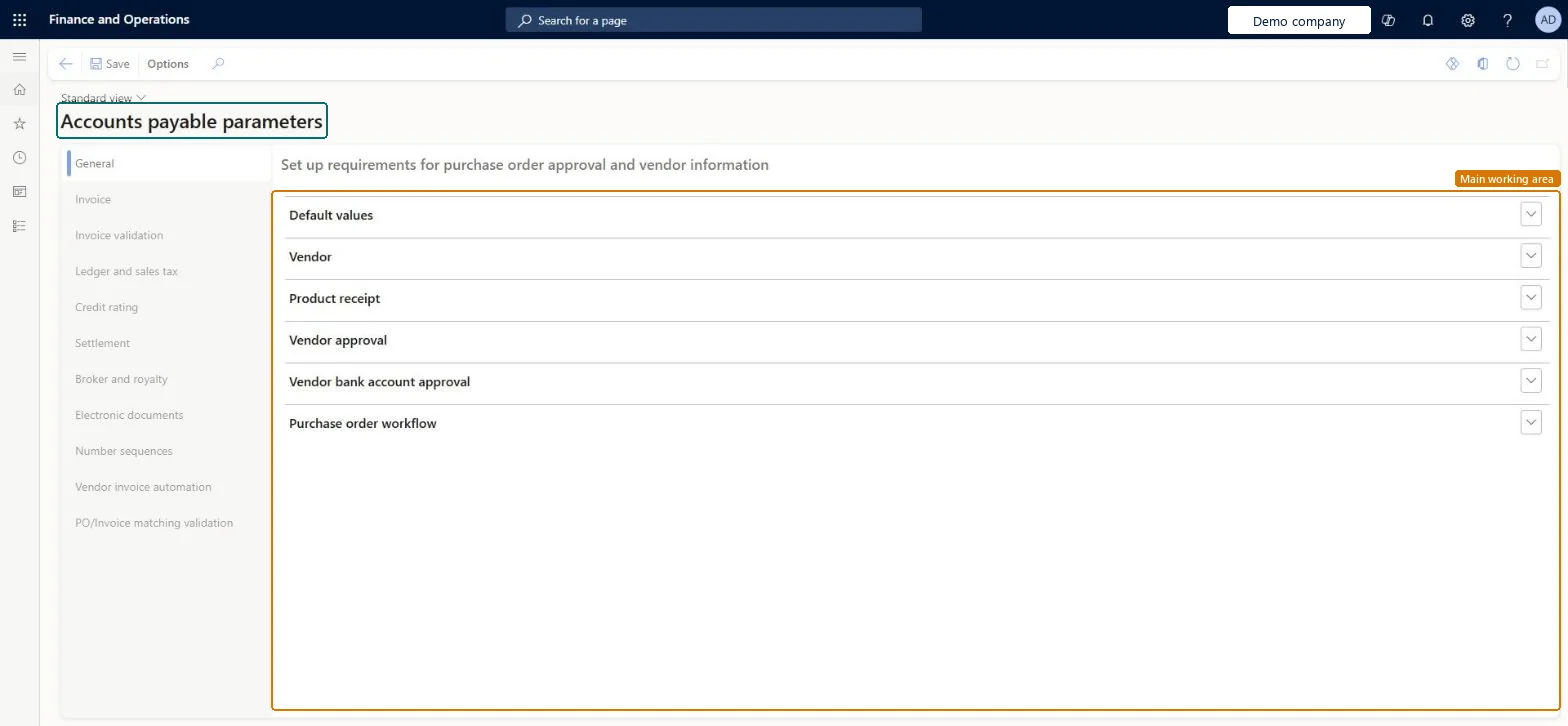
The main setup page for Accounts payable in each legal entity.
What you do here
Use this page to set default settings that apply when no more specific setting exists, parameters for various Accounts payable functionality, and the Accounts payable number sequences.
Example
For example, a company that wants accrued costs recorded when goods are received, before the vendor invoice arrives, selects the Post product receipts to ledger option on this page.
The page in Dynamics 365. page title tab to open what to set or check
About the examples: Examples and screenshots in this guide use BEAT, a demo company in a Dynamics 365 test environment. Use your own company's codes and values instead of copying them.
Step by step, with screenshots
Configure price total matching and tolerance1 screen
Screen 1
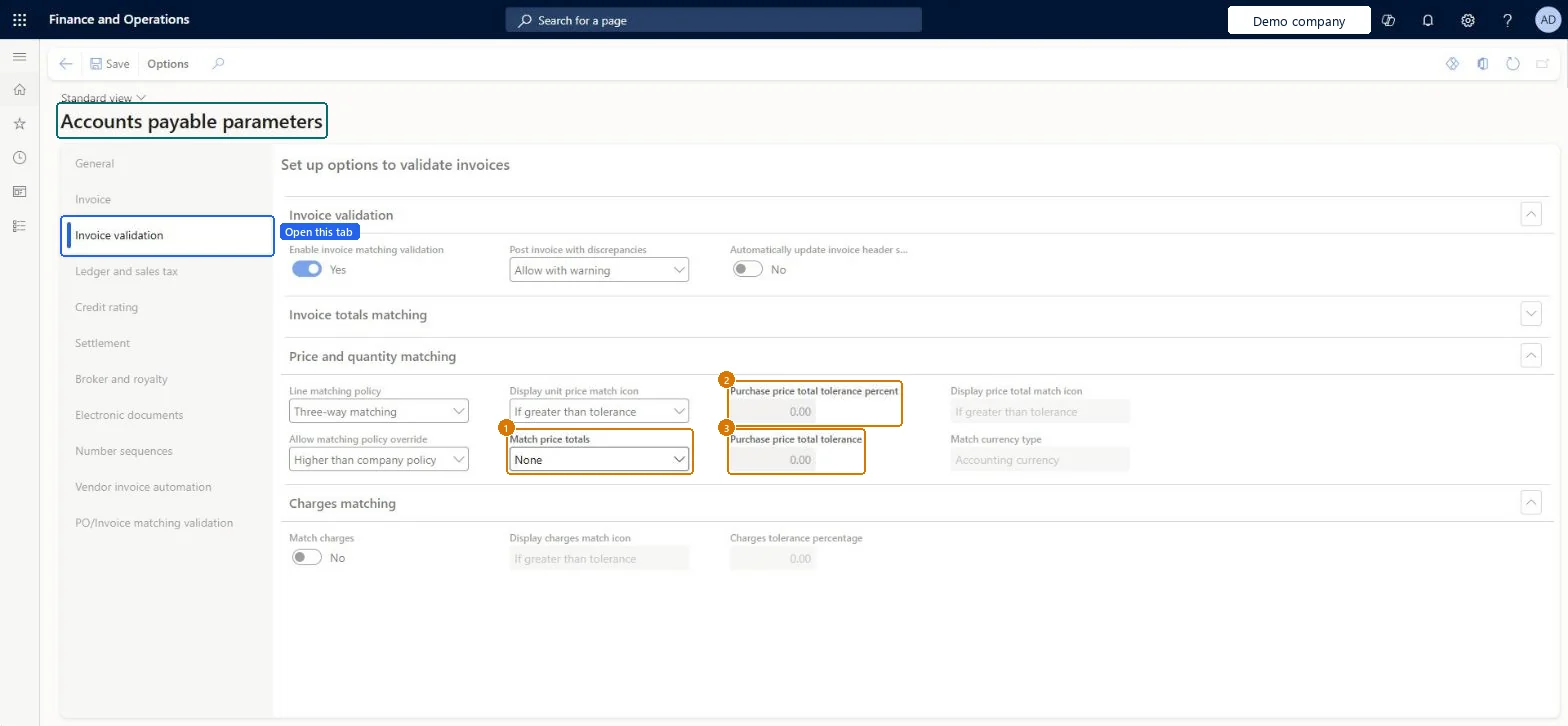
Set price total matching and its tolerances
Go to Accounts payable > Setup > Accounts payable parameters, Invoice validation tab
Expand the Price and quantity matching section
Set Match price totals
Check the two purchase price total tolerance fields
Select Save
1Match price totals
None
2Purchase price total tolerance percent
0.00
3Purchase price total tolerance
0.00
Show the full screen page title tab to open what to set or check
Confirm procurement and AP number sequences exist1 screen
Screen 1
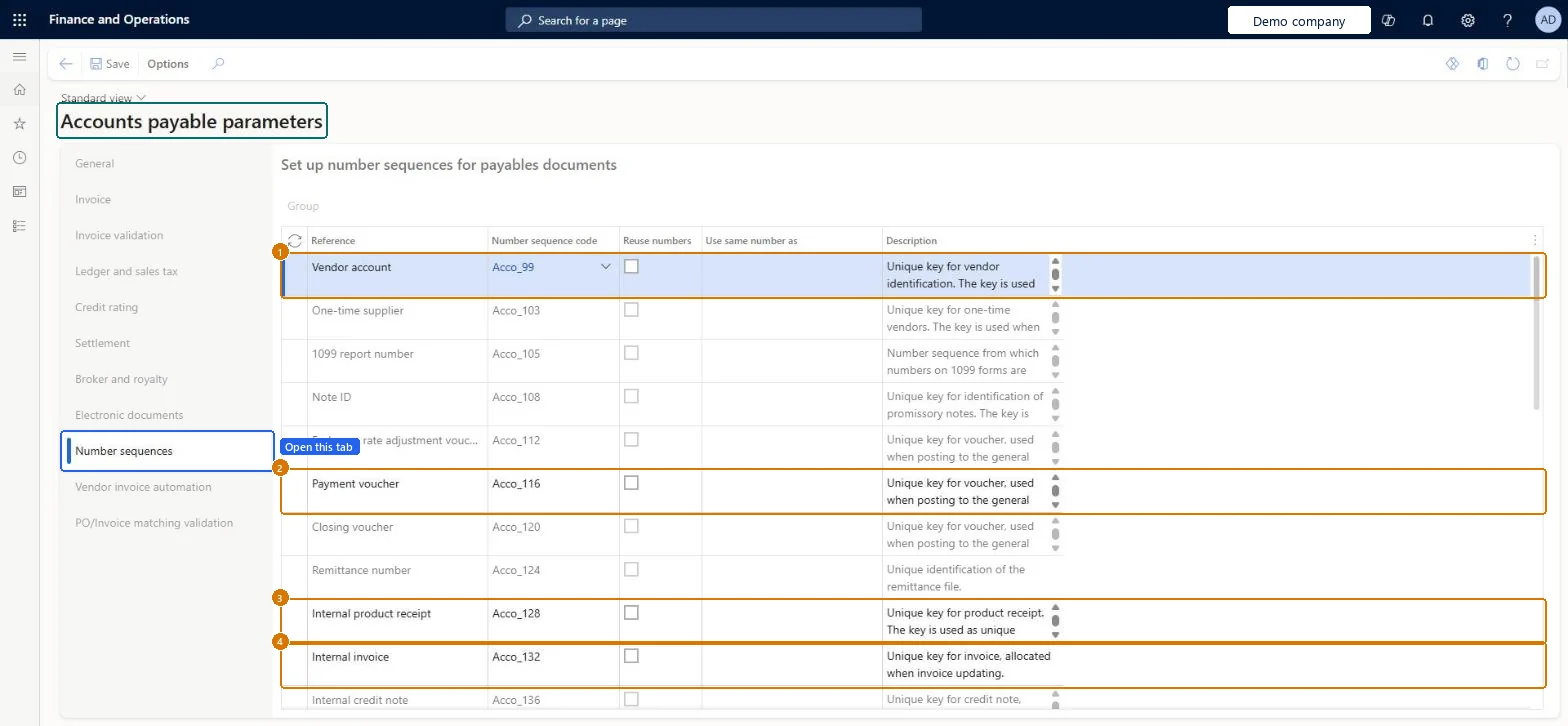
Confirm the payables number sequences
Go to Accounts payable > Setup > Accounts payable parameters, Number sequences tab
Open the Number sequences tab
Review each reference in the grid and its Number sequence code
Assign a code to any reference that has none, then select Save
1Vendor account
Acco_99
2Payment voucher
Acco_116
3Internal product receipt
Acco_128
4Internal invoice
Acco_132
Check Every reference in the grid, including Vendor account, Payment voucher, Internal product receipt and Internal invoice, shows a number sequence code.
page title tab to open what to set or check
Enable invoice matching validation1 screen
Turn on the control that compares vendor invoice lines against purchase order and receipt data before posting, so price and quantity discrepancies are caught at entry rather than at reconciliation.
Screen 1
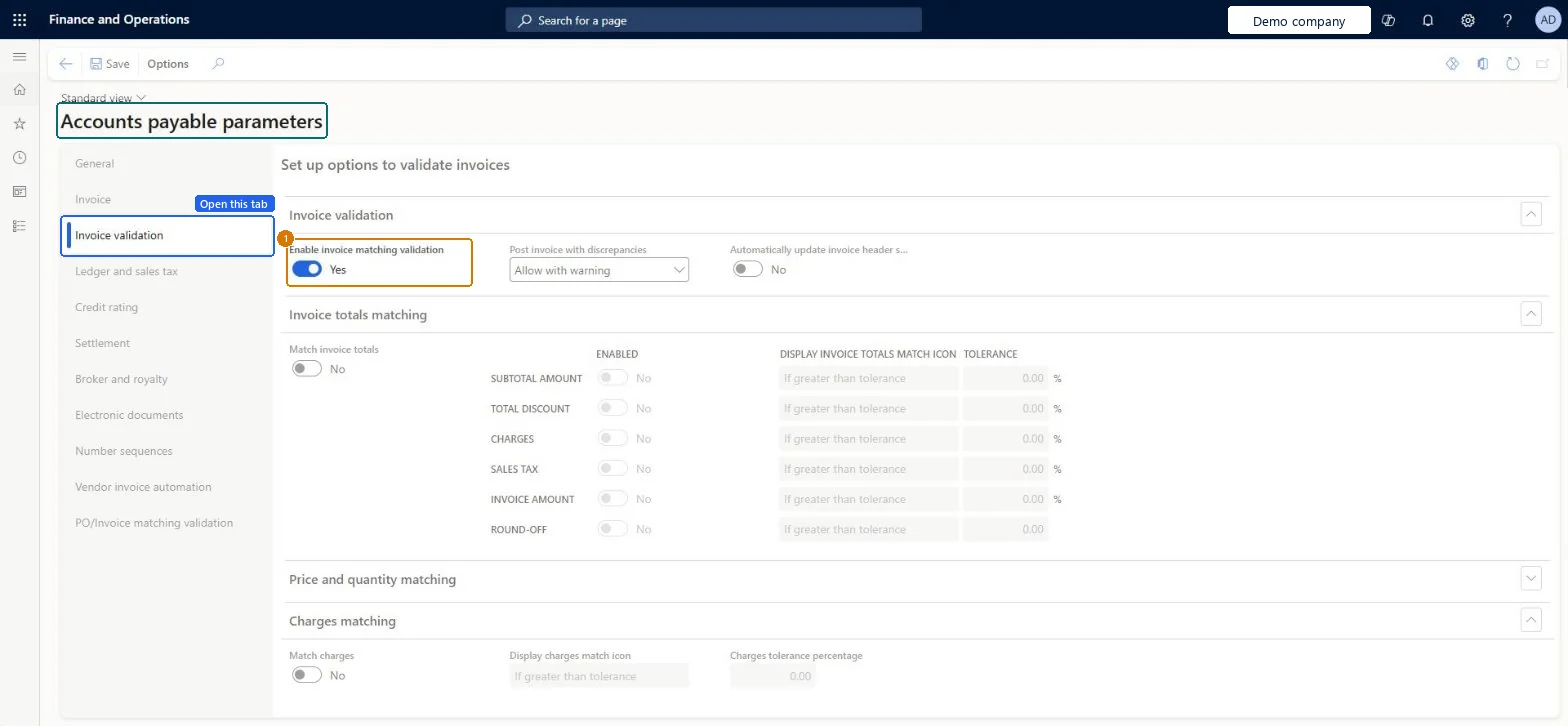
Turn on invoice matching validation
Go to Accounts payable > Setup > Accounts payable parameters, Invoice validation tab
Open the Invoice validation tab
In the Invoice validation section, turn on Enable invoice matching validation
Select Save
1Enable invoice matching validation
Yes
Show the full screen page title tab to open what to set or check
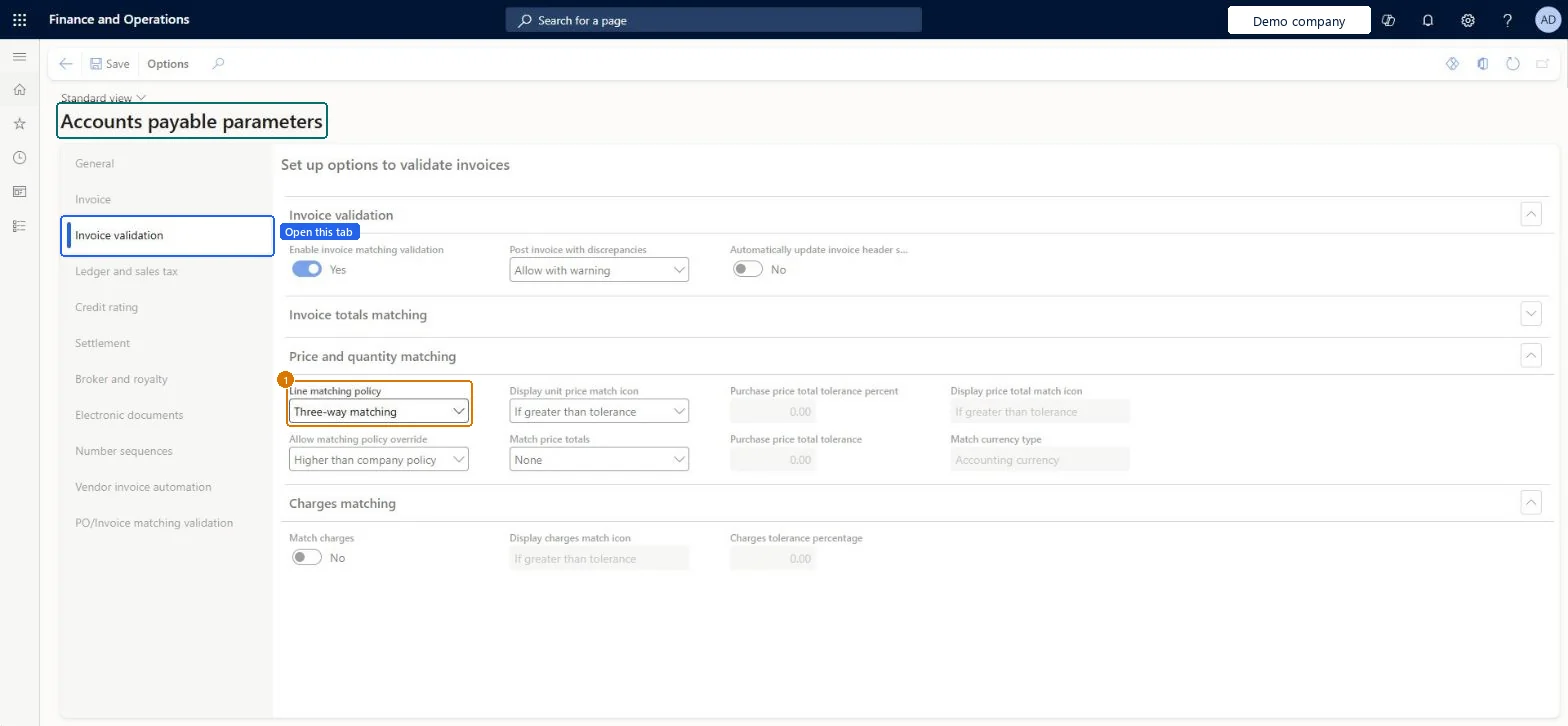
Set the default line matching policy1 screen
Establish whether invoice lines are validated against the PO only, or against the PO and the product receipt, as the organisation's default control level.
Screen 1
Set the line matching policy
Go to Accounts payable > Setup > Accounts payable parameters, Invoice validation tab
Expand the Price and quantity matching section
Set Line matching policy
Select Save
1Line matching policy
Three-way matching
Show the full screen page title tab to open what to set or check
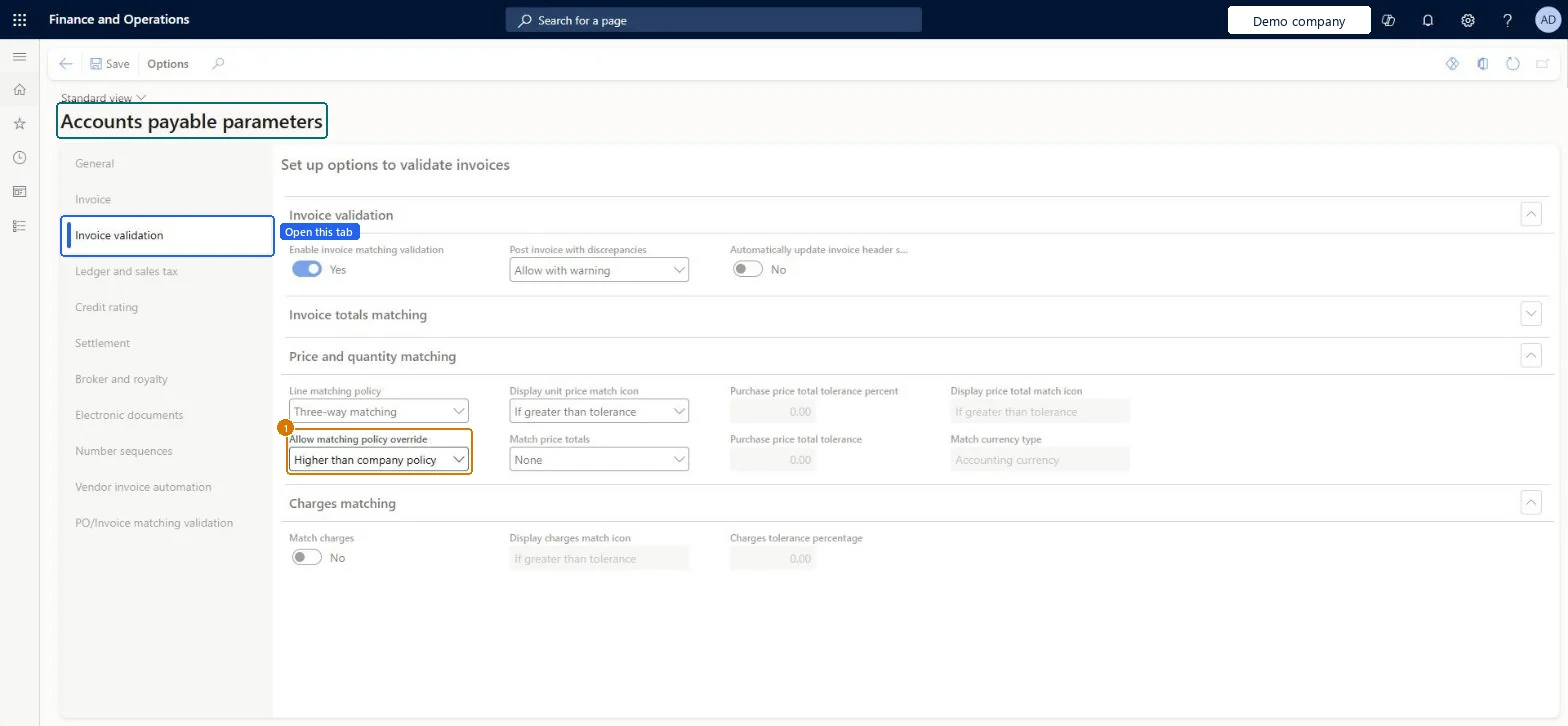
Decide whether matching policy override is allowed1 screen
Screen 1
Allow a stricter policy override
Go to Accounts payable > Setup > Accounts payable parameters, Invoice validation tab
Expand the Price and quantity matching section
Set Allow matching policy override
Select Save
1Allow matching policy override
Higher than company policy
Show the full screen page title tab to open what to set or check
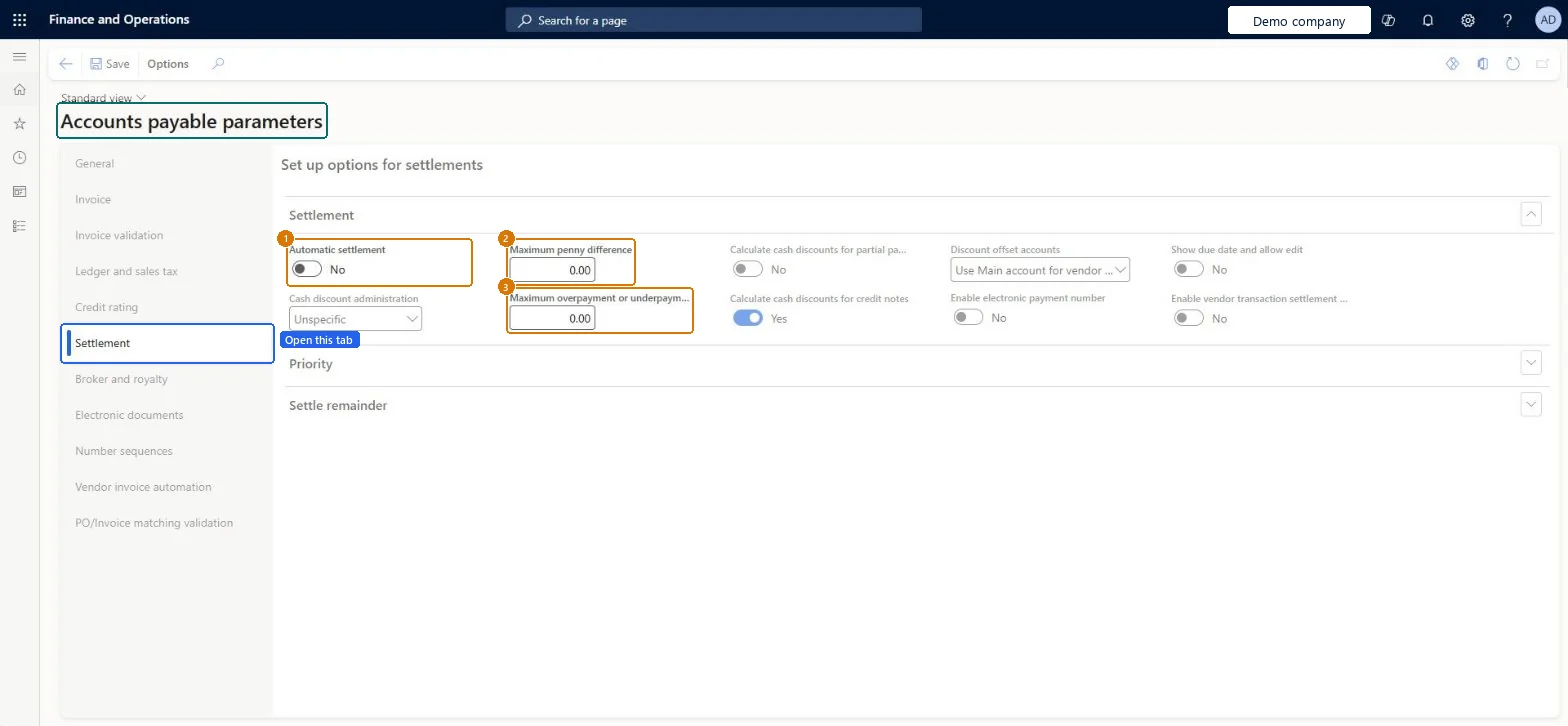
Set automatic vendor settlement behavior1 screen
Control whether an unallocated vendor payment is matched to open transactions automatically after posting.
Screen 1
Set automatic settlement and settlement limits
Go to Accounts payable > Setup > Accounts payable parameters, Settlement tab
Open the Settlement tab
Set Automatic settlement
Enter Maximum penny difference and Maximum overpayment or underpayment
Select Save
1Automatic settlement
No
2Maximum penny difference
0.00
3Maximum overpayment or underpayment
0.00
Show the full screen page title tab to open what to set or check
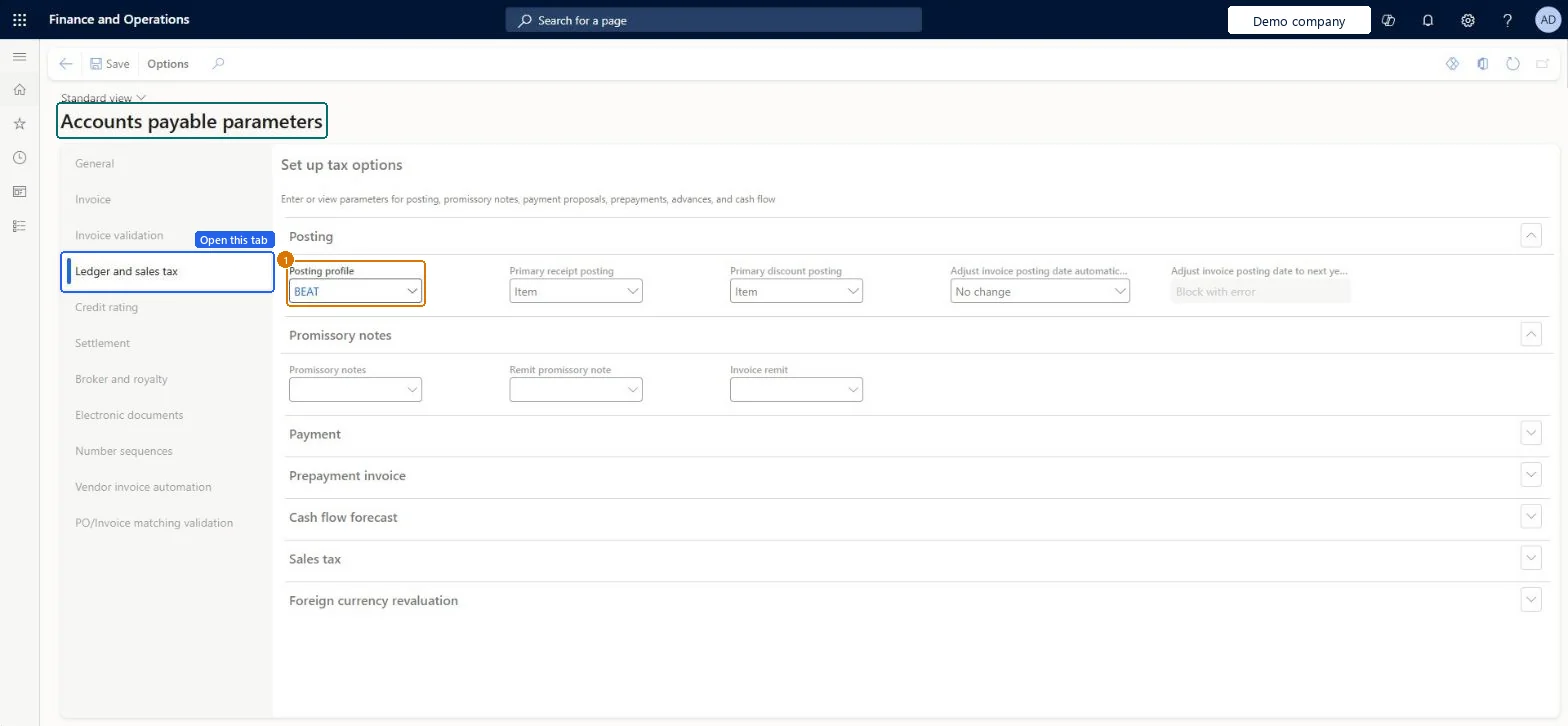
Set the default vendor posting profile1 screen
Apply the approved AP posting profile to new vendor documents unless a more specific choice is made.
Screen 1
Set the default vendor posting profile
Go to Accounts payable > Setup > Accounts payable parameters, Ledger and sales tax tab
Open the Ledger and sales tax tab
In the Posting section, select the posting profile
Select Save
1Posting profile
BEAT
Show the full screen page title tab to open what to set or check
Steps from Microsoft
Go to Accounts payable > Setup > Accounts payable parameters.
Select the Invoice validation tab.
Select or clear Enable invoice matching validation.
In Post invoice with discrepancies, choose whether invoices with matching discrepancies need approval or can post with a warning.
In Automatically update invoice header match status, choose whether matching runs automatically during invoice entry.
For invoice totals matching, select Match invoice totals and enter the Invoice totals tolerance percentage.
Select the Line matching policy and, if needed, a value in Allow matching policy override.
Set Match price totals and its tolerance, and select Match charges to match charges against the purchase order.
None unless vendors send several invoices for one purchase order line; then Percentage, or Percentage and amountLearn says price totals matching is useful when you receive multiple invoices for a single purchase order line, and not needed if you usually receive one invoice per line. It needs two-way or three-way matching.
Mixing up currencies: the percentage tolerance is compared in the transaction currency, while the amount tolerance is compared in the accounting currency.
A number sequence on every Accounts payable reference on the Number sequences tab before the first vendor or invoice is createdLearn lists the Accounts payable parameters page as the place for the Accounts payable number sequences, and centralized payment settlement vouchers also draw on the payment voucher sequence set here.
YesEnable invoice matching validation before testing the matching checks and discrepancy settings.
Enabled in one legal entity during a pilot and never replicated to the others, so matching silently does nothing in the entities that went live later. Check this setting separately in each legal entity.Test: Matching validation test pack
Three-way matching for stocked items; two-way where no receipt is recorded (services, some indirect spend)Choose the matching policy around the receipt process and the required controls. Test how missing receipts and discrepancy settings affect posting.
Expecting the legal entity Line matching policy to apply everywhere when overrides exist: the Matching policy page wins in the order item and vendor, item, vendor, then legal entity.
Yes when payments are posted without marking invoices, with Use priority for automatic settlements set and the priority defined; No when clerks always mark invoices in payment proposals or Settle transactionsLearn says a payment posted without settlement can be settled automatically when Automatic settlement is on, using either the default order or the priority you define. Choose the method that fits the business process.
The vendor posting profile whose All row holds the standard trade payables summary accountThe default posting profile on the Ledger and sales tax tab appears on the header of every new vendor document; the profile's Table, Group and All rows then pick the summary account, so the default should be the profile used by most vendors.
BEAT uses number sequence Acco_99. Checked in Dynamics 365
One-time supplier
Per company
BEAT uses number sequence Acco_103. Checked in Dynamics 365
1099 report number
Per company
BEAT uses number sequence Acco_105. Checked in Dynamics 365
Note ID
Per company
BEAT uses number sequence Acco_108. Checked in Dynamics 365
Exchange rate adjustment voucher
Per company
BEAT uses number sequence Acco_112. Checked in Dynamics 365
Payment voucher
Per company
BEAT uses number sequence Acco_116. Checked in Dynamics 365
Closing voucher
Per company
BEAT uses number sequence Acco_120. Checked in Dynamics 365
Remittance number
Per company
BEAT uses number sequence Acco_124. Checked in Dynamics 365
Internal product receipt
Per company
BEAT uses number sequence Acco_128. Checked in Dynamics 365
Internal invoice
Per company
BEAT uses number sequence Acco_132. Checked in Dynamics 365
Internal credit note
Per company
BEAT uses number sequence Acco_136. Checked in Dynamics 365
Product receipt voucher
Per company
BEAT uses number sequence Acco_140. Checked in Dynamics 365
Invoice voucher
Per company
BEAT uses number sequence Acco_144. Checked in Dynamics 365
Purchase order confirmation voucher
Per company
BEAT uses number sequence Acco_148. Checked in Dynamics 365
Credit note voucher
Per company
BEAT uses number sequence Acco_152. Checked in Dynamics 365
Charges voucher
Per company
BEAT uses number sequence Acco_156. Checked in Dynamics 365
Prepayment voucher
Per company
BEAT uses number sequence Acco_160. Checked in Dynamics 365
Prepayment application voucher
Per company
BEAT uses number sequence Acco_164. Checked in Dynamics 365
Product receipt finalization voucher
Per company
BEAT uses number sequence Acco_168. Checked in Dynamics 365
Royalty contract
Per company
BEAT uses number sequence Acco_172. Checked in Dynamics 365
Solution architect
5Design impact
Shared or per company
Legal entity
Can it be undone
Reversible
If you change it later
Some settings don't change existing records on their own. For example, when you turn on Show due date and allow edit, you choose whether to update all existing vendor transactions now or fill the new fields only for new transactions. Microsoft Learn
Technical architect
6Technical
Menu item
VendParametersChecked in Dynamics 365
Form
VendParametersChecked in Dynamics 365
Table
VendParametersShown as “Vendor parameters” in Record infoChecked in Dynamics 365
Data entities
VendorParameters
Who can open it
PrivilegesMaintain accounts payable parameters VendParametersMaintainView accounts payable parameters VendParametersViewDutiesEnable purchasing process ProcPurchasingProcessEnableInquire into purchase order to invoice policies PurchOrderToInvoicePoliciesInquireEnable purchase order to invoice process PurchOrderToInvoiceProcessEnableInquire into invoice and payment policies VendInvoiceInvoicePaymentPoliciesInquirEnable invoice and payment process VendInvoiceInvoicePaymentProcessEnable5 security rolesAuditor AuditPolicyManagerAccounting manager LedgerAccountingManagerAccounting supervisor LedgerAccountingSupervisorPurchasing manager TradePurchasingManagerAccounts payable manager VendInvoiceAccountsPayableManagerChecked in Dynamics 365
Roles to set it up and use it
To set it up or change itAccounts payable manager VendInvoiceAccountsPayableManagerAccounting supervisor LedgerAccountingSupervisorPurchasing manager TradePurchasingManagerTo use itAccounting manager LedgerAccountingManagerAuditor AuditPolicyManagerGive people one of these roles. On this system, 5 roles can open this page.Checked in Dynamics 365
Checked in a working Dynamics 365 system, version 10.0.49: the menu item, form, table and security, the page, the demo records and the values in the screenshots.
To cite this step: AP-INVMATCH-060, Configure price total matching and tolerance. Beyond ERP Atlas Hub, 2026-11-11. https://www.beyonderp.cloud/atlas/step/AP-INVMATCH-060