About the examples: Examples and screenshots in this guide use BEAT, a demo company in a Dynamics 365 test environment. Use your own company's codes and values instead of copying them.
Step by step, with screenshots
Set up Address books1 screen
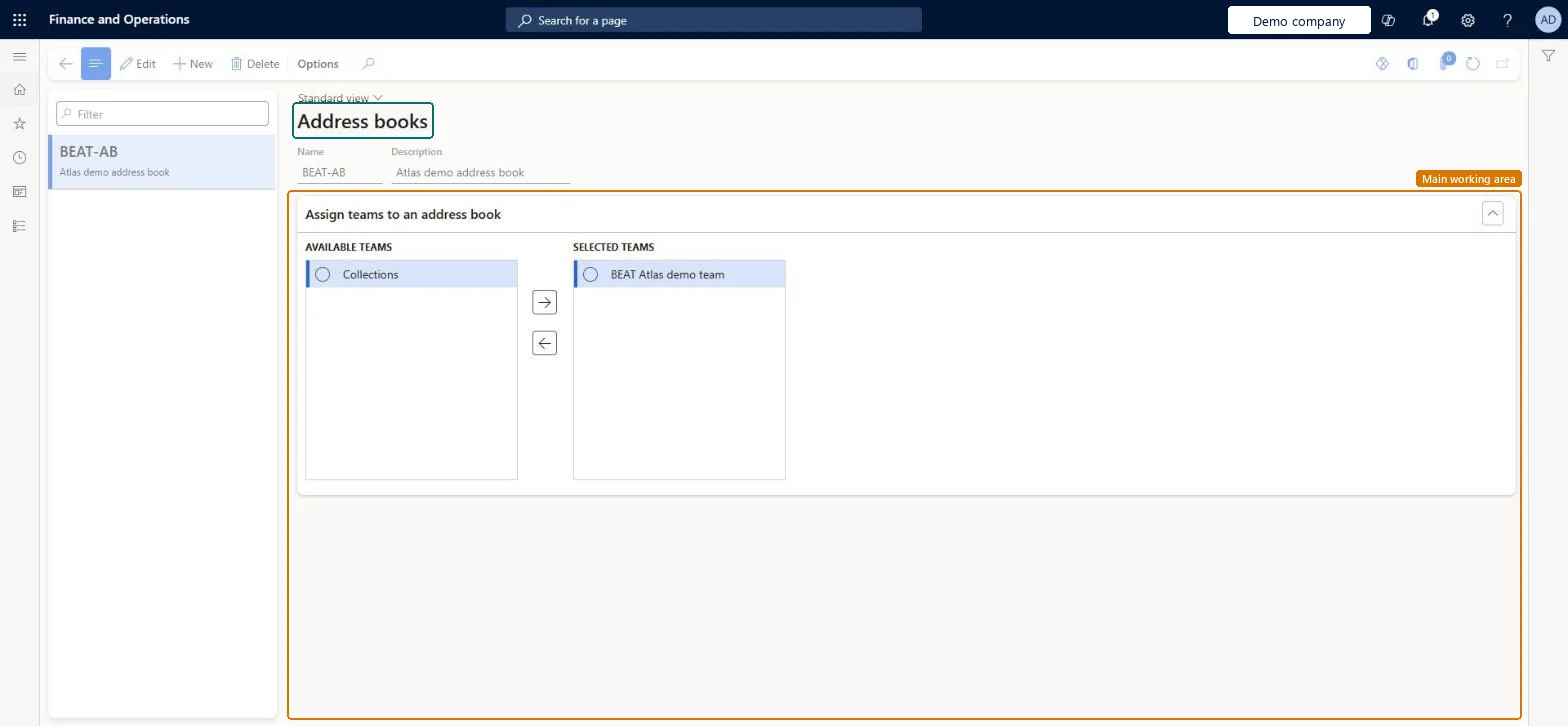
Use this page to set up additional address books and fill them with the members of selected teams.
Screen 1
Create an address book and assign a team
Go to Organization administration > Global address book > Address books
Select Edit, then New
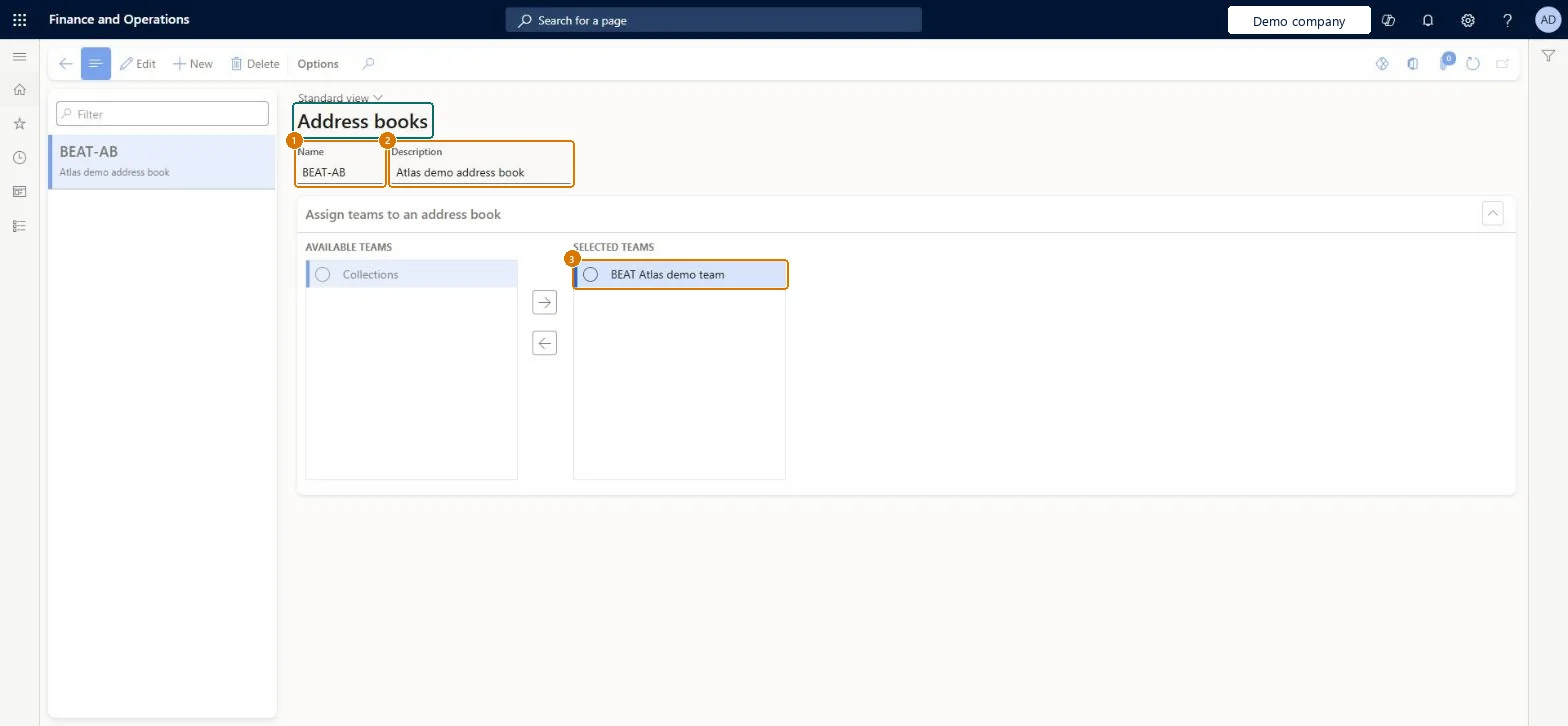
Enter the name and description
Select Save
Select a team under Available teams and move it to Selected teams
1Name
BEAT-AB
2Description
Address book
Selected teams
Collections team
Show the full screen page title tab to open what to set or check
Steps from Microsoft
Go to Organization administration > Global address book > Address books.
Select New.
Enter a Name.
Enter a Description.
Select Save.
Select the address book in the list.
Select the teams to add and select the arrow to move them to the address book.
Create additional address books only where a group needs its own list, for example one per company or per line of business, and fill them through teams.Learn's planning example creates an address book per line of business, and per location where a line of business runs in more than one company; the decision to make is how many extra books you need.
PrivilegesMaintain address books DirAddressBookMaintainView address books DirAddressBookViewDutiesEnable the global address book process DirAddressBookProcessEnableInquire into address book reference data DirAddressBookReferenceDataInquire5 security rolesAccounts receivable manager CustInvoiceAccountsReceivableManagerHuman resource manager HcmHumanResourceManagerAccounting manager LedgerAccountingManagerInformation technology manager SysServerITManagerAccounts payable manager VendInvoiceAccountsPayableManagerChecked in Dynamics 365
Roles to set it up and use it
To set it up or change itInformation technology manager SysServerITManagerAccounting manager LedgerAccountingManagerHuman resource manager HcmHumanResourceManagerTo use itAccounts payable manager VendInvoiceAccountsPayableManagerAccounts receivable manager CustInvoiceAccountsReceivableManagerGive people one of these roles. On this system, 5 roles can open this page.Checked in Dynamics 365
DirAddressBooksEntity (Address books): shared by all companies, in Microsoft's default template 010 - System Setup.Load order: Microsoft's default template 010 - System Setup loads Address books at execution unit 1, level 10, sequence 10. Lower levels load first, and entities at the same level load in sequence order.Microsoft Learn
Checked in a working Dynamics 365 system, version 10.0.49: the menu item, form, table and security, the page, the demo records and the values in the screenshots.
To cite this step: OA-GAB-030, Set up Address books. Beyond ERP Atlas Hub, 2026-11-11. https://www.beyonderp.cloud/atlas/step/OA-GAB-030