PAGE GUIDEWhat the page does and how to use it8 sections. Choose a role to highlight what matters to you.
Everyone
1What it is and why
What it is
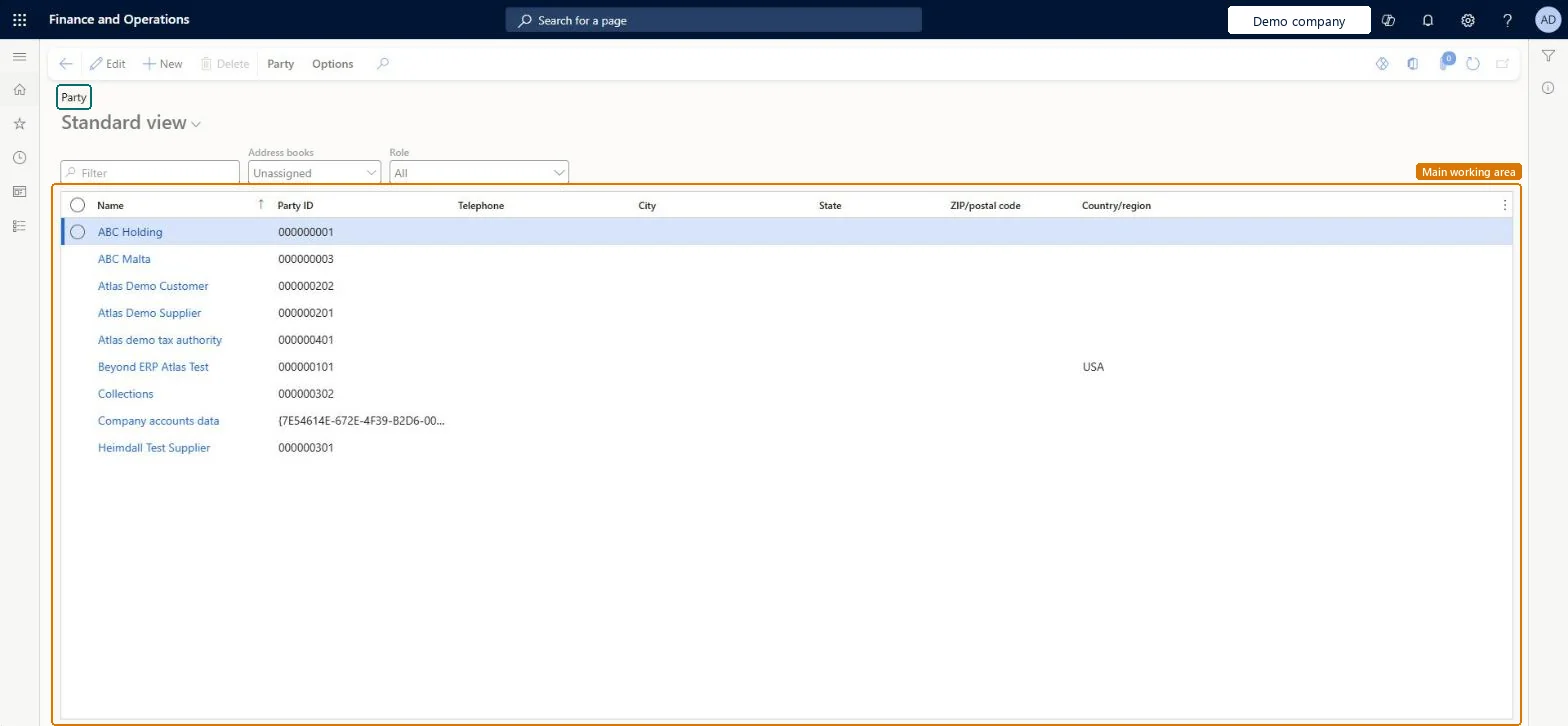
A list page of all parties, the people and organizations your company deals with, with their names, addresses and contact information.
What you do here
Use this page to create and keep party records in one place, so that every role a party has, such as customer or vendor, shares the same addresses and contact details.
Example
For example, the organization First Up Consultants can be a customer and a vendor in company CEE and a vendor in company CEU, all from one party record.
The page in Dynamics 365. page title tab to open what to set or check
About the examples: Examples and screenshots in this guide use BEAT, a demo company in a Dynamics 365 test environment. Use your own company's codes and values instead of copying them.
Steps from Microsoft
Open the Global address book list page.
Select New.
In the Name field, enter the party name.
In the Address books field, select the address book.
On the Addresses FastTab, select Add, enter the address, and select OK.
On the Party tab, in the Maintain group, select Check for duplicates.
Hard to reverse: A party that is a legal entity can't be deleted. Changing a party's type (person or organization) means creating a new party of the right type, associating the old record with it and then deleting the original. Parties with the same role in the same legal entity can't be merged. Microsoft Learn
If you change it later
A party that is a legal entity can't be deleted from the global address book. Microsoft Learn
Technical architect
6Technical
Menu item
GlobalAddressBookListPageChecked in Dynamics 365
Form
DirPartyTableChecked in Dynamics 365
Roles to set it up and use it
To set it up or change itInformation technology manager SysServerITManagerHuman resource manager HcmHumanResourceManagerCollections manager CollectionLetterCollectionsManagerLogistics manager TMSLogisticsManagerTo use itRental purchasing manager RentalPurchasingManagerRental manager RentalManagerRental sales manager RentalSalesManagerRental coordinator agent RentalCoordinatorAgentRental clerk RentalClerkGive people one of these roles. On this system, 10 roles can open this page.Checked in Dynamics 365
Actions on the page
Party: Maintain, New, Attachments, RegistrationOptionsChecked in Dynamics 365