BeyondERP.Newsletter
Menu

Setup step on the Global address book parameters page · Organization administration

Set up Global address book parameters

Use this page to decide how names are shown, whether to check for duplicates, the default party types, and which roles can see private addresses.

Business process
Administer system features
Menu item
DirParameters
Data entity
DirParametersEntity
Setup steps
1 on this page
Show what matters for
SETUP GUIDEHow to set it up8 sections. Choose a role to highlight what matters to you.
Everyone

1What it is and why

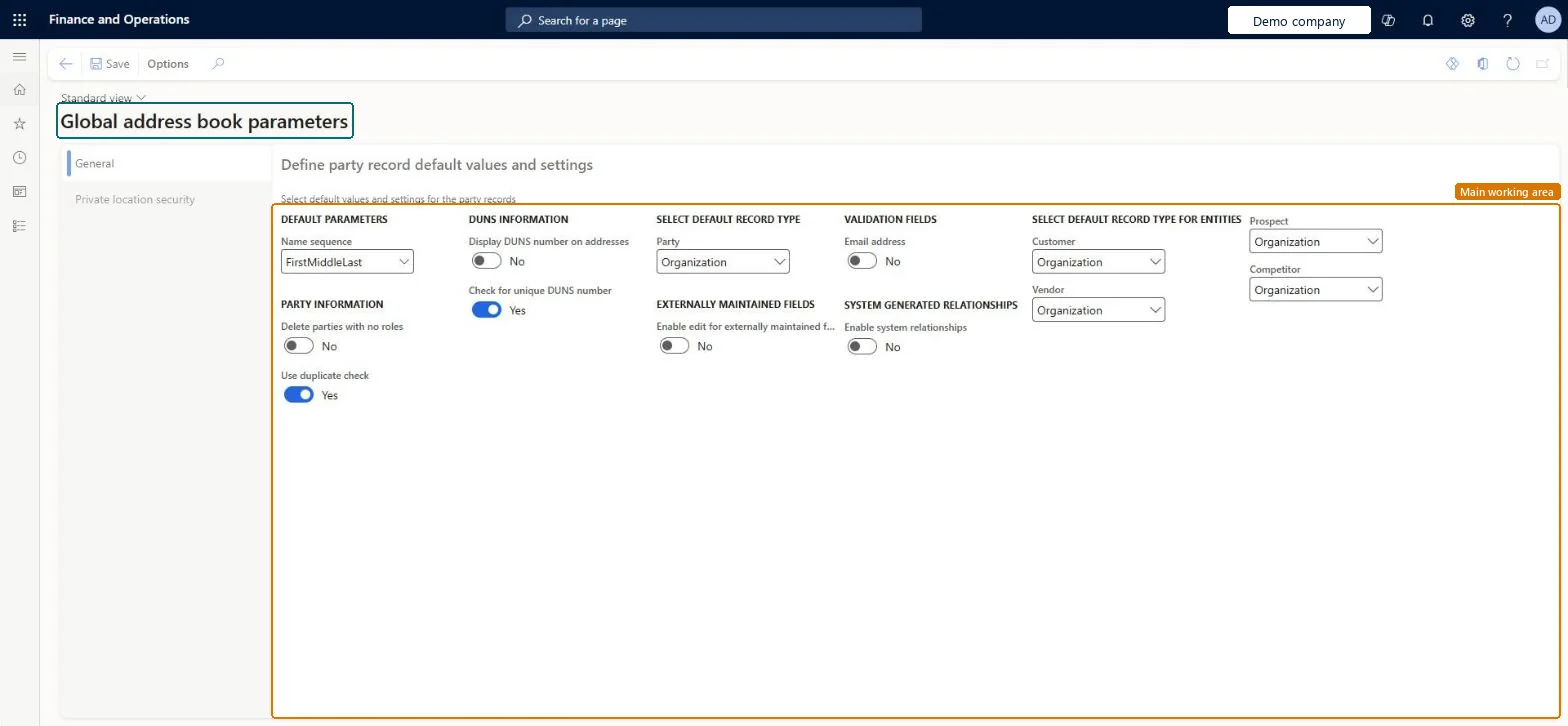
What it isA setup page for the default values and security settings of the global address book.
What you do hereUse this page to decide how names are shown, whether to check for duplicates, the default party types, and which roles can see private addresses.
ExampleFor example, you can choose to show the names of people as last name, middle name, first name.
Global address book parameters page in Dynamics 365
The page in Dynamics 365. page title tab to open what to set or check
Functional consultant · Solution architect

2Where it fits

Business processAdminister system features
Menu pathOrganization administration › Global address book › Global address book parameters
Used next byGlobal address book Microsoft Learn Set up Address books
Related pagesAddress books Microsoft Learn
In this process Set up Configurations · Set up Segment configuration
End user · Functional consultant

3How to do it

About the examples: Examples and screenshots in this guide use BEAT, a demo company in a Dynamics 365 test environment. Use your own company's codes and values instead of copying them.

Step by step, with screenshots

Set up Global address book parameters1 screen

Use this page to decide how names are shown, whether to check for duplicates, the default party types, and which roles can see private addresses.

  1. Screen 1

    Review the global address book parameters

    Go to Organization administration > Global address book > Global address book parameters

    1. Open the General tab
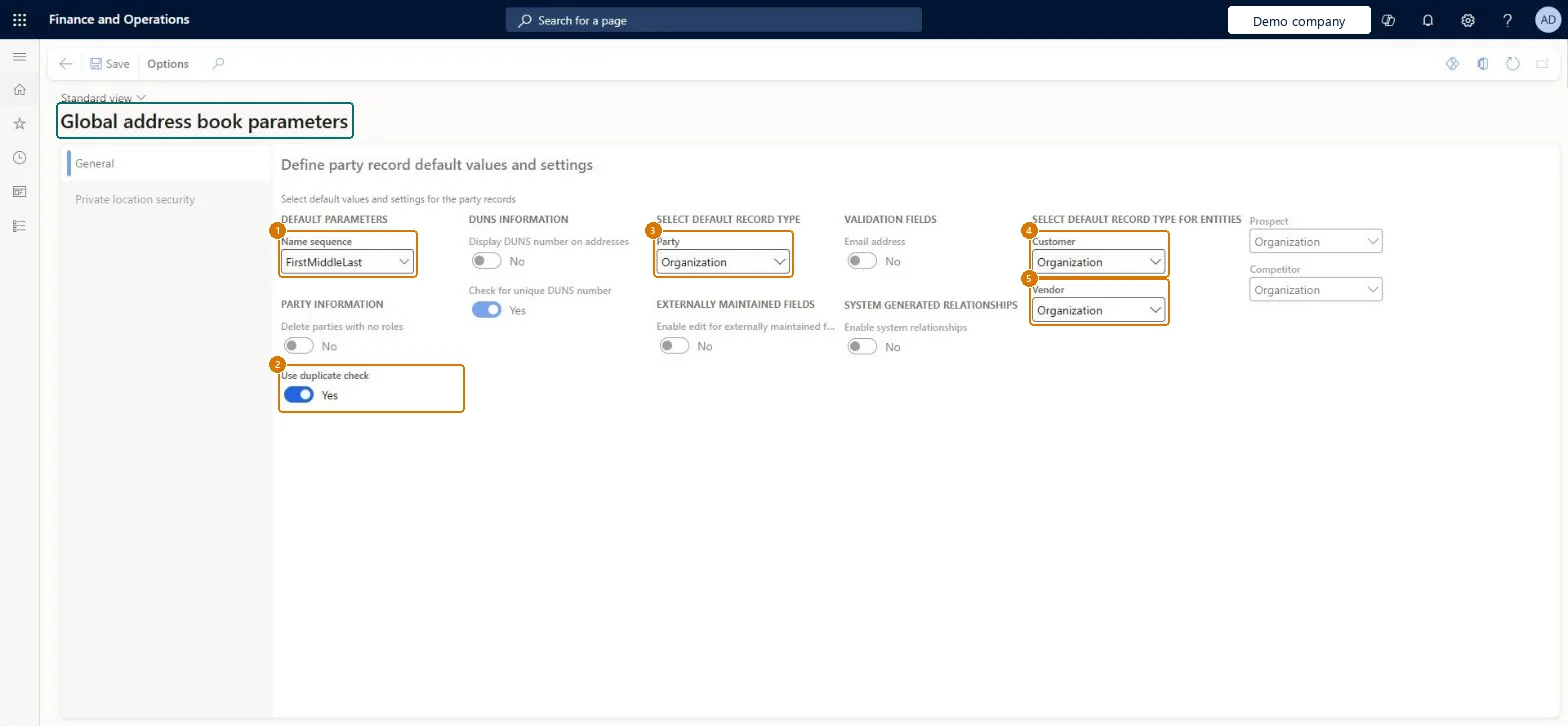
    2. Review the default name sequence, the duplicate check and the default record types
    1Name sequenceFirstMiddleLast
    2Use duplicate checkYes
    3PartyOrganization
    4CustomerOrganization
    5VendorOrganization
    Review the global address book parameters (zoomed on the outlined fields)
    Show the full screenReview the global address book parameters
    page title tab to open what to set or check

Steps from Microsoft

  1. Go to Organization administration > Global address book > Global address book parameters.
  2. In the Name sequence field, select how names are shown.
  3. Choose whether to Delete parties with no roles.
  4. Choose whether to Use duplicate check.
  5. Set Display DUNS number on addresses and Check for unique DUNS number.
  6. In the Party, Customer, Vendor, Prospect and Competitor fields, select the default options.
  7. On the Private location security tab, move the roles that may see private addresses to the selected roles.
  8. Select Save.

Source: Microsoft Learn

Fields on the page

FieldWhat it meansExampleTable column
Name sequenceHow the parts of a person's name are shown.Microsoft Learn FirstMiddleLast
Delete parties with no rolesWhether parties that no longer have any role are deleted.Microsoft Learn AutoDeleteParty
Use duplicate checkWhether the system checks for duplicate records.Microsoft Learn YesUseDuplicateCheck
Display DUNS number on addressesWhether the DUNS number is shown on addresses.Microsoft Learn DunsDisplayOnAddress
Check for unique DUNS numberWhether DUNS numbers must be unique.Microsoft Learn DunsCheckUnique
PartyThe default party type, person or organization, for new party records.Microsoft Learn OrganizationPartyDefaultPartyType
Private location securityThe security roles that can see private addresses and contact information.Microsoft Learn
CustomerThe default setting for customer records that are created from a party in the global address book.Microsoft Learn OrganizationCustDefaultPartyType
VendorThe default setting for vendor records that are created from a party in the global address book.Microsoft Learn OrganizationVendDefaultPartyType

Test checklist

  1. Set Use duplicate check to Yes and save.
  2. Create a new customer with the same name as an existing party and check you are warned about the possible duplicate.
  3. On the Global address book list page, use Party > Check for duplicates and review the result.
  4. Add a role on the Private location security tab and check a user without that role can't see a private address.

Source: Microsoft Learn

Functional consultant

4Setup decisions

Setup stepRecommended value and whyDecision, common mistake and test
Set up Global address book parametersShould the system delete the party record when its last role (for example the customer) is deleted?Leaving the planning decisions open: whether to warn about duplicates when a record is created, whether to delete a party when its role record is deleted, and which roles can see private addresses. These settings shape how parties are shared across companies.
Solution architect

5Design impact

Can it be undoneReversible: The parameters are shared settings that can be changed at any time; they affect new party records and checks from then on.
Technical architect

6Technical

Menu itemDirParameters Checked in Dynamics 365
FormDirParameters Checked in Dynamics 365
Data entitiesDirParametersEntityGlobal address book parameters Checked in Dynamics 365
Roles to set it up and use itTo set it up or change itInformation technology manager SysServerITManagerAccounting manager LedgerAccountingManagerHuman resource manager HcmHumanResourceManagerHuman resource assistant HcmHumanResourceAssistantGive people one of these roles. On this system, 4 roles can open this page.Checked in Dynamics 365
Actions on the pageOptionsChecked in Dynamics 365
Developer

7Developer

Open it by URLhttps://<your-environment>/?mi=DirParameters
Integrate withDirParametersEntity data entity Checked in Dynamics 365
Everyone

8Sources

To cite this step: OA-GAB-010, Set up Global address book parameters. Beyond ERP Atlas Hub, 2026-11-11. https://www.beyonderp.cloud/atlas/step/OA-GAB-010