BeyondERP.Newsletter
Menu

Setup page · Organization administration

Address books

A setup page where you create extra address books, for example one for each company or line of business.

Used by
Accounts payable manager, Accounts receivable manager, Human resource manager and 2 more roles
Business process
Administer system features
Menu item
DirAddressBook
Main table
DirAddressBook
Data entity
DirAddressBooksEntity
Setup steps
1 on this page
Show what matters for
PAGE GUIDEWhat the page does and how to use it8 sections. Choose a role to highlight what matters to you.
Everyone

1What it is and why

What it isA setup page where you create extra address books, for example one for each company or line of business.
What you do hereUse this page to set up additional address books and fill them with the members of selected teams.
ExampleFor example, Fabrikam creates an address book for each line of business, and for pneumatic tools one for each location, Japan and the US.
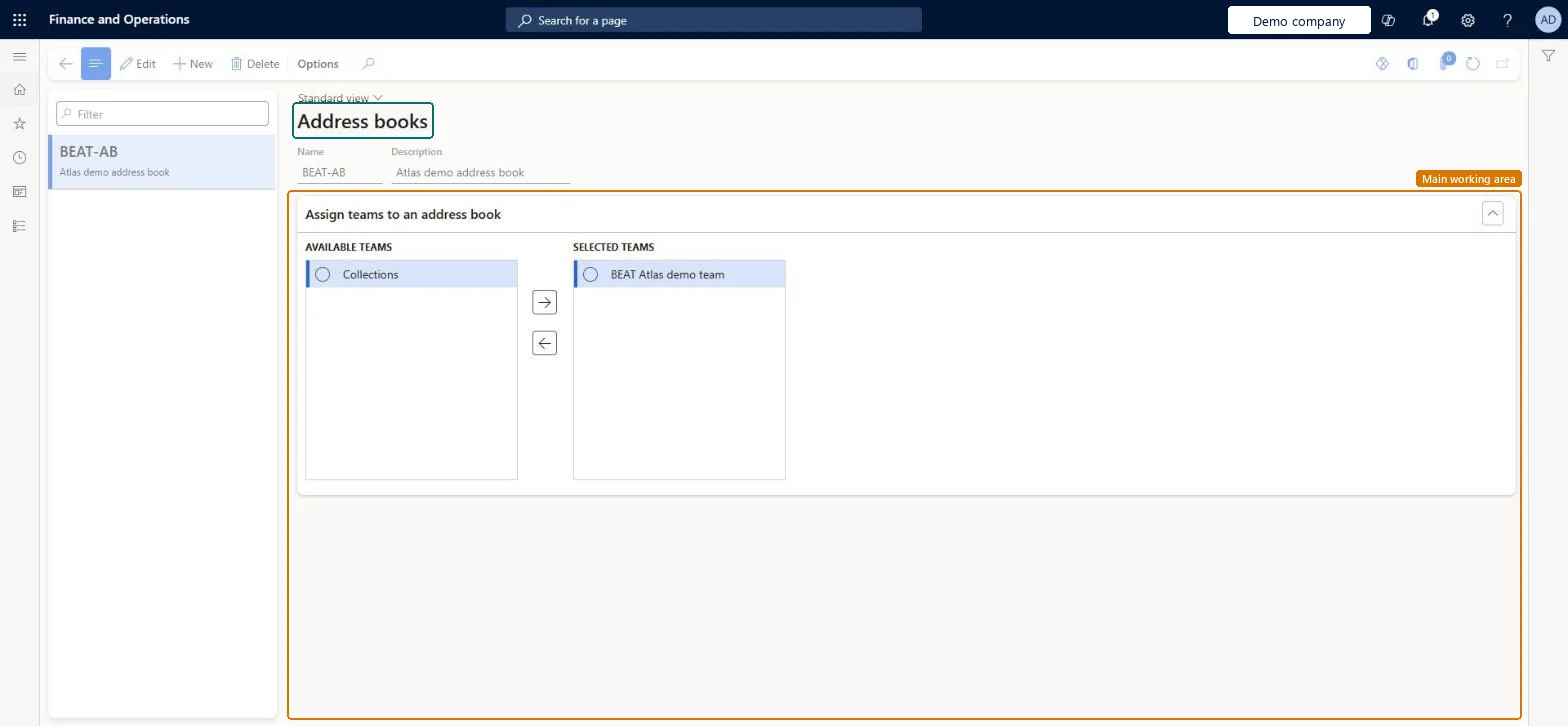
Address books page in Dynamics 365
The page in Dynamics 365. page title tab to open what to set or check
Functional consultant · Solution architect

2Where it fits

Business processAdminister system features
Menu pathOrganization administration › Global address book › Address books
Set up firstTeams Microsoft Learn Global address book parameters Microsoft Learn Set up TeamsSet up Global address book parameters
Used next byGlobal address book Microsoft Learn
End user · Functional consultant

3How to do it

About the examples: Examples and screenshots in this guide use BEAT, a demo company in a Dynamics 365 test environment. Use your own company's codes and values instead of copying them.

Step by step, with screenshots

Set up Address books1 screen

Use this page to set up additional address books and fill them with the members of selected teams.

  1. Screen 1

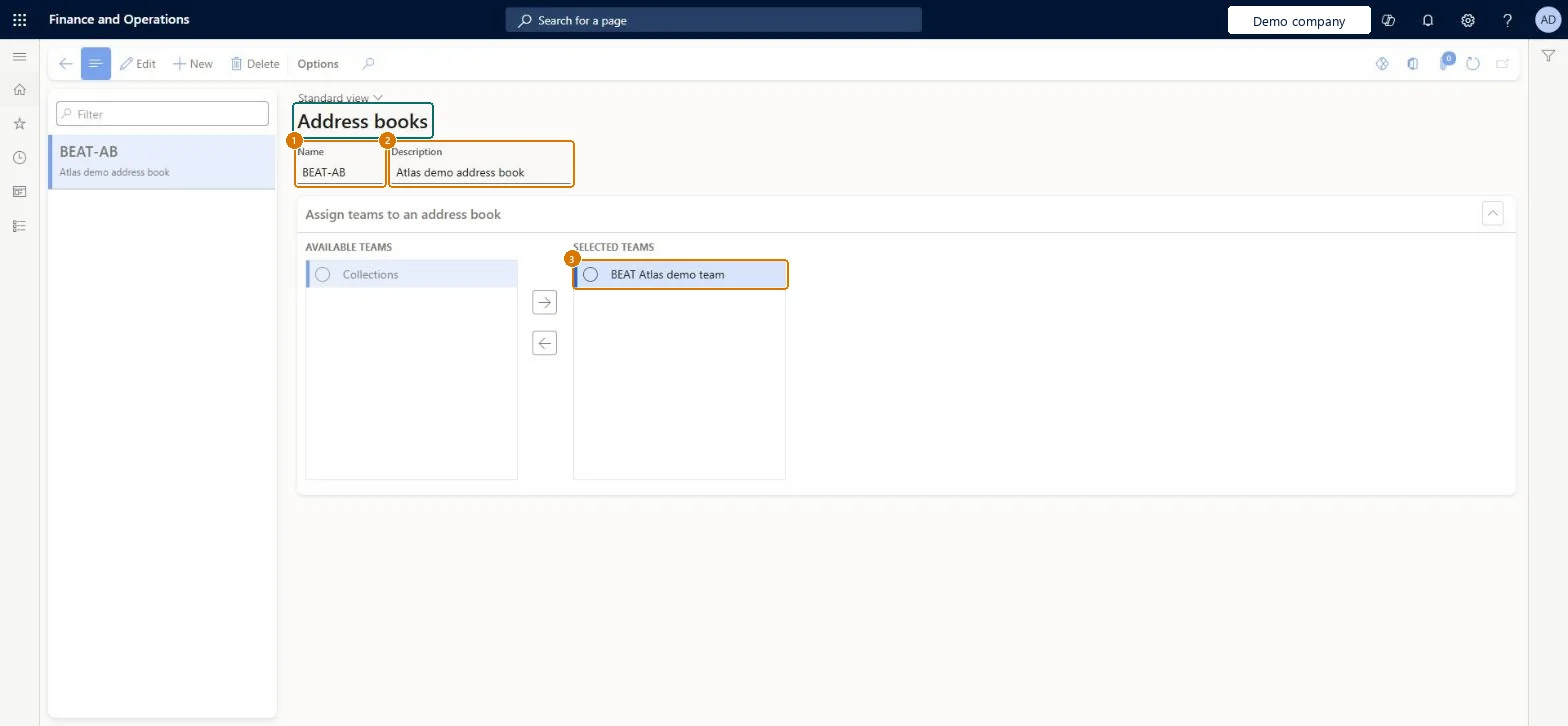
    Create an address book and assign a team

    Go to Organization administration > Global address book > Address books

    1. Select Edit, then New
    2. Enter the name and description
    3. Select Save
    4. Select a team under Available teams and move it to Selected teams
    1NameBEAT-AB
    2DescriptionAddress book
    Selected teamsCollections team
    Create an address book and assign a team (zoomed on the outlined fields)
    Show the full screenCreate an address book and assign a team
    page title tab to open what to set or check

Steps from Microsoft

  1. Go to Organization administration > Global address book > Address books.
  2. Select New.
  3. Enter a Name.
  4. Enter a Description.
  5. Select Save.
  6. Select the address book in the list.
  7. Select the teams to add and select the arrow to move them to the address book.
  8. Select Save.

Source: Microsoft Learn

Fields on the page

FieldWhat it meansExampleTable column
Available TeamsThe teams you can add to the address book; their members become part of it.Microsoft Learn
NameThe name of the address book.Checked in Dynamics 365CustomersName
DescriptionA short description of what the address book holds.Checked in Dynamics 365Address bookDescription
Selected teamsCollections team

Test checklist

  1. Select New, enter Name and Description, and save.
  2. Move one or more teams from Available teams to Selected teams and save.
  3. In the Global address book, filter by the new address book and check the team members are listed.

Source: Microsoft Learn

Functional consultant

4Setup decisions

Setup stepRecommended value and whyDecision, common mistake and test
Set up Address booksCreate additional address books only where a group needs its own list, for example one per company or per line of business, and fill them through teams.Learn's planning example creates an address book per line of business, and per location where a line of business runs in more than one company; the decision to make is how many extra books you need.
Solution architect

5Design impact

Shared or per companyShared: the same records are used by every legal entity. Microsoft data model
Can it be undoneReversible: Address book membership can be changed at any time, including bulk add and remove from the Global address book list page. Microsoft Learn
Technical architect

6Technical

Menu itemDirAddressBook Checked in Dynamics 365
FormDirAddressBook Checked in Dynamics 365
TableDirAddressBookShown as “Address books” in Record infoKey field: Name, DescriptionChecked in Dynamics 365
Data entitiesDirAddressBooksEntityAddress books Microsoft data model
Who can open itPrivilegesMaintain address books DirAddressBookMaintainView address books DirAddressBookViewDutiesEnable the global address book process DirAddressBookProcessEnableInquire into address book reference data DirAddressBookReferenceDataInquire
5 security rolesAccounts receivable manager CustInvoiceAccountsReceivableManagerHuman resource manager HcmHumanResourceManagerAccounting manager LedgerAccountingManagerInformation technology manager SysServerITManagerAccounts payable manager VendInvoiceAccountsPayableManager
Checked in Dynamics 365
Roles to set it up and use itTo set it up or change itInformation technology manager SysServerITManagerAccounting manager LedgerAccountingManagerHuman resource manager HcmHumanResourceManagerTo use itAccounts payable manager VendInvoiceAccountsPayableManagerAccounts receivable manager CustInvoiceAccountsReceivableManagerGive people one of these roles. On this system, 5 roles can open this page.Checked in Dynamics 365
Actions on the pageOptionsChecked in Dynamics 365
Developer

7Developer

Open it by URLhttps://<your-environment>/?mi=DirAddressBook
Integrate withDirAddressBooksEntity data entity Microsoft data model
Data migrationDirAddressBooksEntity (Address books): shared by all companies, in Microsoft's default template 010 - System Setup.Load order: Microsoft's default template 010 - System Setup loads Address books at execution unit 1, level 10, sequence 10. Lower levels load first, and entities at the same level load in sequence order.Microsoft Learn
Table definitionDirAddressBook columns and relations Microsoft data model
Everyone

8Sources