About the examples: Examples and screenshots in this guide use BEAT, a demo company in a Dynamics 365 test environment. Use your own company's codes and values instead of copying them.
Step by step, with screenshots
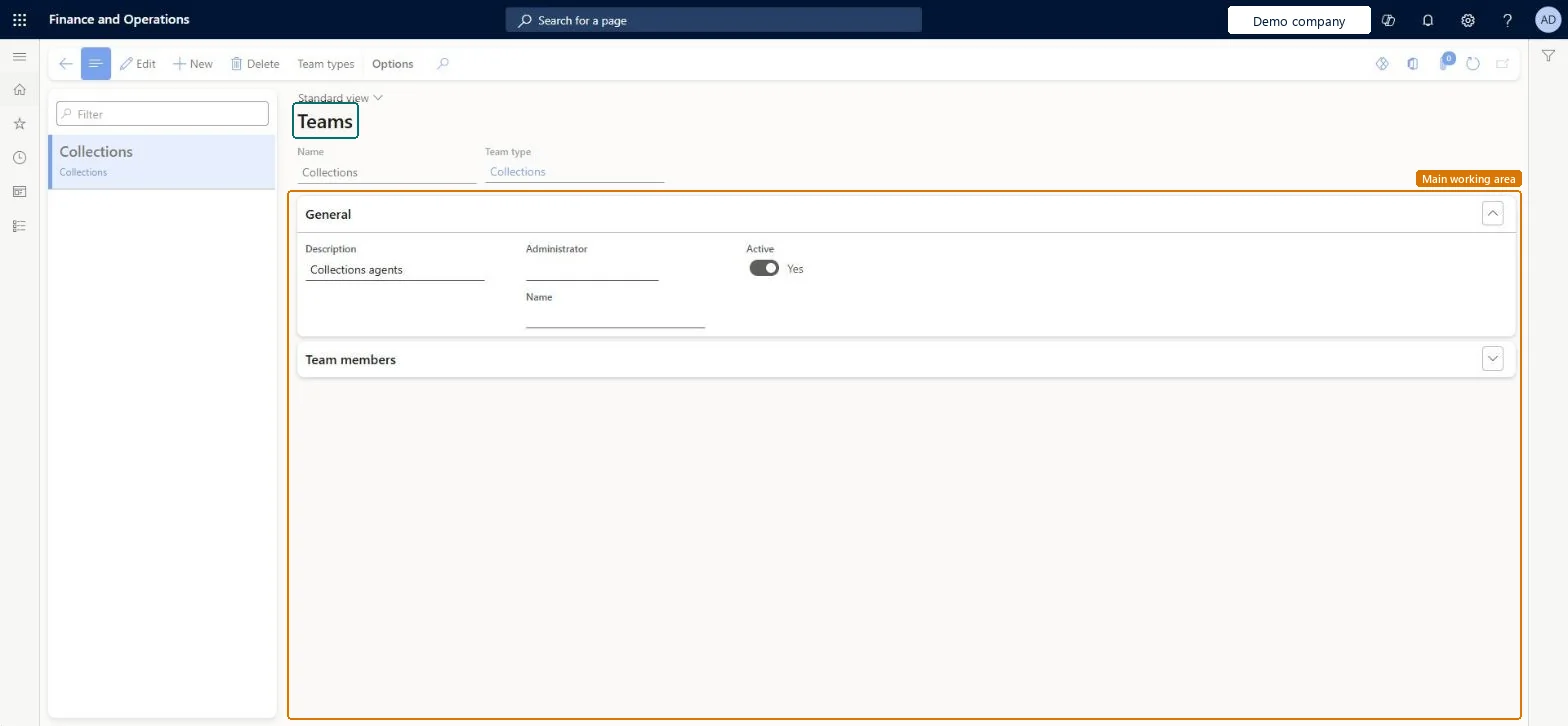
Set up Teams1 screen
Use this page to set up teams and their members, so that the members can be added to address books.
Screen 1
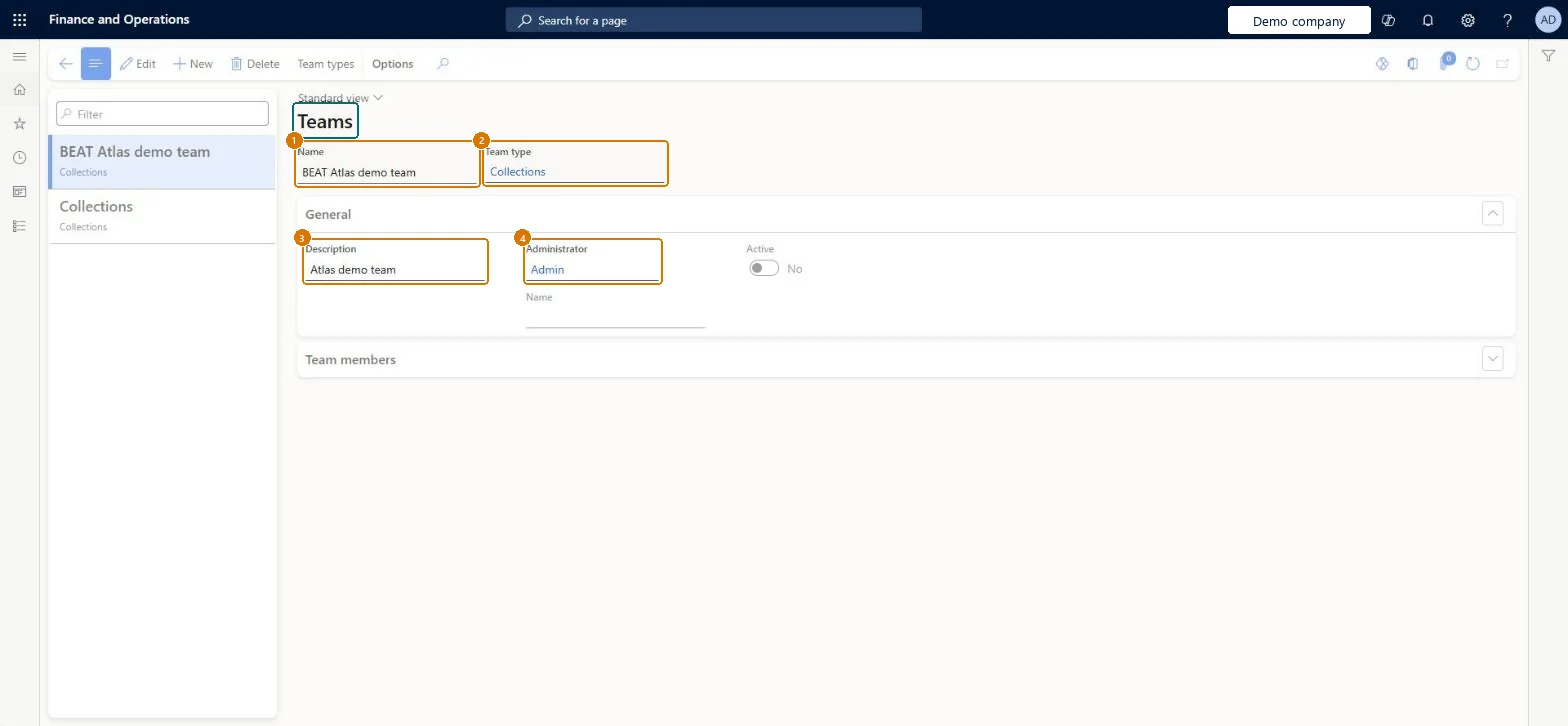
Create a team
Go to Organization administration > Organizations > Teams
Select New
Enter the team name and select the team type
Enter a description
Select Save
1Name
Collections team
2Team type
Collections
3Description
Team
4Administrator
Admin
Show the full screen page title tab to open what to set or check
How to use it
Go to Organization administration > Organizations > Teams.
Select New to add a team.
Enter the Name and choose the Team type.
In the General section, enter a Description and an Administrator and set Active.
Open the Team members section to work with the members.
Select Team types to work with the team types, or Edit to change an existing team.
Source: Checked in Dynamics 365
Fields on the page
Field
What it means
Example
Table column
Name
The name of the team.Checked in Dynamics 365
Collections team
Team type
The team type, which sets how members are added to the team.Microsoft Learn
Collections
Name
Description
A short description of the team's responsibility or objective.Microsoft Learn
Team
Description
Administrator
Admin
TeamAdministrator
Test checklist
Create a team and add its members.
In Global address book > Address books, select an address book and move the team from Available teams to Selected teams, then save.
Open the address book and check that the team members are in it.
Using a team to model a part of the business that must report or carry policies: teams can't be used in organization hierarchies, so use an operating unit instead.
Technical architect
5Technical
Menu item
OMTeamChecked in Dynamics 365
Form
OMTeamChecked in Dynamics 365
Data entities
OMTeamV2EntityTeams V2 Checked in Dynamics 365
Roles to set it up and use it
To set it up or change itInformation technology manager SysServerITManagerProduction manager ProdProductionManagerAccounting manager LedgerAccountingManagerHuman resource assistant HcmHumanResourceAssistantRental manager RentalManagerTo use itHuman resource manager HcmHumanResourceManagerRental purchasing manager RentalPurchasingManagerRental sales manager RentalSalesManagerRental coordinator agent RentalCoordinatorAgentFinancial controller LedgerFinancialControllerGive people one of these roles. On this system, 24 roles can open this page.Checked in Dynamics 365
Actions on the page
OptionsChecked in Dynamics 365
Developer
6Developer
Open it by URL
https://<your-environment>/?mi=OMTeam
Integrate with
OMTeamV2Entity data entity Checked in Dynamics 365
Checked in a working Dynamics 365 system, version 10.0.49: the menu item, form, table and security, the page, the demo records and the values in the screenshots.