Create test instrument tags in Dynamics 365 Supply Chain Management
Menu item
QMSInventTestInstrumentTag
Main table
QMSInventTestInstrumentTag
Data entity
QMSQualityTestInstrumentTagEntity
Setup steps
1 on this page
Show what matters for
SETUP GUIDEHow to set it up8 sections. Choose a role to highlight what matters to you.
Everyone
1What it is and why
What it is
A setup page where each physical test instrument is recorded as a tag, with its details, calibration settings and history.
What you do here
Use this page to track the calibration schedule and history of each instrument and to assign the instrument to quality order tests.
Example
For example, if an instrument's last calibration was approved on January 1, 2025 and its group calibrates every 3 months, its next calibration date is April 1, 2025.
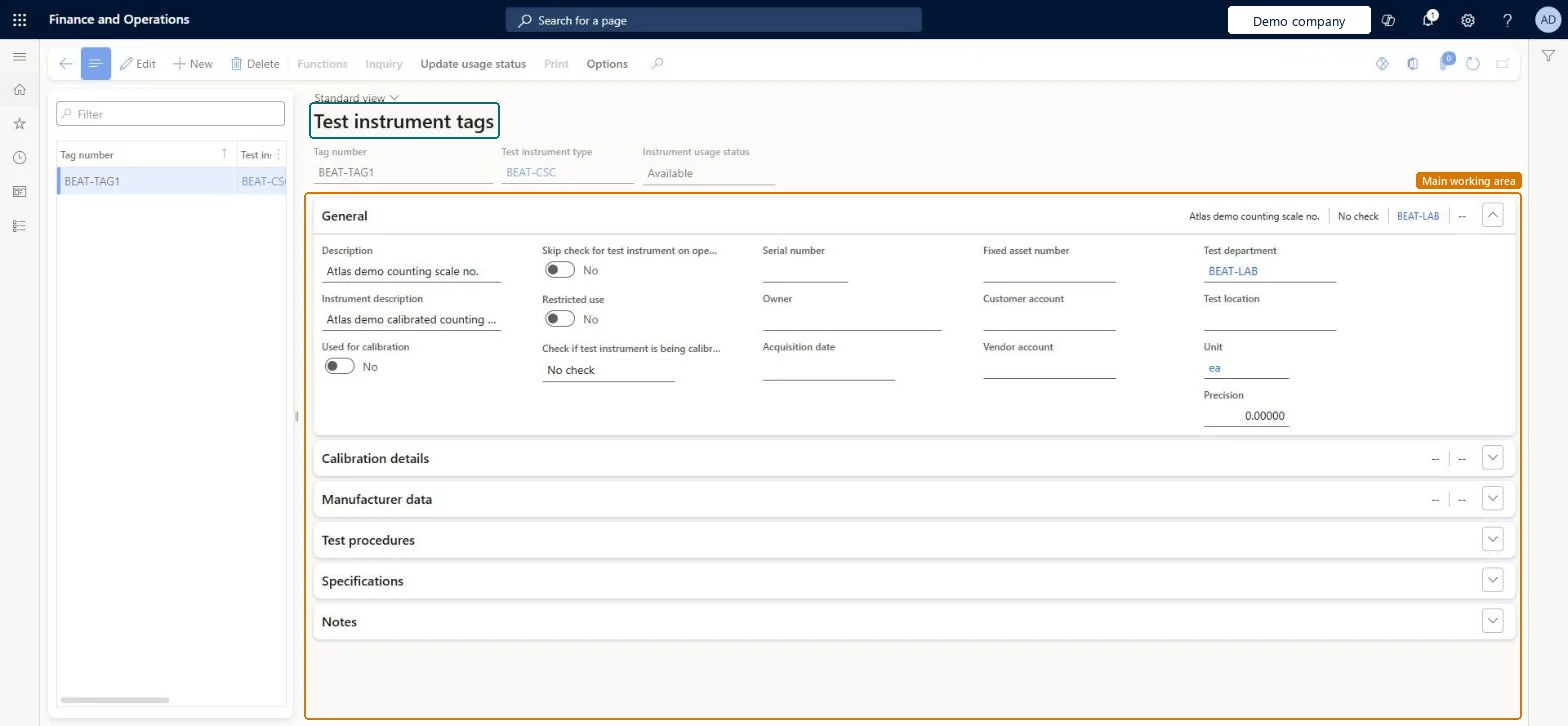
The page in Dynamics 365. page title tab to open what to set or check
About the examples: Examples and screenshots in this guide use BEAT, a demo company in a Dynamics 365 test environment. Use your own company's codes and values instead of copying them.
Step by step, with screenshots
Set up Test instrument tags1 screen
Use this page to track the calibration schedule and history of each instrument and to assign the instrument to quality order tests.
Screen 1
Create a test instrument tag
Go to Inventory management > Setup > Quality control > Test instrument tags
Make sure the test instrument exists with Tag number required selected (here demo instrument BEAT-CSC, created on Test instruments); only such instruments can be chosen
Select New
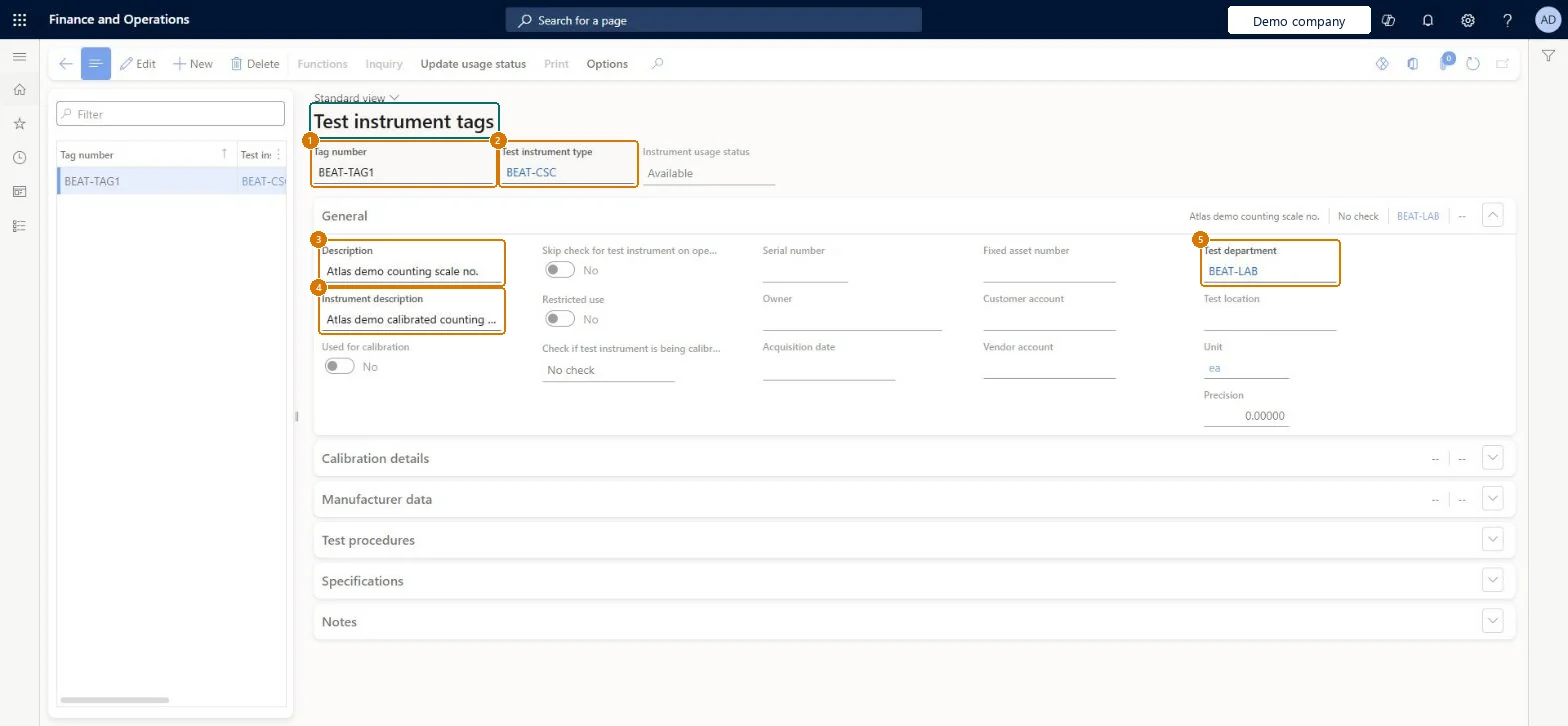
Enter the tag number and select the test instrument type
Enter a description and, optionally, the serial number, owner and acquisition date
Select the test department and test location where the instrument is kept
Turn on Used for calibration and fill in Calibration details if the instrument is calibrated
Select Save
1Tag number
BEAT-TAG1
2Test instrument type
BEAT-CSC
3Description
Counting scale no.
5Test department
BEAT-LAB
Instrument usage status
Available
Show the full screen page title tab to open what to set or check
Steps from Microsoft
Go to Inventory management > Setup > Quality control > Test instrument tags.
Create a new tag, or select one to edit.
In the Tag number field, enter a unique name, number or code for the instrument.
Select the Test instrument type.
On the General FastTab, enter details such as the serial number, owner, acquisition date, test department and test location.
On the Calibration details FastTab, set Calibration required to Yes and select the Calibration procedure name and Calibration group.
Enter the Calibration start date and the completion and approval assignees.
One tag per physical instrument; Calibration required = Yes with a calibration group and calibration procedure for every instrument that must be calibratedThe tag holds the calibration schedule and history of one physical instrument. The calibration fields can only be edited when Calibration required is Yes, and the group sets the method and schedule.
Leaving Calibration required at No, or not assigning a calibration group, means the Create calibration records batch job never creates a calibration record for the instrument, so it can stay in use past its due date.Test: Instrument under calibration is blocked on quality orders
Feature management and licence
Feature to turn on
Advanced quality management (Mandatory, on by default)
Reversible: Tag settings can be changed. Usage counts can be corrected with Override usage data, and usage status can be set back to Available from the Action Pane.
Technical architect
6Technical
Menu item
QMSInventTestInstrumentTagChecked in Dynamics 365
Form
QMSInventTestInstrumentTagChecked in Dynamics 365
Table
QMSInventTestInstrumentTagShown as “Test instrument tags” in Record infoChecked in Dynamics 365
Data entities
QMSQualityTestInstrumentTagEntityQuality test instrument tags Checked in Dynamics 365
Who can open it
PrivilegesMaintain test instrument tags QMSInventTestInstrumentTagMaintainView test instrument tags QMSInventTestInstrumentTagViewDutiesInquire into general calibration details QMSInventCalibrationDetailInquireMaintain general calibration details QMSInventCalibrationDetailMaintain2 security rolesQuality control clerk InventQualityControlClerkQuality control manager InventQualityControlManagerChecked in Dynamics 365
Roles to set it up and use it
To set it up or change itQuality control manager InventQualityControlManagerQuality control clerk InventQualityControlClerkGive people one of these roles. On this system, 2 roles can open this page.Checked in Dynamics 365
Checked in a working Dynamics 365 system, version 10.0.49: the menu item, form, table and security, the page, the demo records and the values in the screenshots.
To cite this step: IM-QC-150, Set up Test instrument tags. Beyond ERP Atlas Hub, 2026-11-11. https://www.beyonderp.cloud/atlas/step/IM-QC-150