About the examples: Examples and screenshots in this guide use BEAT, a demo company in a Dynamics 365 test environment. Use your own company's codes and values instead of copying them.
Step by step, with screenshots
Set up Measuring devices1 screen
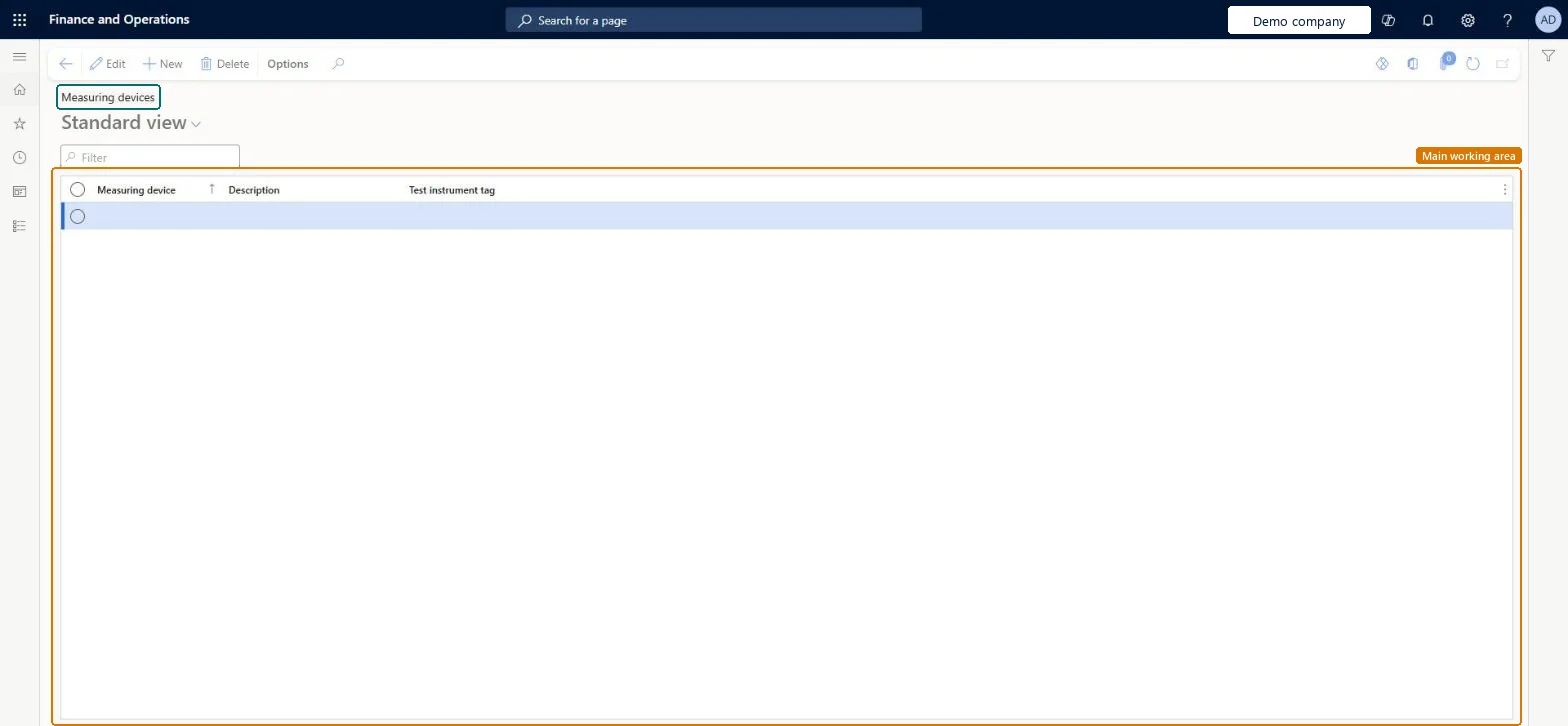
Use this page to assign a measuring device to each dispensing ticket and to track the device's calibration through its test instrument tag.
Screen 1
Create a measuring device
Go to Inventory management > Setup > Quality control > Measuring devices
Select New
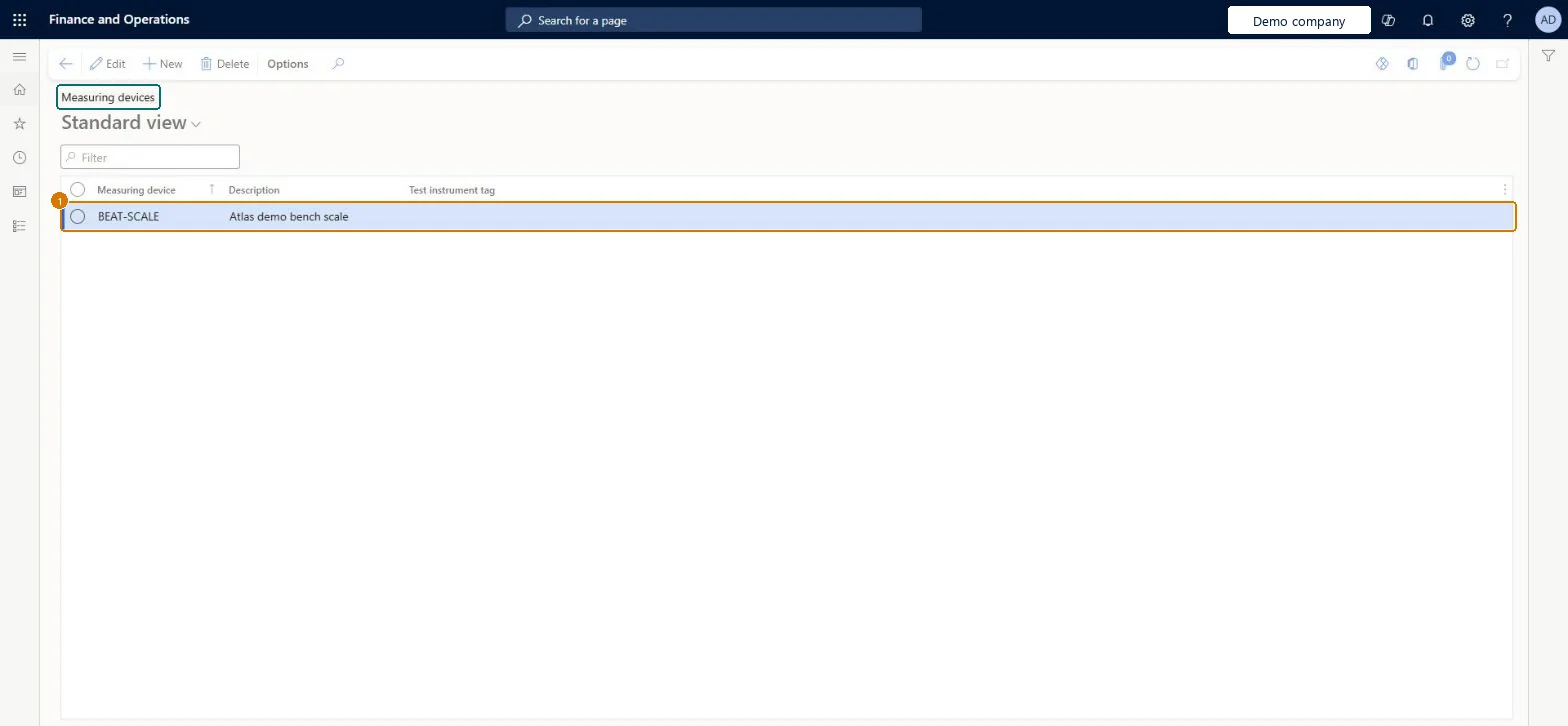
Enter the measuring device code and a description
Optionally select the test instrument tag that tracks the device calibration (the tag must exist on Test instrument tags)
Select Save
1Measuring device
BEAT-SCALE
Description
Bench scale
Test instrument tag
(blank)
Show the full screen page title tab to open what to set or check
Steps from Microsoft
Go to Inventory management > Setup > Quality control > Measuring devices.
Use the Action Pane buttons to add a new device or edit an existing one.
Enter the Name and Description.
In the Test instrument tag field, specify the device's unique identifier.
One record per scale used for dispensing, each with its Test instrument tag, and a Default measuring device set in Production control parametersThe tag links the device to its calibration history, and the default device appears on the Dispensing ticket page.
Expecting WMS-enabled products to be dispensed: products enabled for warehouse management processes can't be enabled for dispensing.
Feature management and licence
Feature to turn on
Advanced quality management (Mandatory, on by default)Dispense management (Mandatory, on by default)
Reversible: Devices can be added, edited or deleted; the device is chosen per dispensing ticket.
Technical architect
6Technical
Menu item
QMSScalesDeviceChecked in Dynamics 365
Form
QMSScalesDeviceChecked in Dynamics 365
Table
QMSScalesDeviceShown as “Measuring devices” in Record infoKey field: DeviceIdChecked in Dynamics 365
Data entities
QMSQualityTestMeasuringDeviceEntityQuality test measure devices Checked in Dynamics 365
Who can open it
PrivilegesMaintain scales device QMSScalesDeviceMaintainView scales device QMSScalesDeviceViewDutiesEnable production process ProdProductionProcessEnableInquire into production reference data ProdProductionReferenceDataInquire4 security rolesProduction manager ProdProductionManagerProduction supervisor ProdProductionSupervisorProcess engineer RouteProcessEngineerProcess engineering manager RouteProcessEngineeringManagerChecked in Dynamics 365
Roles to set it up and use it
To set it up or change itProduction manager ProdProductionManagerProcess engineering manager RouteProcessEngineeringManagerTo use itProduction supervisor ProdProductionSupervisorProcess engineer RouteProcessEngineerGive people one of these roles. On this system, 4 roles can open this page.Checked in Dynamics 365
Actions on the page
Options: Personalize, Page options, ShareChecked in Dynamics 365
Developer
7Developer
Open it by URL
https://<your-environment>/?mi=QMSScalesDevice
Integrate with
QMSQualityTestMeasuringDeviceEntity data entity Checked in Dynamics 365
Checked in a working Dynamics 365 system, version 10.0.49: the menu item, form, table and security, the page, the demo records and the values in the screenshots.
To cite this step: IM-QC-100, Set up Measuring devices. Beyond ERP Atlas Hub, 2026-11-11. https://www.beyonderp.cloud/atlas/step/IM-QC-100