BeyondERP.Newsletter
Menu

Report page · Inventory management

Test instrument calibration schedule

A report that lists the test instruments that must be calibrated.

Business process
Define quality procedures and tools
Menu item
output:QMSInstrumentCalibrationScheduleReport
Show what matters for
PAGE GUIDEWhat the page does and how to use it7 sections. Choose a role to highlight what matters to you.
Everyone

1What it is and why

What it isA report that lists the test instruments that must be calibrated.
What you do hereUse this report to plan calibration work; you can change the selection criteria to use the report in other ways.
ExampleFor example, you can filter the report by owner or by calibration method.
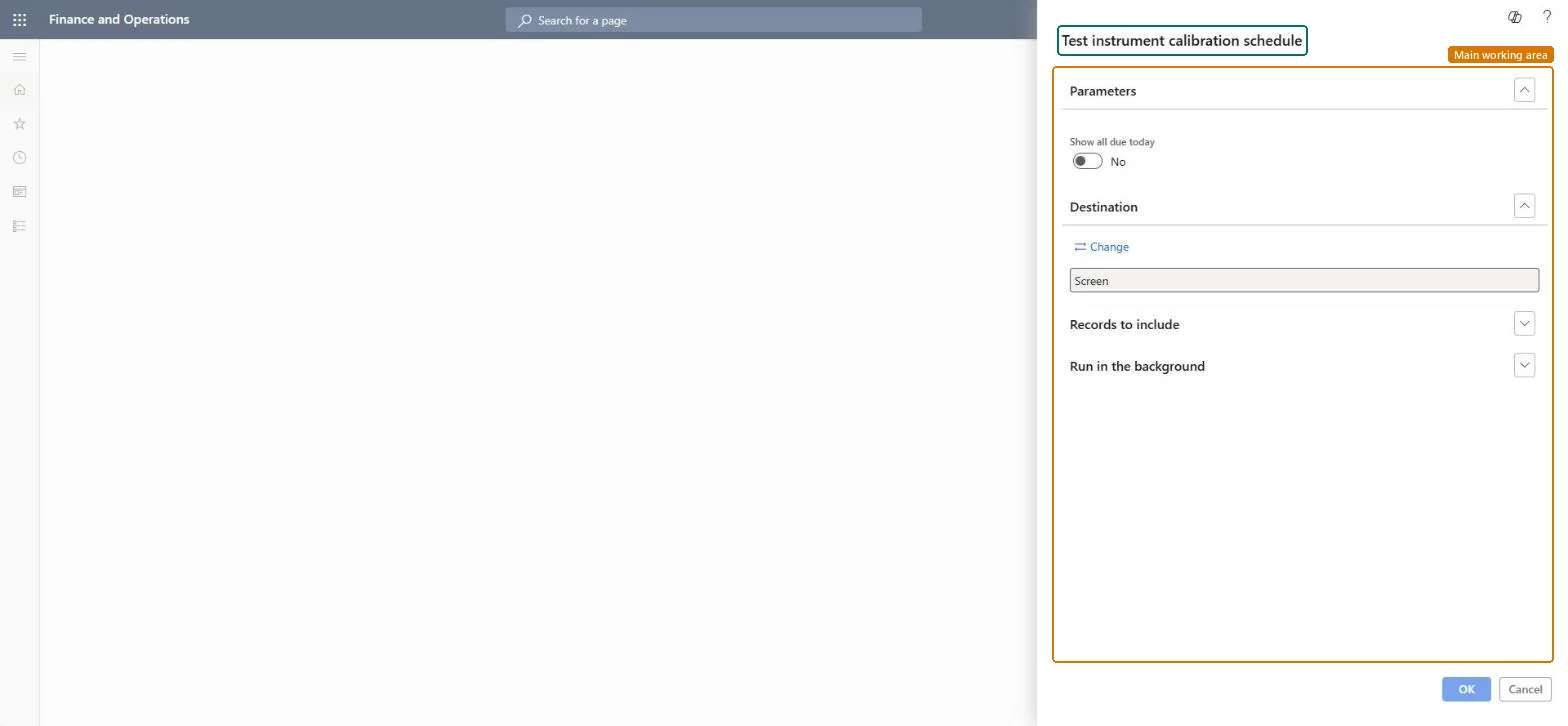
Test instrument calibration schedule page in Dynamics 365
The page in Dynamics 365. page title tab to open what to set or check
Functional consultant · Solution architect

2Where it fits

Business processManage inventory quality › Define quality procedures and tools
Menu pathInventory management › Inquiries and reports › Quality management › Test instrument calibration schedule
Set up firstCalibration groups Microsoft Learn Test instrument tags Microsoft Learn
End user · Functional consultant

3How to do it

About the examples: Examples and screenshots in this guide use BEAT, a demo company in a Dynamics 365 test environment. Use your own company's codes and values instead of copying them.

When to run it

When to run itWhen you plan calibration work for test instruments.
How oftenOn demand, as often as you plan calibration work.
Batch settingsSet a recurrence on the Run in the background FastTab to send the list regularly, for example by email to the calibration team.
What the output showsA list of test instrument tags, limited to overdue tags when Show all due today is Yes. An instrument missing from an overdue list has a next calibration date of today or later.

Source: Microsoft Learn

Steps from Microsoft

  1. Go to Inventory management > Inquiries and reports > Quality management > Test instrument calibration schedule.
  2. On the Parameters FastTab, set Show all due today to Yes for only the tags whose next calibration date is before today, or No for all tags.
  3. On the Records to include FastTab, select Filter to narrow the test instrument tags, for example by owner or calibration method.
  4. On the Destination FastTab, select Change to print, save or email the list instead of showing it on screen.
  5. Plan calibration work for each listed tag; the Create calibration records job creates the calibration records for tags that are due.

Source: Microsoft Learn

Fields on the page

FieldWhat it means
Show all due todayYes shows only instruments whose next calibration date is before today; No shows all instruments.Microsoft Learn
Solution architect

4Design impact

Can it be undoneNothing to undo: The schedule report only lists test instrument tags; it changes nothing. Microsoft Learn
Technical architect

5Technical

Menu itemoutput:QMSInstrumentCalibrationScheduleReport Checked in Dynamics 365
FormSysOperationTemplateForm Checked in Dynamics 365
Roles to set it up and use itTo use itQuality control manager InventQualityControlManagerQuality control clerk InventQualityControlClerkGive people one of these roles. On this system, 2 roles can run this page.Checked in Dynamics 365
Developer

6Developer

Open it by URLhttps://<your-environment>/?mi=output:QMSInstrumentCalibrationScheduleReport
Everyone

7Sources