About the examples: Examples and screenshots in this guide use BEAT, a demo company in a Dynamics 365 test environment. Use your own company's codes and values instead of copying them.
Step by step, with screenshots
Set up Test instruments1 screen
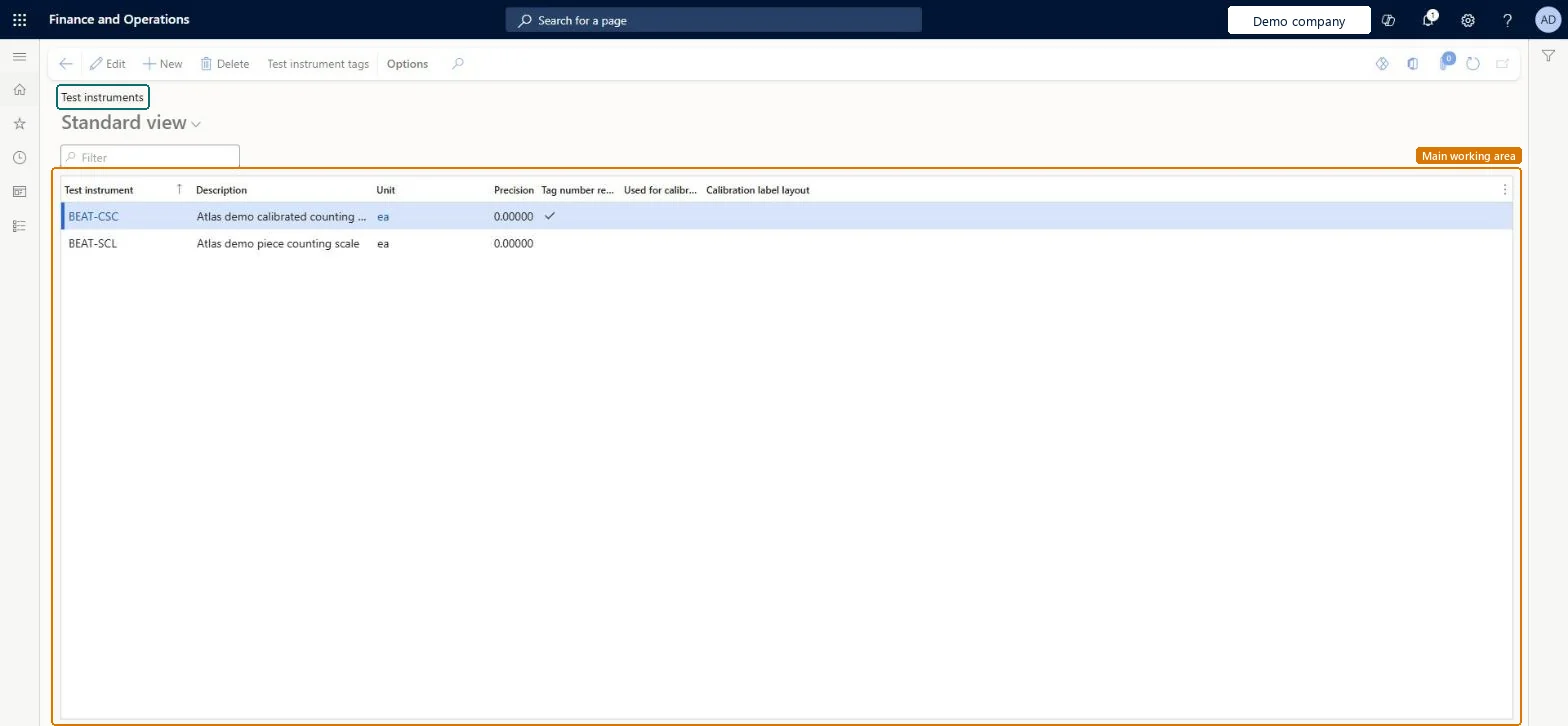
Use this page to show quality workers which device or tool to use for a test and the unit that its results are recorded in.
Screen 1
Create a test instrument
Go to Inventory management > Setup > Quality control > Test instruments
Select New
Enter the test instrument code and a description
Select the unit that test results are recorded in, and the precision
Select Tag number required if each physical instrument is tracked with a test instrument tag
Select Used for calibration and a calibration label layout if the instrument is calibrated
Select Save
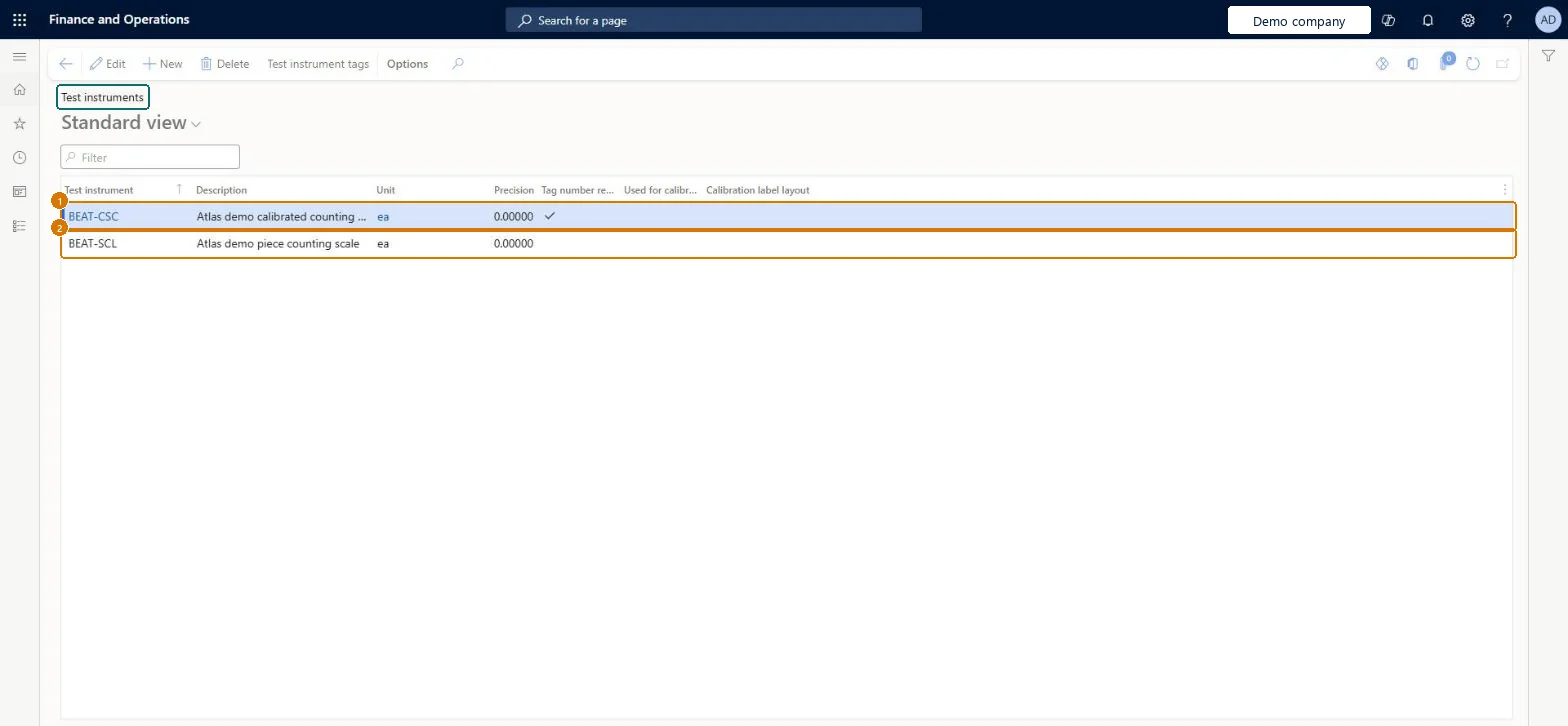
2Test instrument
BEAT-SCL
Description
Piece counting scale
Unit
ea
Tag number required
No (Yes on BEAT-CSC)
Show the full screen page title tab to open what to set or check
Steps from Microsoft
Go to Inventory management > Setup > Quality control > Test instruments.
On the Action Pane, select New.
In the Test instrument field, enter a unique ID or name.
In the Description field, describe the instrument.
In the Unit field, select the unit that results are measured in.
Select Tag number required if each physical instrument must be identified by a tag on quality orders.
Select Used for calibration if this instrument type is used to calibrate other instruments.
In the Calibration label layout field, select the label layout for tagged instruments.
Select Tag number required only for instrument types whose physical instruments must be tracked and calibratedTag number required makes quality orders name the specific instrument and switches on tracking and calibration; other instrument types stay as guidance only.
Setting Tag number required without creating test instrument tags: a quality order line for that instrument type can't be validated until a tag is selected.
Feature management and licence
Feature to turn on
Advanced quality management (Mandatory, on by default)
PrivilegesMaintain test equipment InventTestInstrumentMaintainView test equipment InventTestInstrumentViewDutiesInquire into quality control master InventQualityControlMasterInquireMaintain quality control master InventQualityControlMasterMaintain2 security rolesQuality control clerk InventQualityControlClerkQuality control manager InventQualityControlManagerChecked in Dynamics 365
Roles to set it up and use it
To set it up or change itQuality control manager InventQualityControlManagerTo use itQuality control clerk InventQualityControlClerkGive people one of these roles. On this system, 2 roles can open this page.Checked in Dynamics 365
Actions on the page
Options: Personalize, Page options, ShareChecked in Dynamics 365
InventQualityTestInstrumentEntity (Quality test instruments): loaded for each company, in Microsoft's default template 395 - Quality management.Load order: Microsoft's default template 395 - Quality management loads Quality test instruments at execution unit 1, level 30, sequence 10. Lower levels load first, and entities at the same level load in sequence order.Load first: the default templates at lower levels (System setup to General ledger)Microsoft Learn
Checked in a working Dynamics 365 system, version 10.0.49: the menu item, form, table and security, the page, the demo records and the values in the screenshots.