BeyondERP.Newsletter
Menu

Setup step on the Calibration groups page · Inventory management

Set up Calibration groups

Use this page to set whether the instruments in a group are calibrated manually, by how often they're used, or on a regular schedule.

Used by
Quality control manager
Business process
Create calibration procedures and calibration groups in Dynamics 365 Supply Chain Management
Menu item
QMSInventCalibrationGroup
Main table
QMSInventCalibrationGroup
Data entity
QMSTestInstrumentCalibrationGroupEntity
Setup steps
1 on this page
Show what matters for
SETUP GUIDEHow to set it up8 sections. Choose a role to highlight what matters to you.
Everyone

1What it is and why

What it isA setup page where you group test instrument tags and give them a shared calibration schedule.
What you do hereUse this page to set whether the instruments in a group are calibrated manually, by how often they're used, or on a regular schedule.
ExampleFor example, a group for instruments that must be calibrated every three months uses the Month period with a frequency of 3.
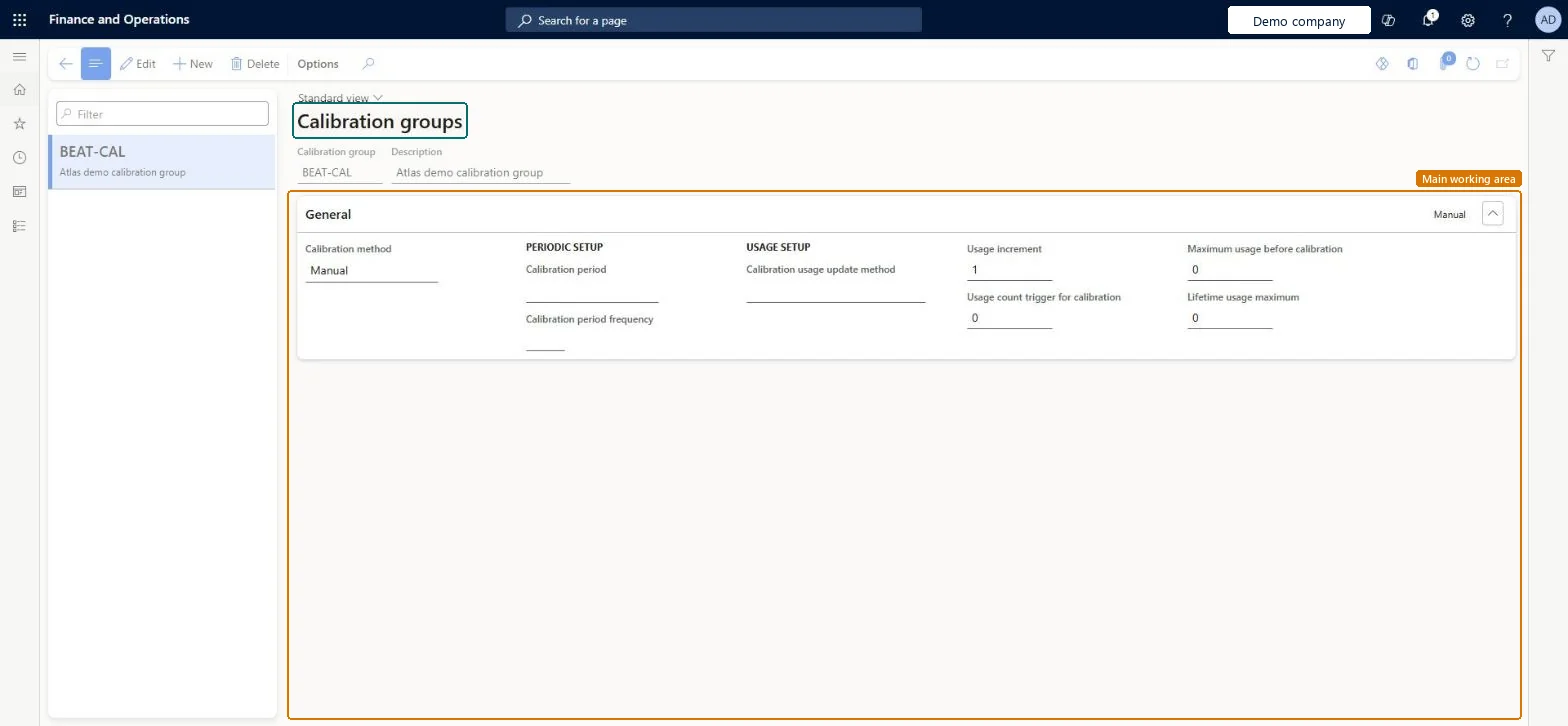
Calibration groups page in Dynamics 365
The page in Dynamics 365. page title tab to open what to set or check
Functional consultant · Solution architect

2Where it fits

End user · Functional consultant

3How to do it

About the examples: Examples and screenshots in this guide use BEAT, a demo company in a Dynamics 365 test environment. Use your own company's codes and values instead of copying them.

Step by step, with screenshots

Set up Calibration groups1 screen

Use this page to set whether the instruments in a group are calibrated manually, by how often they're used, or on a regular schedule.

  1. Screen 1

    Create a calibration group

    Go to Inventory management > Setup > Quality control > Calibration groups

    1. Select New
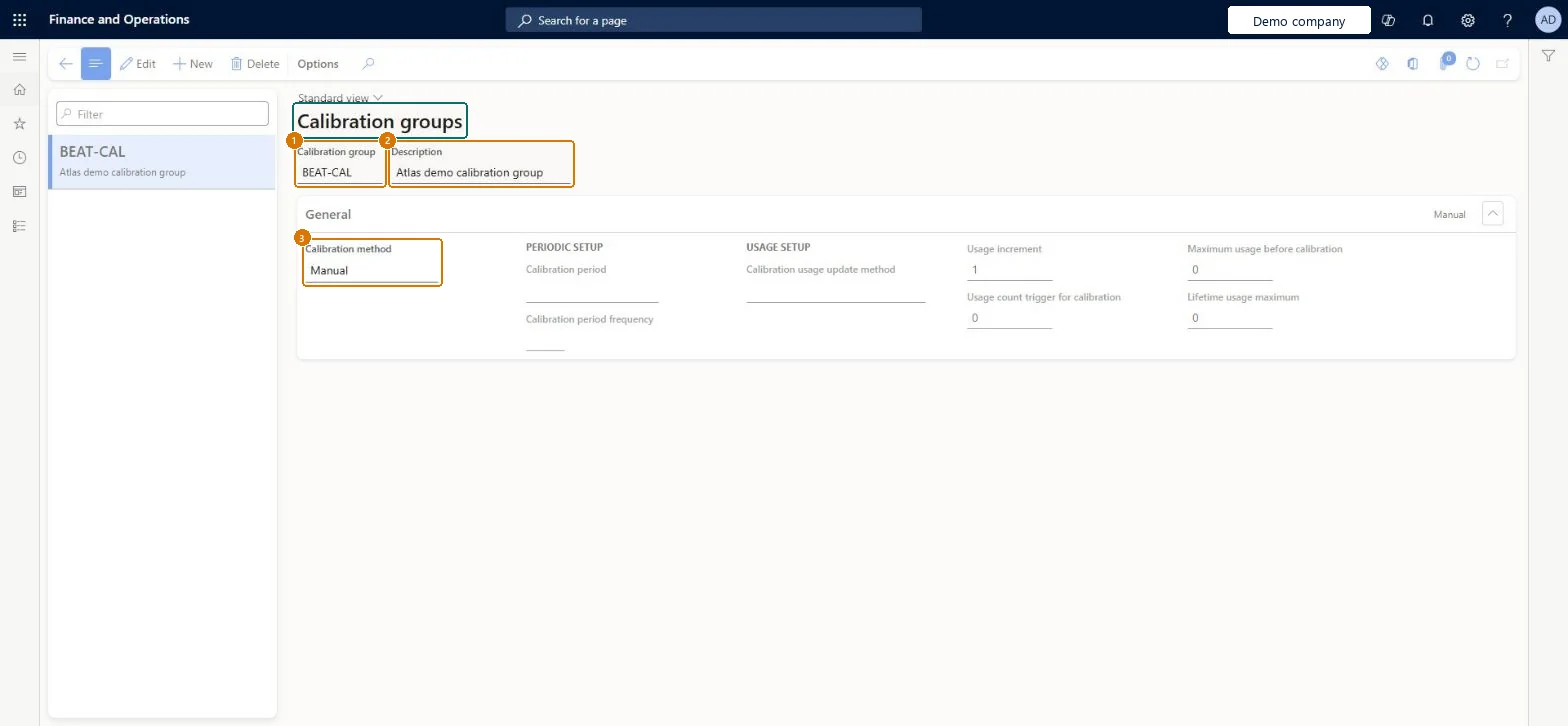
    2. Enter the calibration group code and a description
    3. Choose the calibration method: Manual, Periodic or Usage
    4. For Periodic, enter the calibration period and frequency; for Usage, set the usage update method, increment and limits
    5. Select Save
    1Calibration groupBEAT-CAL
    2DescriptionCalibration group
    3Calibration methodManual
    Create a calibration group (zoomed on the outlined fields)
    Show the full screenCreate a calibration group
    page title tab to open what to set or check

Steps from Microsoft

  1. Go to Inventory management > Setup > Quality control > Calibration groups.
  2. Create a new calibration group, or select one to edit.
  3. Enter the Calibration group name and a Description.
  4. On the General FastTab, select the Calibration method: Manual, Usage or Periodic.
  5. For Periodic, set the Calibration period and Calibration period frequency.
  6. For Usage, set the usage update method, the usage count that triggers calibration, the maximum usage before calibration and the lifetime usage maximum.
  7. Save the group.

Source: Microsoft Learn

Fields on the page

FieldWhat it meansExampleTable column
Calibration methodWhether instruments are calibrated manually, by usage or on a periodic schedule.Microsoft Learn ManualCalibrationMethod
Calibration periodThe time unit between calibrations (day, month or year) for periodic groups.Microsoft Learn CalibrationPeriod
Calibration period frequencyHow many periods pass between calibrations.Microsoft Learn PeriodFrequency
Calibration usage update methodWhether usage goes up by a fixed increment or by the tested quantity each time a quality order is validated.Microsoft Learn UsageUpdateMethod
Usage count trigger for calibrationThe usage count at which a calibration is triggered.Microsoft Learn UsageCountTrigger
Maximum usage before calibrationThe most uses allowed before the instrument must be calibrated.Microsoft Learn MaxUsage
Lifetime usage maximumThe number of uses after which the instrument is taken out of service.Microsoft Learn MaxUsageLifetime
Calibration groupMONTHLYGroupId
DescriptionA description of the calibration group.Microsoft Learn Calibration groupDescription

Test checklist

  1. Create a Usage group with Fixed increment, Usage increment 1, trigger 2 and maximum 3.
  2. Assign a tag to the group and validate two quality orders that use the tag.
  3. Run Periodic tasks > Quality management > Create calibration records.
  4. Check an open calibration record exists for the tag and its usage status is Calibration.

Source: Microsoft Learn

Functional consultant

4Setup decisions

Setup stepRecommended value and whyDecision, common mistake and test
Set up Calibration groupsUsage for instruments whose wear depends on how often they are used; Periodic for instruments calibrated on a calendar schedule; Manual only for ad hoc calibrationThe group's calibration method decides how the Create calibration records job finds due instruments: Usage checks the usage counts, Periodic checks the next calibration date.Which calibration method should each calibration group use?Setting Usage count trigger for calibration equal to Maximum usage before calibration leaves no margin: Learn's example triggers at 100 uses but allows use up to 125, so the record is created before the instrument must stop.Test: Usage-based calibration record is created at the trigger

Feature management and licence

Feature to turn onAdvanced quality management (Mandatory, on by default)

Microsoft Learn

Solution architect

5Design impact

Can it be undoneReversible: Group settings can be changed; tags in the group share the new settings. Tags that hit Lifetime usage maximum are marked Out of service.
Technical architect

6Technical

Menu itemQMSInventCalibrationGroup Checked in Dynamics 365
FormQMSInventCalibrationGroup Checked in Dynamics 365
TableQMSInventCalibrationGroupShown as “Calibration groups” in Record infoChecked in Dynamics 365
Data entitiesQMSTestInstrumentCalibrationGroupEntityTest instrument calibration groups Checked in Dynamics 365
Who can open itPrivilegesMaintain calibration groups QMSInventCalibrationGroupMaintainView calibration groups QMSInventCalibrationGroupViewDutiesInquire into calibration master details QMSInventCalibrationMasterDetailInquireMaintain calibration master details QMSInventCalibrationMasterDetailMaintain
1 security roleQuality control manager InventQualityControlManager
Checked in Dynamics 365
Roles to set it up and use itTo set it up or change itQuality control manager InventQualityControlManagerGive people one of these roles. On this system, 1 role can open this page.Checked in Dynamics 365
Actions on the pageOptionsChecked in Dynamics 365
Developer

7Developer

Open it by URLhttps://<your-environment>/?mi=QMSInventCalibrationGroup
Integrate withQMSTestInstrumentCalibrationGroupEntity data entity Checked in Dynamics 365
Everyone

8Sources

To cite this step: IM-QC-160, Set up Calibration groups. Beyond ERP Atlas Hub, 2026-11-11. https://www.beyonderp.cloud/atlas/step/IM-QC-160