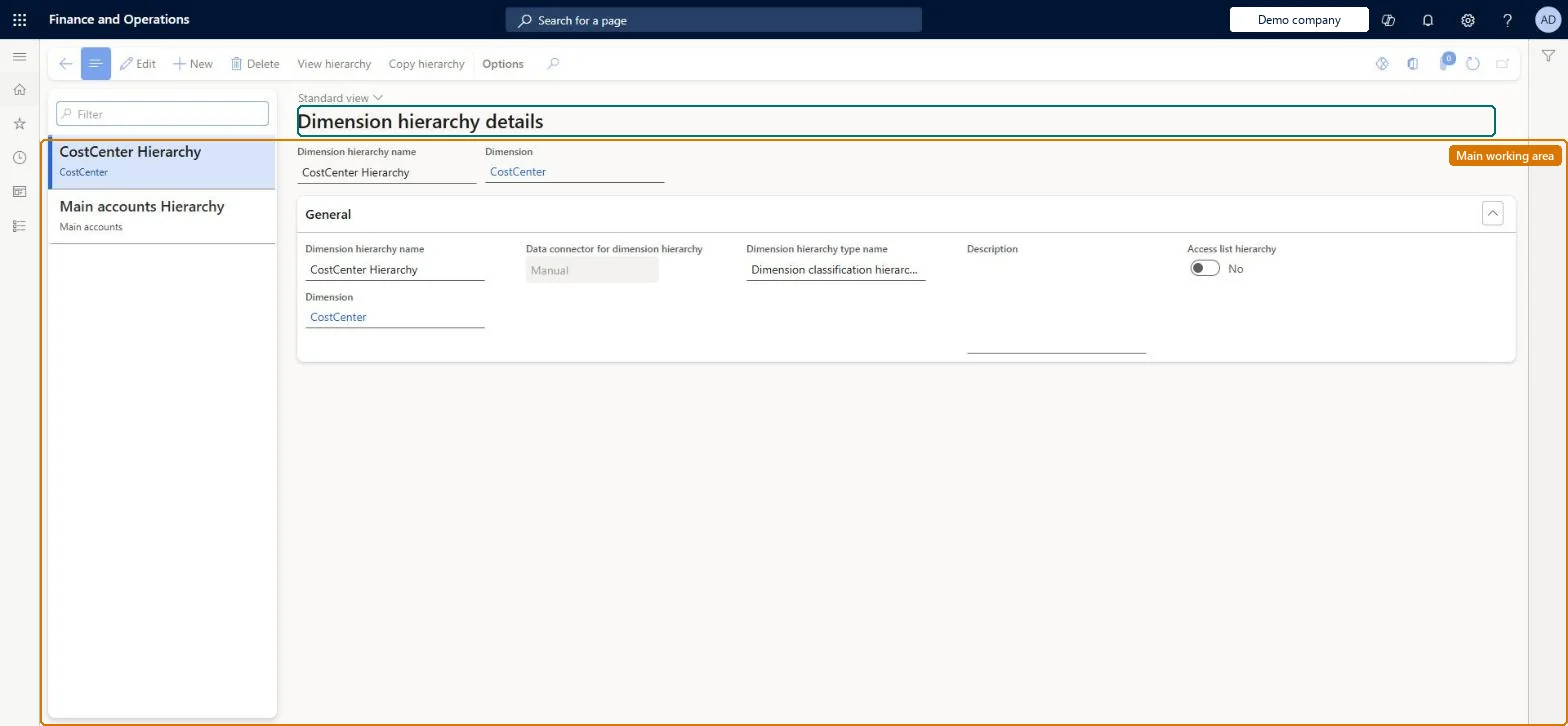
Setup step on the Dimension hierarchies page · Cost accounting
Set up Dimension hierarchies
Use this page to create a dimension hierarchy, choose its type (categorization for cost element reporting, or classification for rules and reporting on any dimension), and arrange nodes with from/to dimension member ranges. The hierarchies you create here are what the Cost control workspace, the policies and the access list security refer to.
SETUP GUIDEHow to set it up8 sections. Choose a role to highlight what matters to you.
Everyone
1What it is and why
What it is
A setup page where you build tree structures of nodes and dimension member ranges over a cost element, cost object or statistical dimension, for reporting, for policy rules and for access security.
What you do here
Use this page to create a dimension hierarchy, choose its type (categorization for cost element reporting, or classification for rules and reporting on any dimension), and arrange nodes with from/to dimension member ranges. The hierarchies you create here are what the Cost control workspace, the policies and the access list security refer to.
Example
For example, you set up an Organization hierarchy on the Cost centers dimension with Admin and Production nodes, each holding ranges of cost center IDs, so that managers can see costs aggregated at department level.
The page in Dynamics 365. page title tab to open what to set or check
About the examples: Examples and screenshots in this guide use BEAT, a demo company in a Dynamics 365 test environment. Use your own company's codes and values instead of copying them.
Setup steps on this page
Set up Dimension hierarchies
Use this page to create a dimension hierarchy, choose its type (categorization for cost element reporting, or classification for rules and reporting on any dimension), and arrange nodes with from/to dimension member ranges. The hierarchies you create here are what the Cost control workspace, the policies and the access list security refer to.
Steps from Microsoft
Go to Cost accounting > Dimensions > Dimension hierarchies.
Select New, choose Dimension classification hierarchy as the hierarchy type, and select Create.
Enter the Dimension hierarchy name and select the Dimension (for example Cost centers), then select Save.
Select View hierarchy.
Select New and enter a Node name for each level of the structure, selecting the parent node in the tree before adding subnodes.
On a lowest-level node, select New in the dimension member ranges list and enter the From dimension member and To dimension member.
The name of the hierarchy, for example Organization or Cost behavior.Microsoft Learn
Name
Dimension
The single dimension (cost element, cost object or statistical) that this hierarchy structures.Microsoft Learn
Dimension
Dimension hierarchy type name
Dimension categorization hierarchy (cost element reporting only, members may repeat) or Dimension classification hierarchy (rules and reporting, each member once).Microsoft Learn
Access list hierarchy
Yes marks the hierarchy as the one used to control which users may view which cost objects.Microsoft Learn
Node name
The name of a node in the tree; a node can hold subnodes or leaf-level member ranges, but not both.Microsoft Learn
From dimension member / To dimension member
The range of dimension member IDs assigned to a leaf node; a node can hold several ranges and may reference members that do not exist yet.Microsoft Learn
User ID (Users FastTab)
User IDs attached to a node of the access list hierarchy to grant those users view access to the cost objects under the node.Microsoft Learn
Common errors and fixes
Message
What to do
A validation message says a dimension member is missing from a classification hierarchy
Add the member to a node of the hierarchy. A classification hierarchy must hold every member of its dimension. Microsoft Learn
A manager sees cost objects outside their node in an Excel export
The access list hierarchy doesn't secure data exported to Excel. Limit who can export, and rely on the Cost control workspace and Power BI for secured views. Microsoft Learn
Power BI shows a manager every cost object
Pair the access list hierarchy with row-level security: add the manager to the Cost object controller role on PowerBI.com and update the entity store. Microsoft Learn
Test checklist
Create an Organization hierarchy on the cost center dimension with type Dimension classification hierarchy, plus nodes Admin > Finance and HR, each with From/To dimension member ranges.
Create a Cost behavior hierarchy on the cost element dimension with Fixed cost and Variable cost nodes, and check that the ranges don't overlap.
Set Access list hierarchy to Yes on Organization, add a User ID on the Finance node, and turn on Enable view access for cost object dimension members in Cost accounting parameters.
Sign in as that user and check that the Cost control workspace shows only the Finance cost centers.
Create a new Excel export for the hierarchy and check that the change appears without waiting for the 24-hour refresh.
Dimension classification hierarchy for anything used in policies, access security or cost object reporting. Dimension categorization hierarchy only for cost element reports where one member must appear in more than one node.The classification type supports all dimensions and is the type used to define rules. The categorization type supports only cost element dimensions and is meant for reporting.
Cost accounting has four roles: Cost accounting manager (Activity licence), Cost accountant and Cost accountant clerk (Operations licence), and Cost object controller (Team members licence). Cost accountants and cost accounting managers maintain hierarchies; the access list nodes name the Cost object controllers. No Feature management feature needs to be turned on for this page.
Shared: Cost accounting setup isn't kept per legal entity. It is the same from every company, and one cost accounting ledger can collect data from several legal entities. Checked in Dynamics 365
Can it be undone
Hard to reverse: Changes are saved immediately and aren't date-effective, so you can't go back to an earlier version unless you copied the hierarchy first. Policies pick up the change automatically. Excel and Power BI see it after the 24-hour cache job, or straight away if you create a new Excel export.
If you change it later
Changes are saved immediately and are not date-effective, so you cannot compare before and after versions; policy rules that use the hierarchy pick the change up automatically, while Excel and Power BI see it only after the 24-hour cache refresh or a new Excel export. Microsoft Learn
Technical architect
6Technical
Menu item
CAMDimensionHierarchyChecked in Dynamics 365
Form
CAMDimensionHierarchyChecked in Dynamics 365
Table
CAMDataDimensionHierarchyShown as “DIMENSION HIERARCHIES” in Record infoKey field: NameChecked in Dynamics 365
Who can open it
3 security roles. Select a role to see its duties and privileges.
To set it up or change itMaintain dimension hierarchies CAMDimensionHierarchiesMaintainMaintain dimension hierarchy access lists CAMDimensionHierarchyAccessListsMaintainMaintain dimension hierarchy trees CAMDimensionHierarchyTreesMaintainTo use itInquire into dimension hierarchy trees CAMDimensionHierarchyTreesInquireGive people a role that holds these duties. On this system, 3 roles give access to this page.Checked in Dynamics 365
Actions on the page
(Action Pane without tabs): View hierarchy, Copy hierarchyChecked in Dynamics 365
Load order: A dimension hierarchy has no data entity in Data management, so it can't be loaded from a file or a configuration template. Re-create the hierarchies by hand in each environment, or copy a hierarchy within the environment before you change it.Microsoft Learn