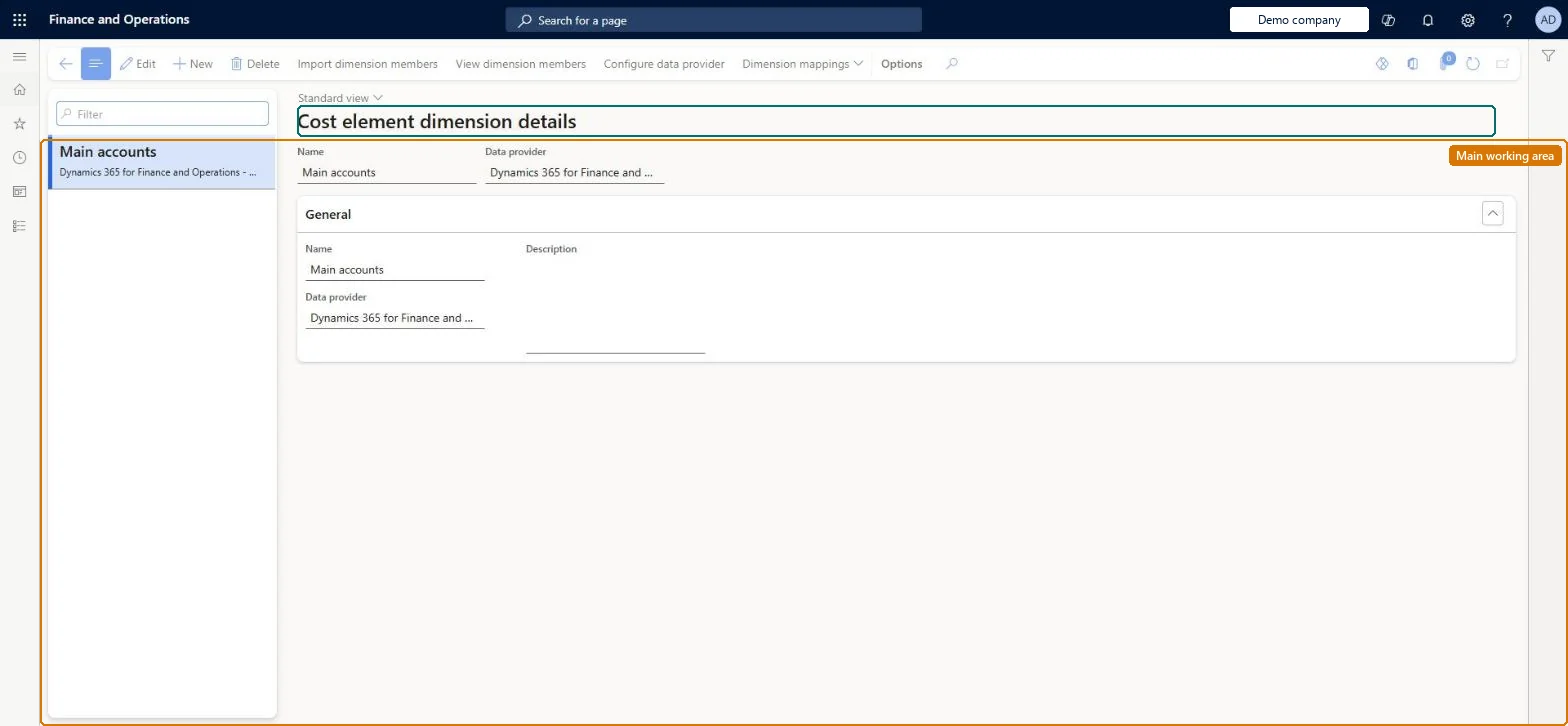
A setup page where you create cost element dimensions, each with a data connector that imports its members (typically main accounts from a chart of accounts) as the cost elements that costs flow to.
PAGE GUIDEWhat the page does and how to use it8 sections. Choose a role to highlight what matters to you.
Everyone
1What it is and why
What it is
A setup page where you create cost element dimensions, each with a data connector that imports its members (typically main accounts from a chart of accounts) as the cost elements that costs flow to.
What you do here
Use this page to create a cost element dimension, configure its dimension member provider (for example a range of main accounts from the shared chart of accounts), import the members, and view the imported cost elements.
Example
For example, you use the US chart of accounts as the cost element dimension so that its profit and loss accounts become the cost element dimension members.
The page in Dynamics 365. page title tab to open what to set or check
About the examples: Examples and screenshots in this guide use BEAT, a demo company in a Dynamics 365 test environment. Use your own company's codes and values instead of copying them.
Setup steps on this page
Set up Cost element dimensions
Use this page to create a cost element dimension, configure its dimension member provider (for example a range of main accounts from the shared chart of accounts), import the members, and view the imported cost elements.
Steps from Microsoft
Go to Cost accounting > Dimensions > Cost element dimensions.
Select New.
Enter a name in the Name field.
Enter or select a value in the Data connector for dimension members field, enter a Description, and select Save.
Select Configure dimension member provider, select the Chart of accounts (Shared for the shared chart of accounts), select New and enter the From main account and To main account range, then select OK.
Select Import dimension members and then OK.
Select View dimension members to see the imported accounts as cost elements.
Chart of accounts (Configure dimension member provider)
The chart of accounts the main accounts are read from; Shared uses the shared chart of accounts.Microsoft Learn
From main account / To main account
The range of main accounts to import as cost elements; filters can be applied to the accounts.Microsoft Learn
Import dimension members (button)
Imports the main accounts into Cost accounting as cost elements.Microsoft Learn
View dimension members (button)
Shows the imported ledger accounts as cost elements.Microsoft Learn
Common errors and fixes
Message
What to do
A validation message says a dimension member is missing from a classification hierarchy
Add the member to a node of the hierarchy. A classification hierarchy must hold every member of its dimension. Microsoft Learn
Costs from some main accounts don't reach Cost accounting
Main accounts outside the dimension member provider's range aren't cost elements. Widen the range and import the dimension members again. Microsoft Learn
Test checklist
Create a cost element dimension with a data connector for dimension members.
Select Configure dimension member provider, choose the Shared chart of accounts and a From main account / To main account range.
Select Import dimension members.
Select View dimension members and check every expected main account is listed.
Use the chart of accounts as the cost element dimension, importing the main accounts needed for managerial reporting through the Dynamics 365 Finance data connector; manage cost control on grouped elements rather than thousands of single onesPrimary cost elements correspond to main accounts, and cost elements are the lowest level of cost detail. Microsoft notes that thousands of cost elements are hard to control and suggests grouping them.
Cost accounting has four roles: Cost accounting manager (Activity licence), Cost accountant and Cost accountant clerk (Operations licence), and Cost object controller (Team members licence). Cost accountants and cost accounting managers maintain dimensions. No Feature management feature needs to be turned on for this page.
Shared: Cost accounting setup isn't kept per legal entity. It is the same from every company, and one cost accounting ledger can collect data from several legal entities. Checked in Dynamics 365
If you change it later
The cost elements you import set the lowest level of cost detail available for reporting and policies, so leaving accounts out limits managerial reporting, while importing thousands makes individual control hard and calls for grouping. Microsoft Learn
Technical architect
6Technical
Menu item
CAMCostElementDimensionChecked in Dynamics 365
Form
CAMDimensionChecked in Dynamics 365
Table
CAMDataDimensionShown as “DIMENSIONS” in Record infoKey field: NameChecked in Dynamics 365
Data entities
CAMImportedCostElementDimensionMemberEntityImported cost element dimension members Microsoft data model
Who can open it
3 security roles. Select a role to see its duties and privileges.
To set it up or change itMaintain dimension members CAMDimensionMembersMaintainMaintain dimensions CAMDimensionsMaintainTo use itInquire into dimensions CAMDimensionsInquireGive people a role that holds these duties. On this system, 3 roles give access to this page.Checked in Dynamics 365
Actions on the page
(Action Pane without tabs): Import dimension members, View dimension members, Configure data source, Configure data provider, Dimension mappingsChecked in Dynamics 365
CAMImportedCostElementDimensionMemberEntity (Imported cost element dimension members): loads cost element members for a dimension whose data connector is Imported transactions; shared by all companies.Load order: Not part of Microsoft's default configuration templates. Load the dimension members first (cost element, cost object, statistical), then the general ledger entries, budget entries and statistical measures that refer to them, and then process the source data on the cost accounting ledger.Load first: the cost element dimension, created on this pageMicrosoft Learn