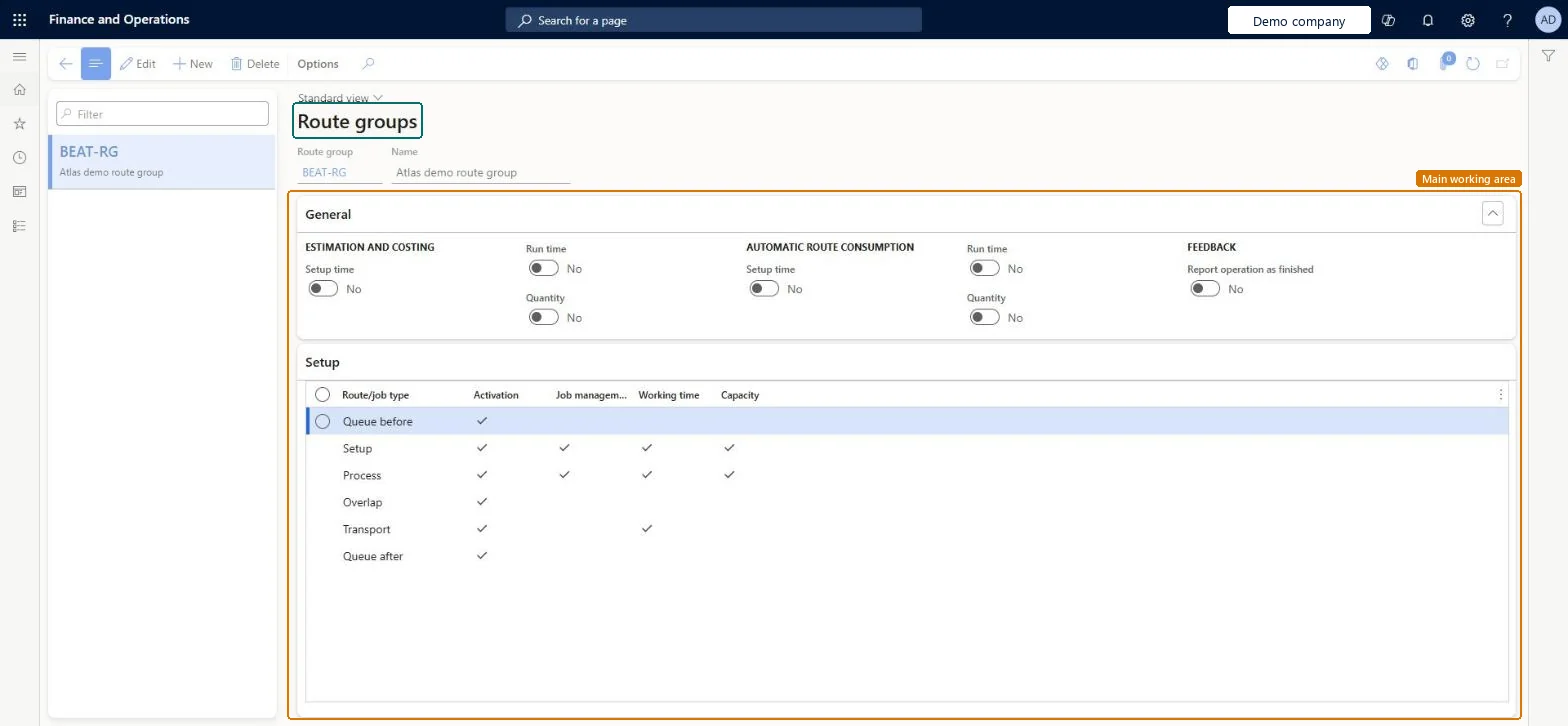
Setup step on the Route groups page · Cost management
Set up Route groups
Use this page to control, for each route group, whether setup time, run time and quantity are used for estimation and costing and for automatic route consumption, and how each route/job type is handled in job scheduling.
Inventory accountant, Inventory accountant clerk, Accounting manager and 5 more roles
Business process
Define costing policies
Menu item
RouteGroup
Main table
RouteGroup
Data entity
RouteGroupEntity
Setup steps
1 on this page
Show what matters for
SETUP GUIDEHow to set it up8 sections. Choose a role to highlight what matters to you.
Everyone
1What it is and why
What it is
A setup page where you define route groups, which hold the parameters that apply to groups of routes and their operations.
What you do here
Use this page to control, for each route group, whether setup time, run time and quantity are used for estimation and costing and for automatic route consumption, and how each route/job type is handled in job scheduling.
Example
For example, when drying resources are bottlenecks, drying operations that are assigned to queue time job types can reserve those resources through the Capacity option.
The page in Dynamics 365. page title tab to open what to set or check
About the examples: Examples and screenshots in this guide use BEAT, a demo company in a Dynamics 365 test environment. Use your own company's codes and values instead of copying them.
Setup steps on this page
Set up Route groups
Use this page to control, for each route group, whether setup time, run time and quantity are used for estimation and costing and for automatic route consumption, and how each route/job type is handled in job scheduling.
How to use it
Go to Cost management > Manufacturing accounting policies setup > Route groups.
Select New and enter a Route group and Name.
On the General FastTab, set Setup time, Run time and Quantity under Estimation and costing and under Automatic route consumption.
Set Report operation as finished under Feedback.
On the Setup FastTab, set Activation, Job management, Working time and Capacity for each Route/job type.
Select Save.
Source: Checked in Dynamics 365
Fields on the page
Field
What it means
Table column
Setup time, Run time, Quantity (Estimation and costing)
Control whether setup time, run time and quantity are used for costing when a Job card or Route card journal is posted on the production order.Microsoft Learn
Activation
Enables calculations, scheduling and job feedback for the selected route/job type. The other options for the job type apply only when it is activated.Microsoft Learn
Activation
Job management
Includes the route/job type in job management when job scheduling is run.Microsoft Learn
JobCtrlTime
Working time
Schedules the route/job type according to the working time calendar of the operations resource instead of the Gregorian calendar.Microsoft Learn
SchedWorkTime
Capacity
Reserves capacity for the route/job type when job scheduling is run.Microsoft Learn
SchedCapacity
Test checklist
Create a route group with Setup time, Run time and Quantity selected under Estimation and costing.
Use it on a route operation with cost categories for setup, run and quantity.
Post a route card journal for a production order and check the voucher on Estimated manufacturing cost absorbed and Estimated cost of manufacturing consumed, WIP.
Clear Run time, post again, and check no voucher is created for run time.
Select Setup time, Run time and Quantity under Estimation and costing for every route group whose time must be costed and posted.Only the times enabled on the route group are costed from the cost category and posted from route card and job card journals.
Leaving these options off: no general ledger voucher is created for time consumption, so labour and machine cost never reaches WIP.Test: Route group drives time costing
Reversible: Applies to journals posted after the change; time already posted isn't revalued.
If you change it later
If the Setup time, Run time and Quantity options under Estimation and costing are turned off, no general ledger voucher is created for the time consumption. Microsoft Learn
Technical architect
6Technical
Menu item
RouteGroupChecked in Dynamics 365
Form
RouteGroupChecked in Dynamics 365
Table
RouteGroupShown as “ROUTE GROUPS” in Record infoChecked in Dynamics 365
PrivilegesMaintain route groups RouteGroupMaintainView route groups RouteGroupViewDutiesInquire into manufacturing costing policies CostProdPoliciesInquireMaintain manufacturing costing policies CostProdPoliciesMaintainInquire into route master RouteRouteMasterInquireMaintain route master RouteRouteMasterMaintain8 security rolesInventory accountant InventCostAccountantInventory accountant clerk InventCostCostClerkAccounting manager LedgerAccountingManagerProduction manager ProdProductionManagerProduction supervisor ProdProductionSupervisorProduction planner ReqProductionPlannerProcess engineer RouteProcessEngineerProcess engineering manager RouteProcessEngineeringManagerChecked in Dynamics 365
Roles to set it up and use it
To set it up or change itAccounting manager LedgerAccountingManagerProcess engineer RouteProcessEngineerTo use itInventory accountant InventCostAccountantInventory accountant clerk InventCostCostClerkProduction manager ProdProductionManagerProduction supervisor ProdProductionSupervisorProcess engineering manager RouteProcessEngineeringManagerGive people one of these roles. On this system, 8 roles can open this page.Checked in Dynamics 365
RouteGroupEntity (Route groups): loaded for each company, in Microsoft's default template 410 - Production control.Load order: Microsoft's default template 410 - Production control loads Route groups at execution unit 1, level 410, sequence 20. Lower levels load first, and entities at the same level load in sequence order.Load first: the default templates at lower levels (System setup to Transportation management)Microsoft Learn