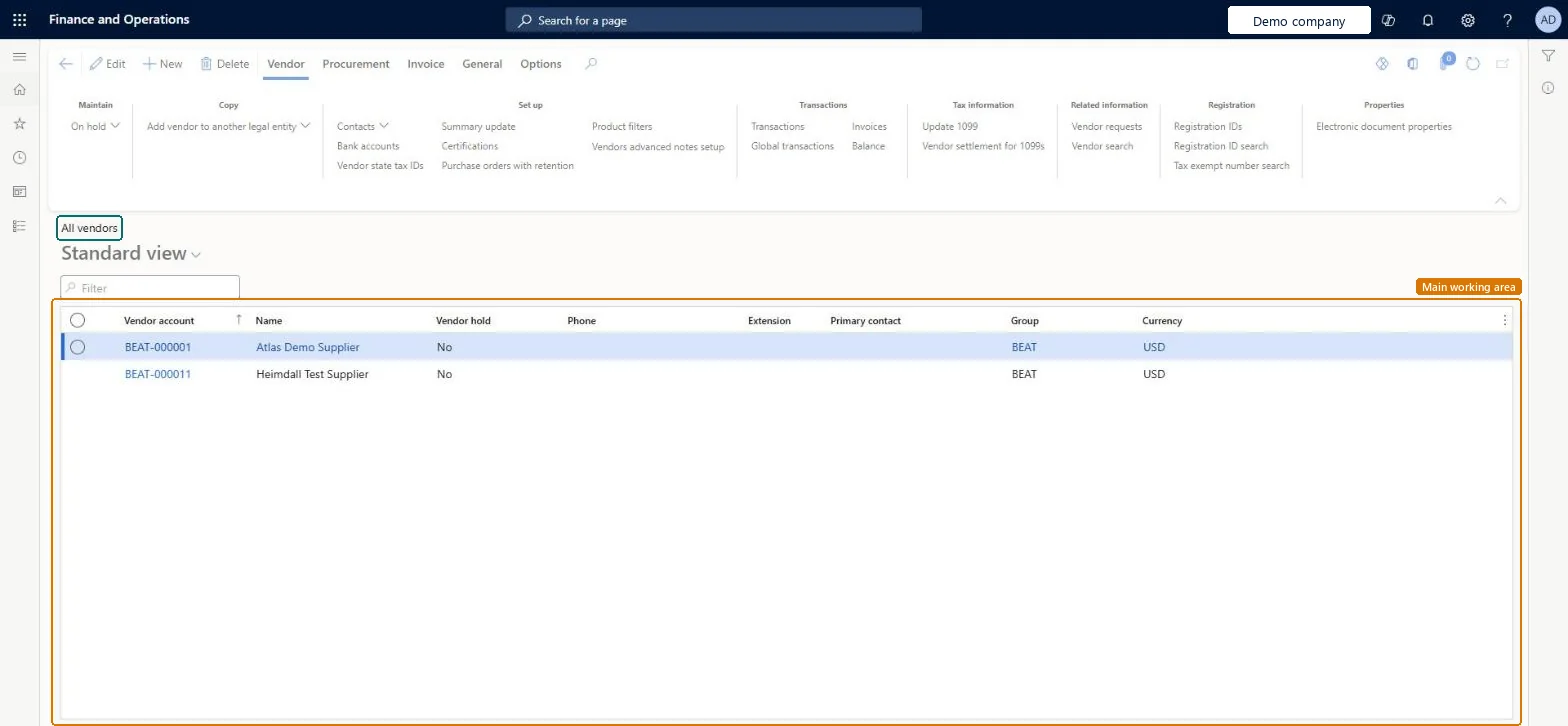
The list page of vendor accounts, where each vendor record holds the information the system uses to fill in documents and track activity with that vendor.
Accounts payable clerk, Accounts payable manager, Purchasing agent and 19 more roles
Business process
Maintain vendors in Dynamics 365 Supply Chain Management
Menu item
VendTableListPage
Main table
VendTable
Data entity
VendVendorV2Entity
Show what matters for
PAGE GUIDEWhat the page does and how to use it8 sections. Choose a role to highlight what matters to you.
Everyone
1What it is and why
What it is
The list page of vendor accounts, where each vendor record holds the information the system uses to fill in documents and track activity with that vendor.
What you do here
Use this page to create, edit, and manage vendor accounts, including the vendor group, hold status, bank information, tax, delivery, invoice and payment settings, and default financial dimensions.
Example
Set up banking information for a vendor so that payments can be sent to it electronically.
The page in Dynamics 365. page title tab to open what to set or check
About the examples: Examples and screenshots in this guide use BEAT, a demo company in a Dynamics 365 test environment. Use your own company's codes and values instead of copying them.
Steps from Microsoft
Go to All vendors.
On the Action Pane, select New.
In the Vendor account field, enter a unique value, unless it fills in automatically.
In the Name field, enter or select the vendor name.
In the Group field, select a vendor group.
Enter the Number of employees and the Organization number.
In the Addresses section, select Add, choose a Purpose, enter the address and select OK.
In the Contact information section, select Add and enter the contact details.
Hard to reverse: Settings such as terms of payment, delivery, tax and default financial dimensions are copied to new documents, so a later change only affects new documents. A vendor that is associated with other records, such as contacts or products, can't be deleted; put it on hold instead. Microsoft Learn
If you change it later
A vendor can't be deleted once other records, such as contacts or products, are linked to it. Microsoft Learn
Technical architect
6Technical
Menu item
VendTableListPageChecked in Dynamics 365
Form
VendTableChecked in Dynamics 365
Table
VendTableShown as “Vendors” in Record infoKey field: AccountNumChecked in Dynamics 365
To set it up or change itPurchasing manager TradePurchasingManagerAccounts payable manager VendInvoiceAccountsPayableManagerPurchasing agent VendPurchasingAgentPurchasing Agent - Public Sector VendPurchasingAgent_PSNAccounting manager LedgerAccountingManagerTo use itBuying agent TradeBuyingAgentAccountant LedgerAccountantProject assistant ProjProjectClerkAccounts payable clerk VendInvoiceAccountsPayableClerkLanded cost agent ITMAgentGive people one of these roles. On this system, 22 roles can open this page.Checked in Dynamics 365
Actions on the page
Vendor: Maintain, Copy, Set up, Transactions, Tax information, Related information, Registration, PropertiesProcurement: New, Related information, Agreements, Set upInvoice: New, Set up, Settle, Related information, PrepaymentGeneral: Activities, Set up, New, Accounts, Market, StatisticsChecked in Dynamics 365
VendVendorV2Entity (Vendors V2): loaded for each company, in Microsoft's default template 120 - Accounts payable.Load order: Microsoft's default template 120 - Accounts payable loads Vendors V2 at execution unit 1, level 120, sequence 35. Lower levels load first, and entities at the same level load in sequence order.Load first: the default templates at lower levels (System setup to Bank)Microsoft Learn