SETUP GUIDEHow to set it up8 sections. Choose a role to highlight what matters to you.
Everyone
1What it is and why
What it is
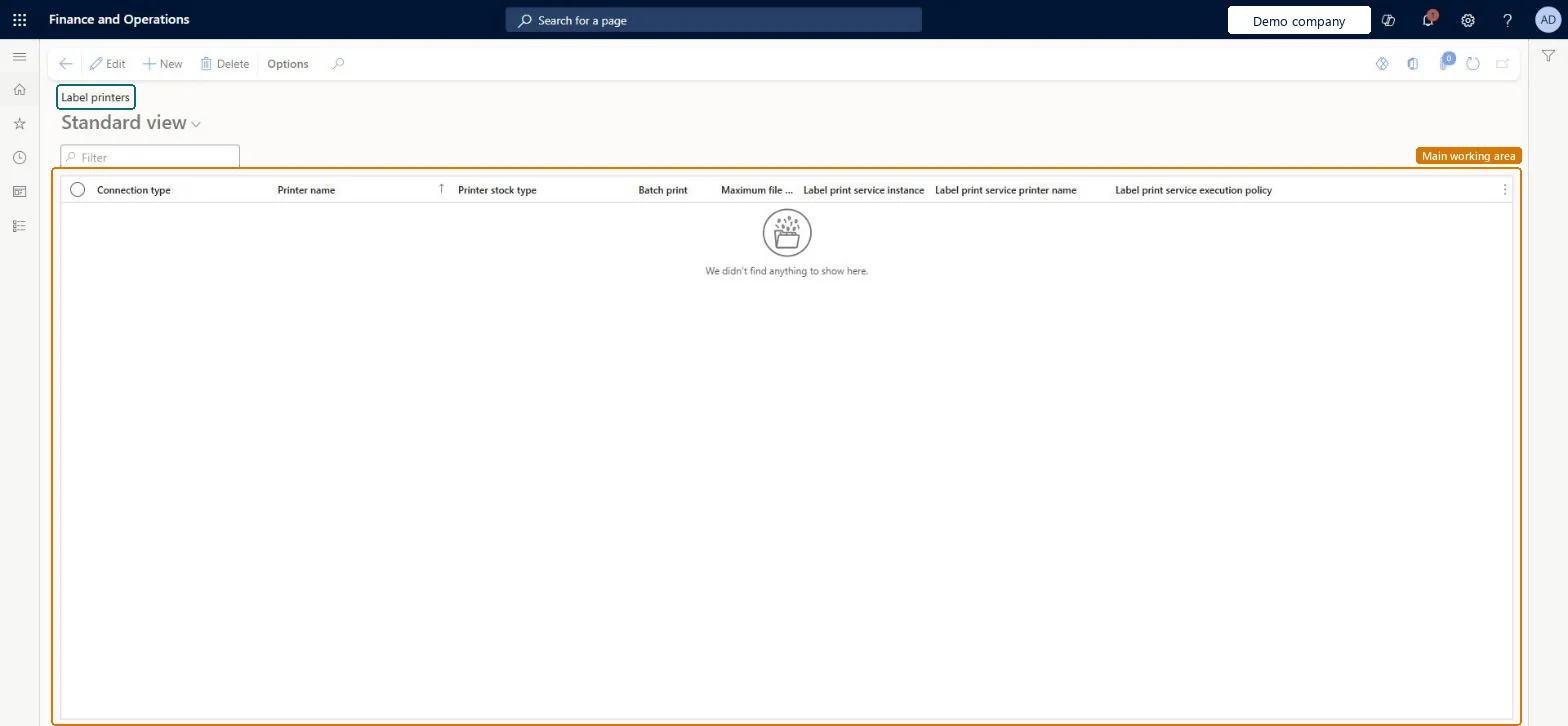
A list page where you set up the label printers, with their connection type, printer stock type, batch printing options and label print service details.
What you do here
Use this page to add label printers and to set their connection type, printer stock type and label print service settings.
The page in Dynamics 365. page title tab to open what to set or check
About the examples: Examples and screenshots in this guide use BEAT, a demo company in a Dynamics 365 test environment. Use your own company's codes and values instead of copying them.
Setup steps on this page
Set up Label printers
Use this page to add label printers and to set their connection type, printer stock type and label print service settings.
Steps from Microsoft
Go to Warehouse management > Setup > Document routing > Label printers.
On the Action Pane, select New to add a printer to the grid.
Select the Connection type.
Enter or select the Printer name.
Select the Printer stock type.
If the printer prints through an external service, set Batch print, Maximum file size, Label print service instance and Label print service printer name.
Set a Printer stock type on every printer, and give external service printers a name prefix that keeps them separate from Document Routing Agent printersDynamic printer selection needs a stock type on each printer, and an external service printer name must not already be used by a DRA printer.
To set it up or change itWarehouse manager WMSWarehouseManagerTo use itWarehouse planner WHSWarehousePlannerGive people one of these roles. On this system, 2 roles can open this page.Checked in Dynamics 365