SETUP GUIDEHow to set it up8 sections. Choose a role to highlight what matters to you.
Everyone
1What it is and why
What it is
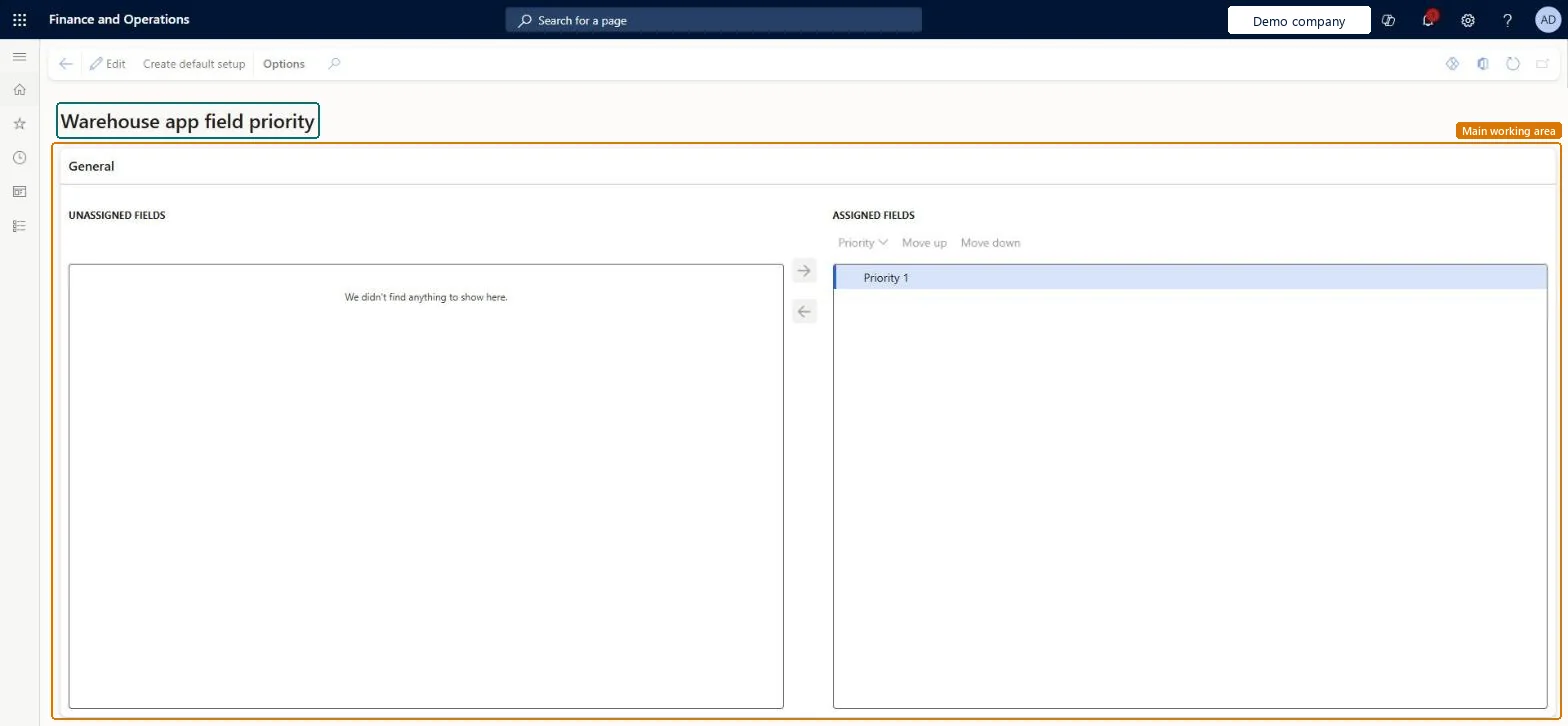
A setup page where you organise Warehouse Management mobile app field names into priority groups, with unassigned fields on one side and assigned fields on the other.
What you do here
Use this page to decide which information appears on the main task page when workers perform tasks in the app.
The page in Dynamics 365. page title tab to open what to set or check
About the examples: Examples and screenshots in this guide use BEAT, a demo company in a Dynamics 365 test environment. Use your own company's codes and values instead of copying them.
Setup steps on this page
Set up Warehouse app field priority
Use this page to decide which information appears on the main task page when workers perform tasks in the app.
How to use it
Go to Warehouse management > Setup > Mobile device > Warehouse app field priority.
Select Create default setup on the Action Pane to generate a default set of priority groups.
Select Edit to change the setup.
Select a field under Unassigned fields and use the right arrow to move it into a priority group under Assigned fields.
Use the left arrow to return a field to Unassigned fields.
Use Priority, Move up and Move down to change the order of the groups.
Source: Checked in Dynamics 365
Fields on the page
Field
What it means
Priority
A priority group of field names. The task page shows the first three priority groups.Microsoft Learn
Test checklist
Select Create default setup and review the generated priority groups.
Move Location into one of the first three groups.
Run a picking task in the mobile app.
Check that Location shows on the task page and lower-priority fields show only on the details page.
Run Create default setup, then put the fields workers need for every task (for example Item, Quantity, Unit of measure) in the first three priority groupsThe app shows only the first three priority groups contained in the metadata on the task page; everything else moves to a secondary details page.
Putting Location or License plate in a low group. Fields beyond the first three groups present for a task don't appear on the task page, so workers must open the details page to see them.
Solution architect
5Design impact
Can it be undone
Reversible: Priority groups can be rearranged at any time; the change only affects what the app shows.
If you change it later
Fields that fall outside the first three priority groups are not shown on the task page. They appear on a secondary details page instead. Microsoft Learn
Technical architect
6Technical
Menu item
WHSMobileAppFieldPriorityChecked in Dynamics 365
Form
WHSMobileAppFieldPriorityChecked in Dynamics 365
Who can open it
PrivilegesWHSMobileAppFieldMaintainWHSMobileAppFieldViewDutiesEnable warehouse operation process WMSWarehouseOperationProcessEnable1 security roleWarehouse manager WMSWarehouseManagerChecked in Dynamics 365
Roles to set it up and use it
To set it up or change itWarehouse manager WMSWarehouseManagerGive people one of these roles. On this system, 1 role can open this page.Checked in Dynamics 365
Actions on the page
(Action Pane without tabs): Create default setupChecked in Dynamics 365
Checked in a working Dynamics 365 system, version 10.0.49: the menu item, form, table and security, the page.
To cite this step: WM-MOBILE-070, Set up Warehouse app field priority. Beyond ERP Atlas Hub, 2026-11-11. https://www.beyonderp.cloud/atlas/step/WM-MOBILE-070