BeyondERP.Newsletter
Menu

Setup page · Warehouse management

Label printers

A list page where you set up the label printers, with their connection type, printer stock type, batch printing options and label print service details.

Used by
Warehouse planner, Warehouse manager
Business process
Manage warehouse operations
Menu item
WHSSysCorpNetPrinters
Main table
WHSSysCorpNetPrinters
Data entity
WHSWarehouseLabelPrinterEntity
Setup steps
1 on this page
Show what matters for
PAGE GUIDEWhat the page does and how to use it8 sections. Choose a role to highlight what matters to you.
Everyone

1What it is and why

What it isA list page where you set up the label printers, with their connection type, printer stock type, batch printing options and label print service details.
What you do hereUse this page to add label printers and to set their connection type, printer stock type and label print service settings.
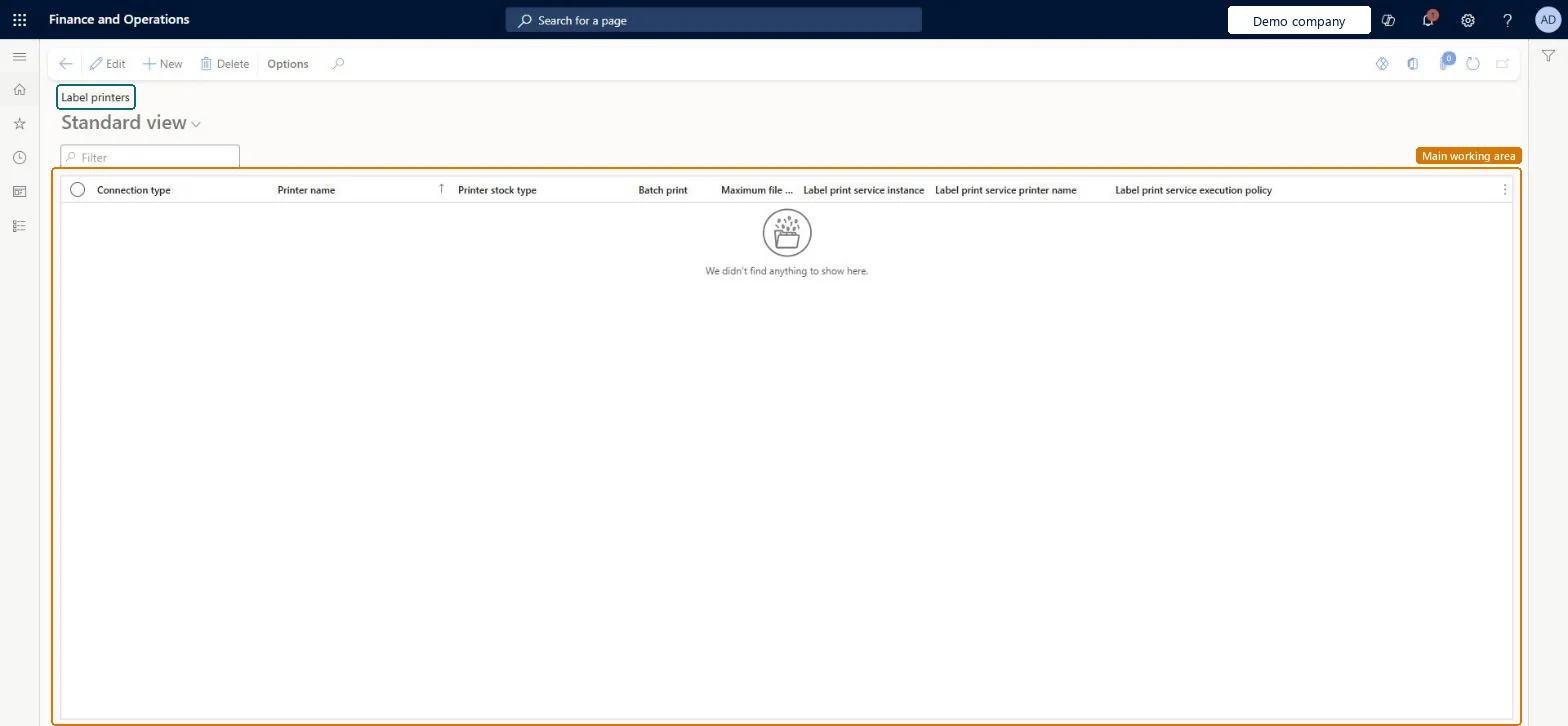
Label printers page in Dynamics 365
The page in Dynamics 365. page title tab to open what to set or check
Functional consultant · Solution architect

2Where it fits

Business processManage warehouse operations
Menu pathWarehouse management › Setup › Document routing › Label printers
Set up firstPrinter stock types Microsoft Learn External service instances Microsoft Learn
Used next byDocument routing Microsoft Learn
Related pagesDefault label printers Microsoft Learn
End user · Functional consultant

3How to do it

About the examples: Examples and screenshots in this guide use BEAT, a demo company in a Dynamics 365 test environment. Use your own company's codes and values instead of copying them.

Setup steps on this page

Set up Label printers

Use this page to add label printers and to set their connection type, printer stock type and label print service settings.

Steps from Microsoft

  1. Go to Warehouse management > Setup > Document routing > Label printers.
  2. On the Action Pane, select New to add a printer to the grid.
  3. Select the Connection type.
  4. Enter or select the Printer name.
  5. Select the Printer stock type.
  6. If the printer prints through an external service, set Batch print, Maximum file size, Label print service instance and Label print service printer name.

Source: Microsoft Learn

Fields on the page

FieldWhat it meansTable column
Connection typeThe type of connection used to communicate with the printer.Microsoft Learn PrinterConnectionType
Printer nameThe internal printer name used in Supply Chain Management.Microsoft Learn PrinterName
Printer stock typeThe type of paper that the printer uses.Microsoft Learn PrinterStockTypeName
Batch printLets the system send several labels to the printer as one batch job.Microsoft Learn IsBatchPrintEnabled
Maximum file sizeThe largest size of a batch file that is sent to the printer when batch printing is on.Microsoft Learn
Label print service instanceThe external service instance that the printer uses.Microsoft Learn LabelPrintServiceInstance
Label print service printer nameThe printer name as it is defined in the external service.Microsoft Learn LabelPrintServicePrinterName
Label print service execution policyWhat the system does if a request to the external service fails.Microsoft Learn LabelPrintServiceExecutionPolicy

Test checklist

  1. Add a printer with Connection type, Printer name and Printer stock type.
  2. For an external service printer, set the Label print service instance and Label print service printer name.
  3. Print a license plate label whose layout has the same printer stock type.
  4. Check the label reaches the physical printer, and for Hybrid check the fallback by stopping the external service.

Source: Microsoft Learn

Functional consultant

4Setup decisions

Setup stepRecommended value and whyDecision, common mistake and test
Set up Label printersSet a Printer stock type on every printer, and give external service printers a name prefix that keeps them separate from Document Routing Agent printersDynamic printer selection needs a stock type on each printer, and an external service printer name must not already be used by a DRA printer.What should happen when the external label service can't print?Setting a very large Maximum file size with Batch print. Large batches can delay other jobs or fail if they exceed the printer's memory.
Solution architect

5Design impact

Can it be undoneReversible: Printer records are read at print time, so changes apply to the next label. Microsoft Learn
Technical architect

6Technical

Menu itemWHSSysCorpNetPrinters Checked in Dynamics 365
FormWHSSysCorpNetPrinters Checked in Dynamics 365
TableWHSSysCorpNetPrintersShown as “LABEL PRINTERS” in Record infoKey field: PrinterNameChecked in Dynamics 365
Data entitiesWHSWarehouseLabelPrinterEntityNetwork printer details Checked in Dynamics 365
Who can open itPrivilegesMaintain label printers WHSSysCorpNetPrintersMaintainView label printers WHSSysCorpNetPrintersViewDutiesMaintain label printers WHSSysCorpNetPrintersMaintainView label printers WHSSysCorpNetPrintersView
2 security rolesWarehouse planner WHSWarehousePlannerWarehouse manager WMSWarehouseManager
Checked in Dynamics 365
Roles to set it up and use itTo set it up or change itWarehouse manager WMSWarehouseManagerTo use itWarehouse planner WHSWarehousePlannerGive people one of these roles. On this system, 2 roles can open this page.Checked in Dynamics 365
Developer

7Developer

Open it by URLhttps://<your-environment>/?mi=WHSSysCorpNetPrinters
Integrate withWHSWarehouseLabelPrinterEntity data entity Checked in Dynamics 365
Everyone

8Sources