About the examples: Examples and screenshots in this guide use BEAT, a demo company in a Dynamics 365 test environment. Use your own company's codes and values instead of copying them.
Setup steps on this page
Set up Default label printers
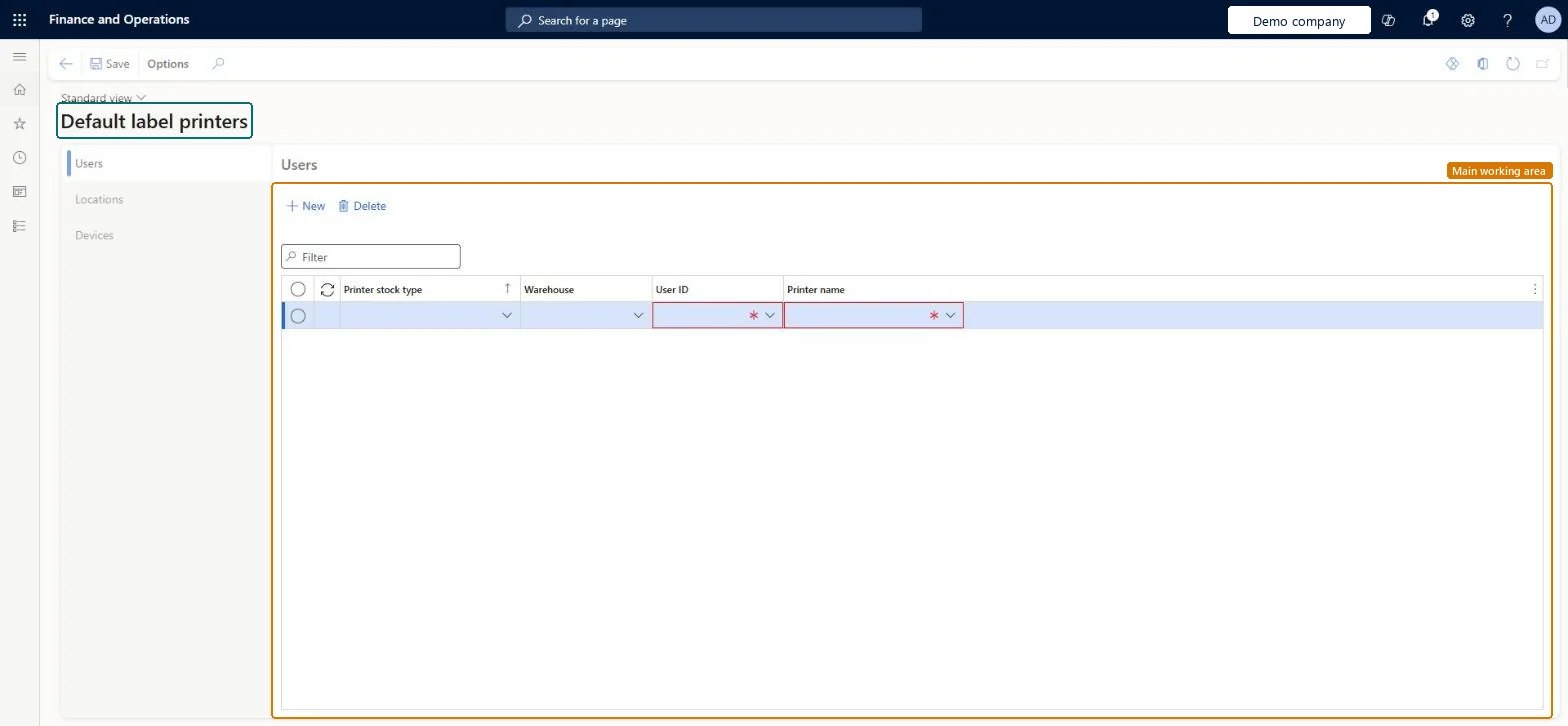
Use this page to set the printer that the system selects for a worker, location or mobile device when dynamic printer selection is used.
Steps from Microsoft
Go to Warehouse management > Setup > Document routing > Default label printers.
On the Users tab, add a row for each worker and set the Printer stock type, Warehouse, User ID and Printer name.
On the Locations tab, add a row for each location or zone and set the Printer stock type, Warehouse, Location scope type, Location scope and Printer name.
On the Devices tab, add a row for each mobile device and set the Printer stock type, Mobile device and Printer name.
A Users row per worker with Warehouse blank as the catch-all, plus Locations rows for packing stations and Devices rows for vehicle-mounted printersA blank warehouse gives the worker a default when no more specific row applies; location and device rows take priority in the selection order.
Relying on Locations rows for license plate labels. The location is only considered when printing container labels.
Solution architect
5Design impact
Can it be undone
Reversible: Default printer rows are read when a label prints, so changes apply immediately to new labels. Microsoft Learn
Technical architect
6Technical
Menu item
WHSDefaultLabelPrinterChecked in Dynamics 365
Form
WHSDefaultLabelPrinterChecked in Dynamics 365
Table
WHSWorkUserDefaultLabelPShown as “WORK USER DEFAULT LABEL PRINTER” in Record infoKey field: PrinterStockTypeName, InventLocationId, UserIdChecked in Dynamics 365
Data entities
WHSWarehouseMobileDeviceDefaultLabelPrinterEntityDevice default label printer Checked in Dynamics 365WHSWarehouseLocationDefaultLabelPrinterEntityWarehouse location default label printers Checked in Dynamics 365WHSWarehouseWorkUserDefaultLabelPrinterV1EntityWarehouse work user default label printers Checked in Dynamics 365
Who can open it
PrivilegesMaintain default label printers WHSDefaultLabelPrinterMaintainView default label printers WHSDefaultLabelPrinterViewDutiesInquire into warehouse operation master WMSWarehouseOperationMasterInquireMaintain warehouse operation master WMSWarehouseOperationMasterMaintain6 security rolesField Service Integration User FieldServiceIntegrationUserProduction supervisor ProdProductionSupervisorProcess engineer RouteProcessEngineerProcess engineering manager RouteProcessEngineeringManagerWarehouse planner WHSWarehousePlannerWarehouse manager WMSWarehouseManagerChecked in Dynamics 365
Roles to set it up and use it
To set it up or change itWarehouse manager WMSWarehouseManagerProcess engineer RouteProcessEngineerTo use itWarehouse planner WHSWarehousePlannerProduction supervisor ProdProductionSupervisorProcess engineering manager RouteProcessEngineeringManagerField Service Integration User FieldServiceIntegrationUserGive people one of these roles. On this system, 6 roles can open this page.Checked in Dynamics 365