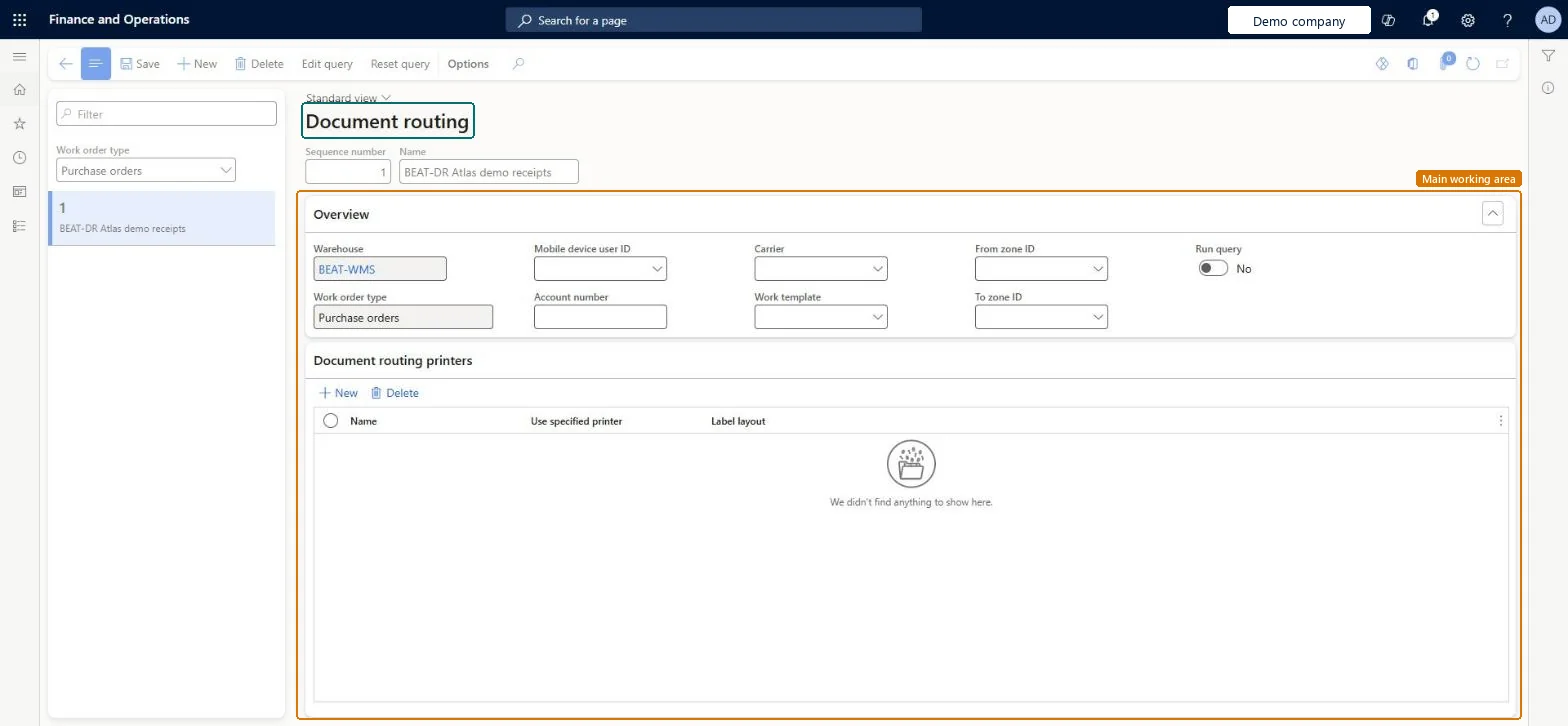
A setup page where you define routing records that decide which label layout prints on which printer, based on the work order type and criteria such as warehouse, worker, carrier and zone.
Field Service Integration User, Production supervisor, Process engineer and 3 more roles
Business process
Manage warehouse operations
Menu item
WHSDocumentRouting
Main table
WHSDocumentRoutingTable
Data entity
WHSPurchaseOrderDocumentRoutingV2Entity
Setup steps
1 on this page
Show what matters for
PAGE GUIDEWhat the page does and how to use it8 sections. Choose a role to highlight what matters to you.
Everyone
1What it is and why
What it is
A setup page where you define routing records that decide which label layout prints on which printer, based on the work order type and criteria such as warehouse, worker, carrier and zone.
What you do here
Use this page to choose the label layout and the printer for labels that print in warehouse processes.
Example
For example, a routing record can send license plate labels to a chosen printer by using a chosen label layout.
The page in Dynamics 365. page title tab to open what to set or check
About the examples: Examples and screenshots in this guide use BEAT, a demo company in a Dynamics 365 test environment. Use your own company's codes and values instead of copying them.
Setup steps on this page
Set up Document routing
Use this page to choose the label layout and the printer for labels that print in warehouse processes.
Steps from Microsoft
Go to Warehouse management > Setup > Document routing > Document routing.
At the top of the list pane, set the Work order type field, for example to Purchase orders.
On the Action Pane, select New to create a routing record.
In the header, enter a unique Sequence number and a Name.
On the Overview FastTab, set the criteria that select the routing, such as Warehouse, Mobile device user ID, Account number, Carrier and Work template.
On the Document routing printers FastTab, select New and set the printer Name and the Label layout.
Routings ordered from most specific (lowest sequence number) to most general, with the printer Name left blank or Use specified printer = As fallback printer so dynamic printer selection picks the printerRoutings are evaluated in ascending sequence and the first match is used. Leaving the printer to dynamic selection means routings only choose the layout, so you don't duplicate routings for every new printer.
Naming a printer with Use specified printer = Always. Dynamic printer selection is then turned off for that routing and the named printer is always used.Test: License plate label prints through the right routing
Reversible: Routings are evaluated each time a label is printed, so a change affects the next print only. Microsoft Learn
If you change it later
Naming a printer on a routing line turns off dynamic printer selection for that routing, and the named printer is used instead. Microsoft Learn
Technical architect
6Technical
Menu item
WHSDocumentRoutingChecked in Dynamics 365
Form
WHSDocumentRoutingChecked in Dynamics 365
Table
WHSDocumentRoutingTableShown as “DOCUMENT ROUTING” in Record infoKey field: InventLocationIdChecked in Dynamics 365
Data entities
WHSPurchaseOrderDocumentRoutingV2EntityPurchase order document routings V2 Microsoft data model WHSReturnOrderDocumentRoutingV2EntityReturn order document routings V2 Microsoft data model WHSSalesOrderDocumentRoutingV2EntitySales order document routings V2 Microsoft data model WHSWarehouseDocumentRoutingV2EntityWarehouse document routings V2 Microsoft data model
Who can open it
PrivilegesMaintain document routing WHSDocumentRoutingMaintainView document routing WHSDocumentRoutingViewDutiesInquire into warehouse operation master WMSWarehouseOperationMasterInquireMaintain warehouse operation master WMSWarehouseOperationMasterMaintain6 security rolesField Service Integration User FieldServiceIntegrationUserProduction supervisor ProdProductionSupervisorProcess engineer RouteProcessEngineerProcess engineering manager RouteProcessEngineeringManagerWarehouse planner WHSWarehousePlannerWarehouse manager WMSWarehouseManagerChecked in Dynamics 365
Roles to set it up and use it
To set it up or change itWarehouse manager WMSWarehouseManagerProcess engineer RouteProcessEngineerTo use itWarehouse planner WHSWarehousePlannerProduction supervisor ProdProductionSupervisorProcess engineering manager RouteProcessEngineeringManagerField Service Integration User FieldServiceIntegrationUserGive people one of these roles. On this system, 6 roles can open this page.Checked in Dynamics 365
Actions on the page
(Action Pane without tabs): Edit query, Reset queryChecked in Dynamics 365
WHSPurchaseOrderDocumentRoutingV2Entity (Purchase order document routings V2): loaded for each company, in Microsoft's default template 400 - Warehouse management.WHSReturnOrderDocumentRoutingV2Entity (Return order document routings V2): loaded for each company, in Microsoft's default template 400 - Warehouse management.WHSSalesOrderDocumentRoutingV2Entity (Sales order document routings V2): loaded for each company, in Microsoft's default template 400 - Warehouse management.Load order: Microsoft's default template 400 - Warehouse management loads Purchase order document routings V2 at execution unit 1, level 400, sequence 50. Lower levels load first, and entities at the same level load in sequence order.Load first: Warehouse zones, Vendors V2, Warehouses, Warehouse mobile device users, the default templates at lower levels (System setup to Quality management)Microsoft Learn