Respond to purchase orders in the Purchase order confirmation workspace
Vendor collaborationWorkspaces
VendVendorPortalWorkspace
Used by
Vendor contact (external)
Business process
Manage open purchases
Menu item
VendVendorPortalWorkspace
Setup steps
1 on this page
Show what matters for
SETUP GUIDEHow to set it up8 sections. Choose a role to highlight what matters to you.
Everyone
1What it is and why
What it is
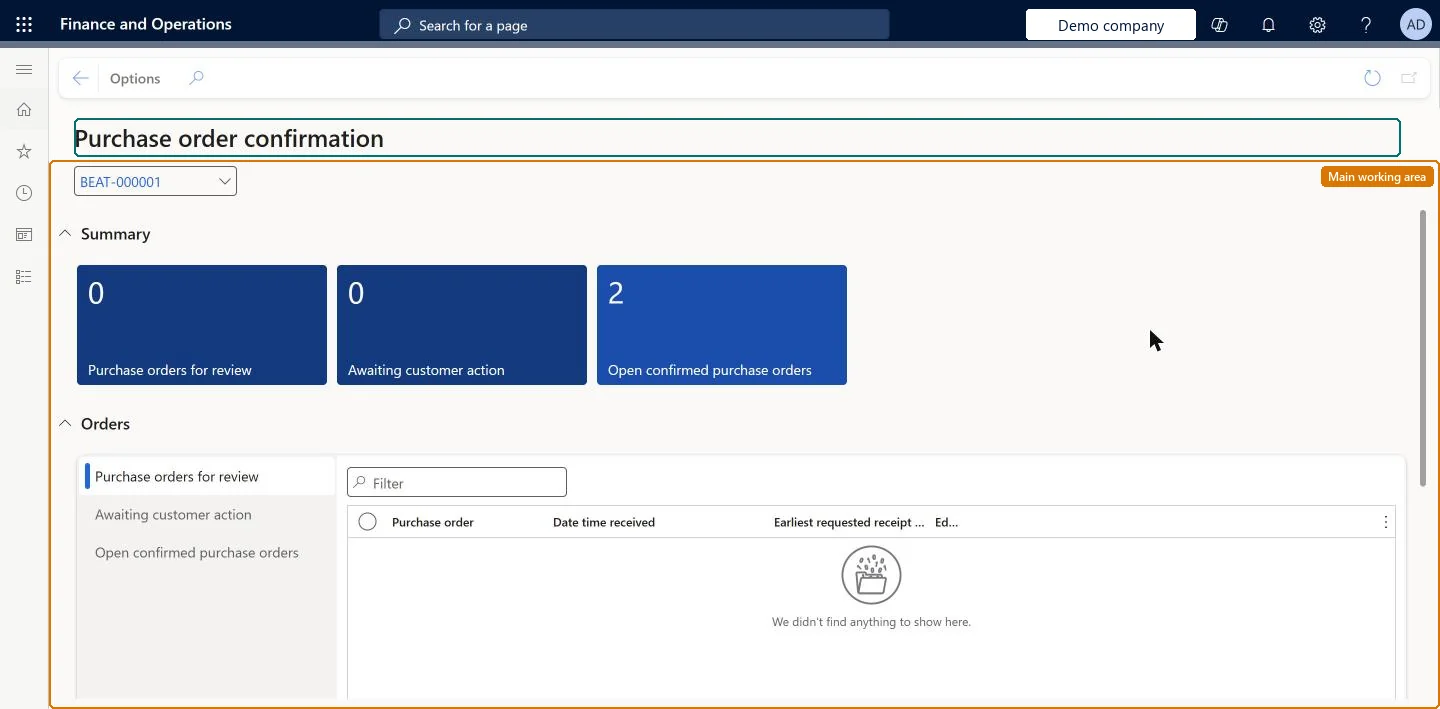
A workspace where a vendor sees the purchase orders a customer has sent for review, the orders waiting on the customer, and confirmed orders that are still open.
What you do here
Use this page to respond to purchase orders that have been sent to you for review and to follow orders that are awaiting customer action or are confirmed but still open.
Example
For example, BEAT sends purchase order BEAT-000061 for vendor BEAT-000001 for confirmation. The vendor opens it from Purchase orders for review, accepts it, and follows it in Awaiting customer action until it moves to Open confirmed purchase orders with the status Confirmed.
The page in Dynamics 365. page title tab to open what to set or check
About the examples: Examples and screenshots in this guide use BEAT, a demo company in a Dynamics 365 test environment. Use your own company's codes and values instead of copying them.
Setup steps on this page
Respond to purchase orders in the Purchase order confirmation workspace
Give vendors one place to answer purchase orders and follow them until they are confirmed and received.
Steps from Microsoft
Go to Vendor collaboration > Workspaces > Purchase order confirmation.
In the Purchase orders for review list, open the purchase order.
Accept the order, reject it, or accept it with changes; the purchase order then leaves the review list.
Follow the order in the Awaiting customer action list until the customer confirms it or sends a new version.
When it is confirmed, follow it in Open confirmed purchase orders until it is fully received.
List of purchase orders sent to the vendor that still need a response.Microsoft Learn
BEAT-000061, sent by BEAT and not yet answered. If BEAT sends a new version first, only the latest version is listed.
Awaiting customer action
List of purchase orders the vendor has answered that the customer has not yet confirmed.Microsoft Learn
An order accepted with a changed receipt date, waiting for BEAT to send a new version.
Open confirmed purchase orders
List of confirmed purchase orders that have not yet been fully received.Microsoft Learn
BEAT-000061 and BEAT-000062 with the status Open order until they are fully received.
Common errors and fixes
Message
What to do
Accepted orders stay in Awaiting customer action and are never confirmed
If the vendor uses Active (PO is auto-confirmed), schedule the Confirm accepted purchase orders from vendor collaboration batch job; without it auto-confirmations never occur. With Active (PO is not auto-confirmed), the buyer must confirm the order. Microsoft Learn
The vendor sees no unit prices, discounts or charges
Set Purchase order prices/amount to Yes on the Purchase order defaults tab of the vendor account. Microsoft Learn
Test checklist
In the customer company, set Collaboration activation on the vendor and send an Approved purchase order with Send for confirmation.
Sign in as the vendor user and check that the order is listed in Purchase orders for review.
Accept the order and check that it moves to Awaiting customer action.
With Active (PO is auto-confirmed), run the Confirm accepted purchase orders from vendor collaboration job and check that the order is listed in Open confirmed purchase orders.
Work from the Purchase orders for review list first, then check Awaiting customer action dailyOrders for review need the vendor's answer before the customer can confirm them; Awaiting customer action shows the orders that wait on the customer.
Microsoft provides two external roles for vendor collaboration: Vendor admin (external), for contacts and user requests, and Vendor (external), for purchase orders, invoices, consignment inventory, RFQs and vendor information. External users created through a user request also get the SystemExternalUser role. On the live system, Vendor contact (external) can open this workspace.
The workspace shows the purchase orders of the vendor accounts the signed-in contact works for, in each customer legal entity where the contact has Vendor collaboration access allowed set to Yes. Microsoft Learn
Can it be undone
Reversible: The workspace changes no data. Responses are corrected by a new purchase order version from the customer.
If you change it later
When the vendor accepts an order, it is confirmed by the batch job (Active (PO is auto-confirmed)) or waits for the buyer to confirm it (Active (PO is not auto-confirmed)). A rejection or Accept with changes keeps the order In external review until the customer sends a new version. Microsoft Learn
Technical architect
6Technical
Menu item
VendVendorPortalWorkspaceChecked in Dynamics 365
Form
VendVendorPortalWorkspaceChecked in Dynamics 365
Who can open it
PrivilegesView purchase order confirmation workspace VendVendorPortalWorkspaceViewDutiesMaintain process purchase orders VendVendorPurchOrderMaintain1 security roleVendor contact (external) VendVendorContactChecked in Dynamics 365
Roles to set it up and use it
To use itVendor contact (external) VendVendorContactGive people one of these roles. On this system, 1 role can open this page.Checked in Dynamics 365
Load order: The Purchase order confirmation workspace has no data entity in Data management. Its lists are built from the purchase orders that the customer sends for confirmation, so nothing is migrated here: migrate open purchase orders in the customer company and send them for confirmation.Checked in Dynamics 365
Checked in a working Dynamics 365 system, version 10.0.49: the menu item, form, table and security, the page.
To cite this step: VC-WS-010, Respond to purchase orders in the Purchase order confirmation workspace. Beyond ERP Atlas Hub, 2026-11-11. https://www.beyonderp.cloud/atlas/step/VC-WS-010