About the examples: Examples and screenshots in this guide use BEAT, a demo company in a Dynamics 365 test environment. Use your own company's codes and values instead of copying them.
Step by step, with screenshots
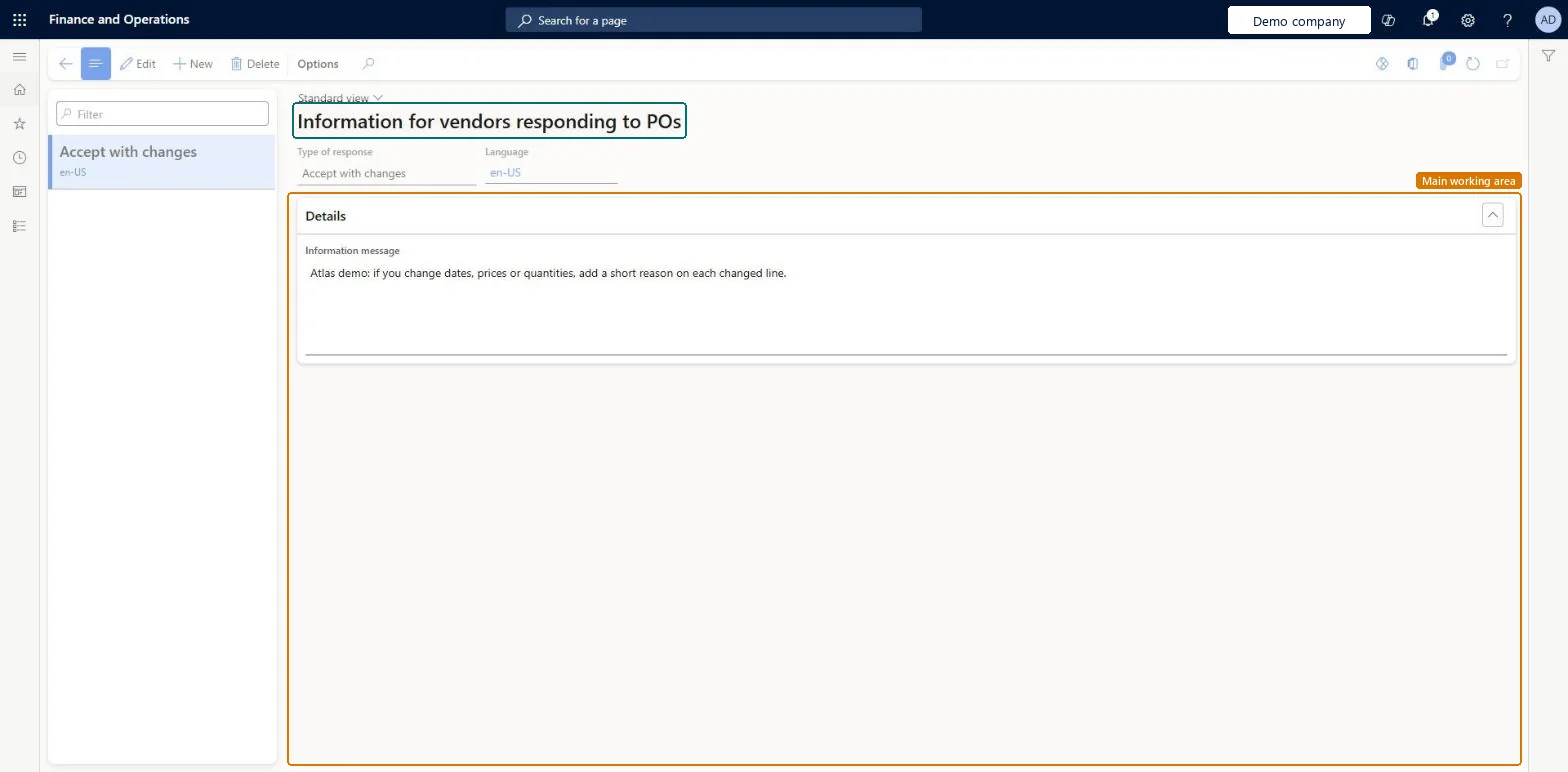
Set up Information for vendors responding to POs1 screen
Use this page to give vendors business-specific information in each purchase order response message.
Screen 1
Write the message for vendors who accept with changes
Go to Procurement and sourcing > Setup > Vendor collaboration > Information for vendors responding to POs
Select New
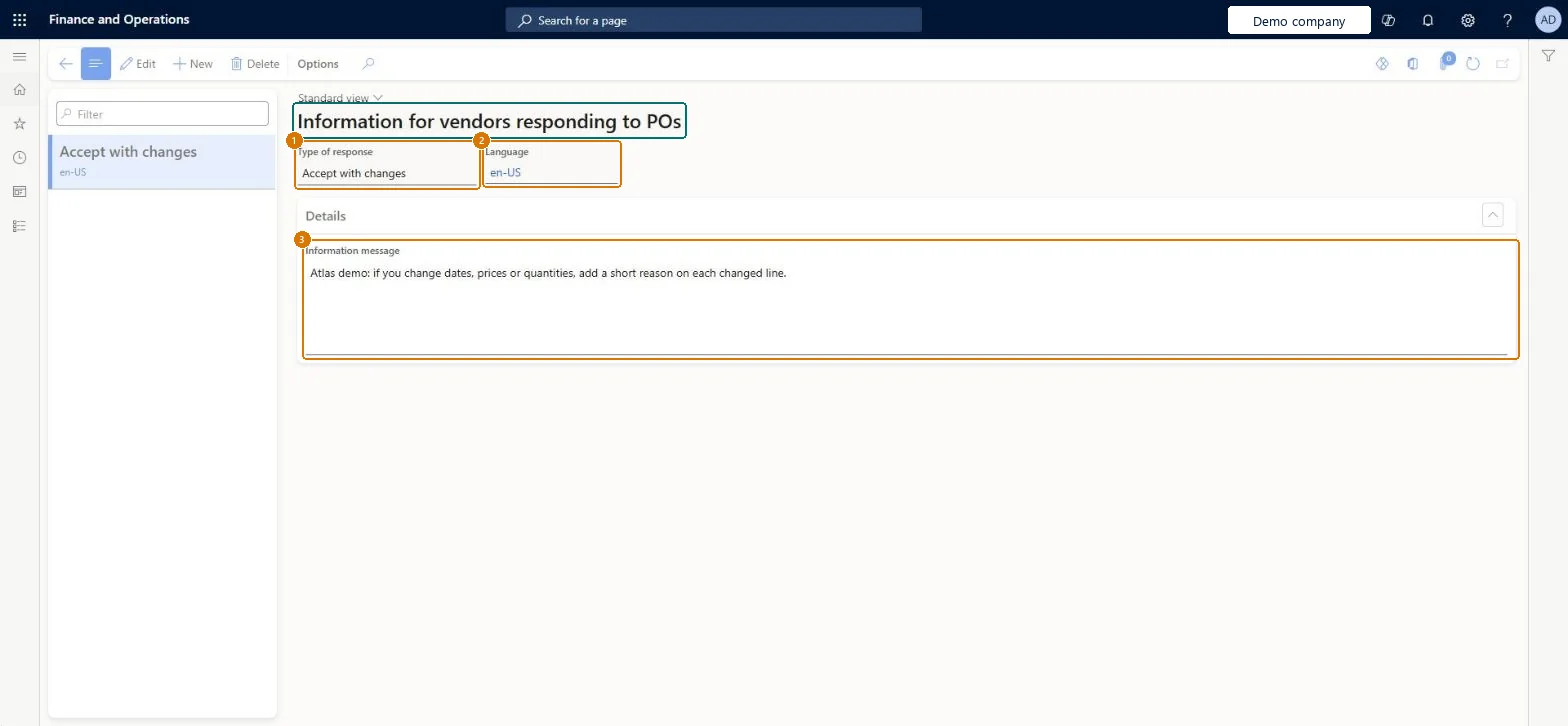
Choose the type of response and the language
Enter the information message
Select Save
1Type of response
Accept with changes
2Language
en-US
3Information message
If you change dates, prices or quantities, add a short reason on each changed line.
Show the full screen page title tab to open what to set or check
Steps from Microsoft
Go to Procurement and sourcing > Setup > Vendor collaboration > Information for vendors responding to POs.
Select the response type, and then select Edit.
In the Information message box, enter the text that vendors should see.
To show messages in more than one language, create a separate message for each language and set its language code.
One information message for each Type of response (accept, reject, accept with changes), with a separate message per language code your vendors useVendors see the message in a confirmation box when they respond, in the language they use, so the text can explain next steps or terms for each response.
Inviting vendors to change prices in the message. In vendor collaboration the vendor can't change price information or charges on a response, only suggest changes in notes.
Reversible: Messages can be edited or replaced at any time. Microsoft Learn
Technical architect
6Technical
Menu item
PurchaseOrderResponseActionRemarksChecked in Dynamics 365
Form
PurchaseOrderResponseActionRemarksChecked in Dynamics 365
Table
PurchaseOrderResponseActionRemarksShown as “Purchase order response action remark” in Record infoChecked in Dynamics 365
Who can open it
PrivilegesMaintain purchase form notes PurchaseOrderResponseActionRemarksMaintainDutiesEnable purchase order to invoice process PurchOrderToInvoiceProcessEnable2 security rolesPurchasing manager TradePurchasingManagerAccounts payable manager VendInvoiceAccountsPayableManagerChecked in Dynamics 365
Roles to set it up and use it
To set it up or change itPurchasing manager TradePurchasingManagerAccounts payable manager VendInvoiceAccountsPayableManagerGive people one of these roles. On this system, 2 roles can open this page.Checked in Dynamics 365
Actions on the page
Options: Personalize, Page options, ShareChecked in Dynamics 365
Checked in a working Dynamics 365 system, version 10.0.49: the menu item, form, table and security, the page, the demo records and the values in the screenshots.