BeyondERP.Newsletter
Menu

Setup step on the Cost template page · Project management and accounting

Set up Cost template

Use this page to choose which project categories count toward the percent complete, whether it is based on amounts or units, and whether it can be changed by hand.

Business process
Manage project financials
Menu item
ProjControl
Main table
ProjControl
Data entity
ProjProjectControlEntity
Setup steps
1 on this page
Show what matters for
SETUP GUIDEHow to set it up8 sections. Choose a role to highlight what matters to you.
Everyone

1What it is and why

What it isA setup page where you create cost templates, which set how the percentage of completion is worked out for revenue recognition on fixed-price projects.
What you do hereUse this page to choose which project categories count toward the percent complete, whether it is based on amounts or units, and whether it can be changed by hand.
ExampleFor example, on BEAT's 10,000.00 fixed-price website project PRJ-0061, the cost template STD-COST counts only hour categories toward completion, so 120.00 of 200.00 forecast hours gives 60.00 percent complete and 6,000.00 of revenue.
Cost template page in Dynamics 365
The page in Dynamics 365. page title tab to open what to set or check
Functional consultant · Solution architect

2Where it fits

Business processManage project financials
Menu pathProject management and accounting › Setup › Estimates › Cost template
Set up firstProject categories Microsoft Learn
Used next byProject groups Microsoft Learn
Related pagesCreate revenue recognition Microsoft Learn
In this process Undo a premature elimination · Set up Form notes
End user · Functional consultant

3How to do it

About the examples: Examples and screenshots in this guide use BEAT, a demo company in a Dynamics 365 test environment. Use your own company's codes and values instead of copying them.

Step by step, with screenshots

Set up Cost template1 screen

Use this page to choose which project categories count toward the percent complete, whether it is based on amounts or units, and whether it can be changed by hand.

  1. Screen 1

    Create a cost template

    Go to Project management and accounting > Setup > Estimates > Cost template

    1. Select New
    2. Enter the cost template code and name
    3. Enter an ID for the hour, expense and item cost lines
    4. Select the completion method and what the completion is based on
    5. Select Save
    6. Select Cost lines to choose the project categories that count toward the percent complete
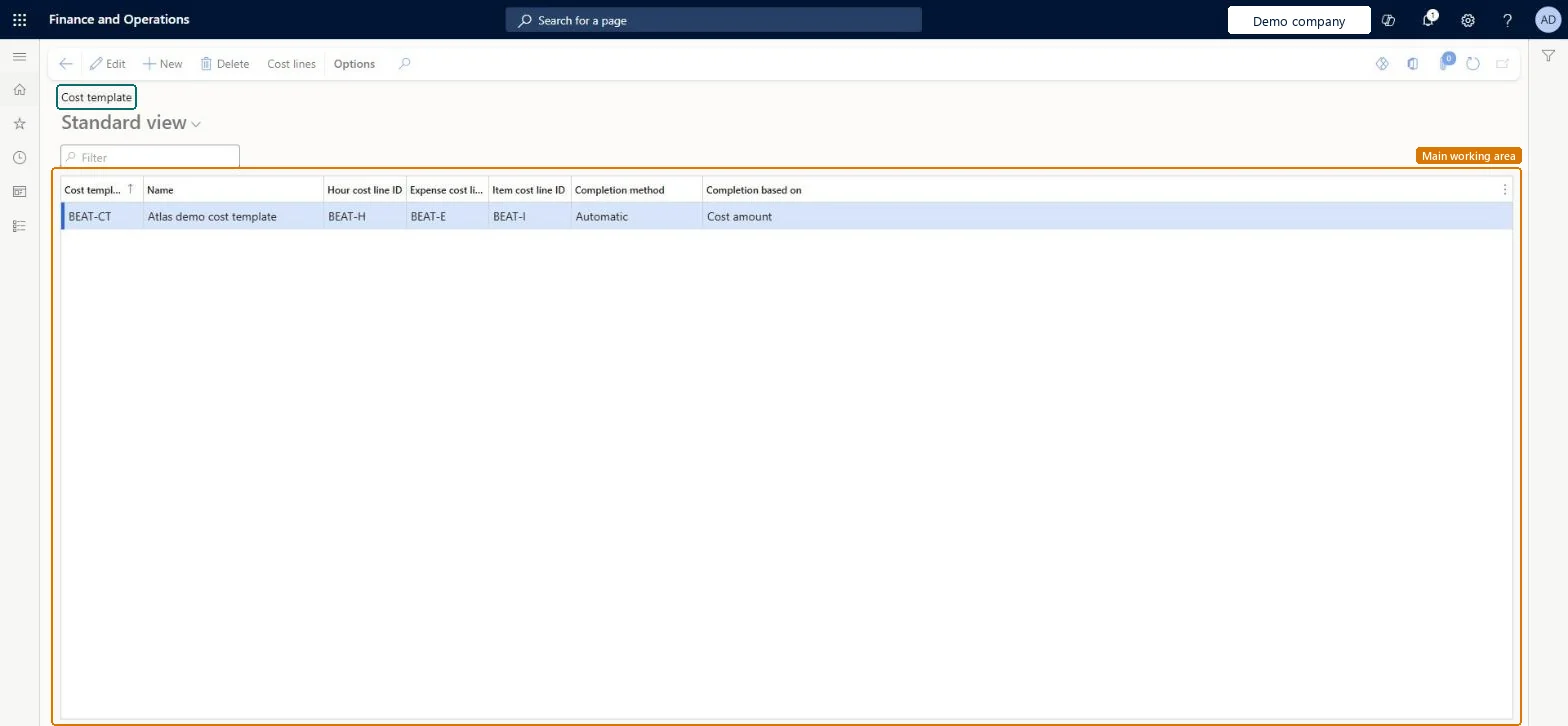
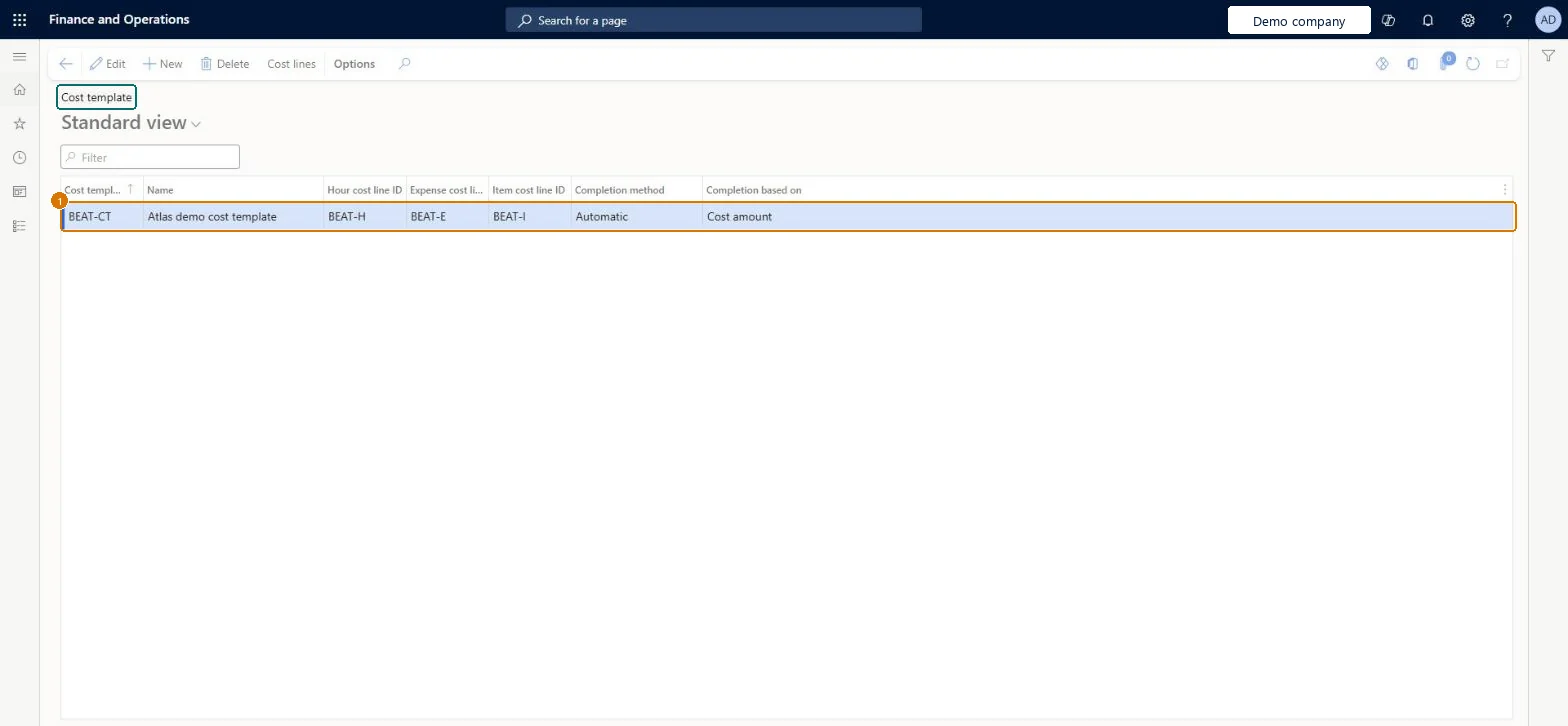
    1Cost templateBEAT-CT
    NameCost template
    Hour cost line IDBEAT-H
    Expense cost line IDBEAT-E
    Item cost line IDBEAT-I
    Completion methodAutomatic
    Completion based onCost amount
    Create a cost template (zoomed on the outlined fields)
    Show the full screenCreate a cost template
    page title tab to open what to set or check

Steps from Microsoft

  1. Go to Project management and accounting > Setup > Estimates > Cost template.
  2. Select New, and enter a name and description.
  3. Enter a cost line ID for each transaction type.
  4. Select a default completion method: Automatic or Manual.
  5. In Completion based on, select Amount, Unit or Straight line.
  6. Select Cost lines to review the cost lines.
  7. On the Categories tab, select the project categories for each cost line.
  8. On the General tab, choose whether the line counts in the percentage of completion.

Source: Microsoft Learn

Fields on the page

FieldWhat it meansExampleTable column
Completion based onWhether percent complete is calculated from amounts, units or a straight line over the project dates.Microsoft Learn Cost amountAmountUnit
Percentage of completionWhether a cost line is included in the percent complete calculation.Microsoft Learn Yes
Cost templateThe unique ID of the cost template.Microsoft Learn STD-COST
NameThe name of the cost template.Microsoft Learn Standard cost templateName
Hour cost line IDThe cost line that is used for hour costs in the template.Microsoft Learn HOURSCostGroupHourId
Expense cost line IDThe cost line that is used for expense costs in the template.Microsoft Learn EXPENSECostGroupCostId
Item cost line IDThe cost line that is used for item costs in the template.Microsoft Learn ITEMSCostGroupItemId
Completion methodWhether the percentage of completion is calculated automatically or entered manually.Microsoft Learn AutomaticautoManual

Common errors and fixes

MessageWhat to do
A fixed-price project shows 100 percent complete before the work is done.Unplanned hours are counted in the percentage of completion. Exclude them from the cost line or revise the forecast. Microsoft Learn

Test checklist

  1. Create a cost template with cost lines for hour and expense, and include only the hour categories in the percentage of completion.
  2. Assign it to a fixed-price revenue recognition project with an hour forecast.
  3. Post hours and an expense, then create revenue recognition (estimate) for the period.
  4. Check the percentage of completion equals actual hours over forecast hours and ignores the expense.

Source: Microsoft Learn

Functional consultant

4Setup decisions

Setup stepRecommended value and whyDecision, common mistake and test
Set up Cost templateAt least one cost line per transaction type, including only the categories that measure real progress, with Completion based on chosen per project style (Amount, Unit or Straight line)Learn requires at least one cost line for every transaction type, and the categories on the lines decide what drives the percentage of completion used to recognize revenue.What should Completion based on use for this cost template?Including unplanned hours: actual hours can exceed planned hours, so the project reaches 100 percent complete before it is finished unless the forecast is updated. Including expenses can make the percentage jump when a trip is booked.Test: Cost template drives percentage of completion

Feature management and licence

Licence or add-inOn the live system, Project accountant maintains this page and Project manager can open it.

Checked in Dynamics 365

Solution architect

5Design impact

Shared or per companyPer company: each legal entity has its own records. Microsoft data model
Can it be undoneReversible: Changes apply to the next estimate period; posted estimates keep their percentage.
If you change it laterCounting unplanned hours can make a project show 100 percent complete before it is finished. Microsoft Learn
Technical architect

6Technical

Menu itemProjControl Checked in Dynamics 365
FormProjControl Checked in Dynamics 365
TableProjControlShown as “Control types” in Record infoKey field: ControlIdChecked in Dynamics 365
Data entitiesProjProjectControlEntityProject cost template Microsoft data model
Roles to set it up and use itTo set it up or change itProject accountant ProjProjectAccountantTo use itProject manager ProjProjectManagerGive people one of these roles. On this system, 2 roles can open this page.Checked in Dynamics 365
Actions on the pageOptions: Personalize, Page options, ShareChecked in Dynamics 365
Developer

7Developer

Open it by URLhttps://<your-environment>/?mi=ProjControl
Integrate withProjProjectControlEntity data entity Microsoft data model
Data migrationProjProjectControlEntity (Project cost template): loaded for each company, in Microsoft's default template 650 - Project accounting.Load order: Microsoft's default template 650 - Project accounting loads Project cost template at execution unit 1, level 30, sequence 10. Lower levels load first, and entities at the same level load in sequence order.Load first: the default templates at lower levels (System setup to General ledger)Microsoft Learn
Table definitionProjControl columns and relations Microsoft data model
Everyone

8Sources

To cite this step: PM-SETUP-350, Set up Cost template. Beyond ERP Atlas Hub, 2026-11-11. https://www.beyonderp.cloud/atlas/step/PM-SETUP-350