PAGE GUIDEWhat the page does and how to use it8 sections. Choose a role to highlight what matters to you.
Everyone
1What it is and why
What it is
A setup page where you create project groups, which set the basic accounting rules for the projects of a given project type.
What you do here
Use this page to decide whether hour, expense, item and on-account transactions for the group's projects post to profit and loss accounts or balance accounts.
Example
For example, BEAT keeps TM-STD for Time and material projects with hours journalized to Balance (WIP), and INT-COST for internal projects with hours posted straight to profit and loss, so PRJ-0042 (customer work) and PRJ-0090 (internal training) post 1,200.00 of hours to different accounts.
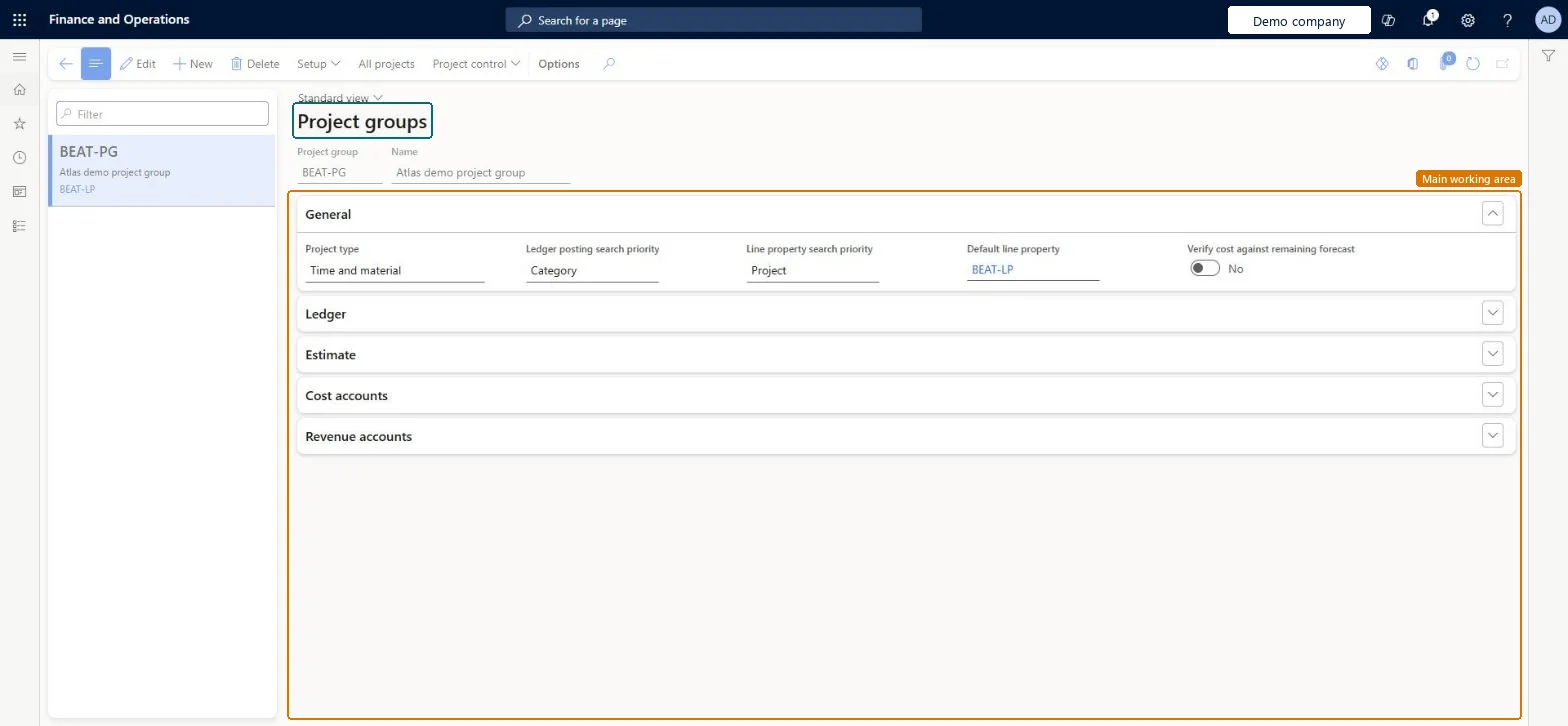
The page in Dynamics 365. page title tab to open what to set or check
About the examples: Examples and screenshots in this guide use BEAT, a demo company in a Dynamics 365 test environment. Use your own company's codes and values instead of copying them.
Step by step, with screenshots
Set up Project groups1 screen
Use this page to decide whether hour, expense, item and on-account transactions for the group's projects post to profit and loss accounts or balance accounts.
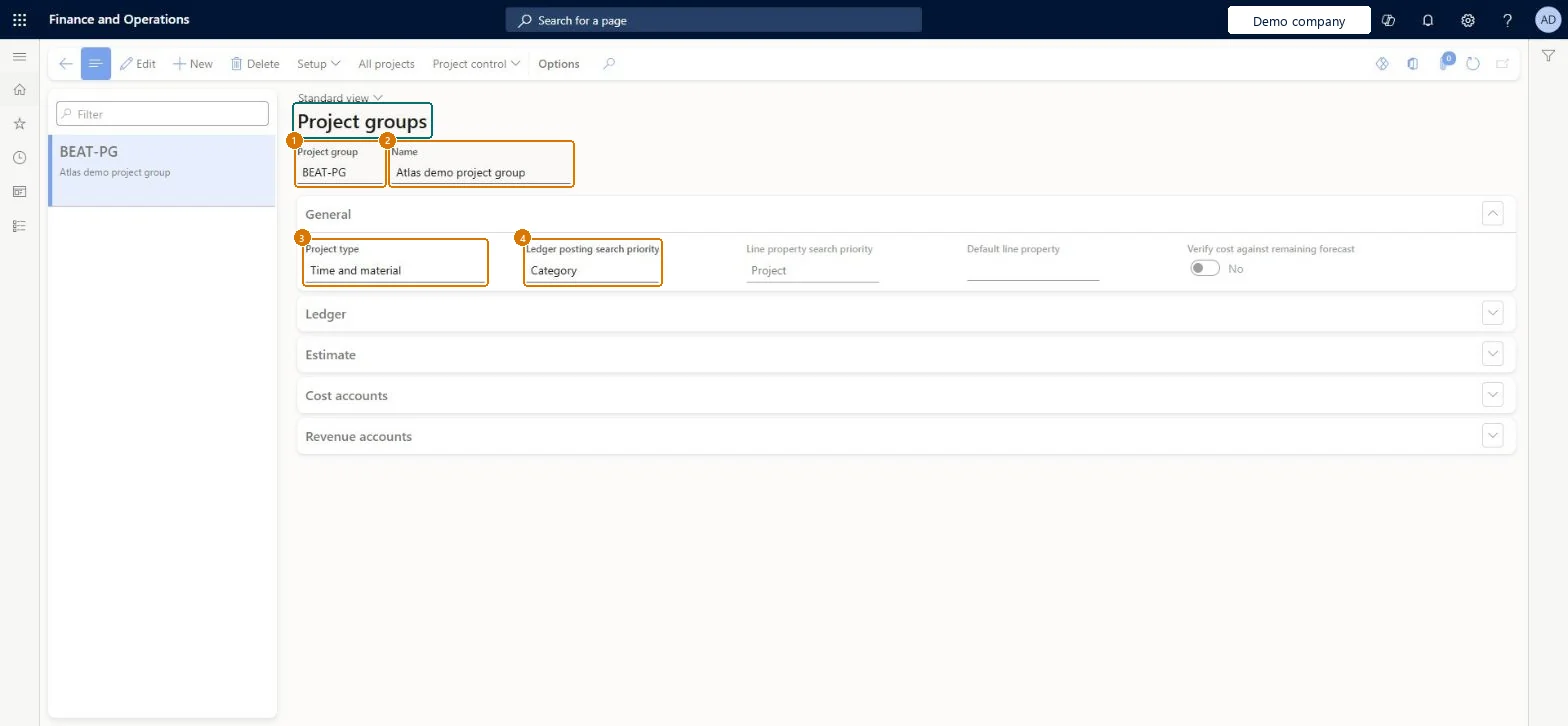
Screen 1
Create a project group
Go to Project management and accounting > Setup > Posting > Project groups
Select New
Enter the project group code and name
Select the project type the group is for
Check the ledger posting and line property search priorities
Select Save
Open the Ledger, Cost accounts and Revenue accounts sections to enter the posting accounts when you are ready to post
1Project group
BEAT-PG
2Name
Project group
3Project type
Time and material
4Ledger posting search priority
Category
Show the full screen page title tab to open what to set or check
Steps from Microsoft
Go to Project management and accounting > Setup > Posting > Project groups.
Select New, enter the Project group and Name, and select the Project type the group is for.
On the Ledger FastTab, choose for hour, expense and item costs whether they post to Profit and loss or Balance, and whether on-account invoices post to revenue or WIP.
Select the default line property and the Ledger posting search priority (project or category first).
For fixed-price and investment groups, set the cost template and period code on the Estimate FastTab.
Check the setup before you assign the first project, because the ledger options lock after that.
At least one project group per project type, with journalizing set per transaction type: Profit and loss for short-term work, Balance (WIP) for long-term or capitalized workEvery project must belong to a project group, and the group sets whether hour, expense, item and on-account postings go to Profit and loss or Balance accounts. Microsoft describes posting short-term projects straight to P&L and using WIP for long-term projects.
One-way: Warning: once any project is assigned to the group, its ledger posting options are locked. Moving a project to a group of another project type also changes the project's type. Microsoft Learn
If you change it later
Once a project is assigned to a project group, the group's ledger posting options can't be changed. Microsoft Learn
Technical architect
6Technical
Menu item
ProjGroupChecked in Dynamics 365
Form
ProjGroupChecked in Dynamics 365
Table
ProjGroupShown as “Project groups” in Record infoKey field: ProjGroupId, Name, projTypeChecked in Dynamics 365
PrivilegesMaintain project groups ProjGroupMaintainView project groups ProjGroupViewDutiesInquire into project groups master ProjProjectGroupsMasterInquireMaintain project groups master ProjProjectGroupsMasterMaintain3 security rolesAccounting manager LedgerAccountingManagerProject accountant ProjProjectAccountantProject supervisor ProjProjectSupervisorChecked in Dynamics 365
Roles to set it up and use it
To set it up or change itProject accountant ProjProjectAccountantTo use itProject supervisor ProjProjectSupervisorAccounting manager LedgerAccountingManagerGive people one of these roles. On this system, 3 roles can open this page.Checked in Dynamics 365
Actions on the page
Options: Personalize, Page options, ShareChecked in Dynamics 365
ProjectGroupEntity (Project groups): loaded for each company, in Microsoft's default template 650 - Project accounting.ProjProjectGroupV2Entity (Project groups V2): loaded for each company.Load order: Microsoft's default template 650 - Project accounting loads Project groups at execution unit 1, level 70, sequence 10. Lower levels load first, and entities at the same level load in sequence order.Load first: the default templates at lower levels (System setup to dependency bands 30 to 90)Microsoft Learn
Checked in a working Dynamics 365 system, version 10.0.49: the menu item, form, table and security, the page, the demo records and the values in the screenshots.