Set up Project management and accounting parameters
Project management and accountingSetup
ProjParameters
Used by
Field Service Integration Admin, Field Service Integration User, Project accountant and 2 more roles
Business process
Develop project strategy
Menu item
ProjParameters
Main table
ProjParameters
Data entity
ProjectParameterEntity
Setup steps
1 on this page
Show what matters for
SETUP GUIDEHow to set it up8 sections. Choose a role to highlight what matters to you.
Everyone
1What it is and why
What it is
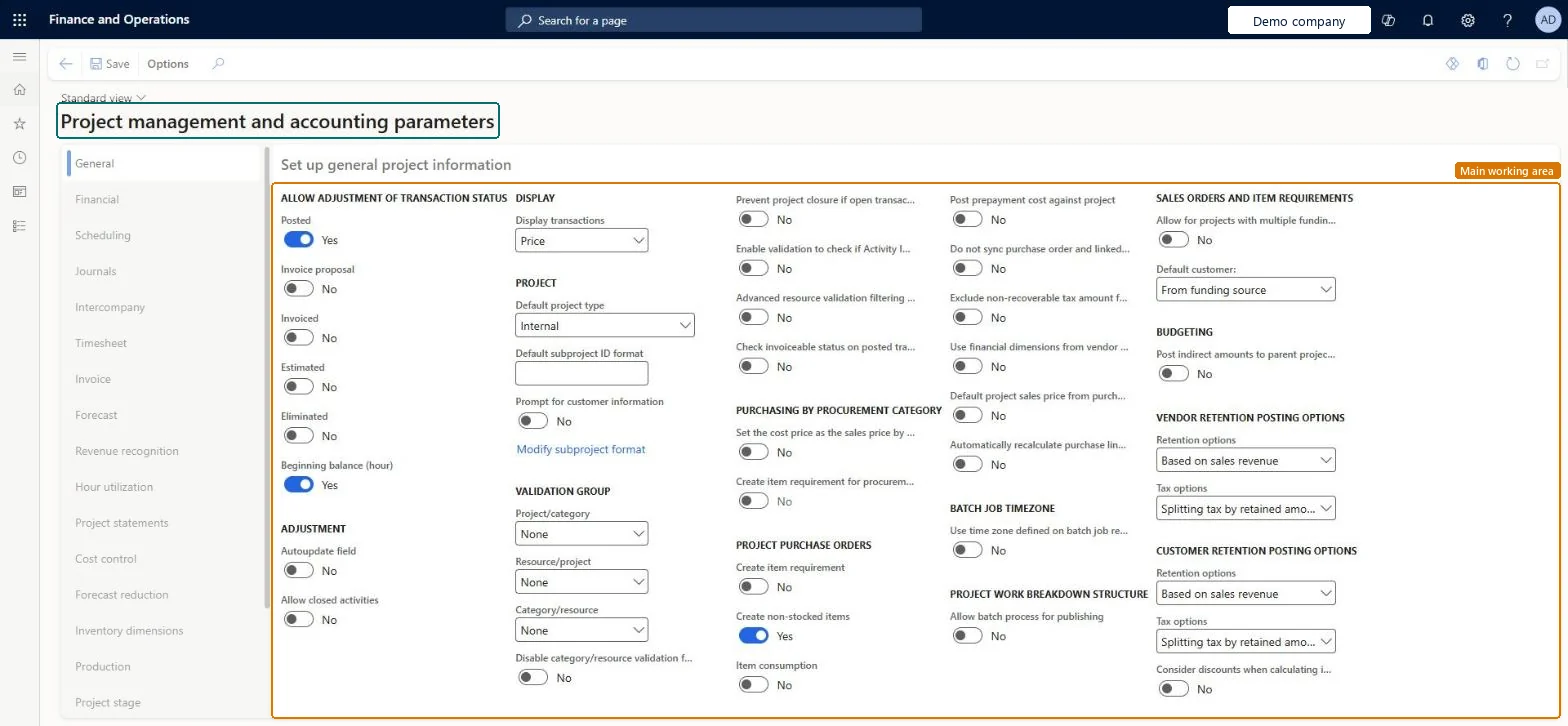
The Project management and accounting parameters page holds the company-wide defaults of the module: number sequences, the default project type, journal and timesheet options, which transaction statuses can be adjusted, invoice proposal options and, in integrated legal entities, the Project Operations defaults.
What you do here
Use this page once per legal entity, before the first project is created, so that new projects, journals, adjustments and invoice proposals pick up the right defaults without manual entry.
Example
For example, BEAT sets Posted to Yes under Allow adjustment of transaction status so that a 12.50-hour line posted to PRJ-0042 at the wrong cost price can be corrected in Adjust transactions, and turns on Enable processing invoice proposals in workflow so that no invoice proposal for PRJ-0042 posts before approval.
The page in Dynamics 365. page title tab to open what to set or check
About the examples: Examples and screenshots in this guide use BEAT, a demo company in a Dynamics 365 test environment. Use your own company's codes and values instead of copying them.
Step by step, with screenshots
Set up Project management and accounting parameters1 screen
Use this page to preset default values so that less manual entry is needed when projects and project transactions are created.
Screen 1
Review the project management and accounting parameters
Go to Project management and accounting > Setup > Project management and accounting parameters
Open the page and review the General tab
Select the other tabs to review the Financial, Scheduling and Journals settings
Change a setting only when your project process needs it, then select Save
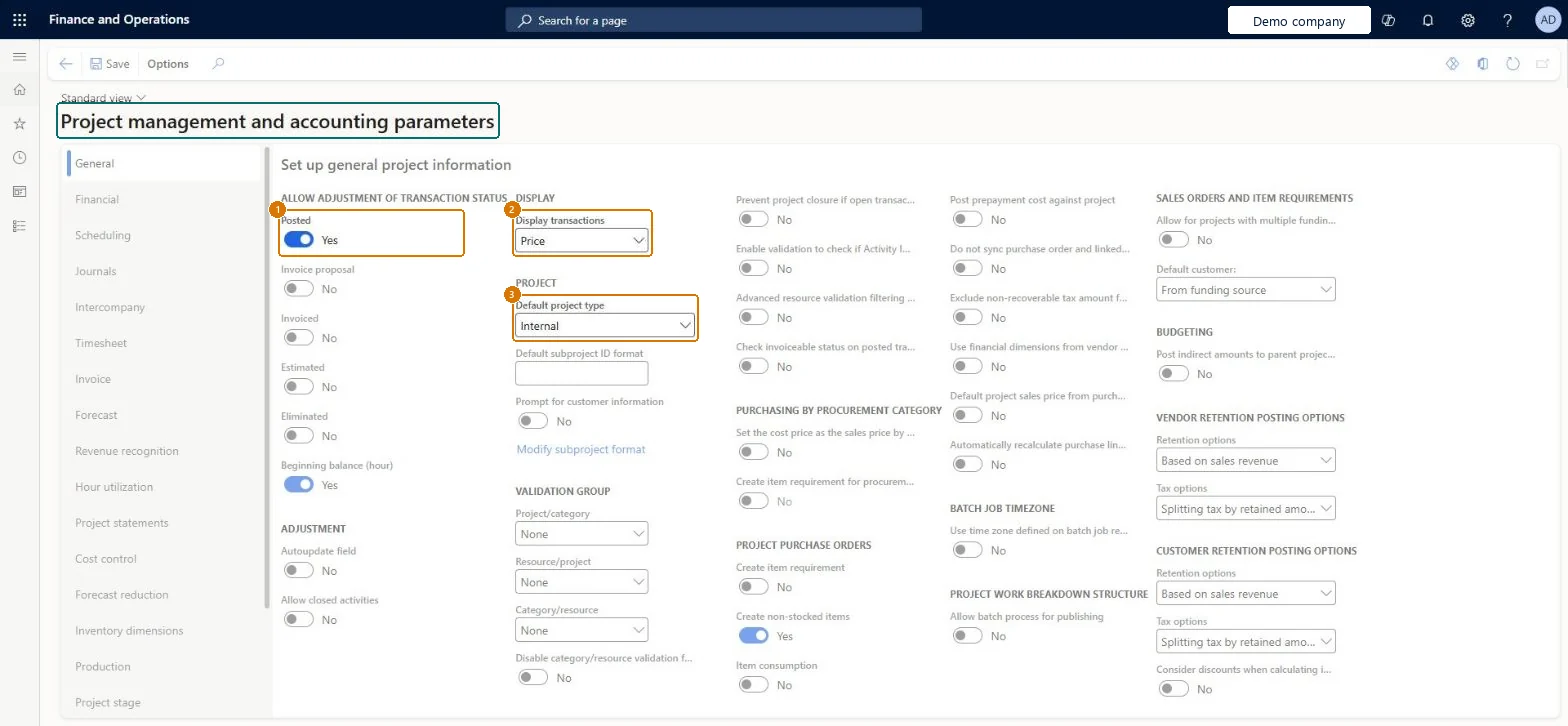
1Posted
Yes
2Display transactions
Price
3Default project type
Internal
Show the full screen page title tab to open what to set or check
Steps from Microsoft
Go to Project management and accounting > Setup > Project management and accounting parameters.
On the General tab, set Default project type and Display transactions to the values most new projects need.
Under Allow adjustment of transaction status, set Posted to Yes for every status your correction process needs, and leave Max batch tasks for adjustment posting at 0 unless volumes call for more.
Turn on Enable processing invoice proposals in workflow if invoice proposals must be approved before they post.
On the Number sequences tab, check that Project ID, Project contract ID, Journal, Invoice proposal, Invoice and Timesheet number each have a number sequence.
In a legal entity selected for Project Operations, open the Project Operations tab and map a line property to each billing type, then set the project category defaults and the forecast model.
Save, then create the first project group on Project groups.
The transaction statuses, such as posted or invoiced, that can be adjusted.Microsoft Learn
Posted: Yes, Invoiced: No
Autoupdate field
Recalculates cost price and sales price during adjustments.Microsoft Learn
AdjustAutoFieldUpdate
Max batch tasks for adjustment posting
How many batch tasks adjustment posting is split into.Microsoft Learn
0 (four tasks)
Period unit on Project Operations Integration journal
Groups imported actuals into one journal per day, month, year, or all together.Microsoft Learn
Months
Automatically set accounting date to open ledger period
Moves a posting in a closed period to the next open period.Microsoft Learn
IsAccountingDateUpdateAllowed
Enable processing invoice proposals in workflow
Requires invoice proposals to go through the approval workflow; set for each legal entity.Microsoft Learn
Yes
EnableInvoiceProposalWorkflow
Number of subtasks for invoice proposal creation and posting in batch
How many parallel subtasks batch creation and posting of invoice proposals use.Microsoft Learn
Display available transactions automatically
When No, transactions show on Create invoice proposal only after you search.Microsoft Learn
CreateInvoiceProposalDisplayAutomatically
Cost control method
Remaining budget or Total budget, which decides how the Cost control page calculates costs.Microsoft Learn
Remaining budget
General budget reservation
Counts posted general budget reservations in the project's committed costs.Microsoft Learn
Enable intercompany resource scheduling and timesheets
Lets workers enter time for projects in another legal entity.Microsoft Learn
EnableIntercompanyTimesheet
Posted
Under Allow adjustment of transaction status: Yes lets posted project transactions be selected in Adjust transactions; No hides them from adjustment.Microsoft Learn
Yes
PostedStatus
Display transactions
Whether project transaction lines show unit prices or line amounts by default.Checked in Dynamics 365
Price
DisplayPriceAmount
Default project type
The project type suggested when a new project is created, such as Time and material or Internal.Checked in Dynamics 365
Time and material
DisplayProjectType
Common errors and fixes
Message
What to do
One or more transactions couldn't be selected for adjustment because they're already being processed. If this isn't expected, wait until adjustments are complete and clear the adjustments posting cache.
Wait for running adjustments to finish, then run Project management and accounting > Periodic > Transactions > Clear adjustments posting cache. Microsoft Learn
Posting failed for some transactions. You can view the errors in the Adjust transactions status page.
Open Periodic > Transactions > Adjust transactions status, fix the setup named in the reason column, then select Adjust transaction and apply the change again. Microsoft Learn
Test checklist
Set Posted to Yes under Allow adjustment of transaction status.
Post an hour journal on a test project.
Open Project management and accounting > Setup > Adjust transactions and check the posted hour line can be selected.
Set Posted to No and check the same line no longer appears for adjustment.
Under Allow adjustment of transaction status, set Yes for every status your correction process needs (at least Posted); run adjustments in batch and leave Max batch tasks for adjustment posting at 0 (four tasks) unless volumes call for moreA status set to No hides those transactions from Adjust transactions. Microsoft advises batch processing for adjustments of more than a few lines, and 0 means four batch tasks.
BEAT uses number sequence Proj_3. Checked in Dynamics 365
Grant ID
Per company
BEAT uses number sequence Proj_7. Checked in Dynamics 365
Invoice
Per company
BEAT uses number sequence Proj_11. Checked in Dynamics 365
Invoice proposal
Per company
BEAT uses number sequence Proj_15. Checked in Dynamics 365
Credit note
Per company
BEAT uses number sequence Proj_19. Checked in Dynamics 365
Resource request ID
Per company
BEAT uses number sequence Proj_23. Checked in Dynamics 365
Posting voucher (periodic)
Per company
BEAT uses number sequence Proj_27. Checked in Dynamics 365
Invoice voucher
Per company
BEAT uses number sequence Proj_31. Checked in Dynamics 365
On-account invoice voucher
Per company
BEAT uses number sequence Proj_35. Checked in Dynamics 365
Credit note voucher
Per company
BEAT uses number sequence Proj_39. Checked in Dynamics 365
On-account credit note voucher
Per company
BEAT uses number sequence Proj_43. Checked in Dynamics 365
Journal
Per company
BEAT uses number sequence Proj_47. Checked in Dynamics 365
Transaction ID
Per company
BEAT uses number sequence Proj_51. Checked in Dynamics 365
Adjustment
Per company
BEAT uses number sequence Proj_55. Checked in Dynamics 365
Timesheet number
Per company
BEAT uses number sequence Proj_59. Checked in Dynamics 365
Project budget ID
Per company
BEAT uses number sequence Proj_63. Checked in Dynamics 365
Revision ID
Per company
BEAT uses number sequence Proj_67. Checked in Dynamics 365
Project contract ID
Per company
BEAT uses number sequence Proj_71. Checked in Dynamics 365
Timesheet voucher
Per company
BEAT uses number sequence Proj_75. Checked in Dynamics 365
Integration journal
Per company
BEAT uses number sequence Proj_79. Checked in Dynamics 365
Feature management and licence
Feature to turn on
Project adjustment posting performance improvements (Optional)Enable editing of project date for project adjustments (Optional)
Licence or add-in
On the live system, Project supervisor and Field Service Integration Admin maintain this page; Project accountant, Field Service Integration User and Resource manager can open it. The adjustment options can be extended by the Project adjustment posting performance improvements and Enable editing of project date for project adjustments features.
Per company: each legal entity has its own parameters and its own number sequences. Set them in every legal entity that runs projects. Microsoft Learn
Can it be undone
Reversible: The adjustment parameters can be changed at any time. They only control which posted transactions can be selected and how later adjustment runs are processed.
If you change it later
If a transaction status is set to No for adjustments, transactions in that status can no longer be selected in Adjust transactions. Microsoft Learn
Technical architect
6Technical
Menu item
ProjParametersChecked in Dynamics 365
Form
ProjParametersChecked in Dynamics 365
Table
ProjParametersShown as “Project parameters” in Record infoChecked in Dynamics 365
Data entities
ProjectParameterEntityProject parameters Microsoft data model ProjectIntercompanyParametersEntityProject intercompany parameters Checked in Dynamics 365InventDimSetupGridEntityProject inventory dimensions for item consumption Checked in Dynamics 365PSAVendPWPTxtEntityProject vendor contract language Checked in Dynamics 365
Who can open it
PrivilegesMaintain project parameters ProjParametersMaintainView project parameters ProjParametersViewResource manager ProjResourceManagerDutiesMaintain Field Service Parameters FieldServiceIntegrationParametersMaintainExecute Field Service Integration Transactions FieldServiceIntegrationTransactionsExecuteInquire into project accounting policies ProjProjectAccountingPolicyInquireEnable project accounting process ProjProjectAccountingProcessEnableResource manager ProjResourceManager5 security rolesField Service Integration Admin FieldServiceIntegrationAdminField Service Integration User FieldServiceIntegrationUserProject accountant ProjProjectAccountantProject supervisor ProjProjectSupervisorResource manager ProjResourceManagerChecked in Dynamics 365
Roles to set it up and use it
To set it up or change itProject supervisor ProjProjectSupervisorField Service Integration Admin FieldServiceIntegrationAdminTo use itProject accountant ProjProjectAccountantField Service Integration User FieldServiceIntegrationUserResource manager ProjResourceManagerGive people one of these roles. On this system, 5 roles can open this page.Checked in Dynamics 365
Actions on the page
Options: Personalize, Page options, Edit, ShareChecked in Dynamics 365
ProjectParameterEntity Project parameters, one record per company.ProjectIntercompanyParametersEntity Project intercompany parameters, one record per company.Load order: Load Project parameters after the number sequences, journal names, project categories and line properties it points to, because the parameters store them as defaults (for example the default hour journal name and default category). Load it before projects and journals.Load first: Number sequences, Journal names, Project categories, Line propertiesMicrosoft Learn
Checked in a working Dynamics 365 system, version 10.0.49: the menu item, form, table and security, the page, the demo records and the values in the screenshots.
To cite this step: PM-SETUP-010, Set up Project management and accounting parameters. Beyond ERP Atlas Hub, 2026-11-11. https://www.beyonderp.cloud/atlas/step/PM-SETUP-010