SETUP GUIDEHow to set it up8 sections. Choose a role to highlight what matters to you.
Everyone
1What it is and why
What it is
A setup page where you group projects and categories so that only the allowed categories can be used for those projects in journals and timesheets.
What you do here
Use this page to control which categories can be entered for which projects.
Example
For example, BEAT's group FIXED-ONLY lists its 6 fixed-price projects and only the categories CONSULTING and TRAVEL, so a journal line on PRJ-0061 with the category ENTERTAIN is refused.
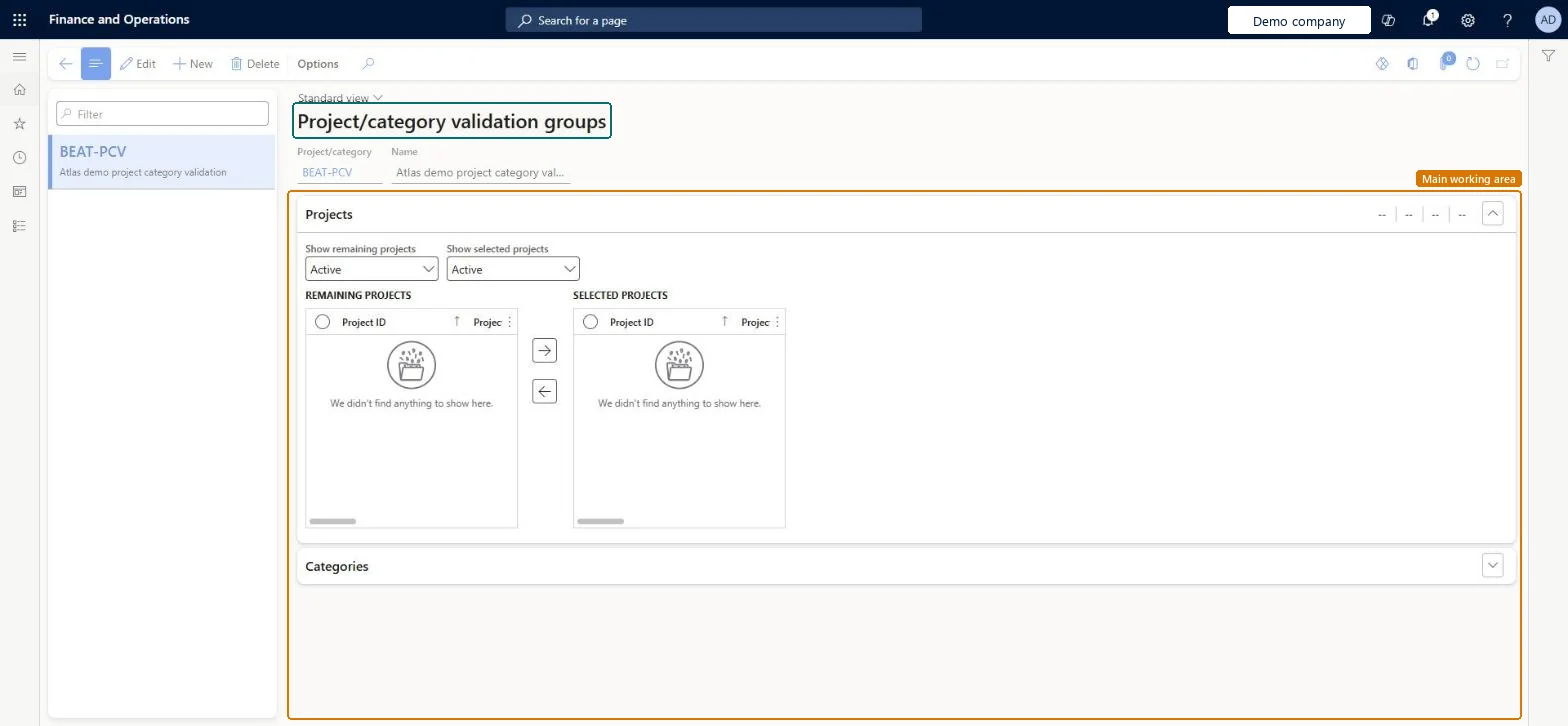
The page in Dynamics 365. page title tab to open what to set or check
About the examples: Examples and screenshots in this guide use BEAT, a demo company in a Dynamics 365 test environment. Use your own company's codes and values instead of copying them.
Step by step, with screenshots
Set up Project/category validation groups1 screen
Use this page to control which categories can be entered for which projects.
Screen 1
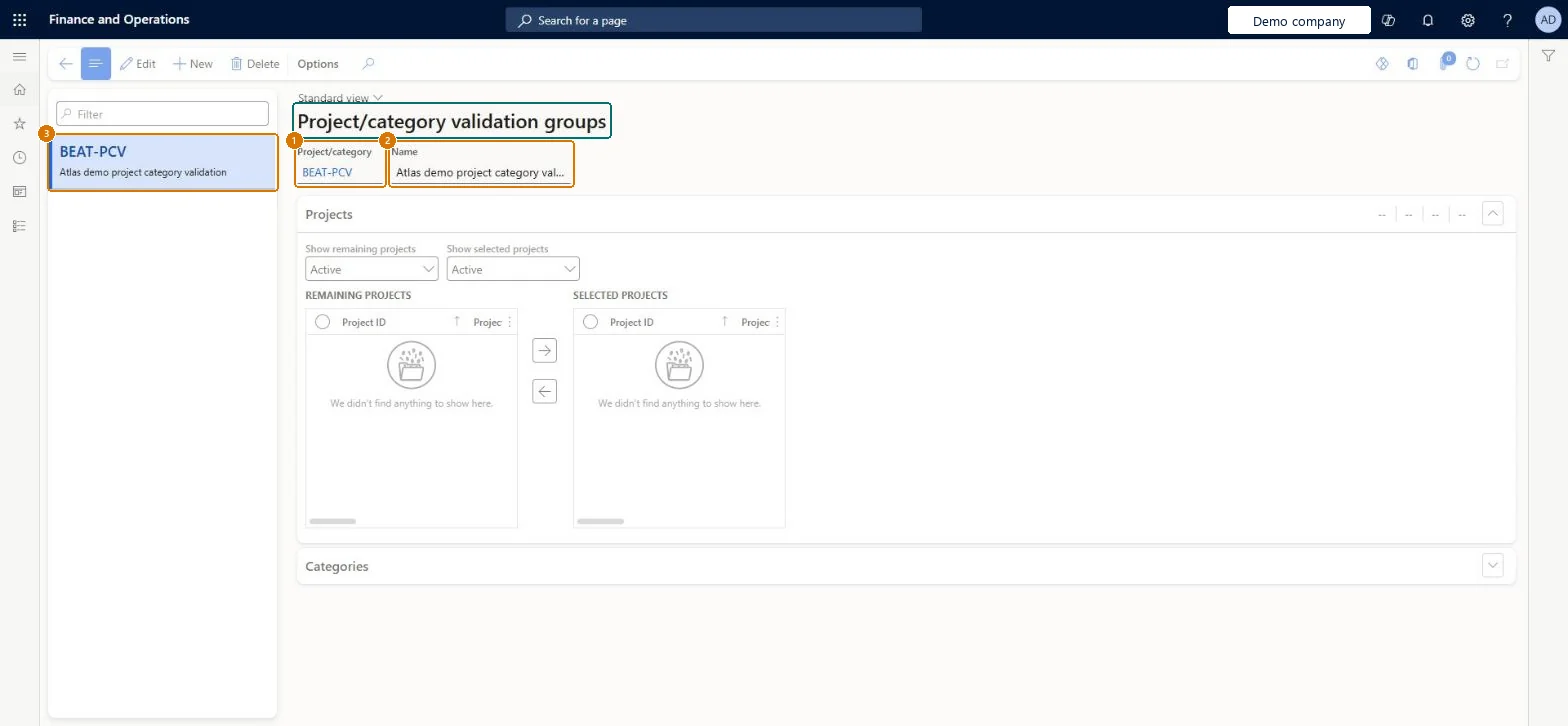
Create a project and category validation group
Go to Project management and accounting > Setup > Validation > Project/category validation groups
Select New
Enter the group code and name
Select Save
Move the projects the group applies to into Selected projects, then add the categories allowed for them
1Project/category
BEAT-PCV
2Name
Project category validation
Show the full screen page title tab to open what to set or check
Steps from Microsoft
Go to Project management and accounting > Setup > Validation > Project/category validation groups.
Select New and enter the group ID and Name.
On the Projects and Categories FastTabs, add the projects and the categories allowed for them.
Turn on the matching validation for the projects or workers on their own pages, then enter a test journal line.
A category is refused on a project's journal line.
The project has category validation on and the category isn't in the project's validation group. Add the category to the group if it is allowed. Microsoft data model
Test checklist
Create group FIXED-ONLY with PRJ-0061 and the categories CONSULTING and TRAVEL.
Select Enable category validation on PRJ-0061.
Enter an hour journal line on PRJ-0061 with category ENTERTAIN and check it is refused.
Enter a line with CONSULTING and check it is accepted.
Validation groups only for project types where wrong categories cause invoicing or revenue errors, such as fixed-price projectsThe group limits the categories accepted on the project's journal and timesheet lines, but only for projects with category validation turned on.
Reversible: Validation can be turned off; posted lines are not rechecked.
If you change it later
Lines entered on journals and timesheets are checked against the group only where validation is turned on (on the project for project/category groups, on the worker for resource groups). Lines already posted are not rechecked. Microsoft data model
Technical architect
6Technical
Menu item
ProjValTableProjCategoryChecked in Dynamics 365
Form
ProjValTableProjCategoryChecked in Dynamics 365
Table
ProjValProjCategoryTableShown as “Project/category validation group” in Record infoKey field: GroupId, NameChecked in Dynamics 365
PrivilegesMaintain project validation setup ProjTableValidationMaintainView project validation setup ProjTableValidationViewDutiesEnable project accounting process ProjProjectAccountingProcessEnable1 security roleProject supervisor ProjProjectSupervisorChecked in Dynamics 365
Roles to set it up and use it
To set it up or change itProject supervisor ProjProjectSupervisorGive people one of these roles. On this system, 1 role can open this page.Checked in Dynamics 365
Actions on the page
Options: Personalize, Page options, ShareChecked in Dynamics 365
ProjValProjCategoryEntity (Project/category validation group): loaded for each company, in Microsoft's default template 650 - Project accounting.Load order: Microsoft's default template 650 - Project accounting loads Project/category validation group at execution unit 1, level 30, sequence 10. Lower levels load first, and entities at the same level load in sequence order.Load first: the default templates at lower levels (System setup to General ledger)Microsoft Learn
Checked in a working Dynamics 365 system, version 10.0.49: the menu item, form, table and security, the page, the demo records and the values in the screenshots.
To cite this step: PM-SETUP-390, Set up Project/category validation groups. Beyond ERP Atlas Hub, 2026-11-11. https://www.beyonderp.cloud/atlas/step/PM-SETUP-390