SETUP GUIDEHow to set it up8 sections. Choose a role to highlight what matters to you.
Everyone
1What it is and why
What it is
A setup page where managers set up timesheet favorites, saved sets of projects, categories and activities, and assign them to workers or worker groups.
What you do here
Use this page to save frequently used timesheet lines so that workers don't have to enter the same project details on every new timesheet.
Example
For example, BEAT sets a favorite for the worker group CONSULTANTS with project PRJ-0042, activity A-0003 and category CONSULTING, so every new timesheet of its 40 consultants starts with that line and no hours.
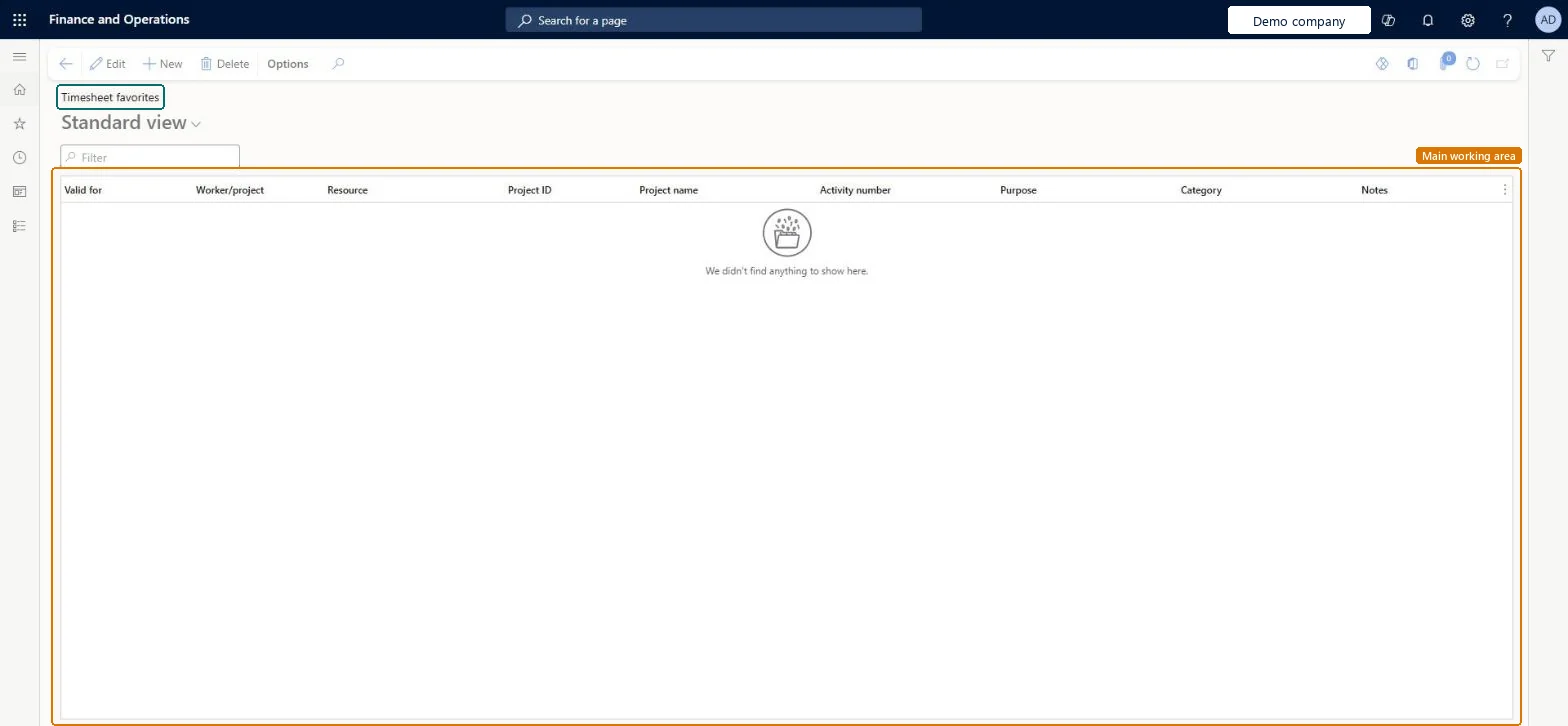
The page in Dynamics 365. page title tab to open what to set or check
About the examples: Examples and screenshots in this guide use BEAT, a demo company in a Dynamics 365 test environment. Use your own company's codes and values instead of copying them.
Setup steps on this page
Set up All favorites
Use this page to save frequently used timesheet lines so that workers don't have to enter the same project details on every new timesheet.
Steps from Microsoft
Go to Project management and accounting > Setup > Timesheets > All favorites.
Select New and in Valid for choose Table for one worker, Group for a worker group or All for all workers.
Select the worker or group, the legal entity and the Project ID.
Select an Activity number if needed, the Category and an optional note.
As a worker, create a timesheet from My timesheets and check the favorite line is added.
The favorite is set for another worker or group, or the worker didn't base the timesheet on favorites. Check Valid for and the worker group. Microsoft Learn
Test checklist
Create a favorite with a project, activity and category for a worker.
As that worker go to My timesheets, select New and enter a date.
Check the new timesheet has a line from the favorite with no hours.
Group favorites for the projects and categories a whole team books every week; workers keep their own favorites for the restFavorites fill the project, activity and category on new timesheets, which cuts entry time and wrong categories.
Reversible: Favorites only affect timesheets created afterwards.
If you change it later
A new timesheet created from favorites gets every favorite, whether a manager or the worker set it up. Microsoft Learn
Technical architect
6Technical
Menu item
TSTimesheetFavoritesSetupChecked in Dynamics 365
Form
TSTimesheetFavoritesSetupChecked in Dynamics 365
Table
TSTimesheetFavoritesShown as “Timesheet favorites” in Record infoChecked in Dynamics 365
Who can open it
PrivilegesMaintain timesheet favorites TSTimesheetFavoritesSetupMaintainView timesheet favorites TSTimesheetFavoritesSetupViewDutiesEnable project accounting process ProjProjectAccountingProcessEnable1 security roleProject supervisor ProjProjectSupervisorChecked in Dynamics 365
Roles to set it up and use it
To set it up or change itProject supervisor ProjProjectSupervisorGive people one of these roles. On this system, 1 role can open this page.Checked in Dynamics 365
Actions on the page
Options: Personalize, Page options, ShareChecked in Dynamics 365
Load order: All favorites has no data entity in Data management. Set favorites up by hand here, or let workers save their own favorites from their timesheets.Checked in Dynamics 365