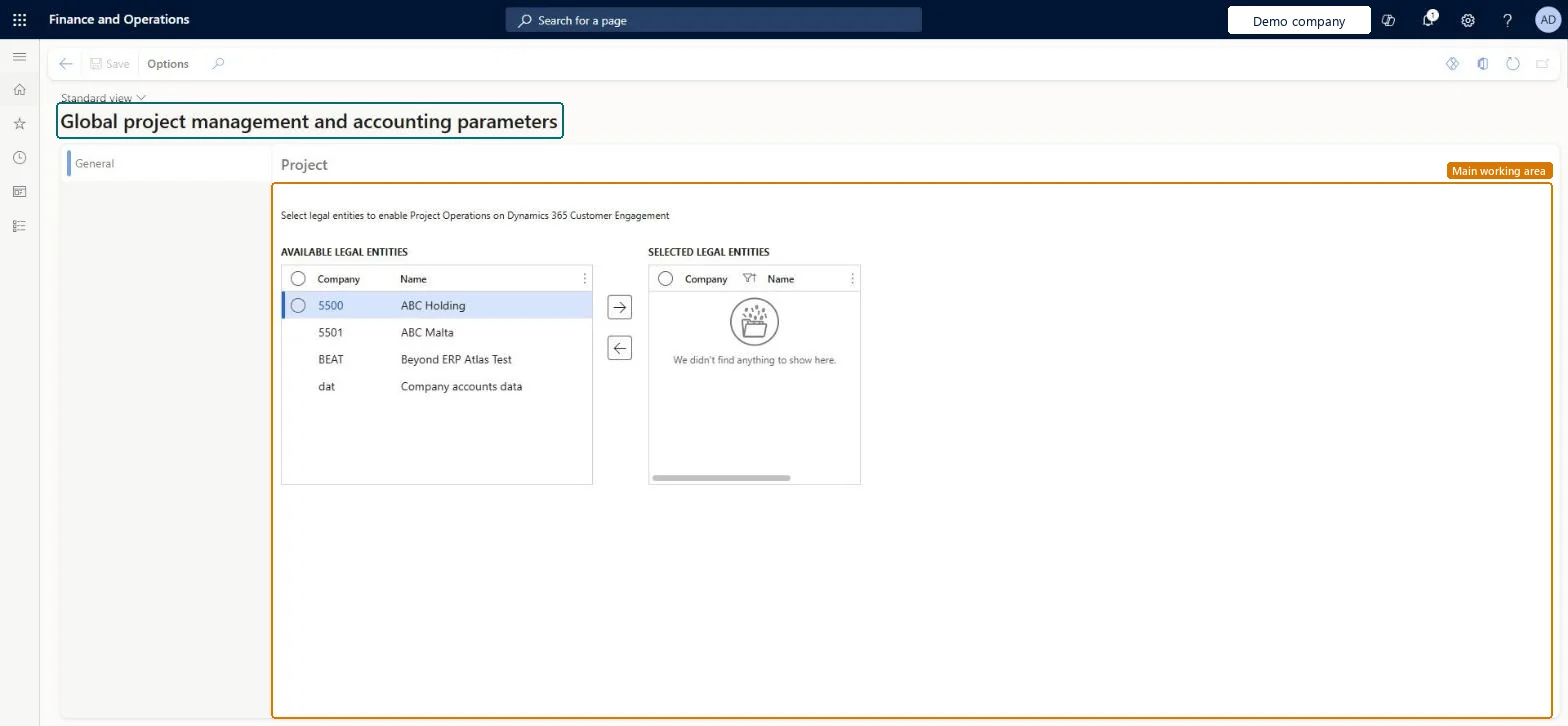
Global project management and accounting parameters
A setup page where you select the legal entities that use Project Operations on Dynamics 365 Customer Engagement, moving them from the Available legal entities list to the Selected legal entities list.
PAGE GUIDEWhat the page does and how to use it8 sections. Choose a role to highlight what matters to you.
Everyone
1What it is and why
What it is
A setup page where you select the legal entities that use Project Operations on Dynamics 365 Customer Engagement, moving them from the Available legal entities list to the Selected legal entities list.
What you do here
Use this page to enable Project Operations on Dynamics 365 Customer Engagement features, including multiple contract lines, for the legal entities that need them.
Example
For example, BEAT moves its new legal entity BEUS, which has no projects yet, to Selected legal entities so that it runs Project Operations Integrated with ERP, and leaves its plant company BEMF unselected because it uses Project Operations for manufacturing.
The page in Dynamics 365. page title tab to open what to set or check
About the examples: Examples and screenshots in this guide use BEAT, a demo company in a Dynamics 365 test environment. Use your own company's codes and values instead of copying them.
Step by step, with screenshots
Set up Global project management and accounting parameters1 screen
Screen 1
Review the global project management and accounting parameters
Go to Project management and accounting > Setup > Global project management and accounting parameters
Open the page and review the available legal entities
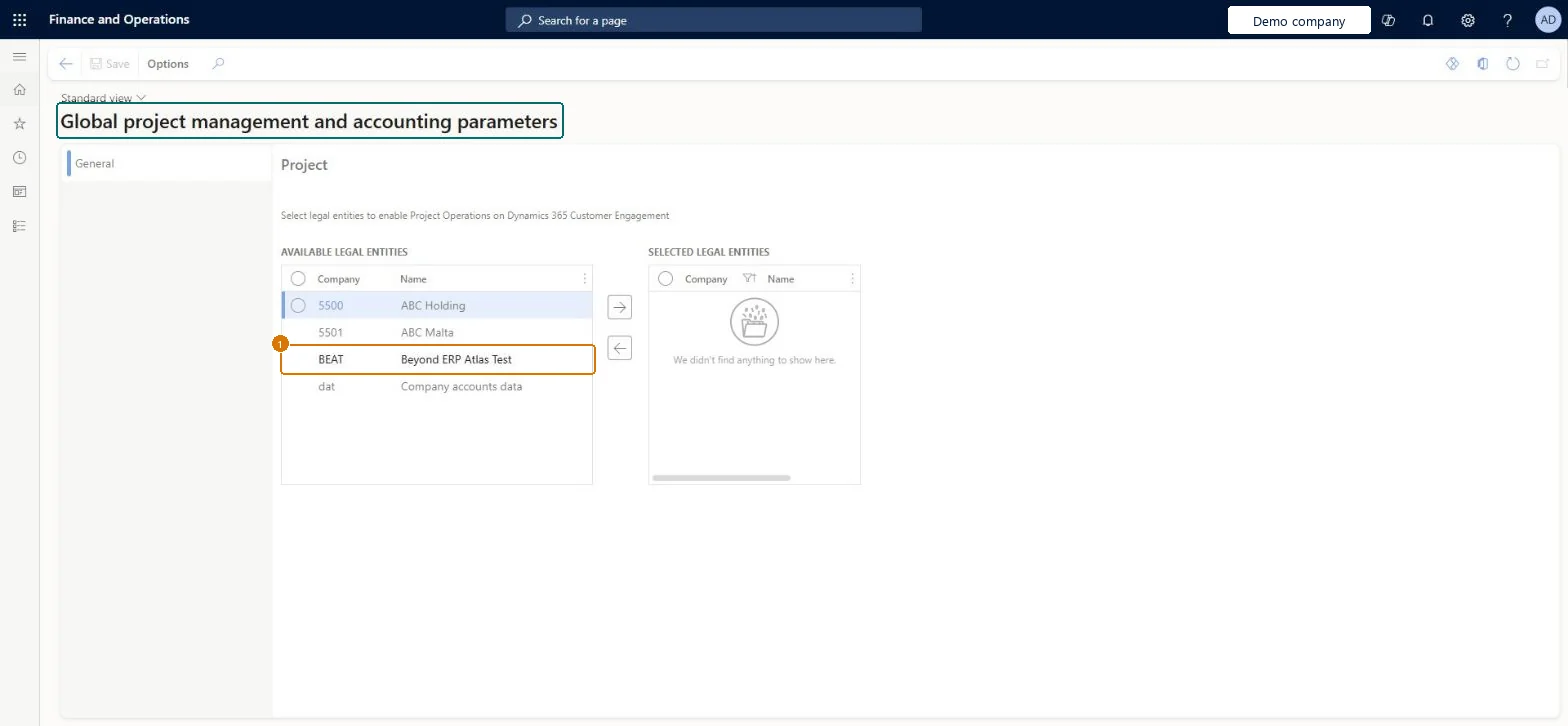
Move a legal entity to the selected list only when you use Project Operations on Dynamics 365 Customer Engagement for it
Select Save
1Available legal entities
Beyond ERP Atlas Test
Selected legal entities
(none)
Show the full screen page title tab to open what to set or check
Steps from Microsoft
Go to Project management and accounting > Setup > Global project management and accounting parameters.
Check that the legal entity you want has no projects yet; only such a legal entity can be selected.
Under Available legal entities, select the legal entity and select the right arrow to move it to Selected legal entities. Don't select legal entities that use Project Operations for manufacturing.
Select Save.
Switch to the selected legal entity and fill the Project Operations tab of Project management and accounting parameters.
The legal entities that you can still select to use Project Operations on Dynamics 365 Customer engagement.Microsoft Learn
BEUS
Selected legal entities
The legal entities that you have selected to use Project Operations on Dynamics 365 Customer Engagement. A legal entity can be moved here only while it has no projects.Microsoft Learn
BEAT
Common errors and fixes
Message
What to do
The legal entity can't be moved to Selected legal entities.
The legal entity already has projects. Only a legal entity with no projects can be selected; plan the choice before projects are created or migrated. Microsoft Learn
Test checklist
Open Global project management and accounting parameters and move a legal entity with no projects to Selected legal entities.
Try the same with a legal entity that already has projects and check it can't be selected.
In the selected legal entity, open Project management and accounting parameters and fill the Project Operations tab: a billing type default for each of Not specified, Chargeable, Non-chargeable, Complimentary and Not available, the project category defaults and the forecast model.
Select only the legal entities that run Project Operations Integrated with ERP; leave legal entities that use Project Operations for manufacturing unselectedSelecting a legal entity turns on Project Operations on Dynamics 365 Customer Engagement and multiple contract lines for it. Microsoft says not to select legal entities that use Project Operations for manufacturing.
On the live system, Project supervisor maintains this page and Project accountant can open it. From application version 10.0.39, no prerequisite feature in Feature management is needed to enable Project Operations.
Shared: one list for the whole environment, with one row per legal entity. Selecting a legal entity changes how that company works with projects (Project Operations on Customer Engagement); other legal entities in the same environment can keep Project Operations for manufacturing. Microsoft Learn
Can it be undone
Hard to reverse: Warning: a legal entity can be selected only while it has no projects. Learn does not describe removing it again, so decide before the first project is created. Microsoft Learn
If you change it later
A selected legal entity uses Project Operations Integrated with ERP scenarios and multiple contract lines. It then needs the Project Operations tab of the parameters: a line property for each billing type, project category defaults and a forecast model. Microsoft Learn
Technical architect
6Technical
Menu item
ProjGlobalParametersChecked in Dynamics 365
Form
ProjGlobalParametersChecked in Dynamics 365
Table
ProjCompanyWithoutMultipleContractLinesFeatureViewShown as “Legal entities without 'Enable multiple contract lines for a project' feature turned on” in Record infoChecked in Dynamics 365
Who can open it
PrivilegesMaintain project global parameters ProjGlobalParametersMaintainView project global parameters ProjGlobalParametersViewDutiesInquire into project accounting policies ProjProjectAccountingPolicyInquireEnable project accounting process ProjProjectAccountingProcessEnable2 security rolesProject accountant ProjProjectAccountantProject supervisor ProjProjectSupervisorChecked in Dynamics 365
Roles to set it up and use it
To set it up or change itProject supervisor ProjProjectSupervisorTo use itProject accountant ProjProjectAccountantGive people one of these roles. On this system, 2 roles can open this page.Checked in Dynamics 365
Actions on the page
Options: Personalize, Page options, Edit, ShareChecked in Dynamics 365
Load order: Global project management and accounting parameters has no data entity in Data management. Select the legal entities by hand on this page in each environment, before any project is loaded into them.Checked in Dynamics 365
Checked in a working Dynamics 365 system, version 10.0.49: the menu item, form, table and security, the page, the demo records and the values in the screenshots.