SETUP GUIDEHow to set it up8 sections. Choose a role to highlight what matters to you.
Everyone
1What it is and why
What it is
A setup page where you set the company-wide options for attachments, such as storage, allowed file types, previews, size limits, history and recovery.
What you do here
Use this page to control how attachments are stored, previewed and kept, including the SharePoint connection and which file types users can attach.
Example
For example, an on-premises environment that doesn't need attachment previews can set the Office Web Apps Server field to https://localhost, so users see a "No preview available" message instead of an error.
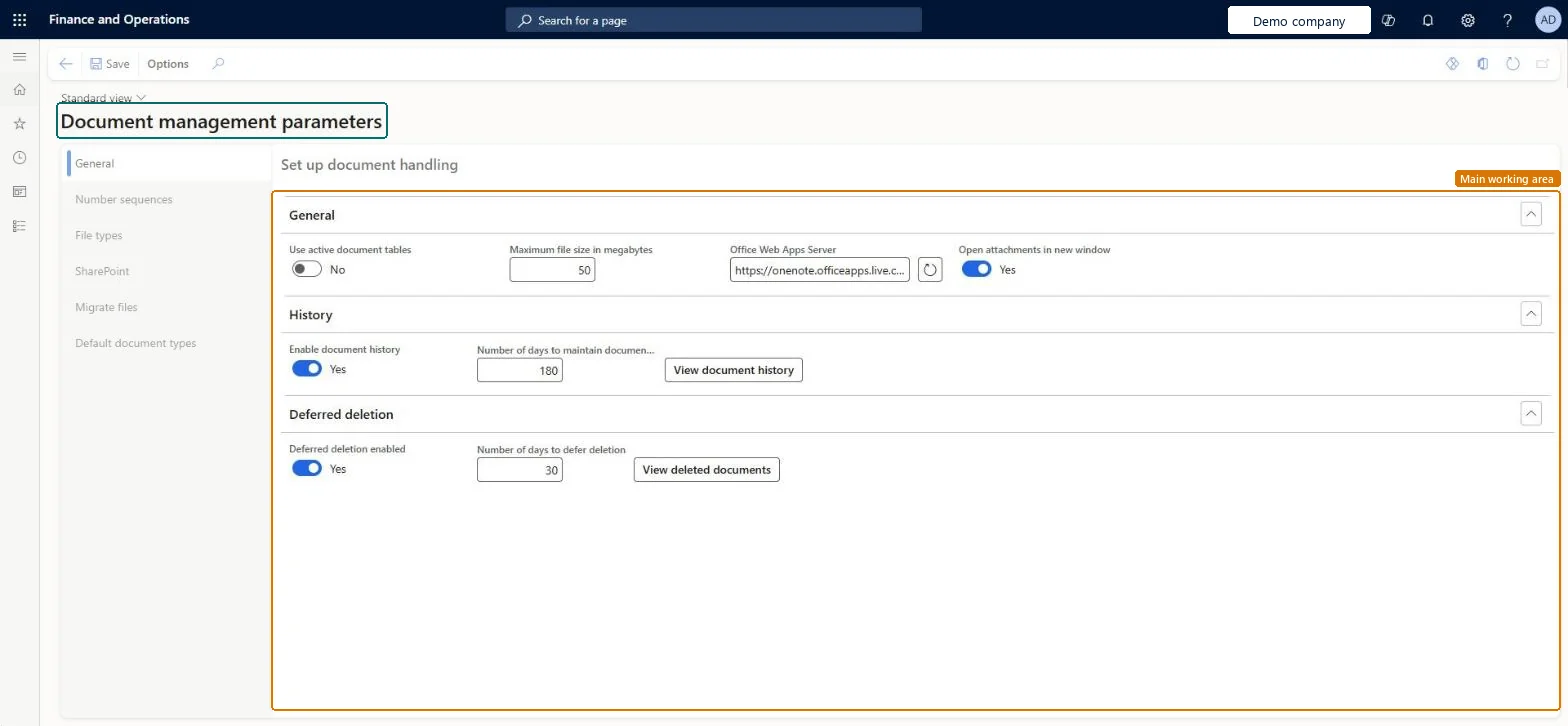
The page in Dynamics 365. page title tab to open what to set or check
About the examples: Examples and screenshots in this guide use BEAT, a demo company in a Dynamics 365 test environment. Use your own company's codes and values instead of copying them.
Step by step, with screenshots
Set up Document management parameters1 screen
Use this page to control how attachments are stored, previewed and kept, including the SharePoint connection and which file types users can attach.
Screen 1
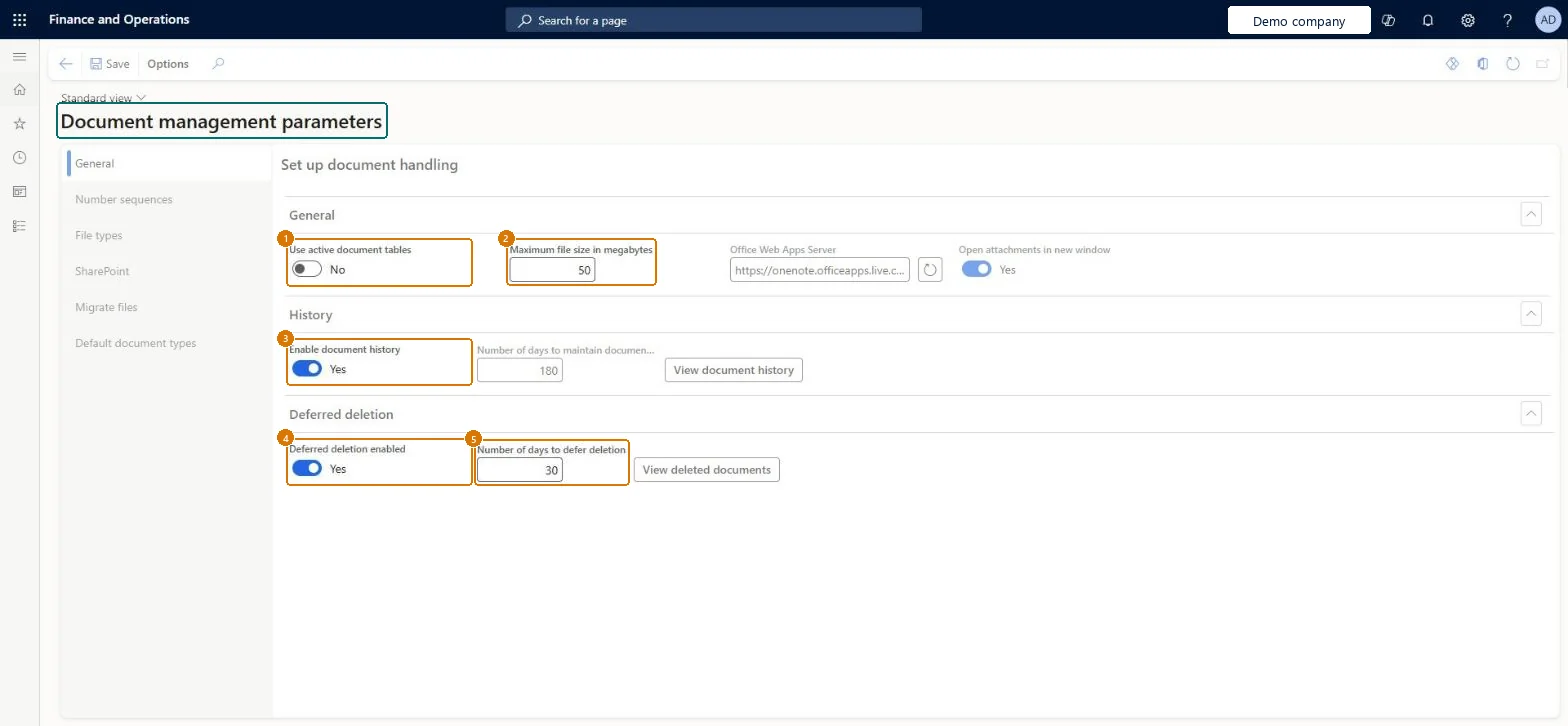
Review the document management parameters
Go to Organization administration > Document management > Document management parameters
Open the General tab
Review whether active document tables are used, the maximum file size, document history and deferred deletion
1Use active document tables
No
2Maximum file size in megabytes
50
3Enable document history
Yes
4Deferred deletion enabled
Yes
5Number of days to defer deletion
30
Show the full screen page title tab to open what to set or check
Steps from Microsoft
Go to Organization administration > Document management > Document management parameters.
On the SharePoint tab, check the Default SharePoint server host name that the system detects.
Optionally, run the SharePoint connection test to confirm that security and licensing work.
On the File types tab, remove file types that users shouldn't attach and add the ones they need.
On the General tab, set the Maximum file size in megabytes and, if needed, turn on Open attachments in new window.
In the History section, turn on Enable document history and set the Number of days to retain history.
In the Deferred deletion section, turn on Deferred deletion enabled and set the Number of days to defer deletion.
Deferred deletion enabled = Yes and Enable document history = Yes; leave Use active document tables = No unless you must restrict attachments; Open attachments in new window = Yes when SharePoint is usedAttachments deleted from Azure Blob storage can't be recovered without deferred deletion, and history gives an audit of attachment actions. Opening attachments in a new window stops the user session being reset when SharePoint files open.
Turning on Use active document tables without listing every table that needs attachments: attachments are then disabled on all other tables.Test: Deleted attachment can be recovered
Number sequences
Reference
Shared or per company
Note
ID
Per company
BEAT uses number sequence Docu_3. Checked in Dynamics 365
Reversible: The options can be changed at any time. But attachments deleted while deferred deletion was off are permanently gone.
If you change it later
Turning on Use active document tables blocks attachments on every table that isn't on the Active document tables list, so turn it on only when you need it. Microsoft Learn
Technical architect
6Technical
Menu item
DocuParametersChecked in Dynamics 365
Form
DocuParametersChecked in Dynamics 365
Table
DocuParametersShown as “Document management parameters” in Record infoChecked in Dynamics 365
To set it up or change itInformation technology manager SysServerITManagerProduction manager ProdProductionManagerTo use itElectronic reporting functional consultant ERFunctionalConsultantElectronic reporting developer ERDeveloperGive people one of these roles. On this system, 4 roles can open this page.Checked in Dynamics 365
Actions on the page
Options: Personalize, Page options, Edit, ShareChecked in Dynamics 365
Checked in a working Dynamics 365 system, version 10.0.49: the menu item, form, table and security, the page, the demo records and the values in the screenshots.
To cite this step: OA-DOC-030, Set up Document management parameters. Beyond ERP Atlas Hub, 2026-11-11. https://www.beyonderp.cloud/atlas/step/OA-DOC-030