SETUP GUIDEHow to set it up8 sections. Choose a role to highlight what matters to you.
Everyone
1What it is and why
What it is
A setup page where you create user groups and add users to them.
What you do here
Use this page to group users for features that work by group, such as budget planning and journal posting restrictions.
Example
For example, users who are outside the budget planning organization hierarchy but must work with budget plans can be put in a user group that the budget plans are assigned to.
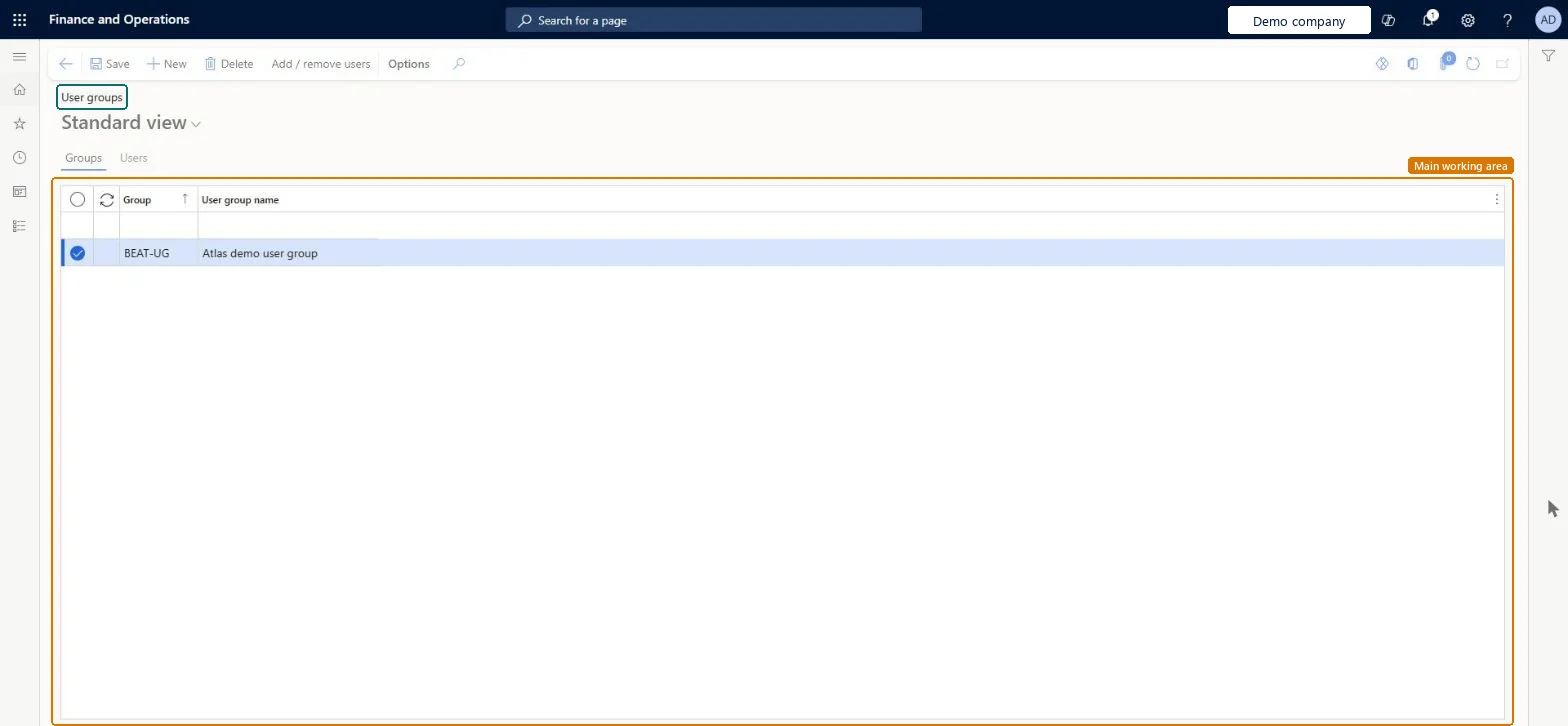
The page in Dynamics 365. page title tab to open what to set or check
About the examples: Examples and screenshots in this guide use BEAT, a demo company in a Dynamics 365 test environment. Use your own company's codes and values instead of copying them.
Step by step, with screenshots
Set up User groups1 screen
Use this page to group users for features that work by group, such as budget planning and journal posting restrictions.
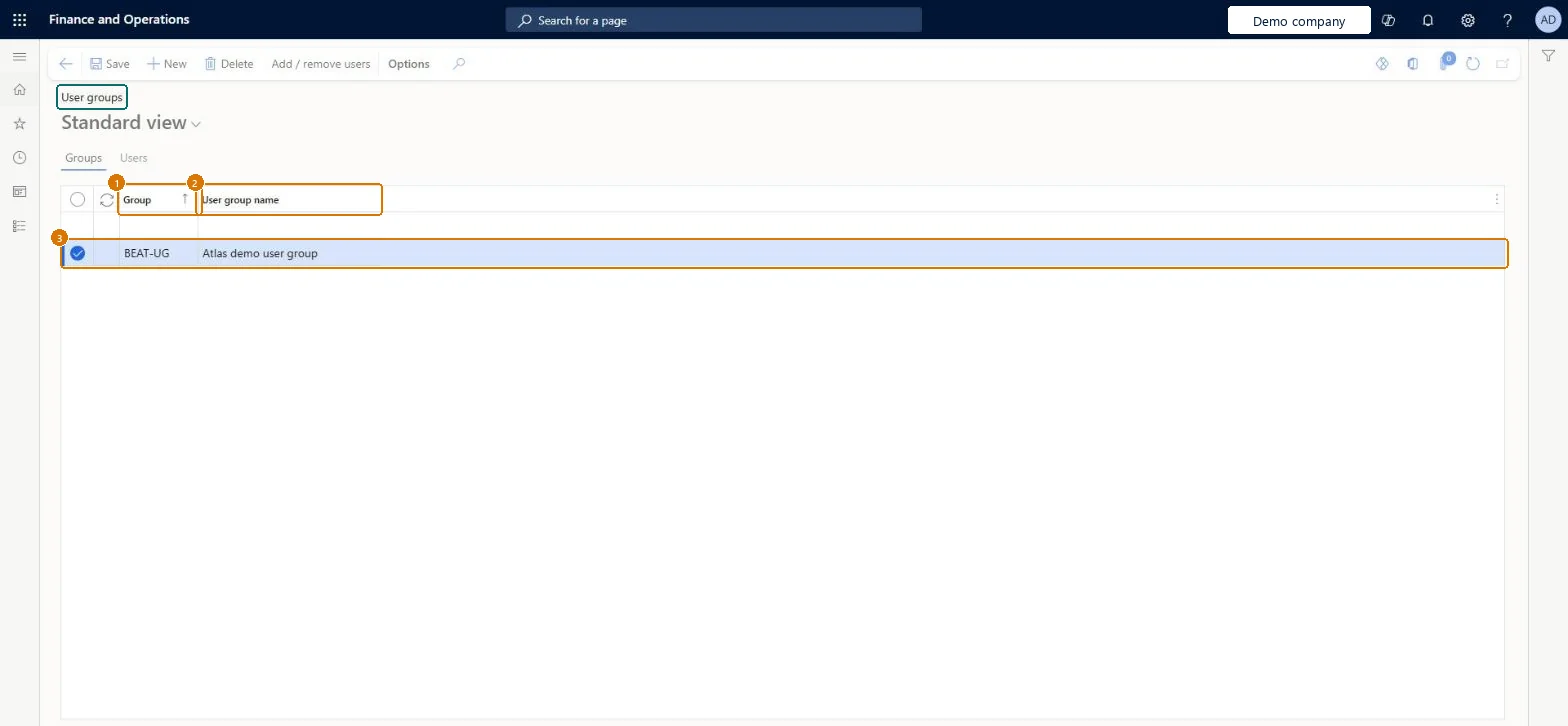
Screen 1
Create a user group
Go to System administration > Users > User groups
Select New
Enter the group code and the group name
Select Save
Select Add / remove users when you are ready to add users to the group
1Group
BEAT-UG
2User group name
User group
Show the full screen page title tab to open what to set or check
Steps from Microsoft
Go to System administration > Users > User groups.
Create a new group.
In the Group field, enter a short name, such as Budget A.
In the User group name field, enter a longer, descriptive name.
On the Users tab, select users in the Remaining users list.
Move them to the Selected users list to add them to the group.
One group per business purpose (for example Budget A for a budget planning team), with a short Group code and a descriptive User group namePosting restrictions and budget plans point at a group, so a group per purpose lets you change who may act by changing members only.
On this system the page opens for Information technology manager and Budget manager. No Feature management feature needs to be turned on for this page.
Reversible: Members and names can be changed at any time; a deleted group must be recreated and reassigned.
If you change it later
Features that are set up by user group, such as journal posting restrictions and budget plans, follow the group's members: adding or removing a member changes what that user may do there at once. Microsoft Learn
Technical architect
6Technical
Menu item
SysUserGroupInfoChecked in Dynamics 365
Form
SysUserGroupInfoChecked in Dynamics 365
Table
UserGroupInfoShown as “User group information” in Record infoChecked in Dynamics 365
Data entities
SystemUserGroupEntityUser groups Microsoft data model SystemUserGroupUserListEntityUser group user list (only the users in each group)
Who can open it
PrivilegesUser administration essentials AdministrationMenuItemsDutiesEnable budget process BudgetBudgetProcessEnableMaintain system settings SysServerSettingsMaintain2 security rolesBudget manager BudgetBudgetManagerInformation technology manager SysServerITManagerChecked in Dynamics 365
Roles to set it up and use it
To set it up or change itInformation technology manager SysServerITManagerBudget manager BudgetBudgetManagerGive people one of these roles. On this system, 2 roles can open this page.Checked in Dynamics 365
Actions on the page
Options: Personalize, Page options, Edit, ShareChecked in Dynamics 365
SystemUserGroupEntity (User groups): shared by all companies, in Microsoft's default template 010 - System Setup.SystemUserGroupUserListEntity (User group user list): shared by all companies; not in Microsoft's default templates.Load order: Microsoft's default template 010 - System Setup loads User groups at level 10, sequence 10. Load the group members after User information (sequence 230), because a member must exist as a user.Load first: User informationChecked in Dynamics 365
Checked in a working Dynamics 365 system, version 10.0.49: the menu item, form, table and security, the page, the demo records and the values in the screenshots.
To cite this step: SA-USER-020, Set up User groups. Beyond ERP Atlas Hub, 2026-11-11. https://www.beyonderp.cloud/atlas/step/SA-USER-020