About the examples: Examples and screenshots in this guide use BEAT, a demo company in a Dynamics 365 test environment. Use your own company's codes and values instead of copying them.
Step by step, with screenshots
Set up Document types1 screen
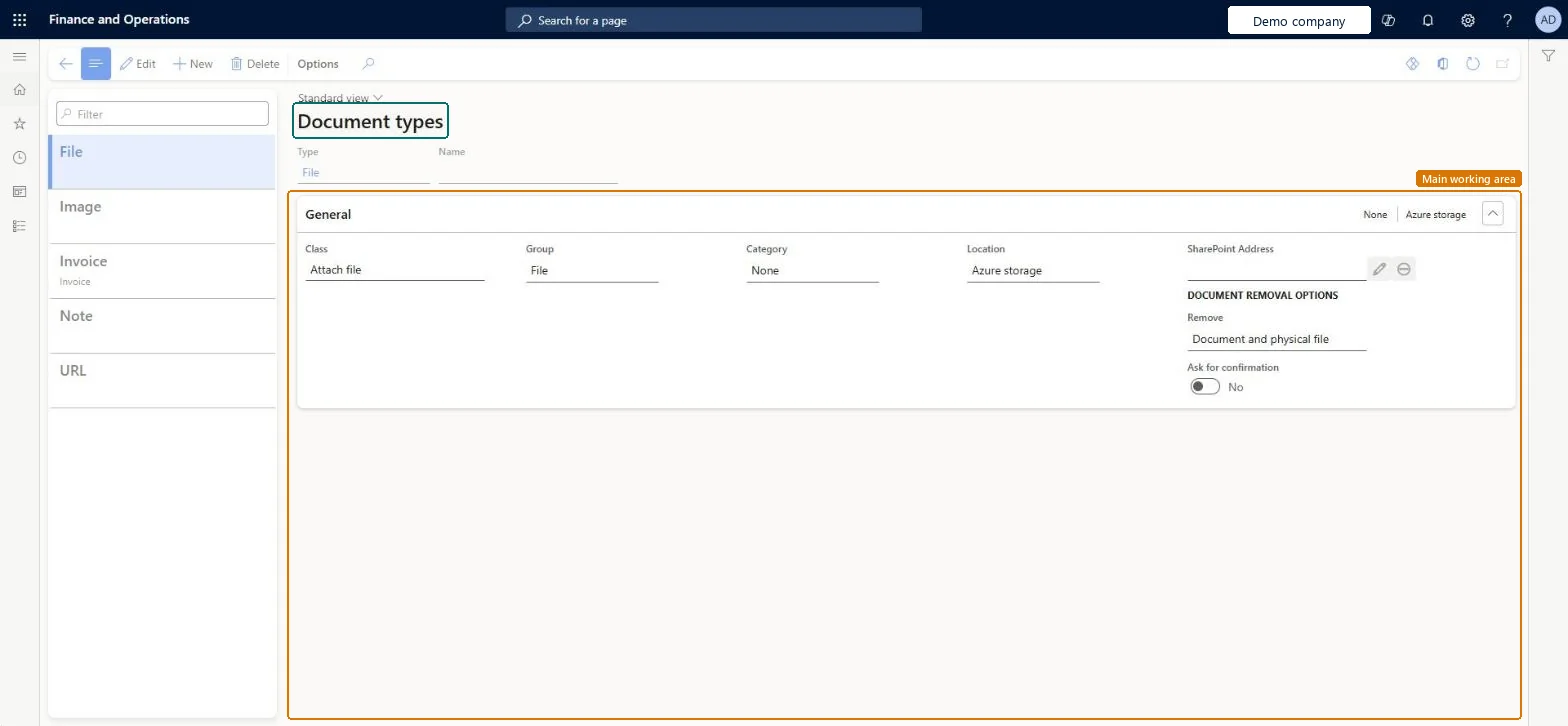
Use this page to create document types and choose each one's class (file, URL or note) and storage location, such as Azure storage or SharePoint.
Screen 1
Create a document type
Go to Organization administration > Document management > Document types
Select New
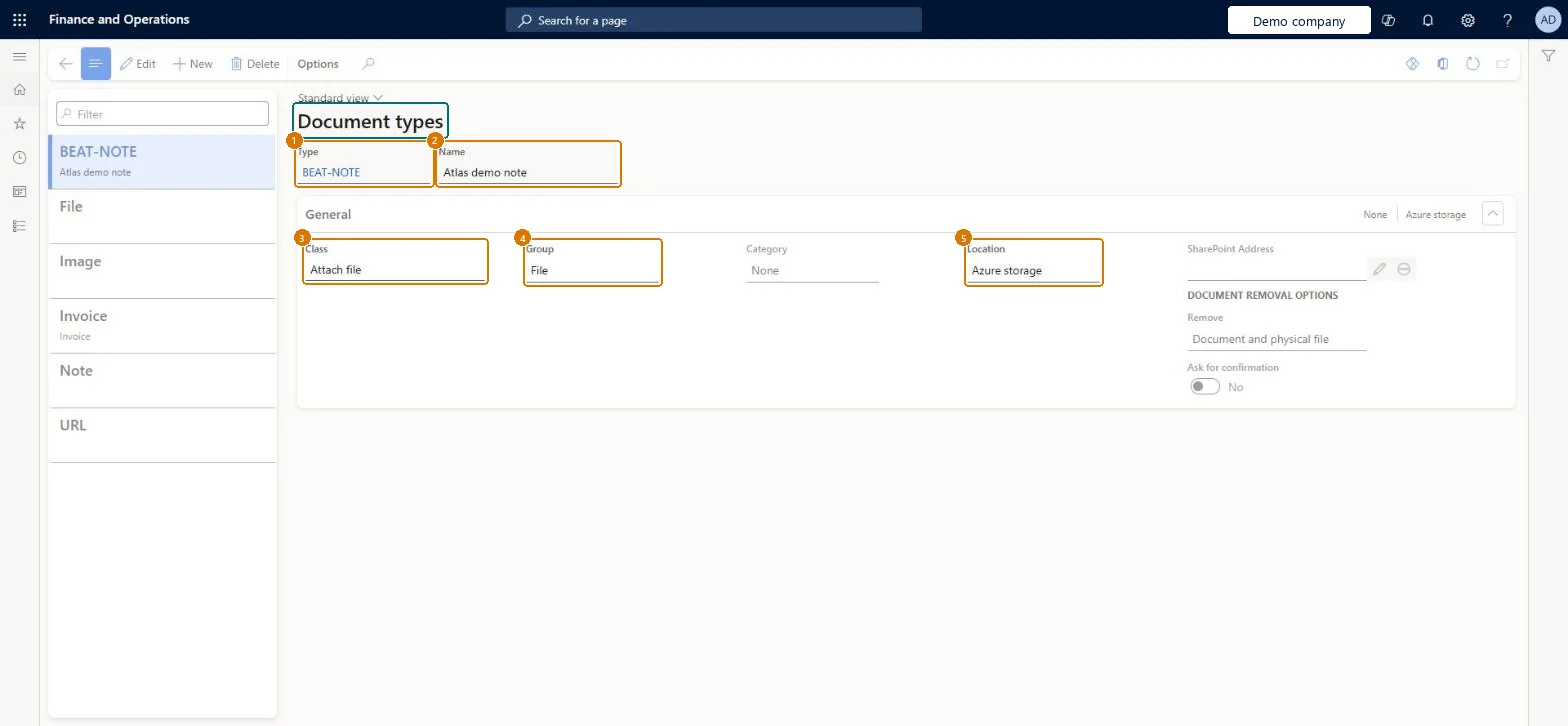
Enter the type and its name
Choose the class, group and storage location
Select Save
1Type
BEAT-NOTE
2Name
Note
3Class
Attach file
4Group
File
5Location
Azure storage
Show the full screen page title tab to open what to set or check
Steps from Microsoft
Go to Organization administration > Document management > Document types.
Select New.
In the Type field, enter a short name, such as HR Docs.
In the Name field, enter a longer name.
In the Class field, select Attach file, Attach URL or Simple note.
For the Attach file class, choose where files are stored in the Location field.
If the location is SharePoint, select Edit and pick the folder for the SharePoint Address field.
The SharePoint folder used when the location is SharePoint.Microsoft Learn
Group
Electronic reporting archive destinations can use only document types whose group is File.Microsoft Learn
File
TypeGroup
Common errors and fixes
Message
What to do
The provided document type is not a File type.
Set up, in the company where the format ran, the document types selected in Job archive, Temporary, Baseline and Others on Electronic reporting parameters. Microsoft Learn
Test checklist
Create a document type with Class = Attach file and Location = SharePoint, and select the SharePoint Address.
On Document management parameters, select Test interactive SharePoint connection (or Test SharePoint connection).
Attach a file of that type to a record and open it.
Run an ER format in a second company and check no document type error appears.
For Electronic reporting: document types with Class = Attach file, Group = File and Location = Azure storage or SharePoint, set up in every company that runs ER formats.ER parameters point to company-specific document types for the job archive, temporary, baseline and other files, so each company needs them.
Setting up the ER document types in one company only: running the same format in another company fails.
To set it up or change itInformation technology manager SysServerITManagerProduction manager ProdProductionManagerTo use itElectronic reporting functional consultant ERFunctionalConsultantElectronic reporting developer ERDeveloperGive people one of these roles. On this system, 4 roles can open this page.Checked in Dynamics 365
Actions on the page
Options: Personalize, Page options, ShareChecked in Dynamics 365
DocuTypeEntity (Document types): loaded for each company, in Microsoft's default template 025 - General ledger.Load order: Microsoft's default template 025 - General ledger loads Document types at execution unit 1, level 25, sequence 10. Lower levels load first, and entities at the same level load in sequence order.Load first: the default templates at lower levels (System setup to Workflow)Microsoft Learn
Checked in a working Dynamics 365 system, version 10.0.49: the menu item, form, table and security, the page, the demo records and the values in the screenshots.
To cite this step: OA-DOC-040, Set up Document types. Beyond ERP Atlas Hub, 2026-11-11. https://www.beyonderp.cloud/atlas/step/OA-DOC-040