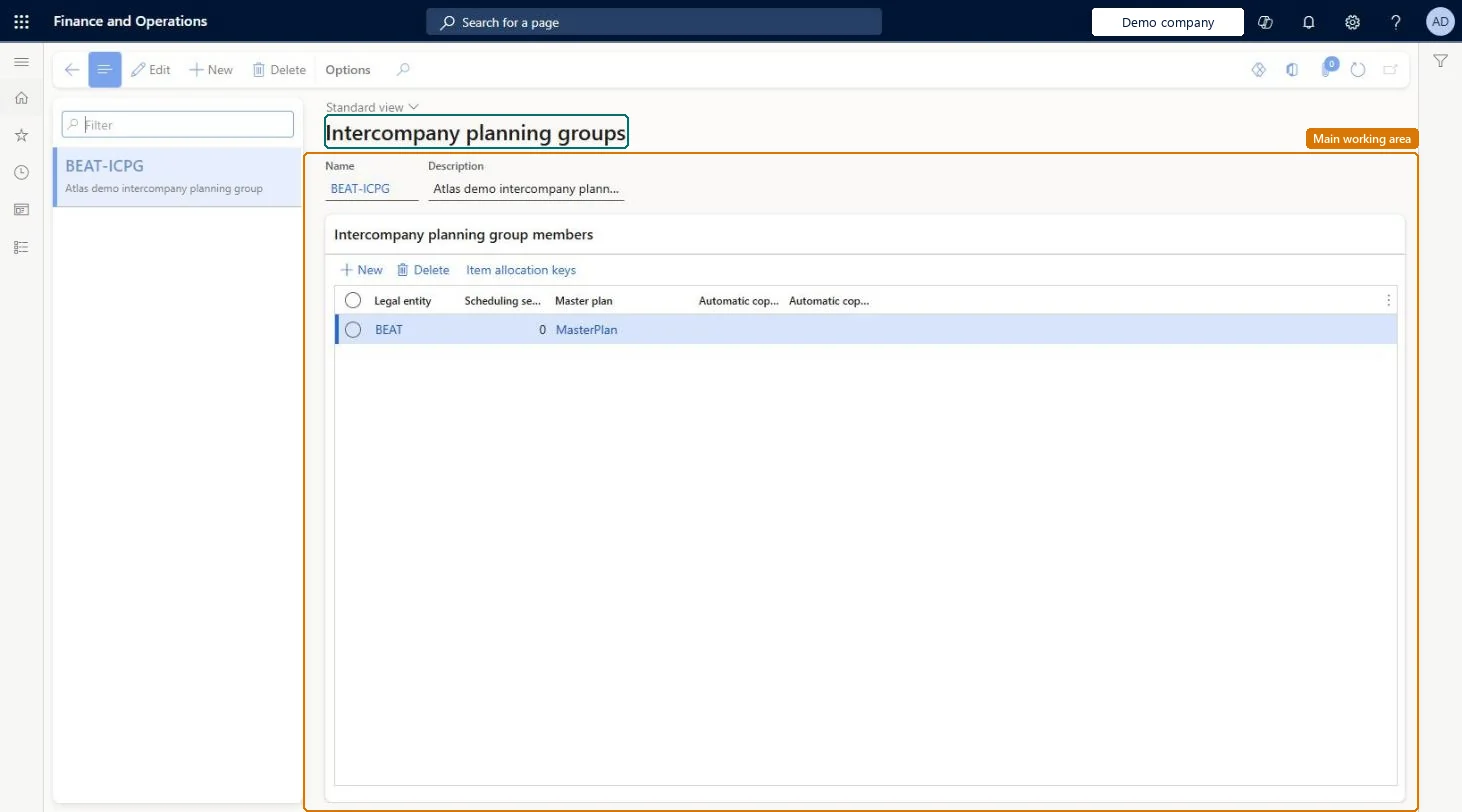
Setup step on the Intercompany planning groups page · Master planning
Set up Intercompany planning groups
Use this page to define which companies are planned together, which master plan runs in each, and in what order, and to choose item allocation keys for cross-company demand forecasting.
SETUP GUIDEHow to set it up8 sections. Choose a role to highlight what matters to you.
Everyone
1What it is and why
What it is
A setup page where you group the companies that are planned together, and set the master plan and processing order for each company in the group.
What you do here
Use this page to define which companies are planned together, which master plan runs in each, and in what order, and to choose item allocation keys for cross-company demand forecasting.
Example
For example, when one company's demand affects another, the company that supplies the demand is given the higher scheduling sequence so that it is processed last.
The page in Dynamics 365. page title tab to open what to set or check
About the examples: Examples and screenshots in this guide use BEAT, a demo company in a Dynamics 365 test environment. Use your own company's codes and values instead of copying them.
Setup steps on this page
Set up Intercompany planning groups
Use this page to define which companies are planned together, which master plan runs in each, and in what order, and to choose item allocation keys for cross-company demand forecasting.
Steps from Microsoft
Go to Master planning > Setup > Intercompany planning groups.
Select New, and then enter a Name and Description for the group.
On the Intercompany planning group members FastTab, add a row for each company in the group.
For each row, select the Legal entity, enter the Scheduling sequence, and select the Master plan.
Select Automatic copy to static plan or Automatic copy to dynamic plan if the results should be copied.
Assign item allocation keys to group members if you use demand forecasting.
Give the companies whose demand drives others the lowest Scheduling sequence, so the supplying company is processed last; add only the item allocation keys each company needs.Low Scheduling sequence values are processed first, and when one company's demand affects another the supplying company should be processed last. Unnecessary item allocation keys can increase Azure Machine Learning costs.
Relying on the group to run planning across companies with Planning Optimization. Planning Optimization doesn't support intercompany planning groups; set up master planning batch jobs for each company in sequence instead.
Solution architect
5Design impact
Can it be undone
Reversible: Members, sequence and keys can be changed at any time; the change applies to the next planning or forecast run.
If you change it later
Planning Optimization does not support intercompany planning groups; with Planning Optimization, run intercompany planning as master planning batch jobs for each company instead. Microsoft Learn
Technical architect
6Technical
Menu item
ReqIntercompanyPlanningGroupSetupChecked in Dynamics 365
Form
ReqIntercompanyPlanningGroupSetupChecked in Dynamics 365
Table
ReqIntercompanyPlanningGShown as “INTERCOMPANY PLANNING GROUPS” in Record infoKey field: NameChecked in Dynamics 365
Roles to set it up and use it
To set it up or change itProduction planner ReqProductionPlannerProduction manager ProdProductionManagerPurchasing manager TradePurchasingManagerGive people one of these roles. On this system, 3 roles can open this page.Checked in Dynamics 365
Checked in a working Dynamics 365 system, version 10.0.49: the menu item, form, table and security, the page.
To cite this step: MP-SETUP-040, Set up Intercompany planning groups. Beyond ERP Atlas Hub, 2026-11-11. https://www.beyonderp.cloud/atlas/step/MP-SETUP-040