About the examples: Examples and screenshots in this guide use BEAT, a demo company in a Dynamics 365 test environment. Use your own company's codes and values instead of copying them.
Step by step, with screenshots
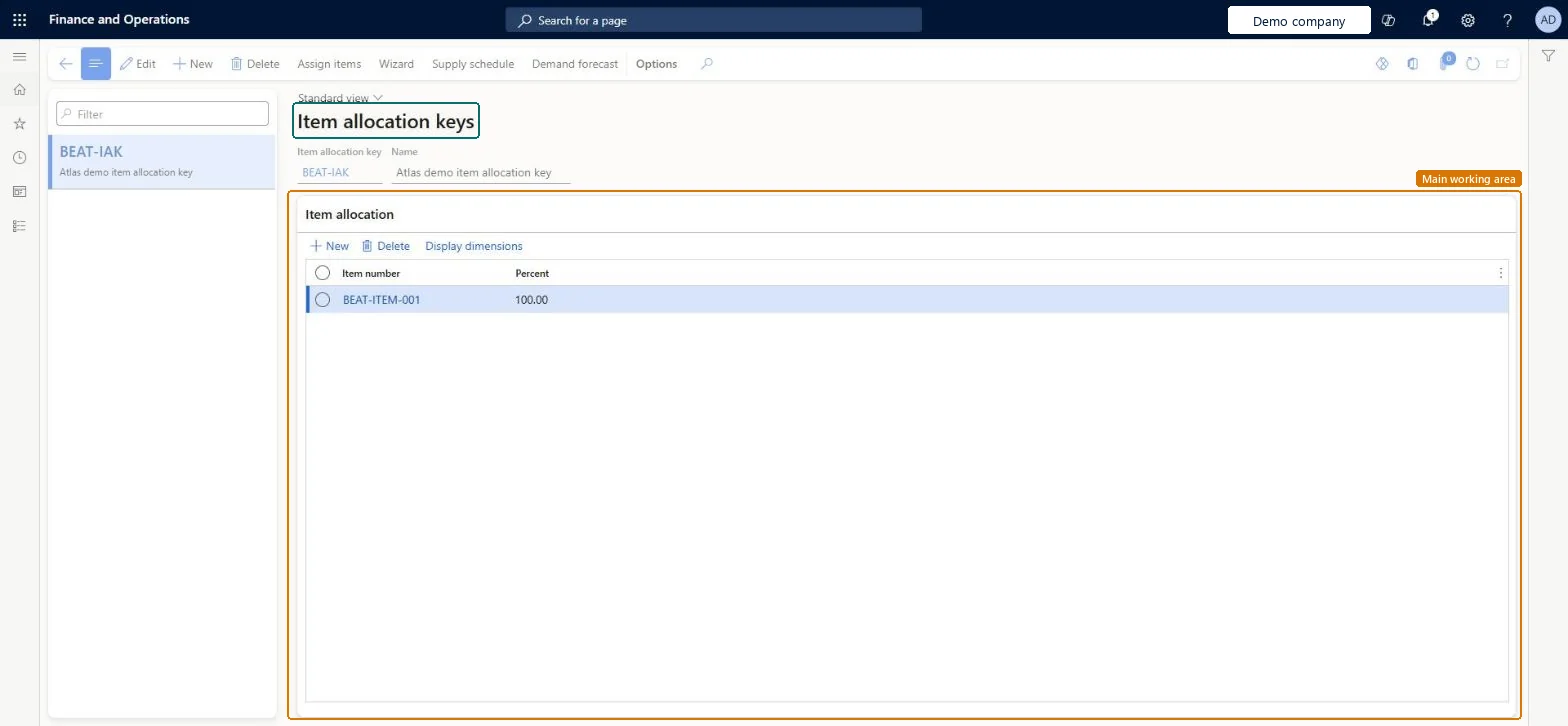
Set up Item allocation keys1 screen
Use this page to decide which items get a demand forecast, because the system forecasts an item only if it belongs to an item allocation key.
Screen 1
Create an item allocation key
Go to Inventory management > Setup > Forecast > Item allocation keys
Make sure the item exists (here demo item BEAT-ITEM-001)
Select New
Enter the item allocation key code and name
Under Item allocation, select New, choose the item and enter its percentage (the lines add up to 100)
Select Save
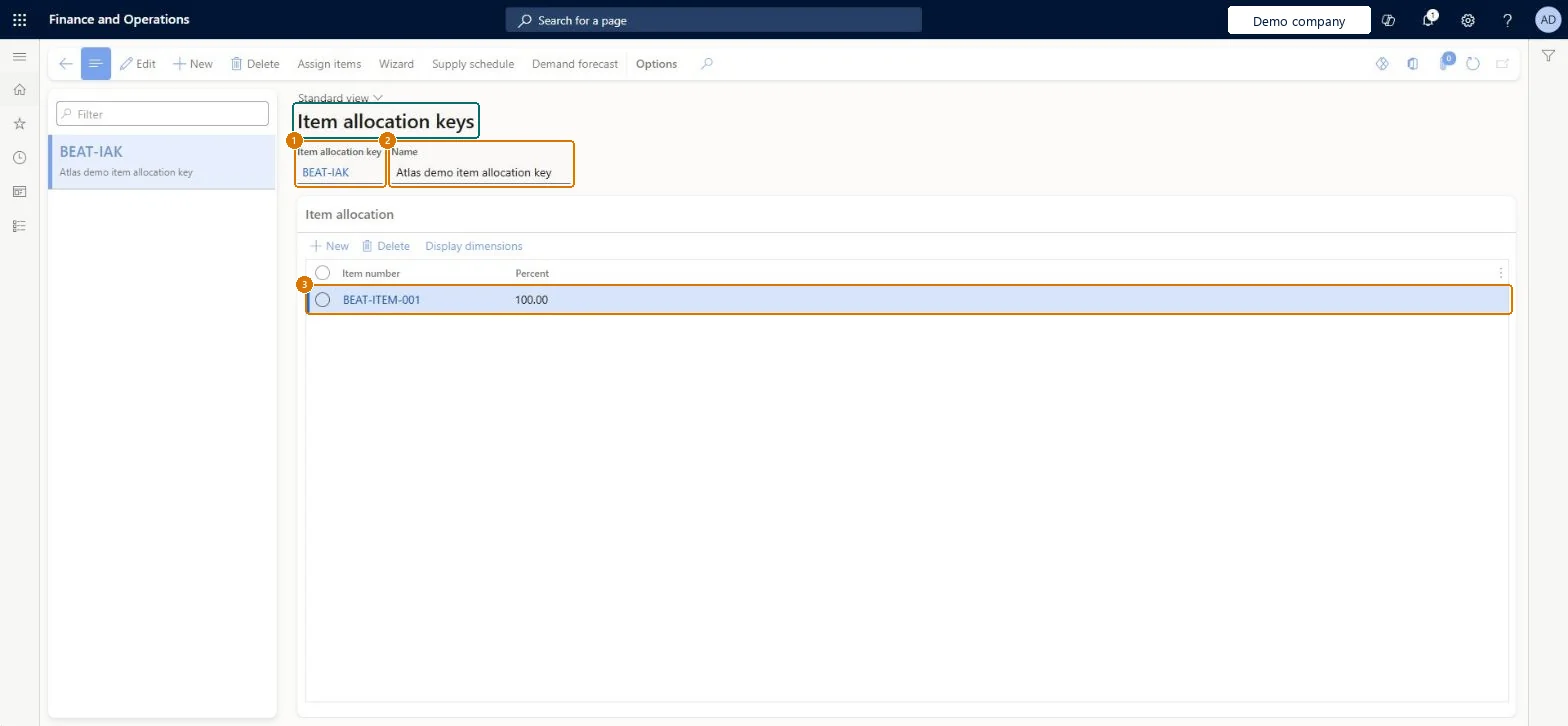
1Item allocation key
BEAT-IAK
2Name
Item allocation key
3Item number
BEAT-ITEM-001
Percent
100.00
Show the full screen page title tab to open what to set or check
Steps from Microsoft
Open the Item allocation keys page.
Select New, or select an existing key.
Enter a unique Item allocation key and a descriptive Name.
On the Item allocation FastTab, add a row for each item and set any dimension values.
To add many items at once, select Assign items on the Action Pane.
Each item and its dimensions in only one item allocation key, with only items that really need a forecastLearn says an item must belong to only one key when keys are used to create forecasts, and unnecessary items increase costs when you use Azure Machine Learning.
Expecting the Percent column to weight the forecast: it is ignored when demand forecasts are generated.
Reversible: Keys only group items for forecast generation. Add or remove items at any time; the change applies the next time a statistical baseline forecast is generated. Microsoft Learn
If you change it later
An item and its dimensions should belong to only one item allocation key when keys are used to create forecasts. Microsoft Learn
Technical architect
6Technical
Menu item
ForecastItemAllocationChecked in Dynamics 365
Form
ForecastItemAllocationChecked in Dynamics 365
Table
ForecastItemAllocationShown as “Item allocation keys” in Record infoKey field: AllocateIdChecked in Dynamics 365
PrivilegesMaintain item allocation keys ForecastItemAllocationMaintainView item allocation keys ForecastItemAllocationViewDutiesMaintain forecasts ForecastForecastMaintainEnable forecast process ForecastForecastProcessEnableReview forecast performance ForecastForecastProcessPerformanceRevieInquire into forecast reference data ForecastForecastReferenceDataInquire2 security rolesProduction manager ProdProductionManagerProduction planner ReqProductionPlannerChecked in Dynamics 365
Roles to set it up and use it
To set it up or change itProduction planner ReqProductionPlannerProduction manager ProdProductionManagerGive people one of these roles. On this system, 2 roles can open this page.Checked in Dynamics 365
Actions on the page
Options: Personalize, Page options, ShareChecked in Dynamics 365
Checked in a working Dynamics 365 system, version 10.0.49: the menu item, form, table and security, the page, the demo records and the values in the screenshots.