BeyondERP.Newsletter
Menu

Setup step on the Master plans page · Master planning

Set up Master plans

Use this page to set up the plans that support daily operations, simulate different planning strategies, and apply company policies.

Used by
Chief executive officer, Materials manager, Production manager and 1 more role
Business process
Balance supply and demand
Menu item
ReqPlanSched
Main table
ReqPlan
Setup steps
1 on this page
Show what matters for
SETUP GUIDEHow to set it up8 sections. Choose a role to highlight what matters to you.
Everyone

1What it is and why

What it isA setup page where you create and configure master plans, including the scheduling method, forecast use, and time fences.
What you do hereUse this page to set up the plans that support daily operations, simulate different planning strategies, and apply company policies.
ExampleFor example, you run one plan twice a day to keep up with the latest demand and supply, and keep other plans for forecasts or simulations.
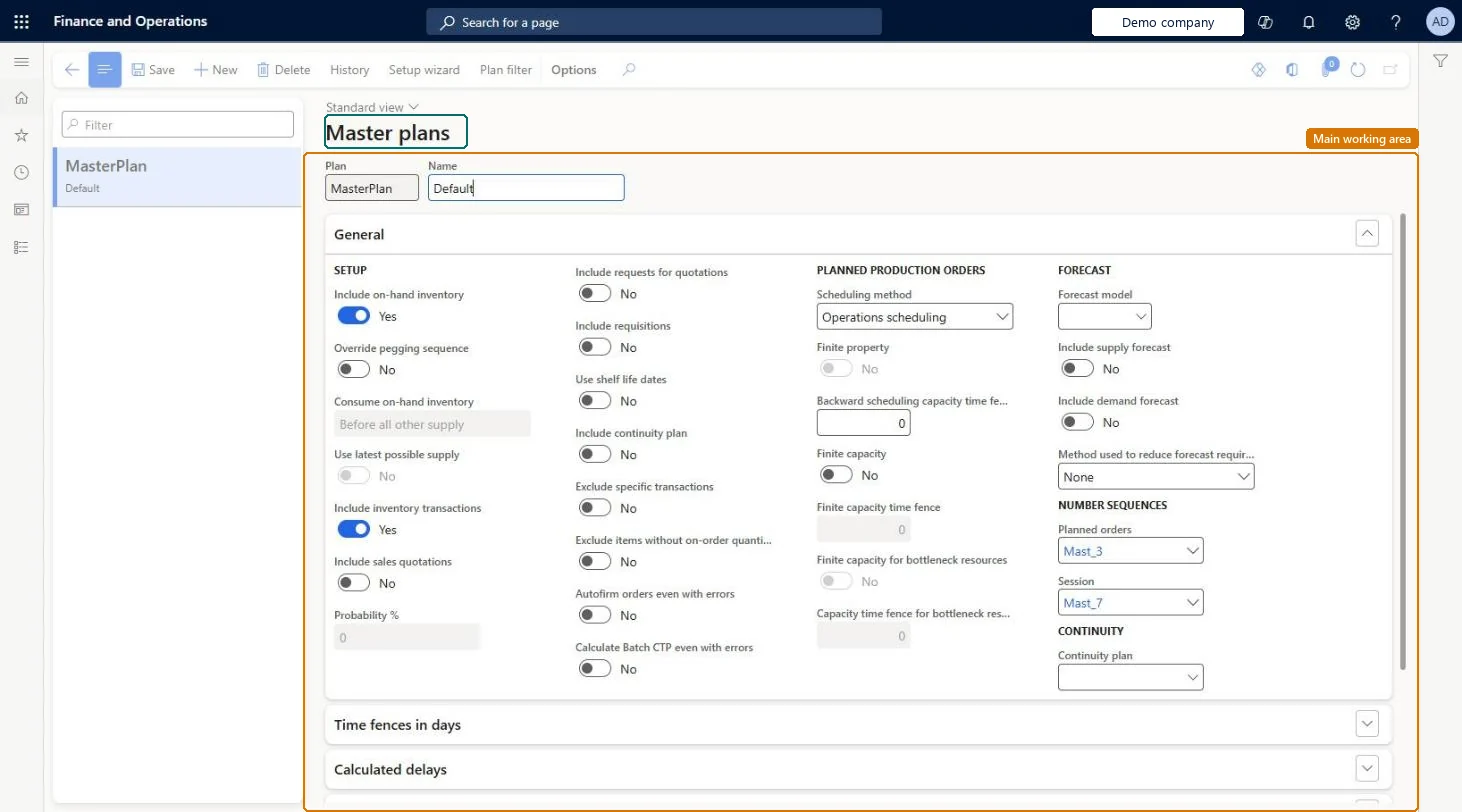
Master plans page in Dynamics 365
The page in Dynamics 365. page title tab to open what to set or check
Functional consultant · Solution architect

2Where it fits

End user · Functional consultant

3How to do it

About the examples: Examples and screenshots in this guide use BEAT, a demo company in a Dynamics 365 test environment. Use your own company's codes and values instead of copying them.

Setup steps on this page

Set up Master plans

Use this page to set up the plans that support daily operations, simulate different planning strategies, and apply company policies.

Steps from Microsoft

  1. Go to Master planning > Setup > Plans > Master plans.
  2. Select an existing plan, or create a new one.
  3. On the General FastTab, select the Forecast model and set Include supply forecast and Include demand forecast.
  4. On the Time fences in days FastTab, set the options that should override the coverage group time fences, and enter the days.
  5. Save the plan.

Source: Microsoft Learn

Fields on the page

FieldWhat it meansTable column
Scheduling methodWhether production is scheduled at operation level or job level.Microsoft Learn CovSchedMethod
Forecast modelThe forecast model the plan uses when it suggests supply.Microsoft Learn ForecastModelId
CoverageThe planning horizon: how far ahead demand is included.Microsoft Learn TimeFenceCovFixed
FreezeThe period in which existing planned orders are not changed by a new run.Microsoft Learn TimeFenceLockingFixed
FirmingThe period in which planned orders are automatically firmed.Microsoft Learn TimeFenceAuthorizationFixed
CapacityHow far ahead resource capacity limits are respected when orders are scheduled.Microsoft Learn TimeFenceCapacityFixed
Action messageHow far ahead action messages are generated.Microsoft Learn TimeFenceActionFixed
Include planned downstream demandOn the Intercompany planning FastTab, includes planned demand from other companies in this plan.Microsoft Learn IncludePlannedIntercompanyDemand

Test checklist

  1. Create a test plan, set Coverage to Yes with a horizon such as 90 days, and Action message to Yes with 0 days.
  2. Select a forecast model and set Include demand forecast to Yes if forecasts are used.
  3. Run master planning for the plan.
  4. Open Planned orders filtered on the plan and check that no orders are created for demand beyond the coverage time fence.
  5. Check that no action messages are generated for the plan.

Source: Microsoft Learn

Functional consultant

4Setup decisions

Setup stepRecommended value and whyDecision, common mistake and test
Set up Master plansSet the Action message time fence to Yes with 0 days unless planners review and apply action messages regularly; size the Coverage time fence to your planning horizon.Learn notes that calculating action messages makes master planning take longer, and that the coverage time fence should match the planning horizon for best performance.Which scheduling method should the plan use for planned production orders?Expecting the coverage group time fences to apply while the plan's time fence option is set to Yes. A time fence set to Yes on the plan overrides the coverage group; set it to No to use the coverage group value.Test: Plan time fence overrides the coverage group
Solution architect

5Design impact

Shared or per companyPer company: each legal entity has its own records. Microsoft data model
Can it be undoneReversible: Plan settings can be changed at any time; the next run of the plan uses them.
If you change it laterTime fences set on the plan override the coverage group time fences, and calculating action messages makes planning runs take longer. Microsoft Learn
Technical architect

6Technical

Menu itemReqPlanSched Checked in Dynamics 365
FormReqPlanSched Checked in Dynamics 365
TableReqPlanShown as “PLANS” in Record infoChecked in Dynamics 365
Who can open itPrivilegesMaintain master plans ReqPlanSchedMaintainView master plans ReqPlanSchedViewDutiesEnable intercompany planning process IntercompanyPlanningProcessEnableInquire into master scheduling policies ReqMasterSchedulingPoliciesInquireEnable master scheduling process ReqMasterSchedulingProcessEnableReview master scheduling performance ReqMasterSchedulingProcessPerfReview
4 security rolesChief executive officer CompanyChiefExecutiveOfficerMaterials manager InventMaterialsManagerProduction manager ProdProductionManagerPurchasing manager TradePurchasingManager
Checked in Dynamics 365
Roles to set it up and use itTo set it up or change itProduction manager ProdProductionManagerMaterials manager InventMaterialsManagerTo use itPurchasing manager TradePurchasingManagerChief executive officer CompanyChiefExecutiveOfficerGive people one of these roles. On this system, 4 roles can open this page.Checked in Dynamics 365
Actions on the page(Action Pane without tabs): History, Setup wizard, Plan filterChecked in Dynamics 365
Developer

7Developer

Open it by URLhttps://<your-environment>/?mi=ReqPlanSched
Table definitionReqPlan columns and relations Microsoft data model
Everyone

8Sources