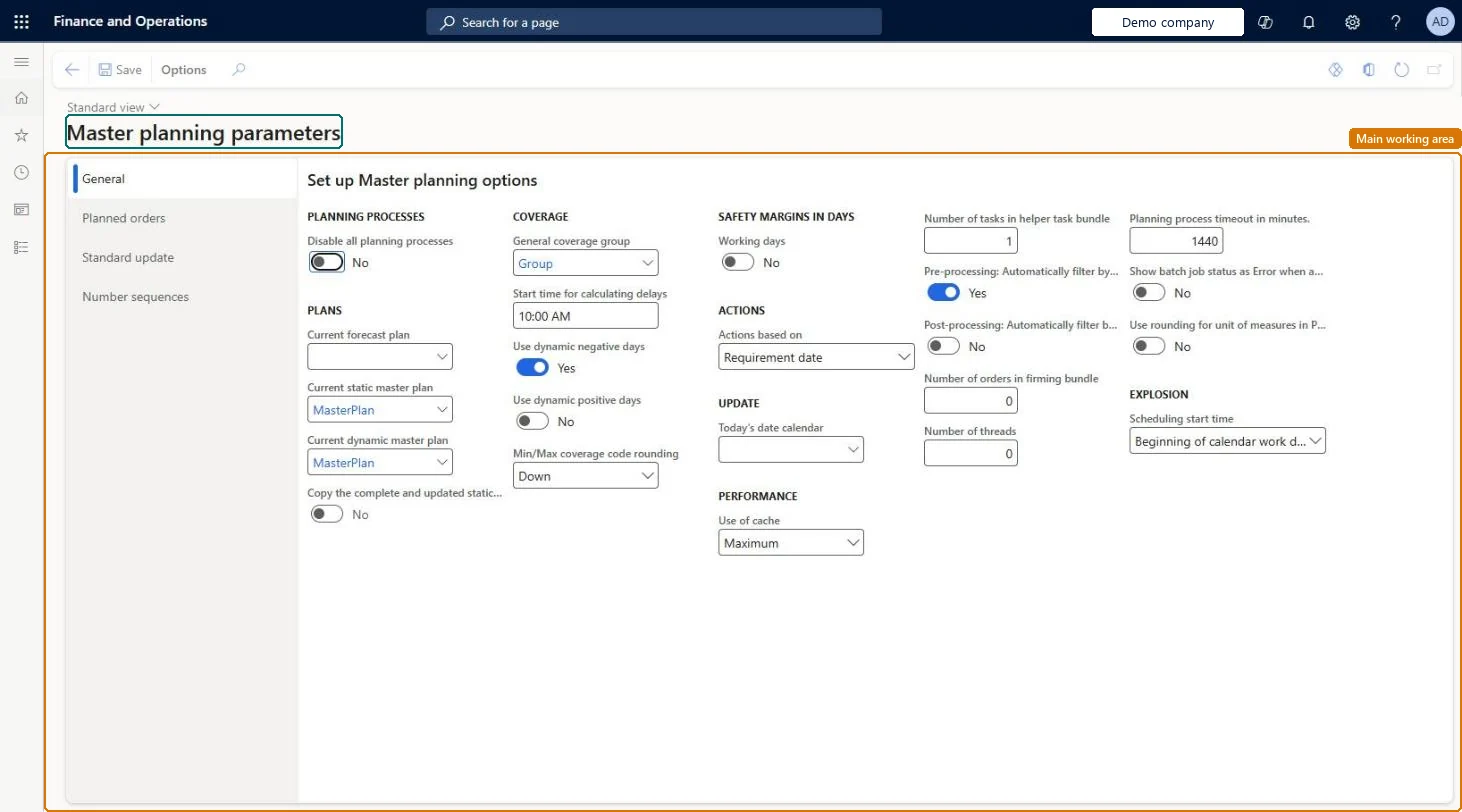
A setup page with the company-wide default settings for master planning, such as the current static and dynamic master plans and the default firming options.
Materials manager, Accounting manager, Production manager
Business process
Balance supply and demand
Menu item
ReqParameters
Main table
ReqParameters
Data entity
ReqMasterPlanningParametersEntity
Setup steps
1 on this page
Show what matters for
PAGE GUIDEWhat the page does and how to use it8 sections. Choose a role to highlight what matters to you.
Everyone
1What it is and why
What it is
A setup page with the company-wide default settings for master planning, such as the current static and dynamic master plans and the default firming options.
What you do here
Use this page to choose the plans that master planning and capable to promise use by default, set default firming and grouping options, turn on capacity planning, and turn planning processes on or off for the company.
Example
For example, to use one plan for both day-to-day planning and order simulations, select the same plan in the Current static master plan and Current dynamic master plan fields.
The page in Dynamics 365. page title tab to open what to set or check
About the examples: Examples and screenshots in this guide use BEAT, a demo company in a Dynamics 365 test environment. Use your own company's codes and values instead of copying them.
Setup steps on this page
Set up Master planning parameters
Use this page to choose the plans that master planning and capable to promise use by default, set default firming and grouping options, turn on capacity planning, and turn planning processes on or off for the company.
How to use it
Go to Master planning > Setup > Master planning parameters.
On the General tab, select the Current static master plan, Current dynamic master plan and Current forecast plan.
Under Coverage, select the General coverage group and set the delay and dynamic days options.
Set the Actions, Update, Performance and Explosion options.
Use the Planned orders, Standard update and Number sequences tabs for their settings.
Select Save.
Source: Checked in Dynamics 365
Fields on the page
Field
What it means
Table column
Current static master plan
The plan used as the static plan, which planners use to approve and firm orders.Microsoft Learn
CurrentReqPlanIdSchedStatic
Current dynamic master plan
The plan used as the dynamic plan; capable to promise runs this plan.Microsoft Learn
CurrentReqPlanIdSchedDynamic
Current forecast plan
The forecast plan to use; Planning Optimization ignores it.Microsoft Learn
CurrentReqPlanIdForecast
Disable all planning processes
Turns all planning processes off or on for the company.Microsoft Learn
ReqInactive
Production (Capacity planning section, Planned orders tab)
Turns on capacity planning, which finite capacity planning needs.Microsoft Learn
Find purchase agreement
Must be Yes for firming to group planned purchase orders by purchase agreement.Microsoft Learn
Number of orders in firming bundle
How many orders each thread or batch task picks up together during auto-firming.Microsoft Learn
FirmingBundleSize
Use dynamic negative days
Uses dynamic negative days in the deprecated engine; Planning Optimization always uses them.Microsoft Learn
DynamicNegativeDays
Test checklist
Set Current static master plan and Current dynamic master plan
Create a sales order line with delivery date control CTP
Check the dynamic plan is run and the confirmed date is calculated
Run the static plan and check planned orders in that plan
Current dynamic master plan = the plan capable to promise should run; Number of orders in firming bundle above 0Learn states CTP for Planning Optimization runs the plan in Current dynamic master plan, and that a firming bundle of 0 stops auto-firming running in parallel.
Setting fields Planning Optimization ignores, such as Current forecast plan or Use dynamic negative days, and expecting them to change results.
Number sequences
Reference
Shared or per company
Note
Master scheduling planned order number
Per company
BEAT uses number sequence Mast_3. Checked in Dynamics 365
Master scheduling session number
Per company
BEAT uses number sequence Mast_7. Checked in Dynamics 365
Forecast planning planned order number
Per company
BEAT uses number sequence Mast_11. Checked in Dynamics 365
Forecast planning session number
Per company
BEAT uses number sequence Mast_15. Checked in Dynamics 365
Journal
Per company
BEAT uses number sequence Mast_19. Checked in Dynamics 365
Continuity scheduling planned order
Per company
BEAT uses number sequence Mast_23. Checked in Dynamics 365
Continuity scheduling session number
Per company
BEAT uses number sequence Mast_27. Checked in Dynamics 365
Demand forecast sequence number
Per company
BEAT uses number sequence Mast_31. Checked in Dynamics 365
Reversible: Plan selections and firming settings can be changed any time and take effect on the next master planning run. Microsoft Learn
If you change it later
Several settings on this page have no effect when you use Planning Optimization, for example Current forecast plan, Use of cache, and Today's date calendar. Microsoft Learn
Technical architect
6Technical
Menu item
ReqParametersChecked in Dynamics 365
Form
ReqParametersChecked in Dynamics 365
Table
ReqParametersShown as “MASTER PLANNING PARAMETERS” in Record infoChecked in Dynamics 365
PrivilegesMaintain master planning parameters ReqParametersMaintainView master planning parameters ReqParametersViewDutiesEnable forecast process ForecastForecastProcessEnableEnable inventory valuation process InventStdCostInvValuationProcessEnableInquire into master scheduling policies ReqMasterSchedulingPoliciesInquireEnable master scheduling process ReqMasterSchedulingProcessEnable3 security rolesMaterials manager InventMaterialsManagerAccounting manager LedgerAccountingManagerProduction manager ProdProductionManagerChecked in Dynamics 365
Roles to set it up and use it
To set it up or change itProduction manager ProdProductionManagerMaterials manager InventMaterialsManagerAccounting manager LedgerAccountingManagerGive people one of these roles. On this system, 3 roles can open this page.Checked in Dynamics 365
ReqMasterPlanningParametersEntity (Master planning parameters): loaded for each company, in Microsoft's default template 430 - Master planning.Load order: Microsoft's default template 430 - Master planning loads Master planning parameters at execution unit 1, level 30, sequence 50. Lower levels load first, and entities at the same level load in sequence order.Load first: the default templates at lower levels (System setup to General ledger)Microsoft Learn