PAGE GUIDEWhat the page does and how to use it8 sections. Choose a role to highlight what matters to you.
Everyone
1What it is and why
What it is
A setup page where you create coverage groups: sets of planning rules shared by all products linked to the group.
What you do here
Use this page to set how master planning covers requirements for the items in each group, such as the coverage code, time fences, positive and negative days, and action messages.
Example
For example, a group with the Per requirement coverage code suits expensive items with intermittent demand.
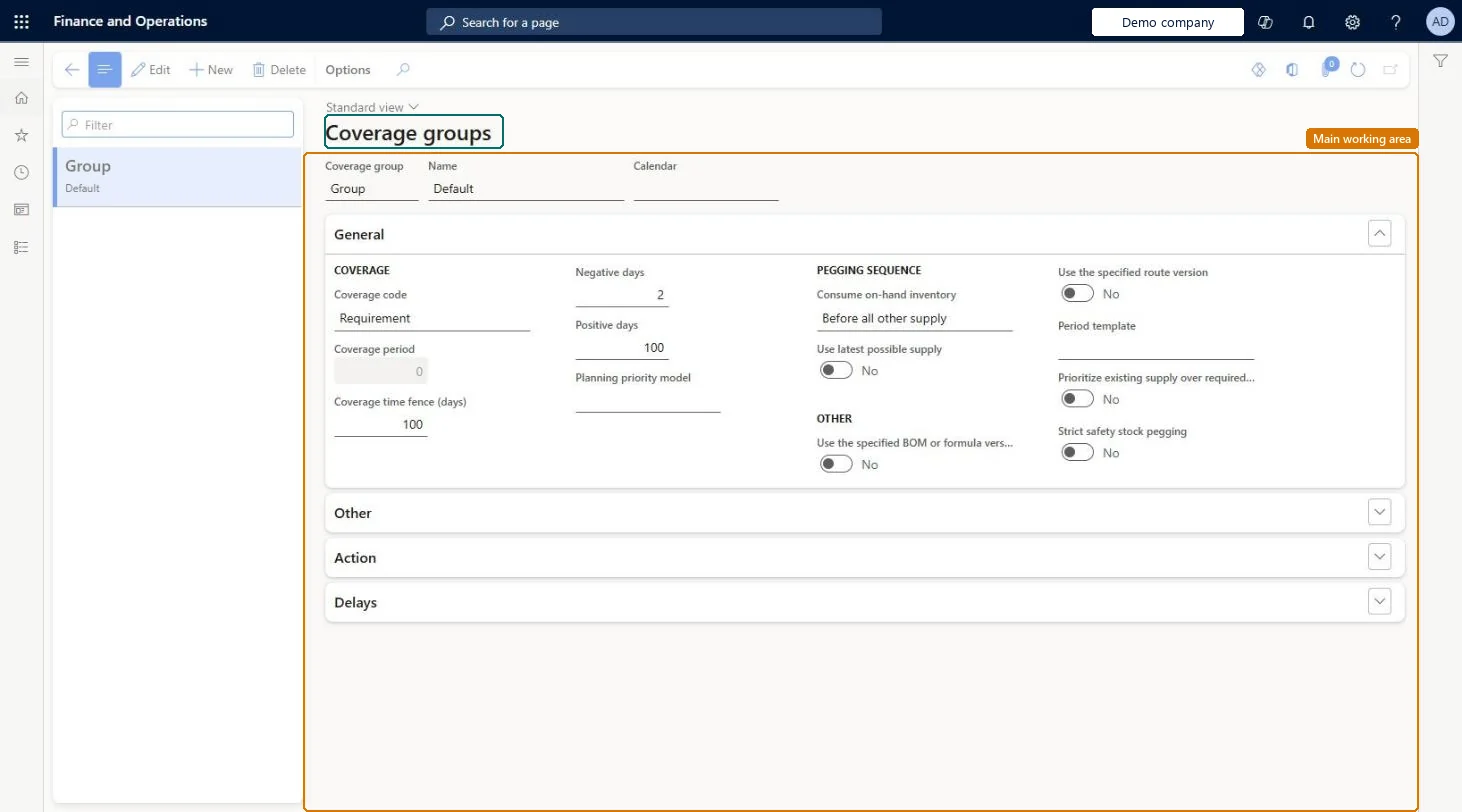
The page in Dynamics 365. page title tab to open what to set or check
About the examples: Examples and screenshots in this guide use BEAT, a demo company in a Dynamics 365 test environment. Use your own company's codes and values instead of copying them.
Setup steps on this page
Set up Coverage groups
Use this page to set how master planning covers requirements for the items in each group, such as the coverage code, time fences, positive and negative days, and action messages.
Steps from Microsoft
Go to Master planning > Setup > Coverage > Coverage groups.
In the list pane, select the coverage group to set up.
On the General FastTab, set Use the specified BOM or formula version and Use the specified route version.
If either option is Yes, set Prioritize existing supply over required BOM or formula version or route version.
Positive days between the longest item lead time and the coverage time fence (equal to the lead time for regularly bought or made items); negative days below the item lead timeLearn gives these rules for positive and negative days so existing supply is used sensibly without creating late orders.
Reversible: Coverage groups can be changed at any time; the next planning run uses the new settings. Item coverage settings override the group. Microsoft Learn
If you change it later
Changes apply to every product linked to the group, except where the product's item coverage overrides the group settings. Microsoft Learn
Technical architect
6Technical
Menu item
ReqGroupChecked in Dynamics 365
Form
ReqGroupChecked in Dynamics 365
Table
ReqGroupShown as “ITEM COVERAGE GROUPS” in Record infoChecked in Dynamics 365
Data entities
ReqMasterPlanningProductCoverageGroupEntityItem coverage groups Microsoft data model
Who can open it
PrivilegesMaintain coverage groups ReqGroupMaintainView coverage groups ReqGroupViewDutiesInquire into master scheduling policies ReqMasterSchedulingPoliciesInquireEnable master scheduling process ReqMasterSchedulingProcessEnable2 security rolesMaterials manager InventMaterialsManagerProduction manager ProdProductionManagerChecked in Dynamics 365
Roles to set it up and use it
To set it up or change itProduction manager ProdProductionManagerMaterials manager InventMaterialsManagerGive people one of these roles. On this system, 2 roles can open this page.Checked in Dynamics 365
ReqMasterPlanningProductCoverageGroupEntity (Item coverage groups): loaded for each company, in Microsoft's default template 310 - Product information management.Load order: Microsoft's default template 310 - Product information management loads Item coverage groups at execution unit 1, level 300, sequence 60. Lower levels load first, and entities at the same level load in sequence order.Load first: the default templates at lower levels (System setup to Budgeting)Microsoft Learn