BeyondERP.Newsletter
Menu

Setup step on the Reduction keys page · Master planning

Set up Reduction keys

Use this page to set how much of a demand forecast is used in each period, or which periods actual orders reduce the forecast in.

Used by
Materials manager, Production manager
Business process
Balance supply and demand
Menu item
ReqReduceKey
Main table
ReqReduceKey
Data entity
ReqReductionKeyEntity
Setup steps
1 on this page
Show what matters for
SETUP GUIDEHow to set it up8 sections. Choose a role to highlight what matters to you.
Everyone

1What it is and why

What it isA setup page where you define forecast reduction keys: periods, and a percentage for each period, that control how forecast requirements are reduced during master planning.
What you do hereUse this page to set how much of a demand forecast is used in each period, or which periods actual orders reduce the forecast in.
ExampleFor example, a reduction key of 100, 75, 50 and 25 percent for the next four months turns a forecast of 1,000 a month into requirements of 0, 250, 500 and 750, and the full 1,000 after that.
Reduction keys page in Dynamics 365
The page in Dynamics 365. page title tab to open what to set or check
Functional consultant · Solution architect

2Where it fits

End user · Functional consultant

3How to do it

About the examples: Examples and screenshots in this guide use BEAT, a demo company in a Dynamics 365 test environment. Use your own company's codes and values instead of copying them.

Setup steps on this page

Set up Reduction keys

Use this page to set how much of a demand forecast is used in each period, or which periods actual orders reduce the forecast in.

Steps from Microsoft

  1. Go to Master planning > Setup > Coverage > Reduction keys.
  2. Select New.
  3. In the Reduction key field, enter an identifier, and in the Name field, enter a name.
  4. Set the Effective date and the Use the effective date option.
  5. Add the periods, and for each period enter the percentage to reduce the forecast by.
  6. Assign the reduction key to a coverage group on the Other FastTab of the Coverage groups page.

Source: Microsoft Learn

Fields on the page

FieldWhat it meansTable column
Reduction keyThe unique identifier of the reduction key.Microsoft Learn ReduceKeyId
NameThe name of the reduction key.Microsoft Learn Name
Effective dateThe date when creation of the periods starts.Microsoft Learn FixedDate
Use the effective dateYes starts the periods on the effective date; No starts them on the date master planning runs.Microsoft Learn Fixed
PercentThe percentage that forecast requirements are reduced by in a period; negative values increase them.Microsoft Learn ReducePct

Test checklist

  1. Create a reduction key with four monthly lines (100, 75, 50, 25 percent).
  2. Assign the key on the Other FastTab of the item's coverage group.
  3. On the master plan, select a forecast model and set Method used to reduce forecast requirements to Percent - reduction key.
  4. Enter a monthly demand forecast for the item and run master planning.
  5. Check that planned order quantities per month follow the reduced forecast.

Source: Microsoft Learn

Functional consultant

4Setup decisions

Setup stepRecommended value and whyDecision, common mistake and test
Set up Reduction keysDefine periods that match your forecast buckets (for example one line per month), and fill Percent only for keys used with the Percent - reduction key method.With Transactions - reduction key the Percent values are ignored and only the period dates are used, while Percent - reduction key multiplies the forecast by the percentage in each period.Which method should master plans use to reduce forecast requirements?Creating a reduction key but not assigning it on the Other FastTab of the coverage group, or not choosing a reduction-key method on the master plan. The key then has no effect on forecast reduction.
Solution architect

5Design impact

Shared or per companyPer company: each legal entity has its own records. Microsoft data model
Can it be undoneReversible: Periods and percentages can be changed at any time; the next master planning run reduces the forecast with the new key.
If you change it laterWith the Transactions - reduction key method, the Percent values are ignored and only the period dates are used. Microsoft Learn
Technical architect

6Technical

Menu itemReqReduceKey Checked in Dynamics 365
FormReqReduceKey Checked in Dynamics 365
TableReqReduceKeyShown as “REDUCTION KEYS” in Record infoChecked in Dynamics 365
Data entitiesReqReductionKeyEntityReduction key Microsoft data model
Who can open itPrivilegesMaintain reduction keys ReqReduceKeyMaintainView reduction keys ReqReduceKeyViewDutiesInquire into master scheduling policies ReqMasterSchedulingPoliciesInquireEnable master scheduling process ReqMasterSchedulingProcessEnable
2 security rolesMaterials manager InventMaterialsManagerProduction manager ProdProductionManager
Checked in Dynamics 365
Roles to set it up and use itTo set it up or change itProduction manager ProdProductionManagerMaterials manager InventMaterialsManagerGive people one of these roles. On this system, 2 roles can open this page.Checked in Dynamics 365
Actions on the page(Action Pane without tabs): WizardChecked in Dynamics 365
Developer

7Developer

Open it by URLhttps://<your-environment>/?mi=ReqReduceKey
Integrate withReqReductionKeyEntity data entity Microsoft data model
Data migrationReqReductionKeyEntity (Reduction key): loaded for each company, in Microsoft's default template 310 - Product information management.Load order: Microsoft's default template 310 - Product information management loads Reduction key at execution unit 1, level 30, sequence 10. Lower levels load first, and entities at the same level load in sequence order.Load first: the default templates at lower levels (System setup to General ledger)Microsoft Learn
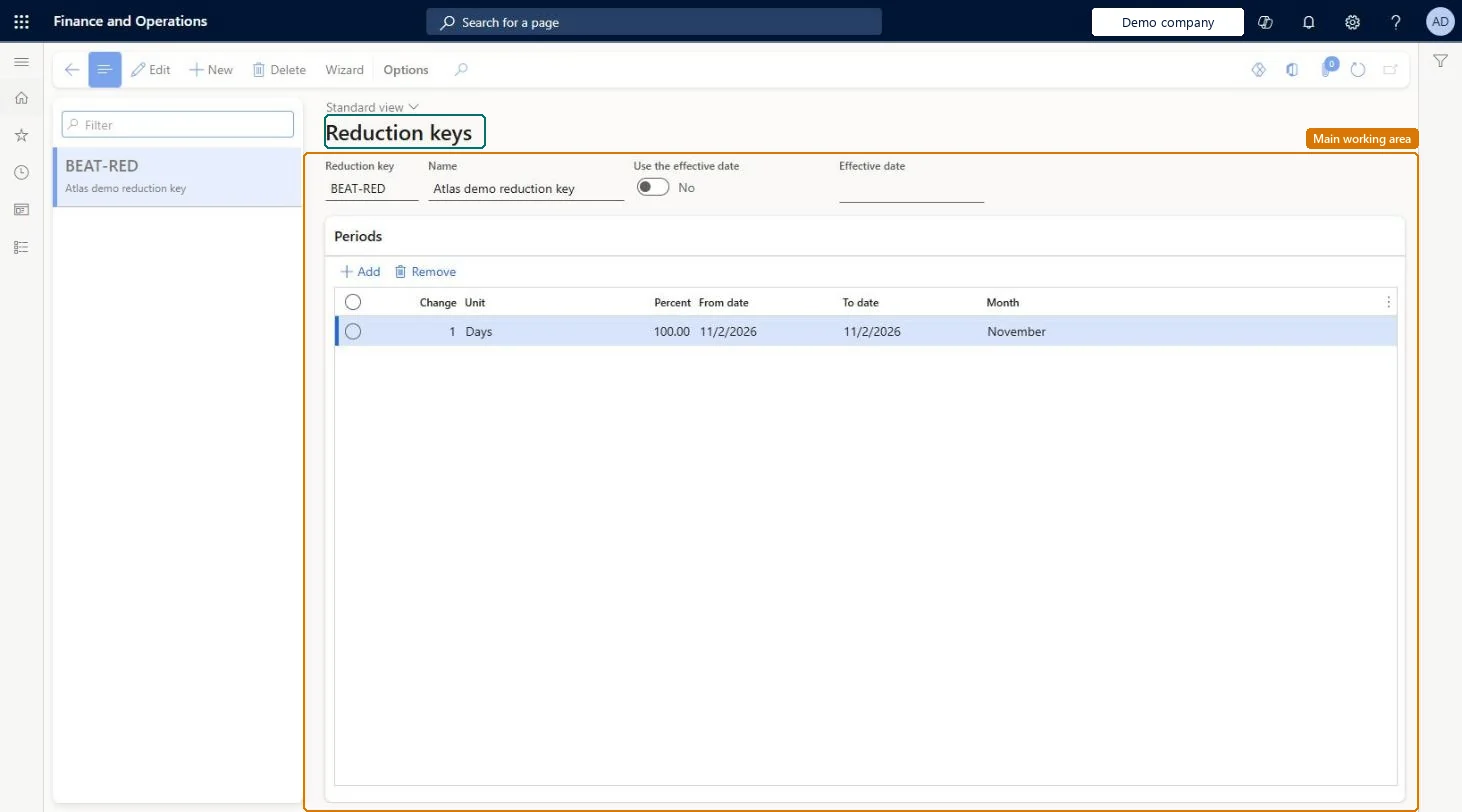
Table definitionReqReduceKey columns and relations Microsoft data model
Everyone

8Sources

To cite this step: MP-COV-030, Set up Reduction keys. Beyond ERP Atlas Hub, 2026-11-11. https://www.beyonderp.cloud/atlas/step/MP-COV-030