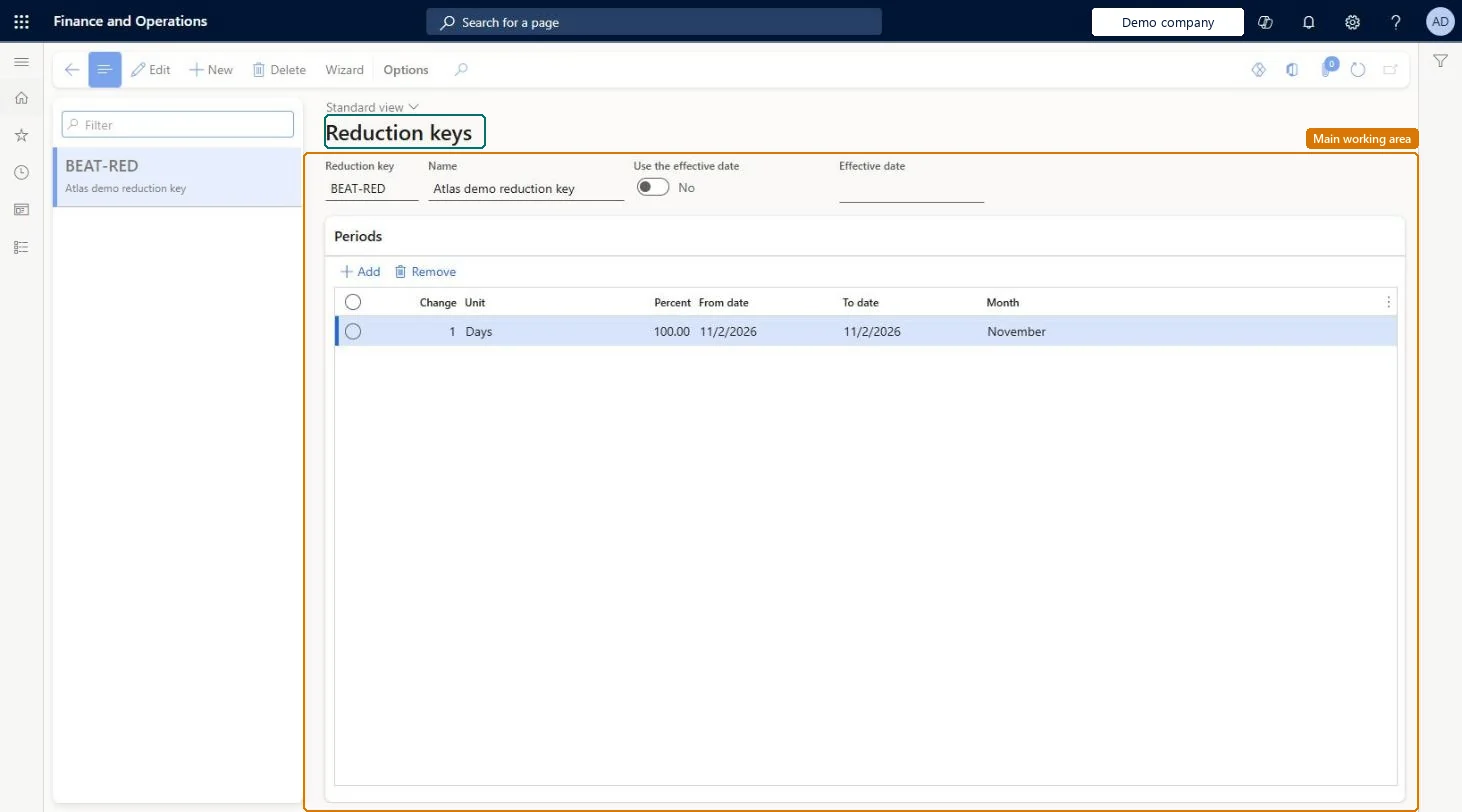
A setup page where you define forecast reduction keys: periods, and a percentage for each period, that control how forecast requirements are reduced during master planning.
PAGE GUIDEWhat the page does and how to use it8 sections. Choose a role to highlight what matters to you.
Everyone
1What it is and why
What it is
A setup page where you define forecast reduction keys: periods, and a percentage for each period, that control how forecast requirements are reduced during master planning.
What you do here
Use this page to set how much of a demand forecast is used in each period, or which periods actual orders reduce the forecast in.
Example
For example, a reduction key of 100, 75, 50 and 25 percent for the next four months turns a forecast of 1,000 a month into requirements of 0, 250, 500 and 750, and the full 1,000 after that.
The page in Dynamics 365. page title tab to open what to set or check
About the examples: Examples and screenshots in this guide use BEAT, a demo company in a Dynamics 365 test environment. Use your own company's codes and values instead of copying them.
Setup steps on this page
Set up Reduction keys
Use this page to set how much of a demand forecast is used in each period, or which periods actual orders reduce the forecast in.
Steps from Microsoft
Go to Master planning > Setup > Coverage > Reduction keys.
Select New.
In the Reduction key field, enter an identifier, and in the Name field, enter a name.
Set the Effective date and the Use the effective date option.
Add the periods, and for each period enter the percentage to reduce the forecast by.
Assign the reduction key to a coverage group on the Other FastTab of the Coverage groups page.
Define periods that match your forecast buckets (for example one line per month), and fill Percent only for keys used with the Percent - reduction key method.With Transactions - reduction key the Percent values are ignored and only the period dates are used, while Percent - reduction key multiplies the forecast by the percentage in each period.
PrivilegesMaintain reduction keys ReqReduceKeyMaintainView reduction keys ReqReduceKeyViewDutiesInquire into master scheduling policies ReqMasterSchedulingPoliciesInquireEnable master scheduling process ReqMasterSchedulingProcessEnable2 security rolesMaterials manager InventMaterialsManagerProduction manager ProdProductionManagerChecked in Dynamics 365
Roles to set it up and use it
To set it up or change itProduction manager ProdProductionManagerMaterials manager InventMaterialsManagerGive people one of these roles. On this system, 2 roles can open this page.Checked in Dynamics 365
Actions on the page
(Action Pane without tabs): WizardChecked in Dynamics 365
ReqReductionKeyEntity (Reduction key): loaded for each company, in Microsoft's default template 310 - Product information management.Load order: Microsoft's default template 310 - Product information management loads Reduction key at execution unit 1, level 30, sequence 10. Lower levels load first, and entities at the same level load in sequence order.Load first: the default templates at lower levels (System setup to General ledger)Microsoft Learn