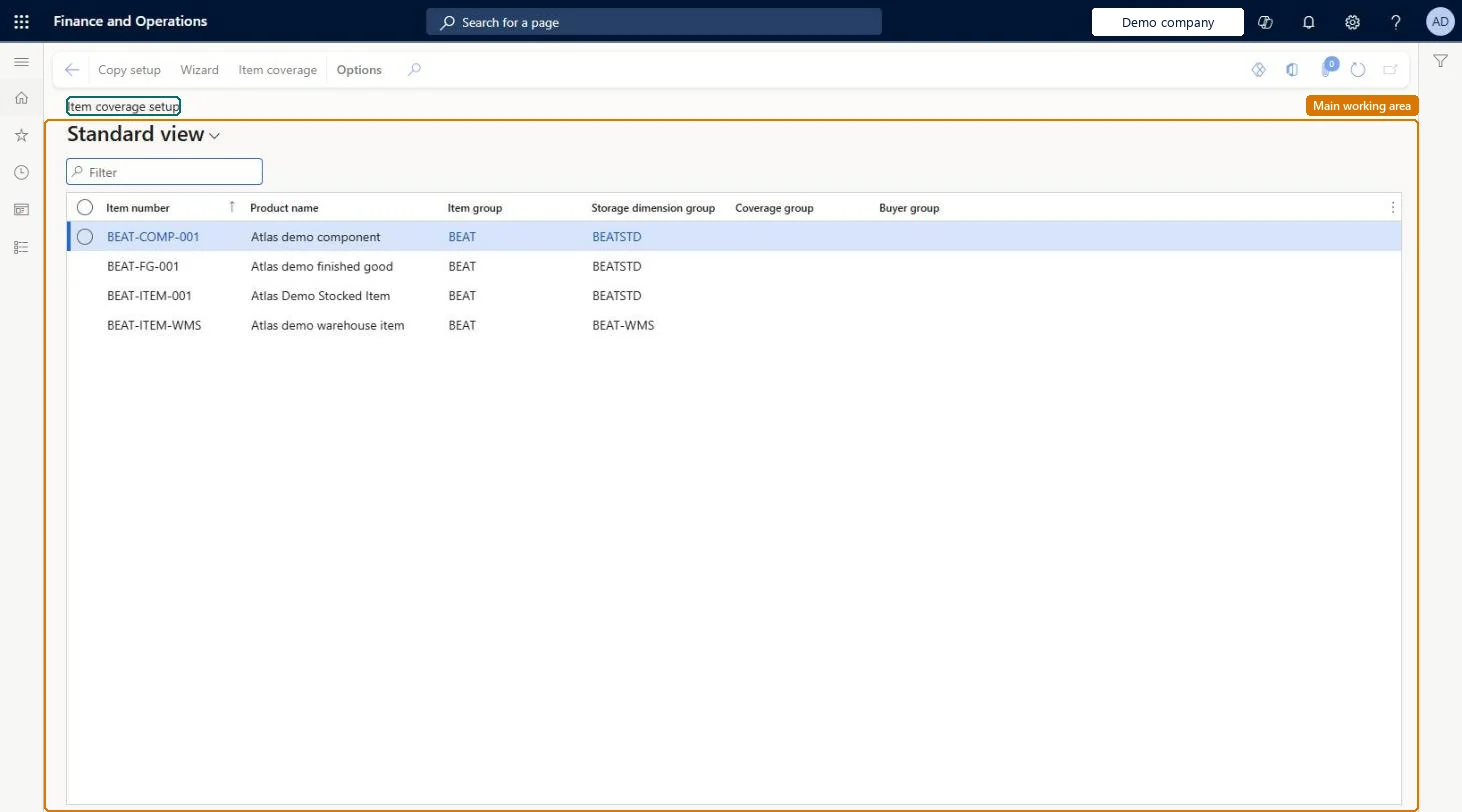
Setup step on the Item coverage page · Master planning
Set up Item coverage
Use this page to give an item its own planning rules, such as its coverage group, minimum and maximum quantities, time fences, and lead times, when the coverage group defaults do not fit.
Product designer, Product design manager, Materials manager and 3 more roles
Business process
Balance supply and demand
Menu item
ReqItemTableSetup
Setup steps
1 on this page
Show what matters for
SETUP GUIDEHow to set it up8 sections. Choose a role to highlight what matters to you.
Everyone
1What it is and why
What it is
A setup page where you define coverage settings for specific items, by site, warehouse, or product dimension, that take precedence over the settings of the coverage group.
What you do here
Use this page to give an item its own planning rules, such as its coverage group, minimum and maximum quantities, time fences, and lead times, when the coverage group defaults do not fit.
Example
For example, an item in a coverage group that plans 90 days ahead is set to plan only 60 days ahead.
The page in Dynamics 365. page title tab to open what to set or check
About the examples: Examples and screenshots in this guide use BEAT, a demo company in a Dynamics 365 test environment. Use your own company's codes and values instead of copying them.
Setup steps on this page
Set up Item coverage
Use this page to give an item its own planning rules, such as its coverage group, minimum and maximum quantities, time fences, and lead times, when the coverage group defaults do not fit.
Steps from Microsoft
Go to Master planning > Setup > Item coverage.
Select New.
On the General tab, select Override coverage group settings.
Enter the Coverage time fence (days), Negative days, and Positive days.
On the Lead time tab, select Purchase and enter the Purchase time.
Keep the coverage group as the default for each item, and add Item coverage lines only for the site, warehouse or product dimension combinations that need their own Minimum, Maximum or coverage group.Settings on the Item coverage page take precedence over the coverage group, and items without an item-level link fall back to the general coverage group on Master planning parameters. Overriding only where needed keeps planning rules easy to maintain.
Setting Fulfill minimum or Minimum periods on the item and expecting them to change the plan. Planning Optimization ignores both and always fulfils safety stock on today's date plus procurement time.Test: Item coverage minimum creates a safety stock planned order
Solution architect
5Design impact
Can it be undone
Reversible: Item coverage values can be changed at any time. The next master planning run plans the item with the new values; firmed orders are not changed.
If you change it later
Settings here override the coverage group for that item, so a change alters how master planning plans the item from the next run. Microsoft Learn
Technical architect
6Technical
Menu item
ReqItemTableSetupChecked in Dynamics 365
Form
ReqItemTableSetupChecked in Dynamics 365
Who can open it
PrivilegesMaintain item coverage setup ReqItemTableSetupMaintainView item coverage setup ReqItemTableSetupViewDutiesInquire into product supply policies EcoResProductSupplyPoliciesMasterInquireMaintain product supply policies EcoResProductSupplyPoliciesMasterMaintainInquire into forecast policies ForecastForecastPoliciesInquireInquire into master scheduling policies ReqMasterSchedulingPoliciesInquireEnable master scheduling process ReqMasterSchedulingProcessEnable6 security rolesProduct designer BOMProductDesignerProduct design manager BOMProductDesignManagerMaterials manager InventMaterialsManagerProduction manager ProdProductionManagerProcess engineer RouteProcessEngineerProcess engineering manager RouteProcessEngineeringManagerChecked in Dynamics 365
Roles to set it up and use it
To set it up or change itProduction manager ProdProductionManagerMaterials manager InventMaterialsManagerProcess engineer RouteProcessEngineerProduct designer BOMProductDesignerTo use itProduct design manager BOMProductDesignManagerProcess engineering manager RouteProcessEngineeringManagerGive people one of these roles. On this system, 6 roles can open this page.Checked in Dynamics 365
Actions on the page
(Action Pane without tabs): Copy setup, Wizard, Item coverageChecked in Dynamics 365