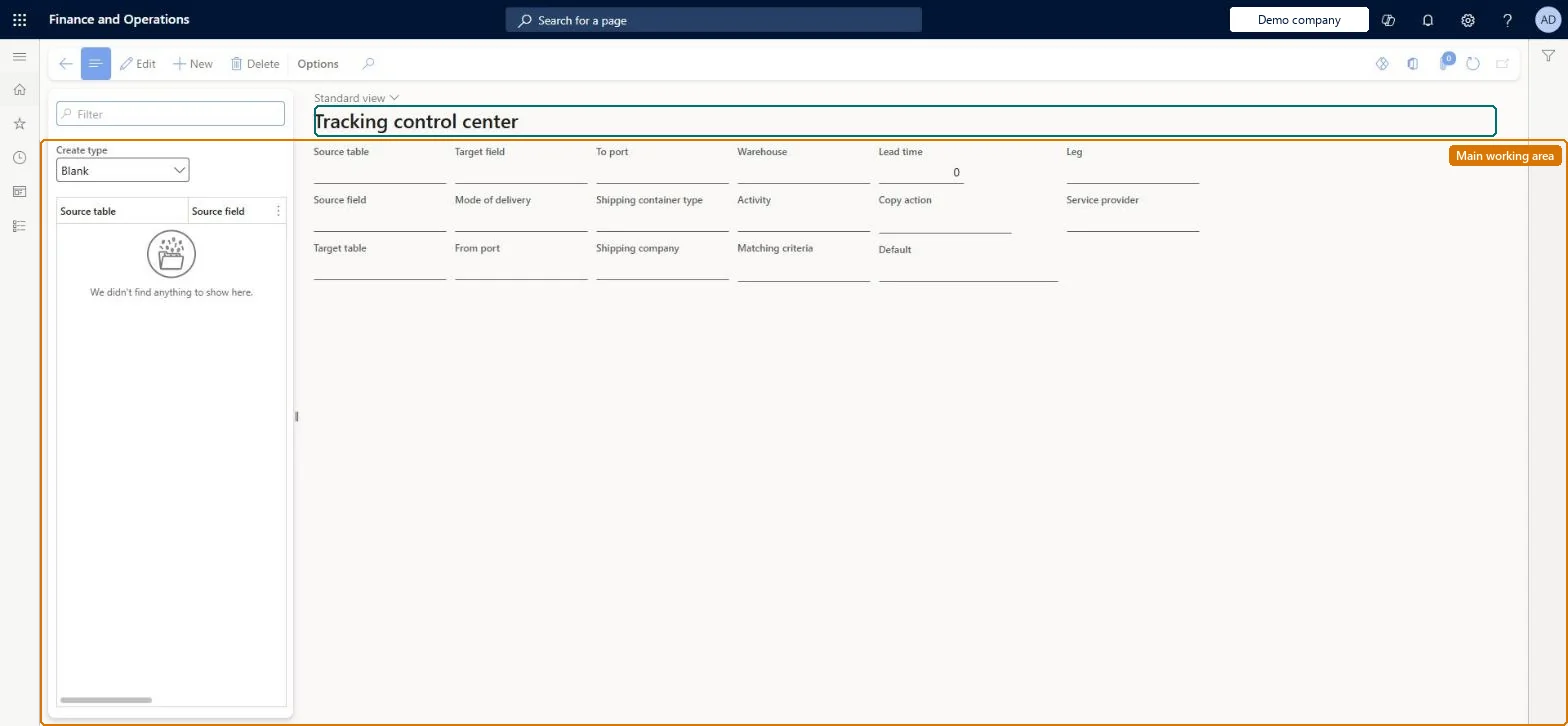
Setup step on the Tracking control center page · Landed cost
Set up Tracking control center
Use this page to create tracking control records, each tied to a leg of a journey, so that when a voyage completes that leg the system fills in lead times, status updates and copied field values as the rule defines.
SETUP GUIDEHow to set it up8 sections. Choose a role to highlight what matters to you.
Everyone
1What it is and why
What it is
A setup page where you define rules (lead time, status update, or blank copy rules) that update dates, statuses and fields as a voyage's shipping containers move from one leg of a journey to the next.
What you do here
Use this page to create tracking control records, each tied to a leg of a journey, so that when a voyage completes that leg the system fills in lead times, status updates and copied field values as the rule defines.
Example
For example, a status update rule can set a shipping container's voyage status to Goods in transit as soon as the order completes a specified leg.
The page in Dynamics 365. page title tab to open what to set or check
About the examples: Examples and screenshots in this guide use BEAT, a demo company in a Dynamics 365 test environment. Use your own company's codes and values instead of copying them.
Setup steps on this page
Set up Tracking control center
Use this page to create tracking control records, each tied to a leg of a journey, so that when a voyage completes that leg the system fills in lead times, status updates and copied field values as the rule defines.
Steps from Microsoft
Go to Landed cost > Delivery information setup > Tracking control center.
In the list pane, set the Create type field to Lead time.
On the Action Pane, select New.
Set the Leg field to the leg that you want to create a lead time rule for.
In the Activity field, select the activity that the rule should apply to.
In the Lead time field, enter the lead time in days.
For every journey template, the two required Blank records: Container activities Estimated end date to Purchase lines Confirmed or delivery date, and to Goods in transit order Expected dateLearn says both records are used in all Landed cost implementations so purchase confirmed dates and goods-in-transit expected dates update as expected.
Expecting vendor lead times on purchase lines to be used. The tracking control center doesn't consider them when it calculates expected delivery dates.Test: Estimated end date flows to the purchase line
Solution architect
5Design impact
Can it be undone
Hard to reverse: Rules can be changed, but Blank rules overwrite field values in other areas such as purchase lines, and overwritten values are not restored when a rule is removed.
If you change it later
Changing the order of legs in a journey template changes the tracking control for voyages that use it, and the resulting dates do not take vendor lead times on purchase lines into account. Microsoft Learn
Technical architect
6Technical
Menu item
ITMLeadTimeTableChecked in Dynamics 365
Form
ITMLeadTimeTableChecked in Dynamics 365
Table
ITMLeadTimeTableShown as “LEAD TIMES TABLE” in Record infoKey field: DlvMode, ShipFromPort, ShipToPort, ShipContainerTypeId, ShipVendAccount, InventLocationId, ShipActivityIdChecked in Dynamics 365
To set it up or change itLanded cost manager ITMManagerGive people one of these roles. On this system, 1 role can open this page.Checked in Dynamics 365
Actions on the page
(Action Pane without tabs): New, DeleteChecked in Dynamics 365