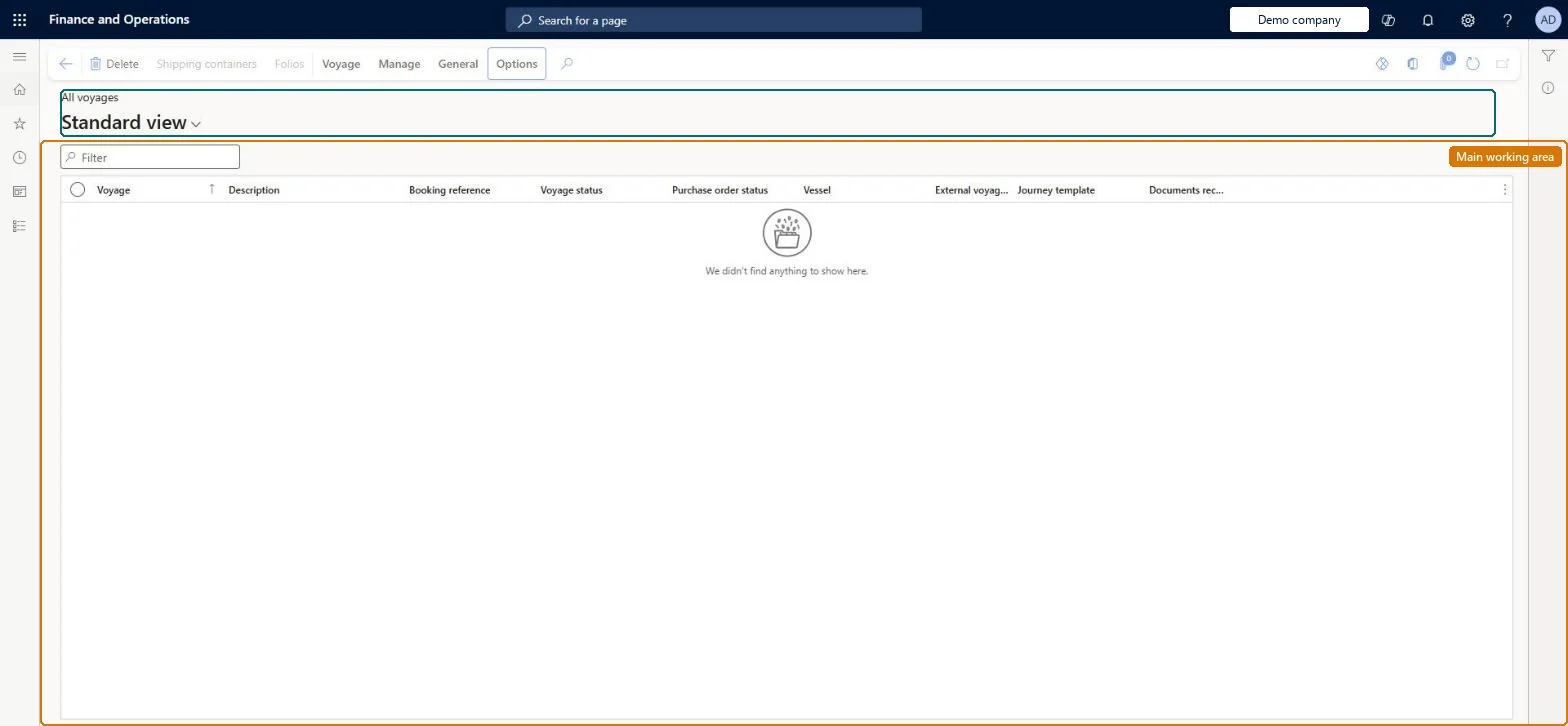
A list page that shows every current voyage together with its voyage details, delivery and costing information, and the items, purchase orders, and transfer orders attached to it.
Plan inbound transportation loads in Dynamics 365 Supply Chain Management
Menu item
ITMTableListPage
Main table
ITMTable
Data entity
ITMTableEntity
Show what matters for
PAGE GUIDEWhat the page does and how to use it7 sections. Choose a role to highlight what matters to you.
Everyone
1What it is and why
What it is
A list page that shows every current voyage together with its voyage details, delivery and costing information, and the items, purchase orders, and transfer orders attached to it.
What you do here
Use this page to create, delete, and work with voyages, and to open a voyage to see its shipping containers, folios, costs, receipts, and tracking.
Example
For example, a voyage usually represents one vessel, but it can also represent one vendor or one purchase order if that suits how your organization ships goods.
The page in Dynamics 365. page title tab to open what to set or check
About the examples: Examples and screenshots in this guide use BEAT, a demo company in a Dynamics 365 test environment. Use your own company's codes and values instead of copying them.
Steps from Microsoft
Go to Landed cost > Voyages > All voyages.
Select New on the Action Pane.
Fill in the Create voyage dialog box as needed, and then select OK.
On the Voyage editor page, set the filters and select Generate data to list inbound orders.
On the Lines to select FastTab, select the order lines and then select Add to staging list.
Select View staging list and add the lines to a new or existing shipping container.
The voyage or flight number that identifies the voyage.Microsoft Learn
ShipId
Vessel
The ship, plane, or other vessel carrying the goods; it can be picked from the list or typed as free text.Microsoft Learn
ShipVesselId
Voyage status
The stage the voyage has reached (such as Created, In transit, Documents received, or Costed); it only changes through posting actions, not by calculation.Microsoft Learn
ShipStatusId
Purchase order status
The highest status reached by any purchase order on the voyage.Microsoft Learn
ITMPurchStatus
Documents received
Shows whether all shipping documents for the voyage have been received; it is changed with the Documents received button on the Manage tab.Microsoft Learn
ShipDocReceived
Shipping company
The shipping company for the voyage, which helps the system pick the right auto costs.Microsoft Learn
Estimated delivery date
The date the goods are due at the warehouse, for information only; master planning uses the expected delivery date on the purchase order line instead.Microsoft Learn
Journey template
The journey template that supplies the from and to ports of the voyage and its containers, which in turn drive the auto costs.Microsoft Learn
ShipJourneyId
Test checklist
Create a voyage with New, add purchase lines to a shipping container in the Voyage editor and select the journey template.
Select Find auto costs and check the voyage costs appear on Voyage costs and Costs inquiry.
Post the invoice and receive the goods in transit (Receive goods in transit or arrival journal).
Set Ready for costing, run Costed and check the voyage status changes to the costed status set on Landed cost parameters.
Hard to reverse: A voyage can be deleted only while its status is Confirmed; once it has left port and goods in transit are processed, it can't be deleted. Changing the journey template deletes the voyage costs, so you must run Find auto costs again or re-enter costs. Costed can be rerun as often as needed. Microsoft Learn
If you change it later
Changing the journey template deletes the voyage costs, so the costs must be found again with Find auto costs or entered manually; a voyage can only be deleted while its status is Confirmed and before goods in transit are processed. Microsoft Learn
Technical architect
5Technical
Menu item
ITMTableListPageChecked in Dynamics 365
Form
ITMTableListPageChecked in Dynamics 365
Table
ITMTableShown as “VOYAGES” in Record infoKey field: ShipIdChecked in Dynamics 365
To set it up or change itLanded cost agent ITMAgentTo use itLanded cost manager ITMManagerGive people one of these roles. On this system, 2 roles can open this page.Checked in Dynamics 365
Actions on the page
VoyageManage: Voyage update, Purchase order, Transfer order, Goods in transit, FunctionsGeneral: Journals, Inquiries(Action Pane without tabs): Delete, Shipping containers, FoliosChecked in Dynamics 365
Developer
6Developer
Open it by URL
https://<your-environment>/?mi=ITMTableListPage
Integrate with
ITMTableEntity data entity Checked in Dynamics 365