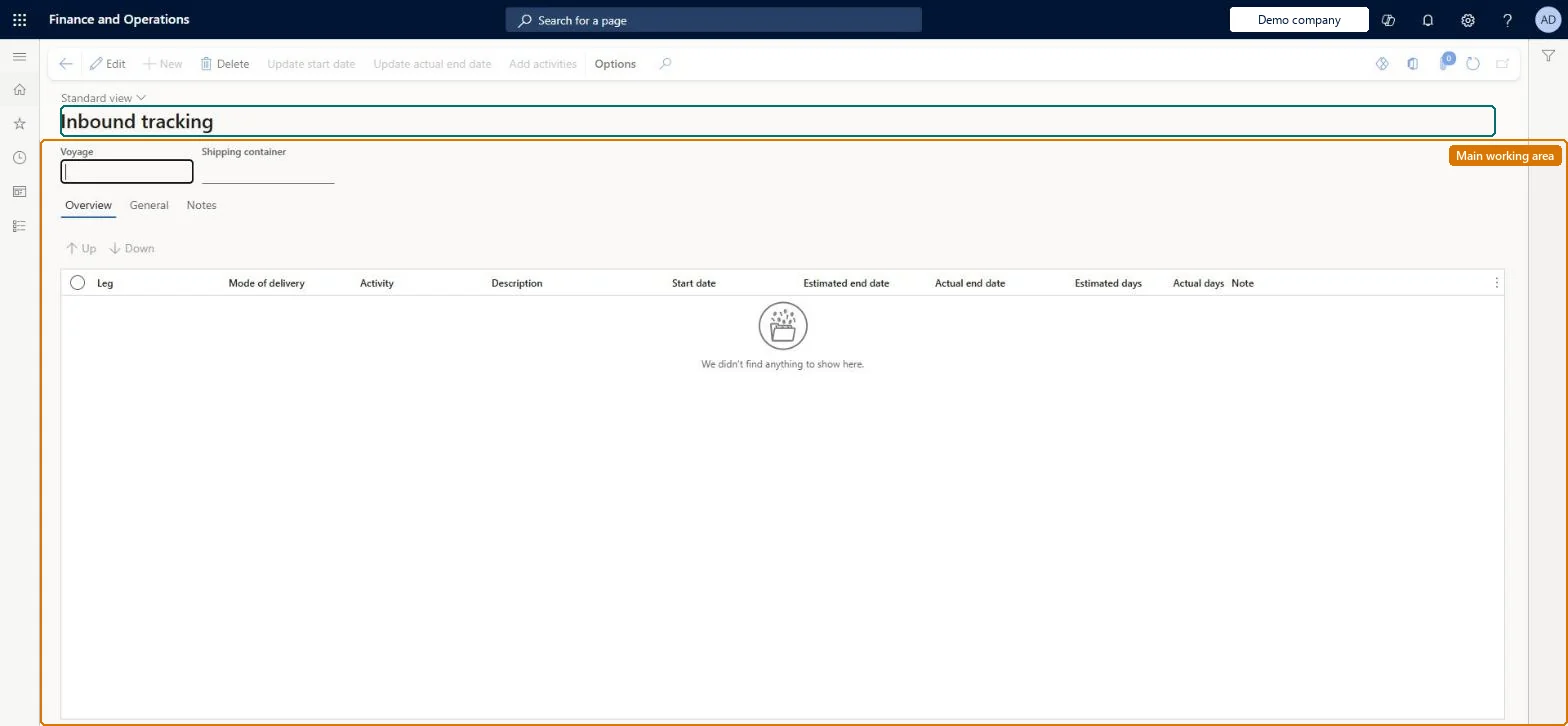
A tracking page that lists each voyage and shipping container journey as a sequence of activities, one row per activity, with estimated and actual dates.
Plan inbound transportation loads in Dynamics 365 Supply Chain Management
Menu item
ITMContainerActivityTableDaily
Main table
ITMContainerActivityTable
Data entity
ITMContainerActivityEntity
Show what matters for
PAGE GUIDEWhat the page does and how to use it7 sections. Choose a role to highlight what matters to you.
Everyone
1What it is and why
What it is
A tracking page that lists each voyage and shipping container journey as a sequence of activities, one row per activity, with estimated and actual dates.
What you do here
Use this page to view and enter estimated and actual dates for each activity in a journey so that the expected arrival at the destination, and the delivery dates on purchase order lines, are kept up to date.
Example
For example, enter the start date of the first activity and the estimated end date of the last activity is calculated from the lead times set up for each leg.
The page in Dynamics 365. page title tab to open what to set or check
About the examples: Examples and screenshots in this guide use BEAT, a demo company in a Dynamics 365 test environment. Use your own company's codes and values instead of copying them.
Steps from Microsoft
Go to Landed cost > Tracking > Inbound tracking.
Use the Voyage and Shipping container fields at the top to filter the activities.
Enter the start date for the first activity to calculate the estimated end dates.
As each activity completes, enter its actual end date.
To apply a date to every container in the voyage, select Update start date or Update actual end date on the Action Pane.
Select Add activities to add an extra activity, such as fumigation, if needed.
The journey leg the activity belongs to, as defined by the journey template.Microsoft Learn
ShipLegId
Activity
The task carried out in this step, such as Sailing or Clearance.Microsoft Learn
ShipActivityId
Start date
The estimated start date, replaced by the actual start once the previous activity's actual end date is entered; it drives the estimated end date.Microsoft Learn
StartDate
Estimated end date
Calculated from the start date plus the lead time; normally not edited directly.Microsoft Learn
EsimatedDate
Actual end date
The date the activity actually finished; entering it updates the actual lead time.Microsoft Learn
Hard to reverse: Dates can be re-entered, but a new start date or actual end date moves every later estimated date by the lead times, and depending on the Tracking control center setup the final date overwrites the delivery or confirmed date on the purchase order lines. Update start date and Update actual end date change all containers in the voyage at once. Microsoft Learn
If you change it later
Changing a start date or actual end date moves all later estimated dates according to the lead times, and the final date normally flows through to the delivery or confirmed date on the purchase order lines. Microsoft Learn
Technical architect
5Technical
Menu item
ITMContainerActivityTableDailyChecked in Dynamics 365
Form
ITMContainerActivityTableChecked in Dynamics 365
Table
ITMContainerActivityTableShown as “SHIPPING CONTAINER ACTIVITIES” in Record infoKey field: ShipId, ShipContainerIdChecked in Dynamics 365
Data entities
ITMContainerActivityEntityShipping container activities Checked in Dynamics 365