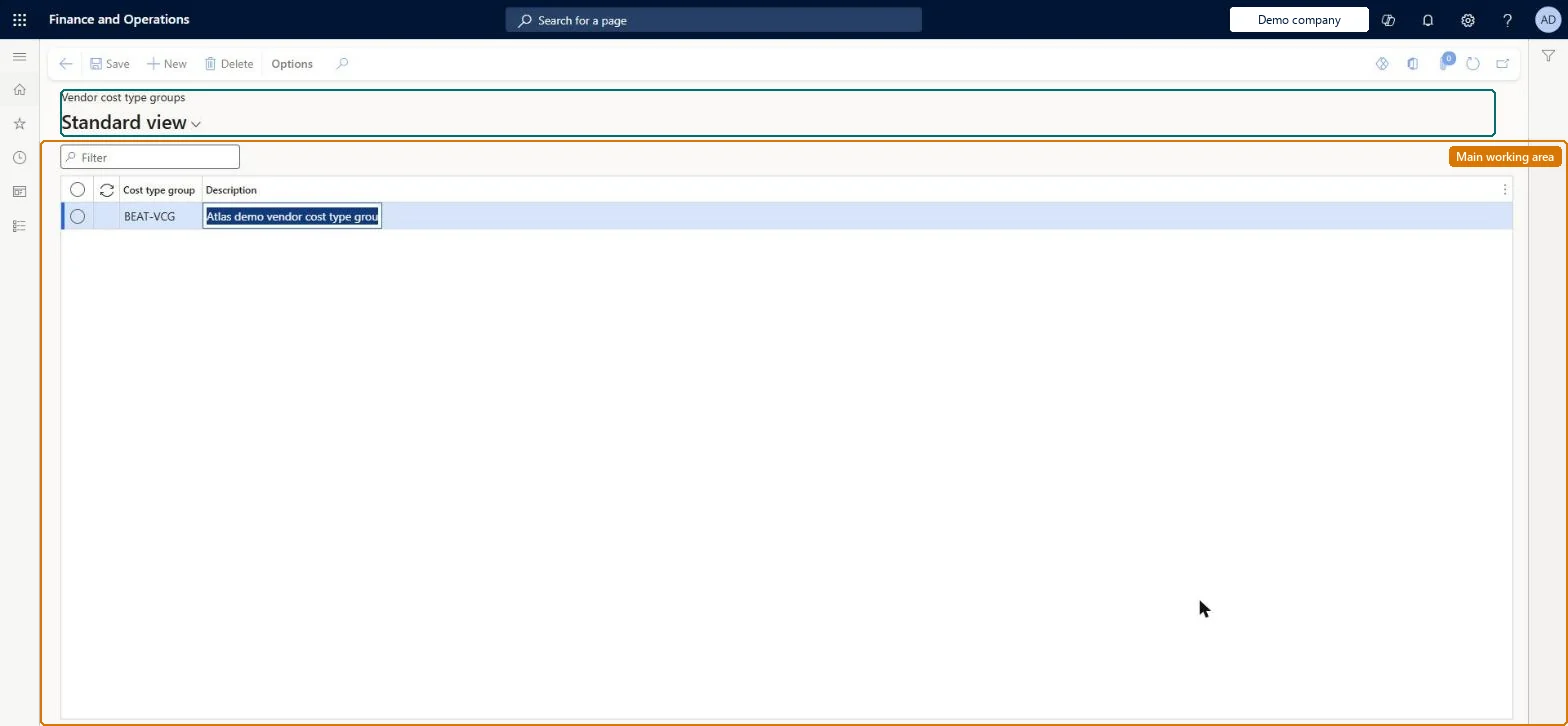
Setup step on the Vendor cost type groups page · Landed cost
Set up Vendor cost type groups
Use this page to add, edit and remove vendor cost type groups in a grid. Each vendor is then assigned to a group on the vendor record, and auto costs with Account code set to Group look up that assignment.
SETUP GUIDEHow to set it up8 sections. Choose a role to highlight what matters to you.
Everyone
1What it is and why
What it is
A setup page where you define groups that link vendors with similar import costs, so that auto costs can be found by vendor group rather than per vendor.
What you do here
Use this page to add, edit and remove vendor cost type groups in a grid. Each vendor is then assigned to a group on the vendor record, and auto costs with Account code set to Group look up that assignment.
Example
For example, all vendors from emerging markets that pay the same duty percentage are put in one group called Emerging markets, and one auto cost rule covers them all.
The page in Dynamics 365. page title tab to open what to set or check
About the examples: Examples and screenshots in this guide use BEAT, a demo company in a Dynamics 365 test environment. Use your own company's codes and values instead of copying them.
Setup steps on this page
Set up Vendor cost type groups
Use this page to add, edit and remove vendor cost type groups in a grid. Each vendor is then assigned to a group on the vendor record, and auto costs with Account code set to Group look up that assignment.
Steps from Microsoft
Go to Landed cost > Costing setup > Vendor cost type groups.
Select New on the Action Pane to add a row.
In Vendor cost type groups, enter a unique group name such as Emerging markets.
In Description, describe the level or type of charge for the group.
One group per set of vendors that pay the same import costs, such as Emerging marketsLearn uses vendor cost type groups to link vendors with similar import costs so one group-level auto cost covers them.
Creating the groups but not assigning vendors through Cost type group on the vendor's Miscellaneous details FastTab, so auto costs with Account code Group never find them.
Solution architect
5Design impact
Can it be undone
Reversible: Groups and vendor assignments can be changed at any time; they change which auto costs are found on later voyages.
If you change it later
Changing a vendor's group, or the groups themselves, changes which group-level auto costs the system finds for that vendor's voyages. Microsoft Learn
Technical architect
6Technical
Menu item
ITMCostTypeGroup_VendChecked in Dynamics 365
Form
ITMCostTypeGroupChecked in Dynamics 365
Table
ITMCostTypeGroupShown as “COST TYPE GROUPS” in Record infoKey field: ITMCostTypeGroupIdChecked in Dynamics 365
Data entities
ITMVendorLandedCostTypeGroupEntityVendor landed cost type groups Checked in Dynamics 365ITMProductLandedCostTypeGroupEntityProduct landed cost type groups Checked in Dynamics 365
Who can open it
PrivilegesMaintain voyage auto costs ITMCostAutoSetupMaintainDutiesMaintain voyage costs setup ITMCostSetupMaintain1 security roleLanded cost manager ITMManagerChecked in Dynamics 365
Roles to set it up and use it
To set it up or change itLanded cost manager ITMManagerGive people one of these roles. On this system, 1 role can open this page.Checked in Dynamics 365