PAGE GUIDEWhat the page does and how to use it8 sections. Choose a role to highlight what matters to you.
Everyone
1What it is and why
What it is
A setup page where you define a multi-leg route between two ports, as an ordered list of legs, that goods follow during a voyage.
What you do here
Use this page to build journey templates whose ordered legs and lead times give the date of each leg and the status of the voyage, container and purchase lines. The template is also used to find the auto costs for a voyage.
Example
For example, container loading, customs clearance and local transport are each added to the template as separate legs in the order the goods pass through them.
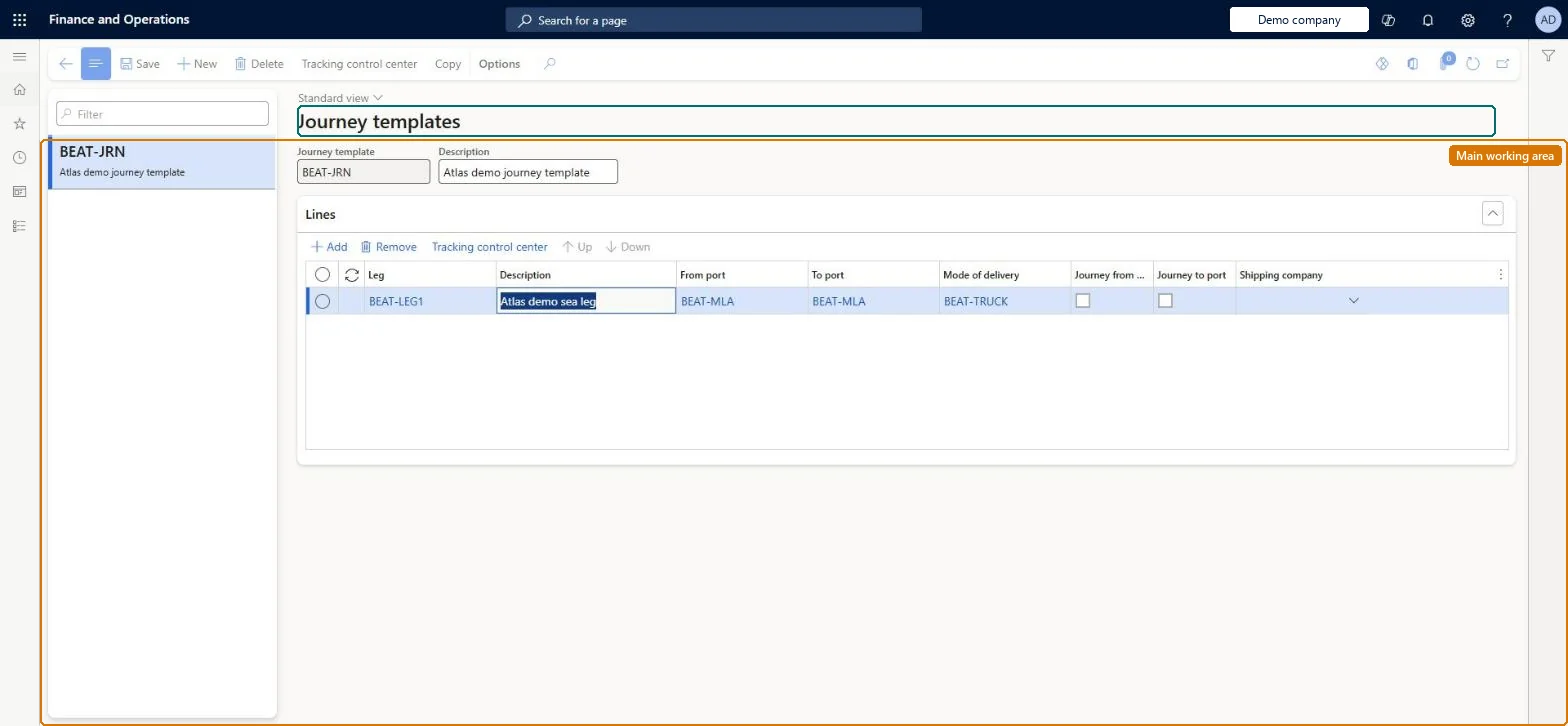
The page in Dynamics 365. page title tab to open what to set or check
About the examples: Examples and screenshots in this guide use BEAT, a demo company in a Dynamics 365 test environment. Use your own company's codes and values instead of copying them.
Setup steps on this page
Set up Journey templates
Use this page to build journey templates whose ordered legs and lead times give the date of each leg and the status of the voyage, container and purchase lines. The template is also used to find the auto costs for a voyage.
Steps from Microsoft
Go to Landed cost > Multi-leg journeys setup > Journey templates.
Select New.
Enter a Journey template ID and a Description.
In the Lines section, add a line for each leg of the journey.
Use the Up and Down arrows on the toolbar to put the lines in travel order.
Select the Journey from port and Journey to port check boxes on the legs whose ports determine auto costs.
Legs in travel order, with Journey from port and Journey to port marked on the legs whose ports drive auto costsThe order of legs and their lead times give the date of each leg and the voyage status, and the marked ports are shown on the voyage header and used to find auto costs.
Reordering legs on a template in use: the tracking control of attached voyages changes. Changing the template on a container deletes its shipment costs.
Solution architect
5Design impact
Can it be undone
Hard to reverse: Leg order changes the activity order and dates on Inbound tracking for voyages using the template. Change journey template on a container deletes the shipment costs, which must be found or added again. Microsoft Learn
If you change it later
Reordering the legs of a journey template changes the tracking control (activity order and dates) of voyages attached to it; changing the template on a voyage deletes that voyage's costs, which must be found or added again. Microsoft Learn
Technical architect
6Technical
Menu item
ITMJourneyTableChecked in Dynamics 365
Form
ITMJourneyTableChecked in Dynamics 365
Table
ITMJourneyTableShown as “JOURNEY TEMPLATES” in Record infoKey field: JourneyIdChecked in Dynamics 365
Data entities
ITMJourneyTemplateHeaderEntityJourney templates Checked in Dynamics 365
To set it up or change itLanded cost manager ITMManagerGive people one of these roles. On this system, 1 role can open this page.Checked in Dynamics 365
Actions on the page
(Action Pane without tabs): Tracking control center, CopyChecked in Dynamics 365
Developer
7Developer
Open it by URL
https://<your-environment>/?mi=ITMJourneyTable
Integrate with
ITMJourneyTemplateHeaderEntity data entity Checked in Dynamics 365