Accounts payable manager, Auditor, Accounting manager and 1 more role
Business process
Define cash discounting policies in Dynamics 365 Finance
Menu item
CashDisc
Main table
CashDisc
Data entity
CashDiscountEntity
Setup steps
1 on this page
Show what matters for
SETUP GUIDEHow to set it up8 sections. Choose a role to highlight what matters to you.
Everyone
1What it is and why
What it is
A setup page for cash discount codes that define the discount obtained when vendor invoices are paid within a set number of days.
What you do here
Use this page to set up discount codes, optionally chained through a next discount code, that can be assigned to vendors, journals or purchase orders.
Example
USMF sets up 5D10%, 10D5% and 14D2% codes so that a 10, 5 or 2 percent discount applies when it pays within 5, 10 or 14 days; only one discount is granted.
The page in Dynamics 365. page title tab to open what to set or check
About the examples: Examples and screenshots in this guide use BEAT, a demo company in a Dynamics 365 test environment. Use your own company's codes and values instead of copying them.
Step by step, with screenshots
Set up Cash discounts1 screen
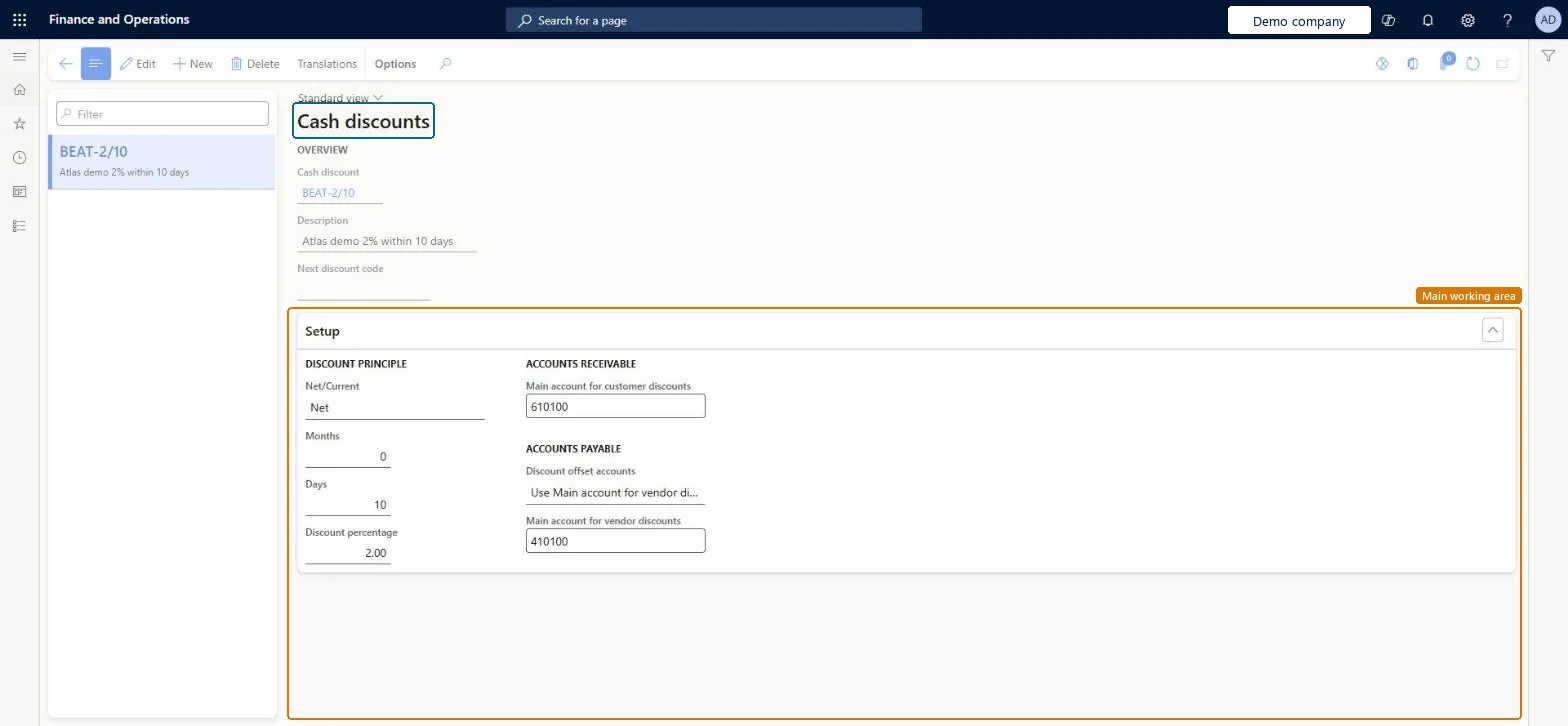
Set up and manage the terms for obtaining cash discounts; the codes are linked to vendors and applied to purchase orders.
Screen 1
Create the cash discount
Go to Accounts payable > Payment setup > Cash discounts
Select New
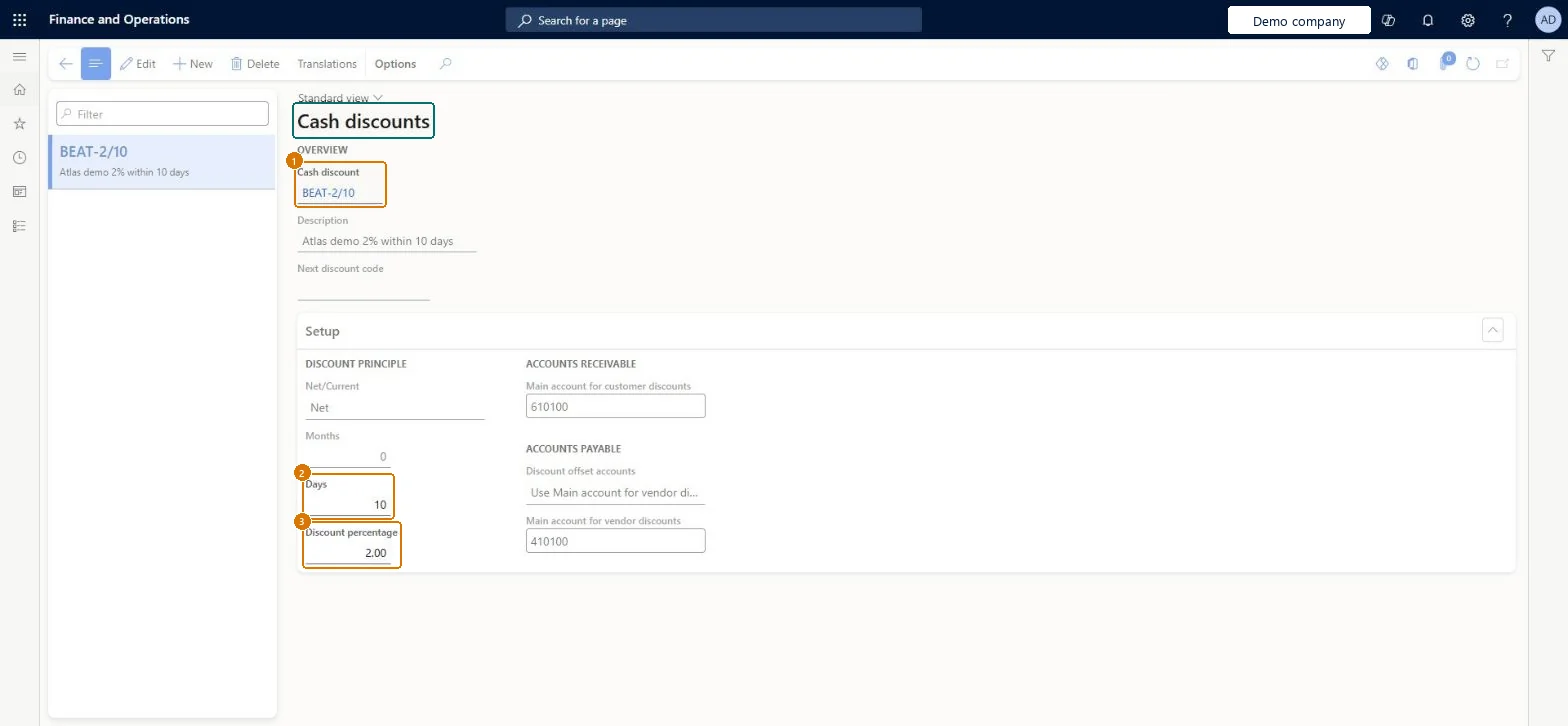
Enter the code and the description
Set the number of days and the discount percentage
Fill the main accounts for customer and vendor discounts, then save
1Cash discount
BEAT-2/10
2Days
10
3Discount percentage
2.00
Description
2% within 10 days
Show the full screen page title tab to open what to set or check
Steps from Microsoft
Go to Accounts payable > Payment setup > Cash discounts.
Select New.
In the Cash discount field, enter an ID, and add a description.
If the vendor offers tiered discounts, select the next cash discount to use when this one expires.
In the Days field, enter the number of days used to calculate the cash discount date.
Enter the discount percentage in the Discount field.
Enter the main accounts for customer and vendor cash discounts.
One code per discount offer (for example 2% within 14 days), chained with Next discount code for tiered offers, and Cash-discount administration set in Accounts payable parameters before the first settlementCodes in a series succeed each other as cash discount dates expire, and only one discount is granted. Learn says Cash-discount administration must be set correctly before an invoice is settled.
Not knowing which account the discount posts to: an alternative account on Settle transactions wins, then the Vendor cash discount account on the sales tax code's ledger posting group, then the code's main account, then Accounts for automatic transactions.
PrivilegesMaintain vendor cash discounts CashDiscMaintainView vendor cash discounts CashDiscViewDutiesInquire into invoice and payment policies VendInvoiceInvoicePaymentPoliciesInquirEnable invoice and payment process VendInvoiceInvoicePaymentProcessEnable4 security rolesAuditor AuditPolicyManagerAccounting manager LedgerAccountingManagerAccounting supervisor LedgerAccountingSupervisorAccounts payable manager VendInvoiceAccountsPayableManagerChecked in Dynamics 365
Roles to set it up and use it
To set it up or change itAccounts payable manager VendInvoiceAccountsPayableManagerAccounting supervisor LedgerAccountingSupervisorTo use itAccounting manager LedgerAccountingManagerAuditor AuditPolicyManagerGive people one of these roles. On this system, 4 roles can open this page.Checked in Dynamics 365
CashDiscountEntity (Cash discount): loaded for each company, in Microsoft's default template 120 - Accounts payable.CredManCashDiscRankEntity (Ranking of cash discounts): loaded for each company.Load order: Microsoft's default template 120 - Accounts payable loads Cash discount at execution unit 1, level 30, sequence 10. Lower levels load first, and entities at the same level load in sequence order.Load first: the default templates at lower levels (System setup to General ledger)Microsoft Learn
Checked in a working Dynamics 365 system, version 10.0.49: the menu item, form, table and security, the page, the demo records and the values in the screenshots.
To cite this step: AP-PAYSETUP-010, Set up Cash discounts. Beyond ERP Atlas Hub, 2026-11-11. https://www.beyonderp.cloud/atlas/step/AP-PAYSETUP-010