Setup page · Accounts payable
Payment schedules
A setup page for payment schedules, which split an invoice into installments with a number, amount and due date for each installment.
- Used by
- Accounts payable clerk, Accounts payable manager, Chief financial officer and 6 more roles
- Business process
- Defining payment policies in Dynamics 365 Finance
- Menu item
PaymSched- Main table
PaymSched- Data entity
PaymentScheduleEntity- Setup steps
- 1 on this page
Show what matters for
Everyone
1What it is and why
| What it is | A setup page for payment schedules, which split an invoice into installments with a number, amount and due date for each installment. |
|---|---|
| What you do here | Used to pay invoices in installments, using allocation methods such as Total, Fixed amount, Fixed quantity or Specified. |
| Example | An invoice of 10,000 USD is paid at 2,000 USD each month until the balance is paid, and it isn't considered past due while scheduled payments are made on time. |
Functional consultant · Solution architect
2Where it fits
| Business process | Develop procurement and sourcing strategy › Define accounts payable policies › Defining payment policies in Dynamics 365 Finance |
|---|---|
| Menu path | Accounts payable › Payment setup › Payment schedules |
| Set up first | — |
| Used next by | — |
| Related pages | Terms of payment Microsoft Learn ↗Cash discounts Microsoft Learn ↗Payment days Microsoft Learn ↗Payment fee Microsoft Learn ↗Methods of payment Microsoft Learn ↗ |
End user · Functional consultant
3How to do it
Step by step, with screenshots
Set up Payment schedules1 screen
Set up the payment schedules that are used to manage installment payments to vendors.
Screen 1
Create the payment schedule
Go to Accounts payable > Payment setup > Payment schedules
- Select New
- Enter the code and the description
- Set the allocation, the period and the number of payments
- Save
1Payment schedule BEAT-3M 2Allocation Fixed quantity 3Payment per Months 4Change 1 5Number of payments 3 Description Atlas demo three monthly installments 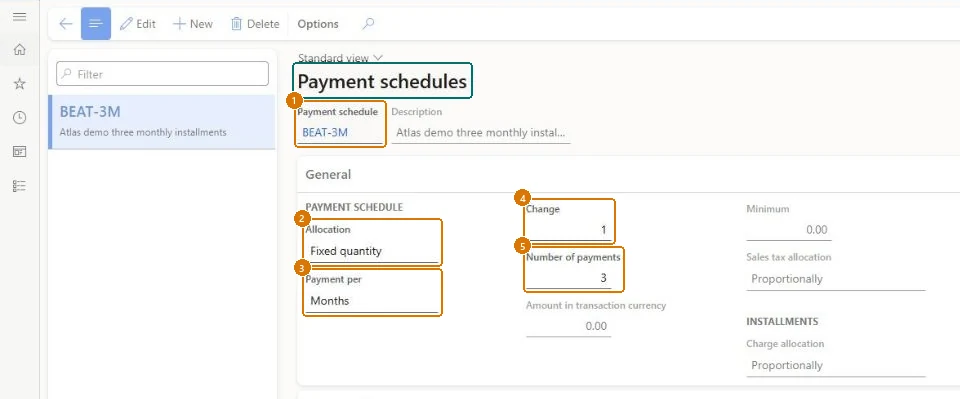
Show the full screen
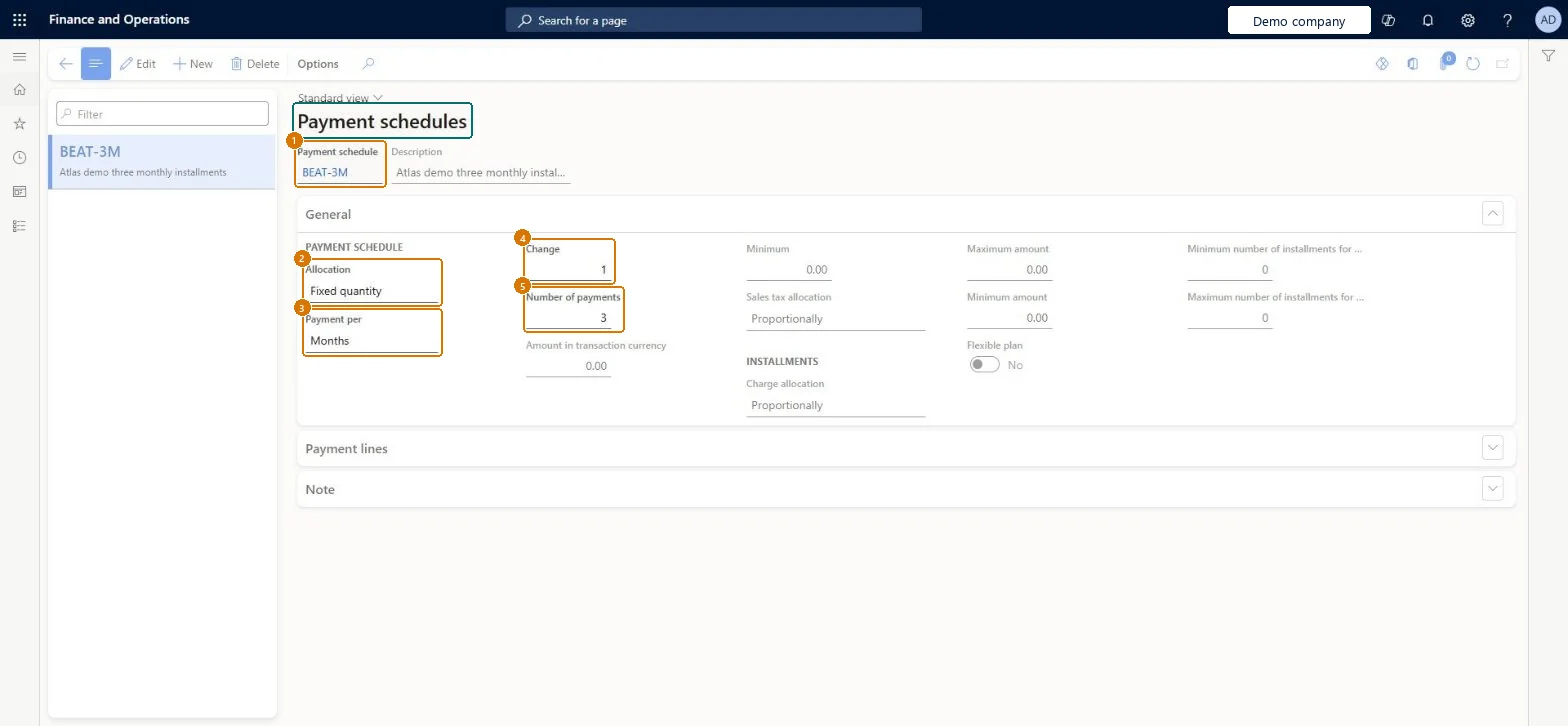
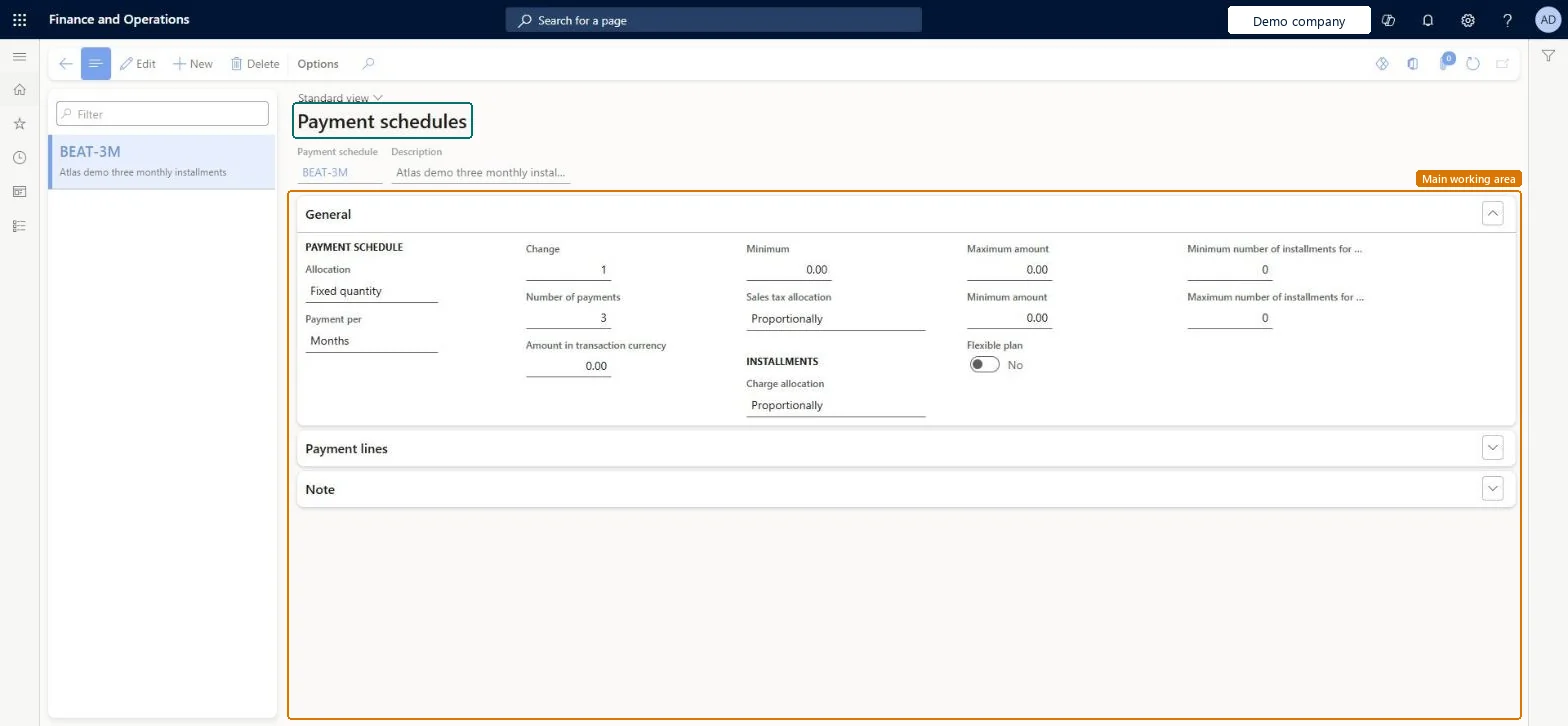
page title tab to open what to set or check
Microsoft's steps
- Go to Accounts payable > Payment setup > Payment schedules.
- Choose an Allocation: Total, Fixed amount, Fixed quantity or Specified.
- On the General FastTab, in Payment per, choose Days, Months or Years for the interval between installments.
- For Fixed amount or Fixed quantity, enter the interval in Change, then the Number of payments or the fixed amount, and a Minimum installment amount.
- For Specified, add lines on the Payment lines FastTab with the interval in Quantity and the installment value as a percentage or an amount.
- Use Sales tax allocation to spread sales tax across the installments.
Source: Microsoft Learn ↗
Field guide
| Field | What it means | Worked example | Table column |
|---|---|---|---|
| Allocation | How the invoice is split: the whole amount, a fixed amount per payment, a fixed number of payments, or amounts on given dates.Microsoft Learn ↗ | Fixed quantity | — |
| Payment per | The interval unit between installment due dates: days, months or years.Microsoft Learn ↗ | Months | PeriodUnit |
| Number of payments | How many installments to create when the allocation is Fixed quantity.Microsoft Learn ↗ | 3 | NumOfPayment |
| Minimum | The smallest installment allowed; it overrides calculated amounts.Microsoft Learn ↗ | — | LowestAmount |
| Sales tax allocation | How the sales tax amount is spread across the installments.Microsoft Learn ↗ | — | — |
| Payment schedule | — | BEAT-3M | — |
| Description | — | Atlas demo three monthly installments | Description |
| Change | — | 1 | QtyUnit |
Functional consultant
4Setup decisions
| Setup step | Recommended value and why | Decision · common mistake · test |
|---|---|---|
| Set up Payment schedules | — | — |
Solution architect
5Design impact
| Shared or per company | Per company: each legal entity has its own records. Microsoft data model ↗ |
|---|---|
| Can it be undone | — |
| Feature or country | — |
| If you change it later | — |
Technical architect
6Technical
| Menu item | PaymSched Checked in Dynamics 365 |
|---|---|
| Form | PaymSched Checked in Dynamics 365 |
| Table | PaymSchedShown as “Payment schedule” in Record infoChecked in Dynamics 365 |
| Data entities | PaymentScheduleEntityPayment schedule Microsoft data model ↗ |
| Who can open it | PrivilegesMaintain vendor payment schedules PaymSchedMaintainView vendor payment schedules PaymSchedViewDutiesInquire into vendor payment status PaymVendorPaymentStatusInquireEnable invoice and payment process VendInvoiceInvoicePaymentProcessEnableInquire into invoice and payment process reference data VendInvoiceInvoicePaymntProcessRefDataI9 security rolesChief financial officerCompanyChiefFinancialOfficerAccountant LedgerAccountantAccounting manager LedgerAccountingManagerAccounting supervisor LedgerAccountingSupervisorFinancial controller LedgerFinancialControllerAccounts payable centralized payments clerk PaymAccountsPayableCentralPaymClerkAccounts payable payments clerk PaymAccountsPayablePaymentsClerkAccounts payable clerk VendInvoiceAccountsPayableClerkAccounts payable manager VendInvoiceAccountsPayableManager |
| Actions on the page | — |
Developer
7Developer
| Open it directly | https://<your-environment>/?mi=PaymSched |
|---|---|
| Integrate with | PaymentScheduleEntity data entity Microsoft data model ↗ |
| Table definition | PaymSched columns and relations Microsoft data model ↗ |
Everyone
8Sources and checks
- learn.microsoft.com/training/modules/configure-accounts-payable-dyn365-finance/2-payment-schedule
- learn.microsoft.com/dynamics365/finance/accounts-payable/accounts-payable-overview#optional-setup-pages-for-accounts-payable
- learn.microsoft.com/training/modules/configure-accounts-payable-dyn365-finance/2-payment-schedule
- learn.microsoft.com/common-data-model/schema/core/operationscommon/tables/finance/bank/group/paymsched
- learn.microsoft.com/training/modules/configure-accounts-payable-dyn365-finance/3-terms-payment-days
- learn.microsoft.com/dynamics365/finance/accounts-payable/accounts-payable-overview
- Checked in a working Dynamics 365 system, version 10.0.49: the menu item, form, table and security, the page, the demo records and the values in the screenshots.