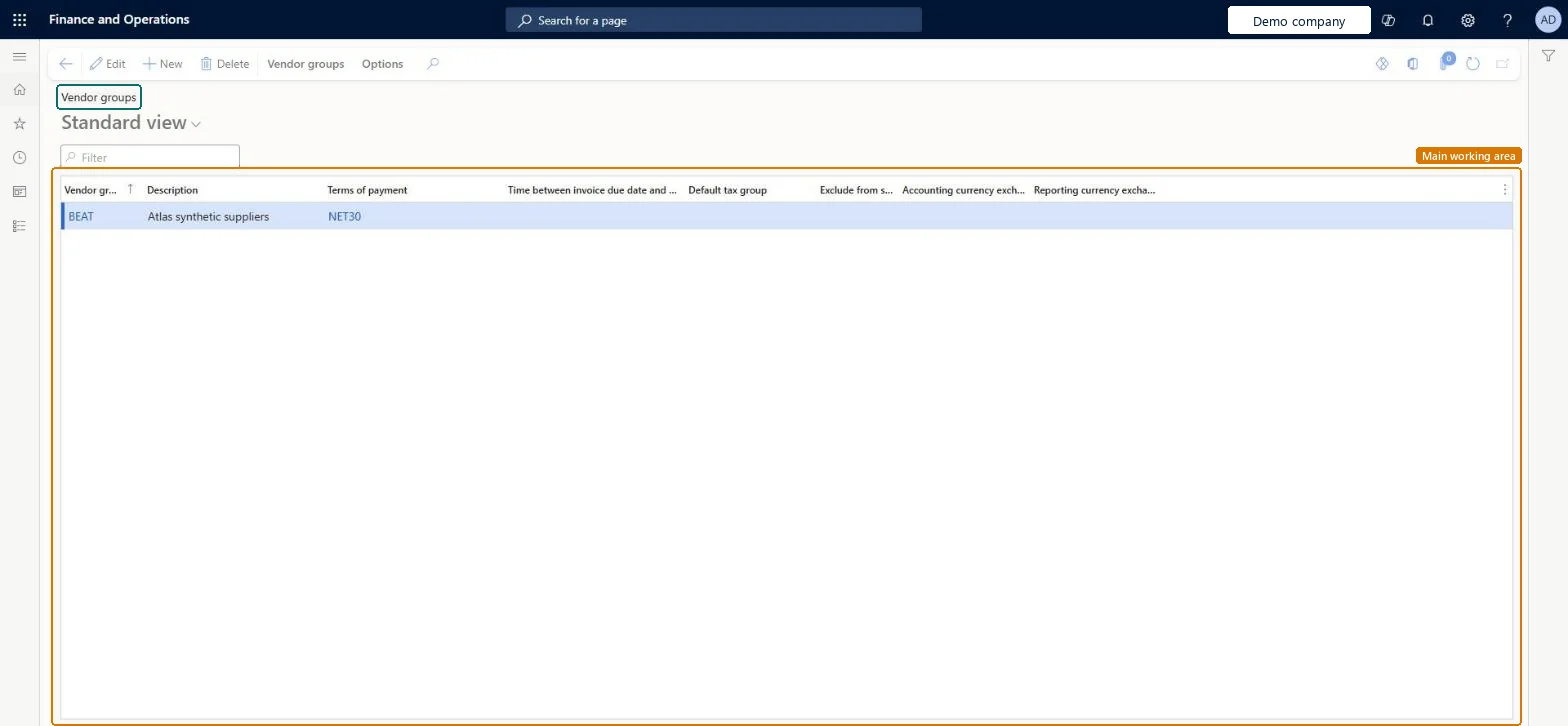
A setup page for groups of vendors. It is the Accounts payable vendor groups page, also reached from the prospect setup because prospect records have a vendor group field.
PAGE GUIDEWhat the page does and how to use it8 sections. Choose a role to highlight what matters to you.
Everyone
1What it is and why
What it is
A setup page for groups of vendors. It is the Accounts payable vendor groups page, also reached from the prospect setup because prospect records have a vendor group field.
What you do here
Use this page to create and maintain vendor groups whose members share important parameters for posting, settlement and payment, reporting, and forecasting.
Example
BEAT uses the vendor groups DOMESTIC (NET30) and IMPORT (NET60). A distributor that is first entered as prospect PRO-000190 and also supplies spare parts is given vendor group DOMESTIC on the prospect record.
The page in Dynamics 365. page title tab to open what to set or check
About the examples: Examples and screenshots in this guide use BEAT, a demo company in a Dynamics 365 test environment. Use your own company's codes and values instead of copying them.
Step by step, with screenshots
Define vendor groups1 screen
Group vendors that share posting, settlement, payment and reporting defaults.
Screen 1
Create the vendor group
Go to Accounts payable > Vendors > Vendor groups
Select New
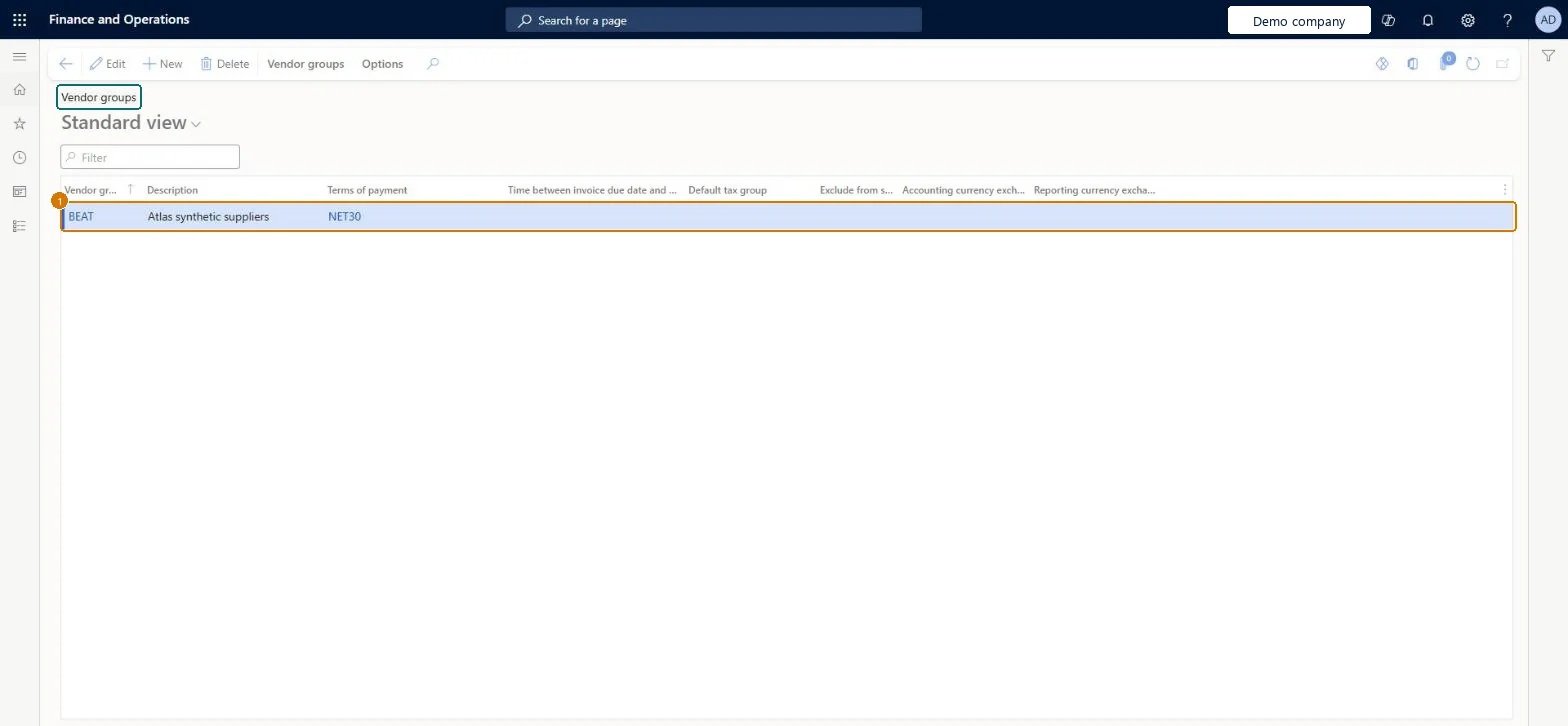
Enter the group code, description and terms of payment
1Vendor group
BEAT
Description
Suppliers
Terms of payment
NET30
Show the full screen page title tab to open what to set or check
Agree vendor groups shared with prospects
Agree the vendor groups that both Accounts payable and the prospect records use.
Steps from Microsoft
Go to Sales and marketing > Setup > Prospects > Vendor groups.
Select New to add a vendor group, and enter the Vendor group code and a Description.
Fill in columns such as Terms of payment and Default tax group.
Select Posting on the Action Pane to set up the ledger posting for items, accounts and sales tax codes by vendor group.
Groups that separate vendors needing different posting, settlement or payment defaults (for example domestic trade, foreign trade, intercompany), each with its terms of paymentLearn defines vendor groups as vendors that share important parameters for posting, settlement and payment, reporting and forecasting, and vendor posting profiles can be set per group (Account code = Group).
Use the vendor groups that Accounts payable already maintains; don't create sales-only vendor groups from this menu.This is the Accounts payable vendor groups page; groups drive vendor defaults and posting, and prospect records only refer to them.
Hard to reverse: The vendor group drives the vendor posting profile row (Group) and defaults copied onto purchase documents when created. Regrouping vendors later affects only new documents; posted invoices keep their accounts. Microsoft Learn
If you change it later
Vendor groups supply defaults to new vendors and drive posting set up by group. Prospect records also store a vendor group (smmBusRelTable.VendGroup). Microsoft Learn
Technical architect
6Technical
Menu item
VendGroupChecked in Dynamics 365
Form
VendGroupChecked in Dynamics 365
Table
VendGroupShown as “Vendor groups” in Record infoKey field: VendGroupChecked in Dynamics 365
PrivilegesMaintain vendor groups VendGroupMaintainDutiesEnable vendor process VendVendorProcessEnable3 security rolesPurchasing manager TradePurchasingManagerAccounts payable manager VendInvoiceAccountsPayableManagerVendor account manager VendVendorAccountManagerChecked in Dynamics 365
Roles to set it up and use it
To set it up or change itPurchasing manager TradePurchasingManagerAccounts payable manager VendInvoiceAccountsPayableManagerVendor account manager VendVendorAccountManagerGive people one of these roles. On this system, 3 roles can open this page.Checked in Dynamics 365
VendVendorGroupEntity (Vendor groups): loaded for each company, in Microsoft's default template 120 - Accounts payable.Load order: Microsoft's default template 120 - Accounts payable loads Vendor groups at execution unit 1, level 40, sequence 20. Lower levels load first, and entities at the same level load in sequence order.Load first: Sales tax groups, Terms of payment, the default templates at lower levels (System setup to dependency bands 30 to 90)Microsoft Learn
Checked in a working Dynamics 365 system, version 10.0.49: the menu item, form, table and security, the page, the demo records and the values in the screenshots.