SETUP GUIDEHow to set it up8 sections. Choose a role to highlight what matters to you.
Everyone
1What it is and why
What it is
A basic Accounts payable setup page for groups of vendors.
What you do here
Use this page to create and maintain vendor groups whose members share important parameters for posting, settlement and payment, reporting, and forecasting.
Example
For example, Adventure Works Cycles, which has many vendors to monitor, set up several vendor groups to make managing those vendors simpler.
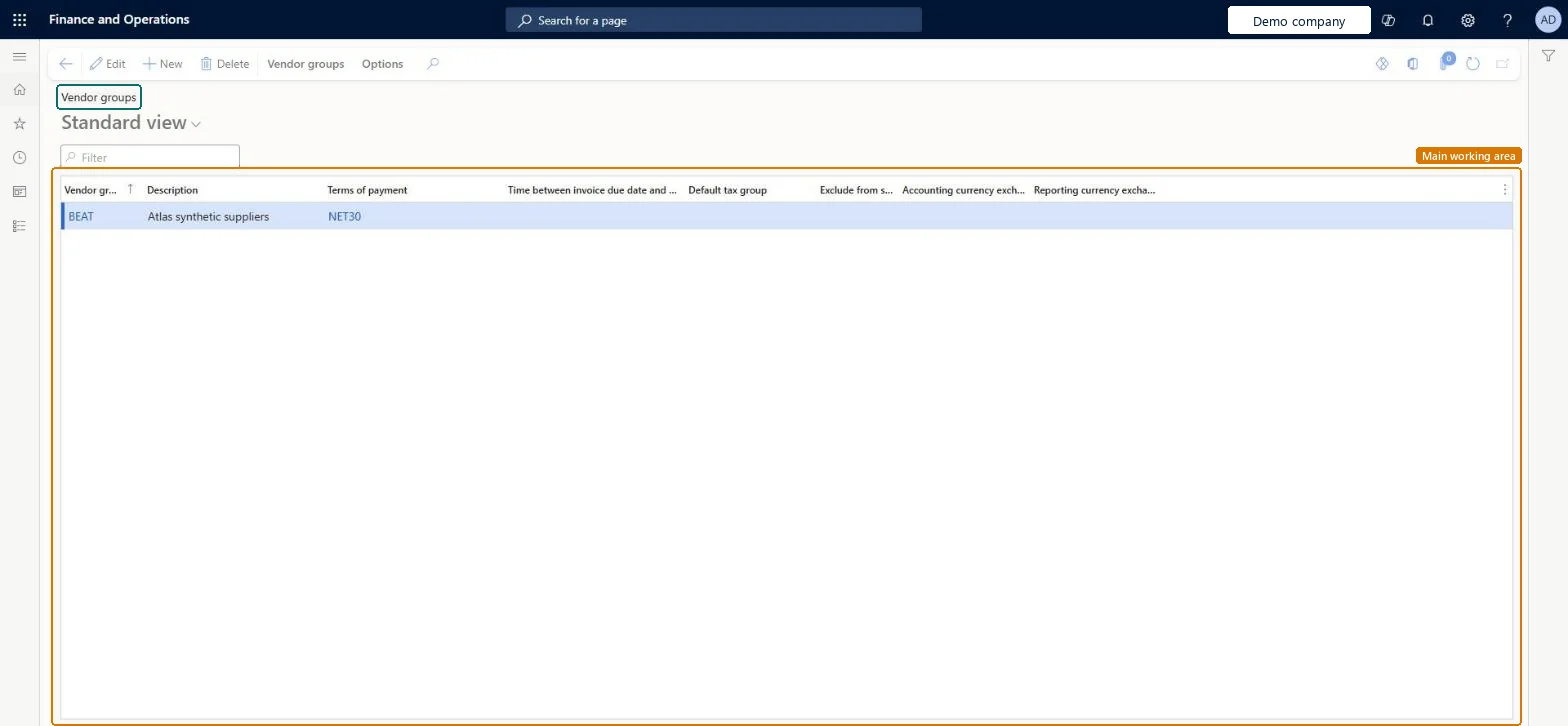
The page in Dynamics 365. page title tab to open what to set or check
About the examples: Examples and screenshots in this guide use BEAT, a demo company in a Dynamics 365 test environment. Use your own company's codes and values instead of copying them.
Step by step, with screenshots
Define vendor groups1 screen
Group vendors that share posting, settlement, payment and reporting defaults.
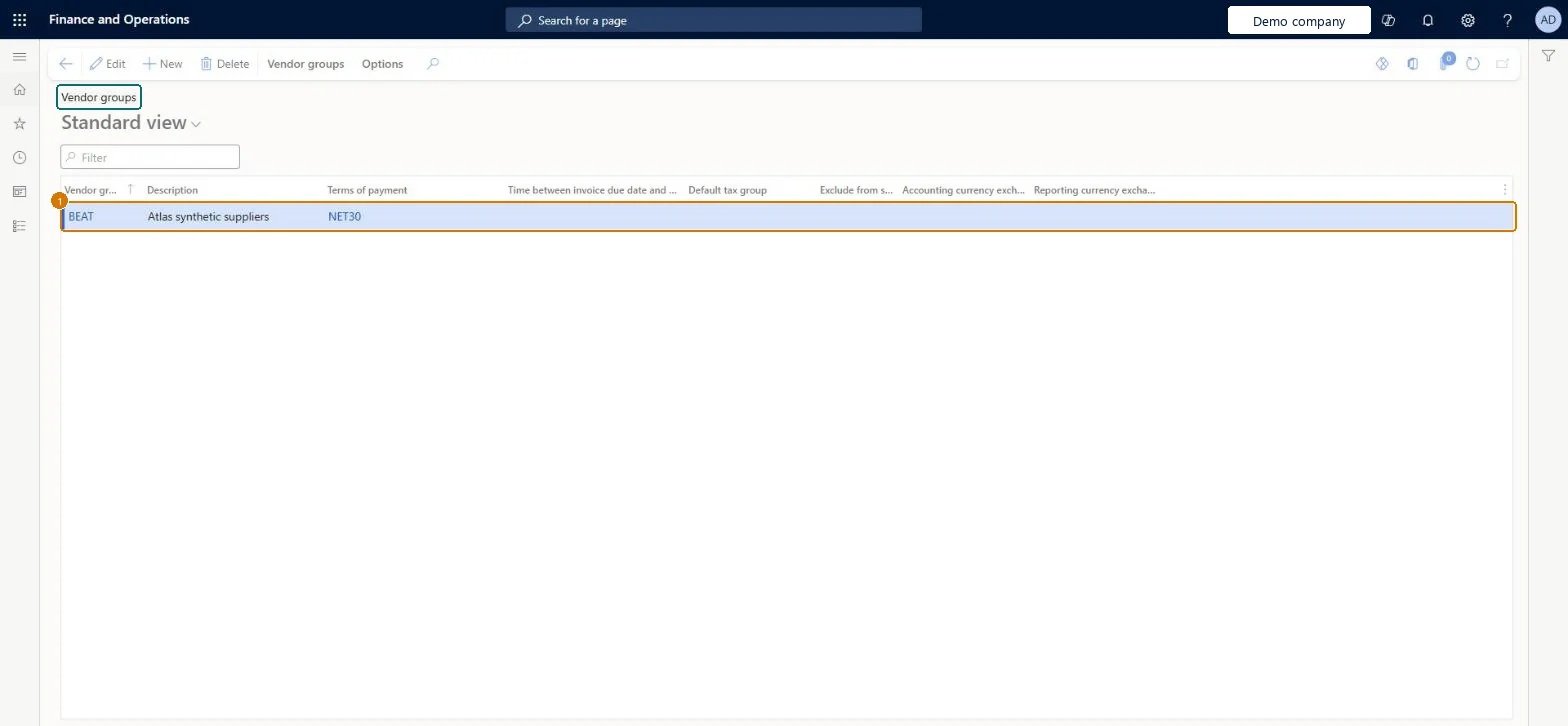
Screen 1
Create the vendor group
Go to Accounts payable > Vendors > Vendor groups
Select New
Enter the group code, description and terms of payment
1Vendor group
BEAT
Description
Suppliers
Terms of payment
NET30
Show the full screen page title tab to open what to set or check
How to use it
Go to Accounts payable > Vendors > Vendor groups.
Select New to add a vendor group.
Fill in the Vendor group code and Description.
Choose the Terms of payment and, if needed, the Default tax group.
Select Edit or Delete to change or remove the selected group.
Select Save.
Source: Checked in Dynamics 365
Fields on the page
Field
What it means
Example
Table column
Posting
Opens the ledger posting setup for items, accounts and sales tax codes by vendor group.Microsoft Learn
Vendor group
DOMESTIC
VendGroup
Description
A short description of the vendor group.Checked in Dynamics 365
Suppliers
Name
Terms of payment
The default terms of payment for new vendors in this group.Microsoft Learn
NET30
PaymTermId
Test checklist
Create a group with terms of payment.
Add a Group row for it on Vendor posting profiles with its own summary account.
Create a vendor in the group and post an invoice.
Check the vendor balance posts to the group's summary account and the due date follows the group's terms.
Groups that separate vendors needing different posting, settlement or payment defaults (for example domestic trade, foreign trade, intercompany), each with its terms of paymentLearn defines vendor groups as vendors that share important parameters for posting, settlement and payment, reporting and forecasting, and vendor posting profiles can be set per group (Account code = Group).
PrivilegesMaintain vendor groups VendGroupMaintainDutiesEnable vendor process VendVendorProcessEnable3 security rolesPurchasing manager TradePurchasingManagerAccounts payable manager VendInvoiceAccountsPayableManagerVendor account manager VendVendorAccountManagerChecked in Dynamics 365
Roles to set it up and use it
To set it up or change itAccounts payable manager VendInvoiceAccountsPayableManagerPurchasing manager TradePurchasingManagerVendor account manager VendVendorAccountManagerGive people one of these roles. On this system, 3 roles can open this page.Checked in Dynamics 365
VendVendorGroupEntity (Vendor groups): loaded for each company, in Microsoft's default template 120 - Accounts payable.Load order: Microsoft's default template 120 - Accounts payable loads Vendor groups at execution unit 1, level 40, sequence 20. Lower levels load first, and entities at the same level load in sequence order.Load first: Sales tax groups, Terms of payment, the default templates at lower levels (System setup to dependency bands 30 to 90)Microsoft Learn
Checked in a working Dynamics 365 system, version 10.0.49: the menu item, form, table and security, the page, the demo records and the values in the screenshots.
To cite this step: AP-SETUP-030, Define vendor groups. Beyond ERP Atlas Hub, 2026-11-11. https://www.beyonderp.cloud/atlas/step/AP-SETUP-030