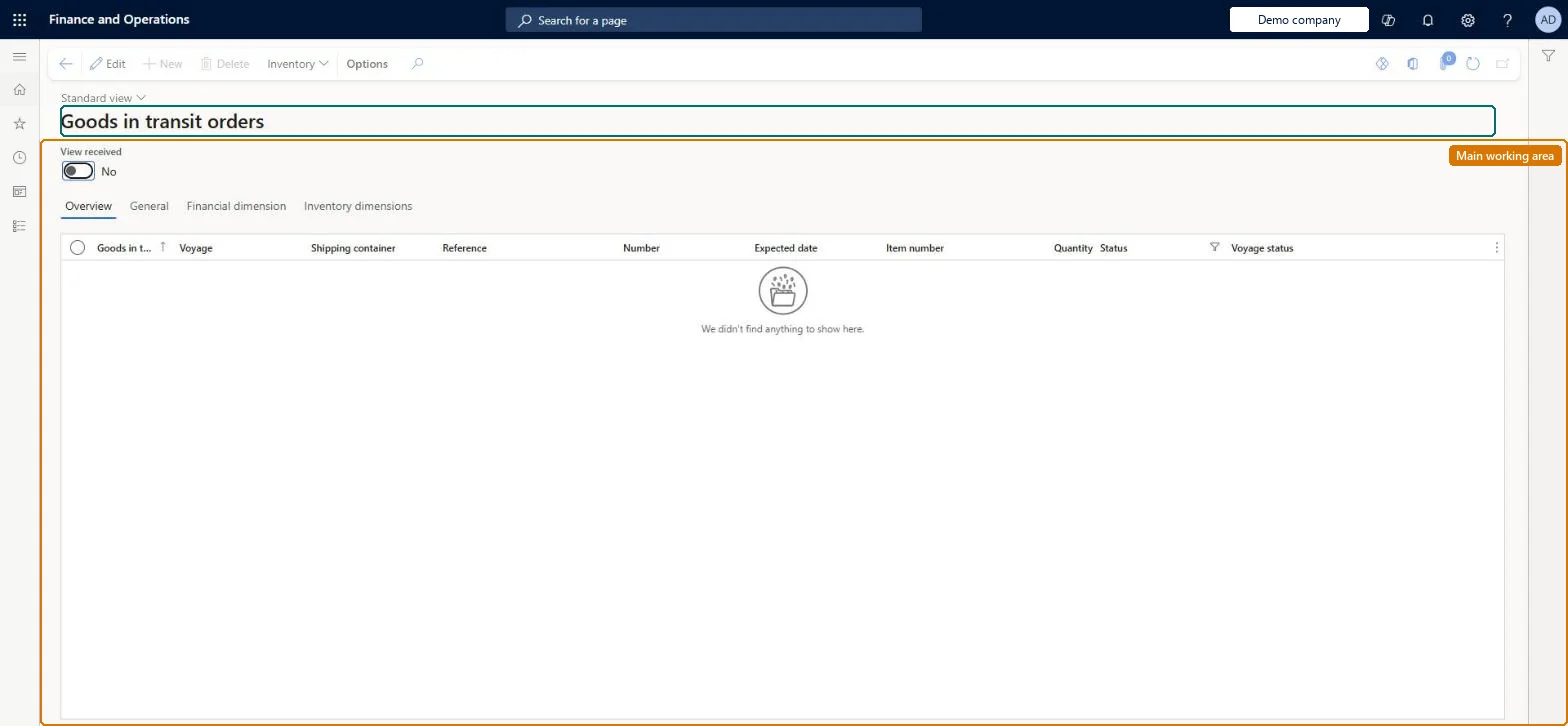
A list page that shows the goods-in-transit orders created when invoiced purchase orders on a voyage are moved to a goods-in-transit warehouse, and from which those orders are processed and received.
PAGE GUIDEWhat the page does and how to use it7 sections. Choose a role to highlight what matters to you.
Everyone
1What it is and why
What it is
A list page that shows the goods-in-transit orders created when invoiced purchase orders on a voyage are moved to a goods-in-transit warehouse, and from which those orders are processed and received.
What you do here
Use this page to review and manage goods-in-transit orders and to receive them into the warehouse named on the purchase order, which changes their status from In transit to Received.
Example
For example, when a container that was invoiced at the port of origin arrives, the receiving clerk selects its goods-in-transit order lines and selects Receive to move the stock from the goods-in-transit warehouse into the destination warehouse.
The page in Dynamics 365. page title tab to open what to set or check
About the examples: Examples and screenshots in this guide use BEAT, a demo company in a Dynamics 365 test environment. Use your own company's codes and values instead of copying them.
When to run it
When to run it
When goods on an invoiced voyage arrive at the warehouse named on the purchase order. In-transit receiving is normally used when locations and batch or serial numbers aren't used.
How often
Each time a shipment covered by goods-in-transit orders arrives.
What the output shows
The goods-in-transit order changes from In transit to Received, and the quantity moves out of the goods-in-transit warehouse into the final warehouse. If an order can't be received here, use an arrival journal or the Warehouse Management mobile app instead, for example when the item uses locations or batch or serial numbers.
Go to Landed cost > Periodic tasks > Goods in transit orders.
Select the goods-in-transit order line to receive. Each order was created with the status In transit when the purchase order on the voyage was invoiced.
On the Action Pane, select Receive to move the goods from the goods-in-transit warehouse into the warehouse on the purchase order line.
On the receiving page, select Close only when the rest of the quantity won't arrive. It writes off the remaining unreceived quantity as an under-delivery.
Check that the order status has changed to Received and that the quantity is now in the final warehouse.
No: The Goods in transit orders page has no reverse action for a receipt. Received goods stay in the final warehouse, and a quantity closed as an under-delivery is written off. Microsoft Learn
If you change it later
Receiving a goods-in-transit order moves the stock out of the goods-in-transit warehouse into the final destination warehouse, and once the order exists the invoice date of the purchase order can no longer be changed. Microsoft Learn
Technical architect
5Technical
Menu item
ITMGITOrderChecked in Dynamics 365
Form
ITMGoodsInTransitOrderChecked in Dynamics 365
Table
ITMGoodsInTransitOrderShown as “GOODS IN TRANSIT ORDER” in Record infoKey field: GITIdChecked in Dynamics 365
Who can open it
PrivilegesMaintain goods in transit orders ITMGITOrderMaintainView goods in transit orders ITMGITOrderViewDutiesMaintain goods in transit orders ITMGITOrderMaintainMaintain goods in transit orders ITMGoodsInTransitOrderMaintainInquire into Landed cost ITMInquire2 security rolesLanded cost agent ITMAgentLanded cost manager ITMManagerChecked in Dynamics 365
Roles to set it up and use it
To set it up or change itLanded cost agent ITMAgentTo use itLanded cost manager ITMManagerGive people one of these roles. On this system, 2 roles can open this page.Checked in Dynamics 365
Actions on the page
(Action Pane without tabs): InventoryChecked in Dynamics 365