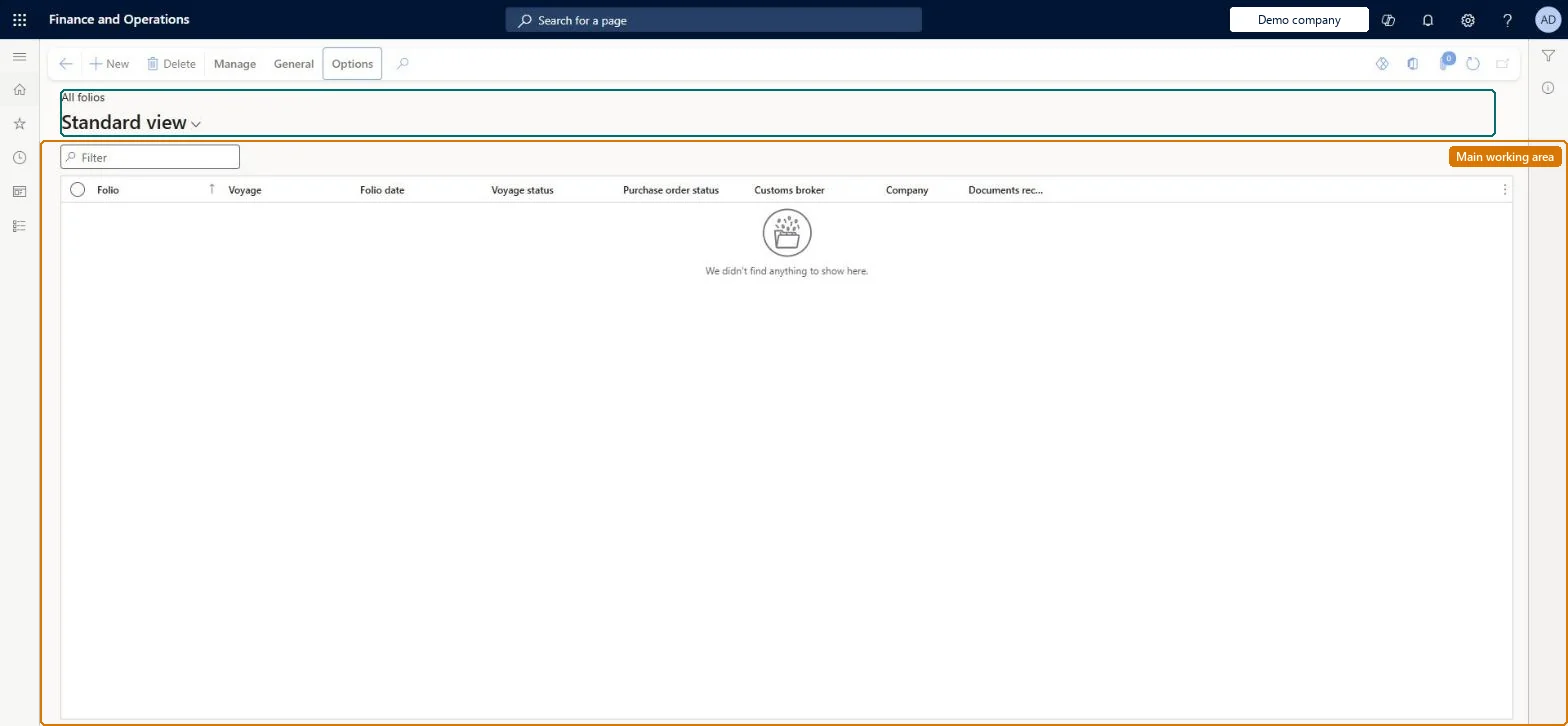
A list page that shows every folio, where a folio is a customs-driven subset of one shipping container that holds one vendor's goods for one company per shipment.
Plan inbound transportation loads in Dynamics 365 Supply Chain Management
Menu item
ITMFolioTableListPage
Main table
ITMFolioTable
Data entity
ITMFolioTableEntity
Show what matters for
PAGE GUIDEWhat the page does and how to use it7 sections. Choose a role to highlight what matters to you.
Everyone
1What it is and why
What it is
A list page that shows every folio, where a folio is a customs-driven subset of one shipping container that holds one vendor's goods for one company per shipment.
What you do here
Use this page to create, delete, and work with folios, add folio-level costs, post receipts and invoices for the folio's lines, and record customs details such as the broker, customs ID, and tariff code.
Example
For example, when new purchase lines are added to a container as a separate load, a new folio is created automatically for them.
The page in Dynamics 365. page title tab to open what to set or check
About the examples: Examples and screenshots in this guide use BEAT, a demo company in a Dynamics 365 test environment. Use your own company's codes and values instead of copying them.
How to use it
Go to Landed cost > Folios > All folios.
Use the Filter box to find a folio.
Review the Folio, Voyage, Folio date, Voyage status, Purchase order status, Customs broker, Company and Documents received columns.
Select New to create a folio, or select a folio and choose Delete to remove it.
Use Manage and General (Journals, Inquiries) on the Action Pane to post receipts and invoices for the selected folio and to open its journals and inquiries.
Source: Checked in Dynamics 365
Fields on the page
Field
What it means
Table column
Folio
The folio name, generated automatically when the folio is created.Microsoft Learn
The tariff code required by the destination country or region.Microsoft Learn
Common errors and fixes
Message
What to do
Un-invoiced cost lines exist. Do you want to overwrite them?
Shown when Find auto costs runs on a folio that already has costs. Answer Yes only if the auto cost setup is the right source; invoiced costs are kept either way. Microsoft Learn
Test checklist
Add purchase order lines to a container and check a folio is created automatically for the new lines.
On the folio Header view, set Customs broker, Customs ID, Tariff code and Valuation date.
Select Find auto costs and check the folio-level costs appear in Costs inquiry.
Run Find auto costs again and check the overwrite prompt appears and invoiced costs stay unchanged.
Select Documents received and check the purchase line can no longer be updated.
Hard to reverse: Find auto costs overwrites un-invoiced cost lines on the folio but never invoiced ones. Documents received sets the option to Yes and locks the item or purchase line against further updates. Valuation date drives which customs exchange rate is used for the duty entry, so change it before duty is calculated. Microsoft Learn
If you change it later
Changing the valuation date changes which customs exchange rate Landed cost uses for the folio's duty entry. Microsoft Learn
Technical architect
5Technical
Menu item
ITMFolioTableListPageChecked in Dynamics 365
Form
ITMFolioTableListPageChecked in Dynamics 365
Table
ITMFolioTableShown as “FOLIOS” in Record infoKey field: ShipFolioIdChecked in Dynamics 365
To set it up or change itLanded cost agent ITMAgentTo use itLanded cost manager ITMManagerGive people one of these roles. On this system, 2 roles can open this page.Checked in Dynamics 365
Actions on the page
ManageGeneral: Journals, Inquiries(Action Pane without tabs): New, DeleteChecked in Dynamics 365